

The main benefit of Lightroom’s Library module is that it saves you time. It is much quicker, and ultimately simpler, to organize your photos using Lightroom Collections, than it is to search through the folders on your hard drive containing those photos when you need something.
The skills you’ve learned so far in this series (yes, there is a series – I’ll provide links to the relevant articles at the appropriate points) all come together with Lightroom’s Publish Services. You can use these to publish photos to photo sharing websites like Facebook, Behance, Flickr, 500px and more. Today I’ll concentrate on the two you are most likely to use for your best images: Flickr and 500px.
How to Upload Photos to Flickr and 500px using Lightroom 5
Publishing Collections

Lightroom’s Publish Services use a special type of Collection called Published Collections (there are also Published Collection Sets and Published Smart Collections). These are the same as regular Collections (which you can learn more about in my article Use Lightroom Collections to Improve Your Workflow) except for these key differences:
- Published Collections have one purpose only: to publish your images to either a hard drive location or a photo sharing website such as those listed above.
- Published Collections are dynamic. They tell you if a photo has changed after you have published it, so you can re-publish it.
Here’s how it works. You create a Published Collection containing the photos that you would like to upload to a website (for example, Flickr). Lightroom tells you which photos have already been uploaded, and which ones haven’t. But wait, there’s more: if you publish a photo to Flickr, then make changes to that photo in Lightroom’s Develop module, Lightroom’s Publish Service marks it and gives you the option of uploading it again.
That’s clever, and very, very useful, as it enables you to see at a glance whether you have uploaded the most recent version.
Setting up a new Flickr Publish Collection
That’s the theory, let’s see how to put it into action:
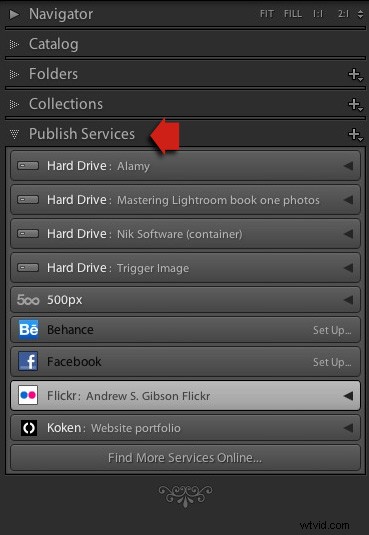
Step 1. Go to the Publish Services panel. It’s at the bottom of the left-hand panels in the Library module (see below)
Step 2. Click the New Published Collection icon and select the Go to Publishing Manager option.

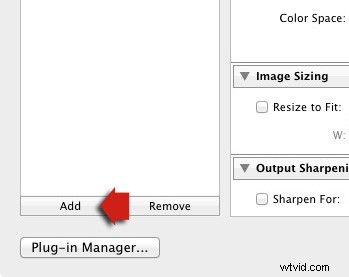
Step 3. Click the Add button in the bottom left of the Publishing Manager window.
Step 4. In the next window, select Flickr from the Via Service drop-down menu. Type a name for your service underneath.

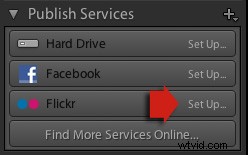
Alternatively, if this is the first time you’ve done it, you’ll see something like the screenshot below. Click the words Set Up next to the Flickr icon to get started.
Step 5. Start by clicking the Authorize button and entering your Flickr log-in details. This authorizes Lightroom to access your Flickr account.

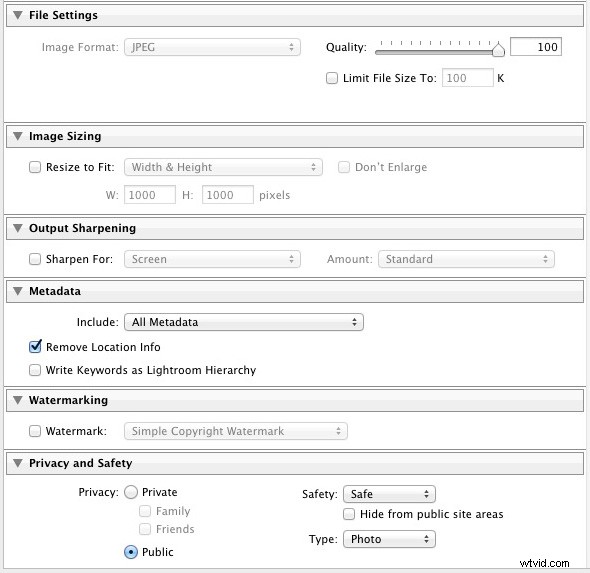
Step 6. Now it’s just a simple matter of adjusting the settings to what you want. The most important ones are near the bottom of the Publishing Manager window. You can set things like image quality, image size and sharpening, add a watermark, set which metadata (if any) to include and select the appropriate privacy setting. Press the Save button at the bottom-right of the window when you’re done. The Flickr Publish Service is now set up.
Using the Flickr Publish Service
You’ll see that there is a Published Collection called Photostream in the Flickr Publish Service. Any photos you add to this Published Collection will be uploaded to your Flickr account using the size and quality settings you selected earlier.
Click on the Photostream Publish Collection and you’ll see something like the image below if you’re in Grid View – press ‘G’ on your keyboard if you aren’t. If you’re not familiar with how Grid View works, then see my article Making Sense of Lightroom’s Grid View.
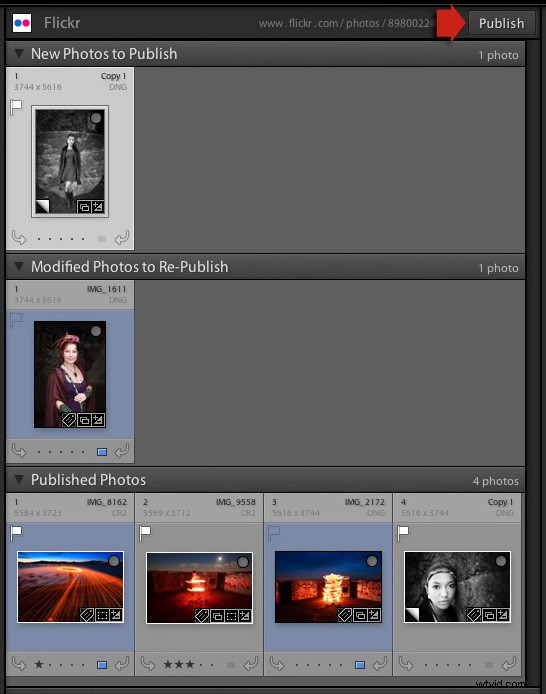
There are three sections:
New Photos to Publish: photos added to the Published Collection but not yet uploaded to Flickr. Click the Publish button at the top right to publish them.
Modified Photos to Re-Publish: these are photos already uploaded to Flickr that have changed since being published. Note that any change, however minor, will result in a photo appearing in this section. That includes things like adding keywords, or any tweaks you make in the Develop module. Modified photos are uploaded again when you press the Publish button. If you don’t want to upload the modified photo, right-click on the thumbnail and select the Mark as Up-to-Date option.
Published Photos: Photos already published to Flickr.
You can also manage Flickr Photosets from within Lightroom. Right-click the Flickr Published Collection heading and select Create Photoset from the menu. This lets you add photos to Sets as well as your photostream.

Finally, another benefit of using Lightroom’s Publish Services is that you can add keywords and a description to your images in Lightroom and these are populated automatically when you upload your photos to a photo sharing website. That means you only have to type in those details once, instead of multiple times. You can learn more about keywords in my article Creative Ways to Use Keywords in Lightroom 5.
Publishing to 500px
The 500px Publish Service works in a similar way to the Flickr Publish Service except that it is not built-in to Lightroom. You need to download the plug-in from the 500px website, which you can do here.
Unzip the file and move it to your Programs folder (PC) or Applications folder (Mac). Go to the Lightroom Plug-in Manager (File > Plug-in Manager) and click the Add button to install the plug-in. Once installed, it works virtually the same way as the Flickr Publish Service. The main difference is that the 500px plug-in downloads any photos you have already uploaded to 500px and adds them to your Lightroom Catalog.
Mastering Lightroom Book One: The Library Module

My latest ebook Mastering Lightroom Book One: The Library Module is a complete guide to using Lightroom’s Library module to import, organize and search your photo files. You’ll learn how to tame your growing photo collection using Collections and Collection Sets, and how to save time so you can spend more time in the Develop module processing your photos.