
Lightroom tips for the Develop module – one feature in Lightroom that isn’t obvious or easy to discover is the visualization feedback which you can get in the Develop module. In many cases when you hold the Alt key, (Option on a Mac) and click (and hold it) on a slider, the screen will change to give you feedback on the adjustment you are making.
This feedback (visualization) take some of the guess work out of how the adjustment you are making is affecting the image. Here are some of the useful visualizations available in the Lightroom Develop module:
Alt and the Exposure, Highlights, Whites, Shadows and Blacks Sliders
When you hold Alt (Option) and drag any of these sliders you will see any areas where whites or blacks are clipped as a result of the adjustment – the color shows which channel is being clipped. When you adjust Shadows and Blacks the white areas of the image aren’t clipped.
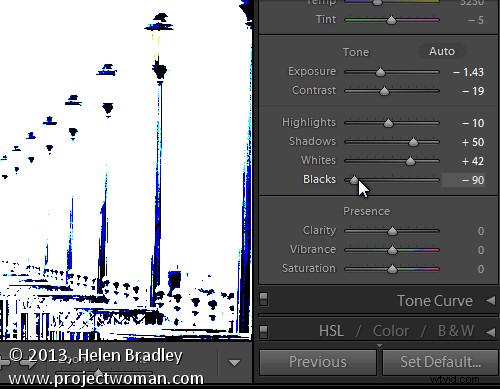
Showing where the blacks are being clipped
When adjusting Exposure, Highlights and Whites – the black areas are not clipped.
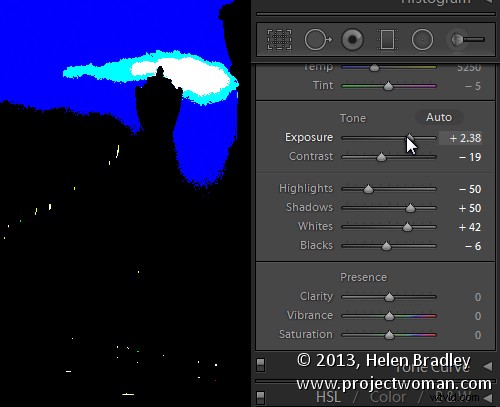
Showing where the highlights are being clipped
Sharpening
When adjusting Sharpening you can preview the result of the sharpening on the image by holding the Alt (Option) key and drag on any slider. Alt (Option) and the Amount slider shows you the sharpening applied to a black and white version of the image – as Lightroom sharpens only the luminance and not color this gives you a better view of the sharpening result.
Alt (Option) with the Radius slider shows the halos being applied to the edges in the image to sharpen it.
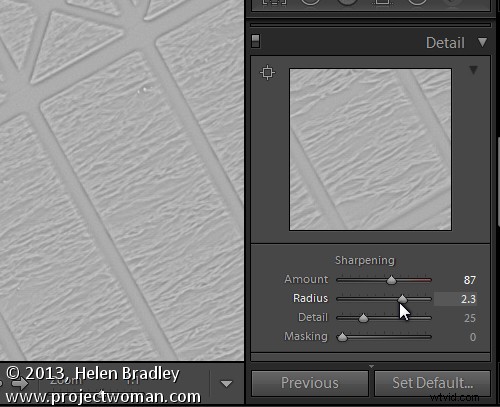
Showing the radius or amount of sharpening being applied
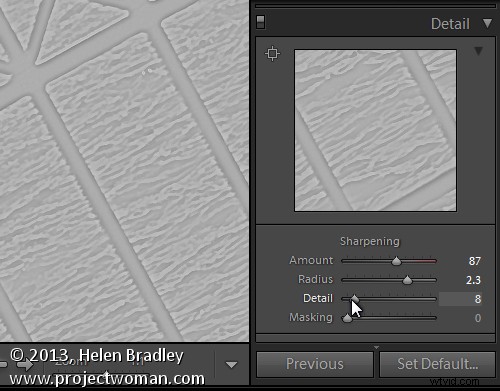
Alt (Option) and the Detail slider shows the suppression of the halos occurring as you drag on this slider.
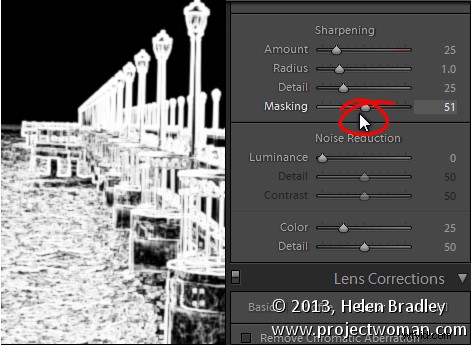
Alt (Option) and the Masking slider shows a black and white mask over the image – the areas which are black are not sharpened and those which are white will be sharpened.
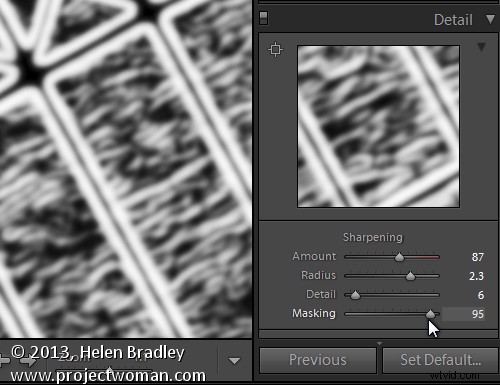
Showing the mask when sharpening – makes it easy to control which areas are sharpened and which are not, very useful for people photos.
Split toning
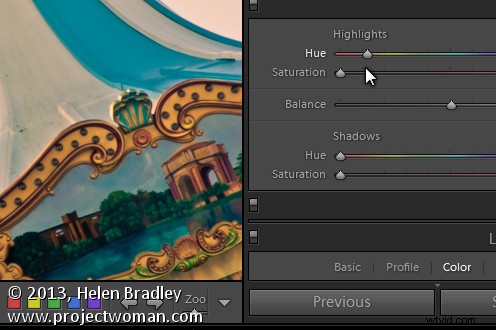
Alt (Option) and either of the two Hue sliders shows the currently selected hue in place on the image even if the Saturation slider is set to zero. This lets you see the color you are selecting, at 100% saturation, before you apply it.
Noise Reduction
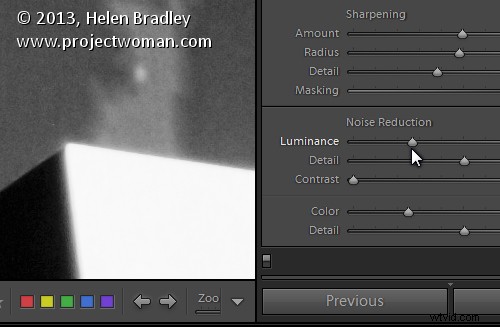
Alt (Option) and the Luminance, Detail and Contrast sliders for removing noise converts the image into a black and white image so you can see the effect of the adjustments more clearly.
Lens Correction – Color tab
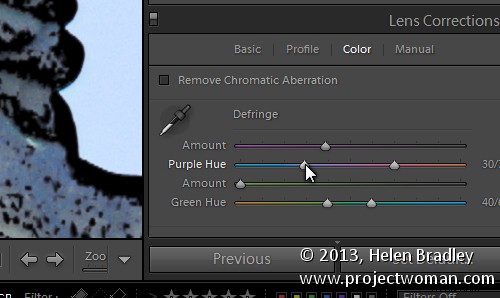
Alt (Option) and the appropriate Amount slider shows the areas in the image affected by fringing. White is not affected and you will see any areas affected by purple or green fringing.
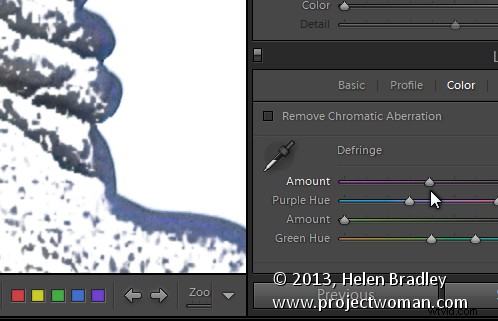
Alt (Option) and the appropriate Hue slider lets you view the range of hues being fixed. Black areas are already being targeted and any remaining purple or green color indicates residual color fringing.
Recognizing the times you can use the Alt (Option) key in the Develop module will help you make adjustments to your images more easily and effectively. I hope you enjoyed these Lightroom tips for the Develop module.