
The well-known and powerful calling application developed by Apple Inc. is FaceTime call. It makes group video calls or personal conversations even in a far distance. People enjoy making calls with it while the precious time is disappeared once you end it. The best way to keep it permanent is to take a screenshot and save the photo.

Now, follow this post to learn how to take FaceTime call screenshots on iPhone and Mac.
How to Take FaceTime Call Screenshot on iPhone
One benefit of the iOS system is that you can make a conversation with others using the Internet. The default communicating software in iPhone is FaceTime call. It can be used to make video calls in a distance.
To make FaceTime video calls become a memory, taking screenshots and saving these images on your iPhone is a good solution. Photo is to make happy moments eternal. If you agree with this point, then find a solution to take snapshots effectively. In iOS settings, you can enable FaceTime Live Photos to get a special image format.
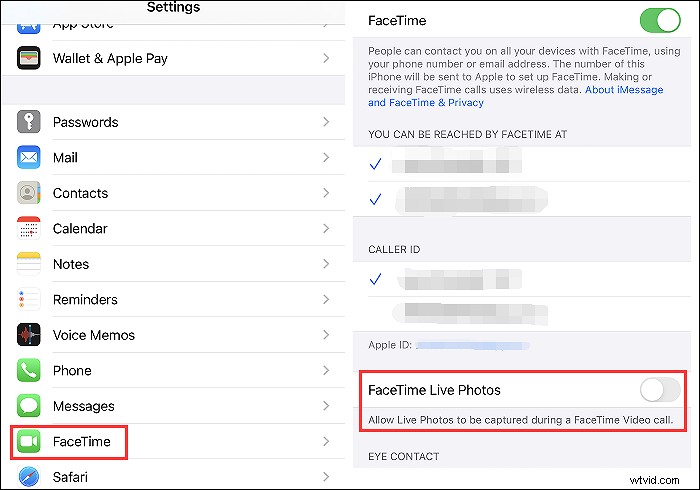
To get FaceTime screenshots on your iPhone, follow this guide:
Step 1. Open your iPhone and look for Settings. Scroll down the menu and find FaceTime Call. Then, enable the "FaceTime Live Photos" button. Turn it to the green color. It allows taking photos during the FaceTime video call.
Step 2. Back to the main interface and open FaceTime call. Now, start the video conversation. To get a photo from the FaceTime call, hold down the volume up and right-side button at the same time.
Step 3. From the iOS system, the long facetime screenshot can be shown in Photos of your iPhone.
How to Make FaceTime Call Screenshot on Mac
It's well-known that FaceTime has a desktop version. You can use this calling application on Mac computers effectively. Apart from the keyboard rules for screenshots, it's beneifical to use the dedicated screenshot tool named EaseUS RecExperts for Mac. Avoid using complex rules on the keyboard, this tool allows customizing the screenshot hotkey as you like. From F1 to F12, choose the hotkey as you like.
Also, it is an all-in-one screenshot tool and screen recorder that can capture a video call for FaceTime. When having a video call on FaceTime, you can record it as a video, with desired output format.
Before referring to the guide below, click the button to download this tool!
How to take a screenshot on FaceTime video call with this Mac screen capturing tool:
Step 1. Open this program on your Mac, and select the "Region" option on the panel.

Step 2. Drag your mouse to cover the area that you want to take a snapshot. Next, press the ⌘ + P keys on the keyboard to take screenshots. Also, you can click the camera icon directly.
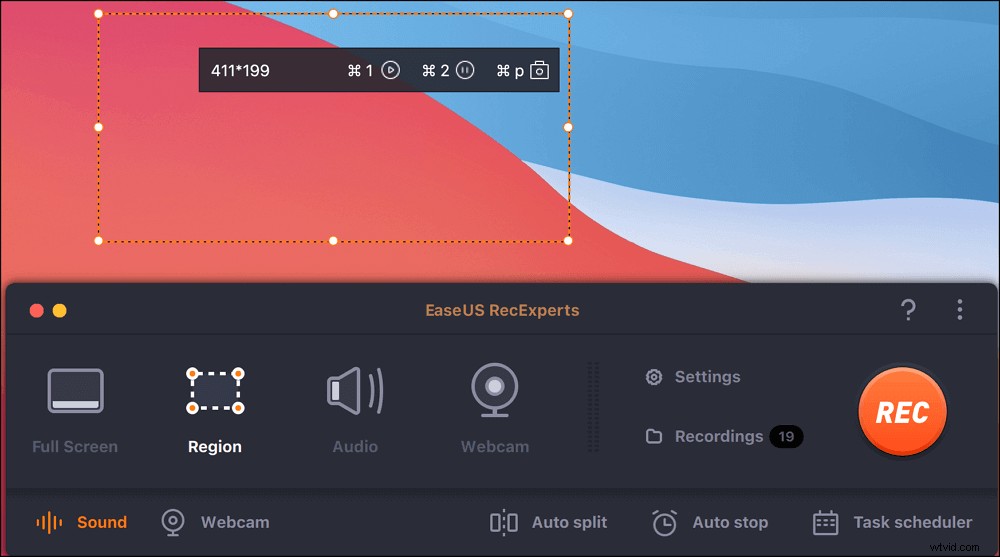
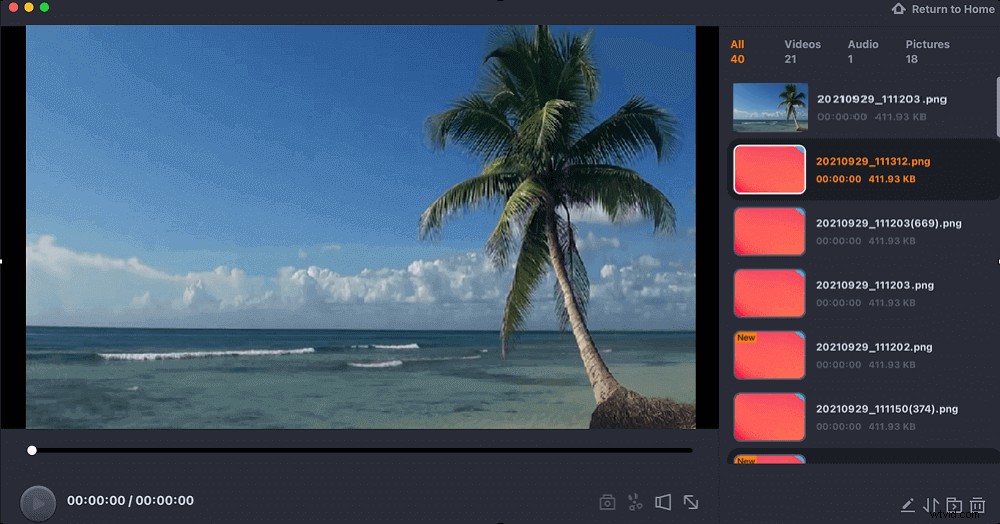
Step 3. Go back to the main interface, click "Recordings" > "Pictures", and you can find all the screenshots you need.
Bonus Tips: How to Take GIF Images on Windows
Take a snapshot on a video call and make it in GIF format, try screenshot tools like EaseUS RecExperts. It won't send any notification during the screencasting process. Besides GIF format, you can save the snapshot in PNG format. Also, you are allowed to choose the custom size of the screenshots.
Apart from being a screenshot tool, you can use it to record the screen, audio, and webcam easily. And the audio resources can be the system sound or external audio like the microphone sound. At the same time, you can grab the webcam to make the facecam video showing your face.
Now, take a screenshot with it. Also, explore more stunning functions as you like!
Main Features:
- Record the screen, audio, webcam and take a snapshot
- Take a partial screenshot on Windows 11/10/8/7
- Easily take a screenshot with a custom hotkey
- Record full screen on Windows 10
- Support different formats for output video and audio
To know how to take a partial snapshot on PC, read the below post>>

How to Take a partial screenshot on Windows?
Besides the keyboard rules on PC, you can use third-party software to take a screenshot freely. The images can be saved in PNG or GIF format.

FAQs About FaceTime Call Screenshot
Here is more information that you can follow about the FaceTime call snapshot.
1. Can someone tell if you screenshot on FaceTime?
The privacy issue is essential. For example, Snapchat will send the notification if someone is taking a snapshot or recording it as a video. When it comes to FaceTime calls, it will send the notification when applying iOS default screencasting methods. Therefore, the speaker you are talking with will receive a notification in most cases.
2. Where do I find my FaceTime screenshots?
No matter using a Mac computer or iPhone, you will find the FaceTime screenshots on the Photo. For iPhone users, it's easy to find the FaceTime snapshots on Photo.
When using a macOS computer, you can find the images on the desktop easily.
3. How do you take a screenshot during FaceTime?
You are allowed to take a screenshot with iOS default methods. When you are performing FaceTime, it's effective to use the volume-up button and right-side button to take a screenshot. The saving can be found in Photo. Also, FaceTime will likely send a notification to the speaker you are talking with you.
Without notification, try tools like EaseUS RecExperts for Mac.