
Enjoying a foreign movie on an iOS device without subtitles can be challenging, making it hard to fully immerse in the story. Fortunately, this issue can be solved by adding captions that aid users in better understanding the content. While tools like iMovie are available on desktops to add subtitles, many users look for quick and accessible solutions for their iPhones.
In this article, we will guide you through adding captions in iMovie on your iPhone. Furthermore, we’ll introduce a more convenient alternative for those seeking an easier method.

In this article
-
- Steps for Adding Subtitles to Video Using iMovie
-
- Some Coherent Features of the Wondershare Filmora App
- Steps for Generating AI Captions Using Filmora
Part 1. How To Add Subtitles in iMovie Manually [For iPhone Users]?
When watching movies or videos on your iPhone, iMovie is one of the apps that offer precise video editing. It is famous for its unique interface and variety of features, as it lets users create polished content without needing extensive skills. Whether stitching clips together or enhancing the visuals, iMovie makes the process accessible.
One notable feature of iMovie is the ability to add subtitles through adding text overlays. Users get various options to stylize the text of the captions, which they integrate into their videos. Moreover, the app lets them modify the text's color and add shadows. This feature is especially valuable for individuals looking for solutions on how to add subtitles to iMovie on an iPhone.
Steps for Adding Subtitles to Video Using iMovie
As mentioned above, iMovie offers capabilities for manually adding captions to video content. Here is a step-by-step guide for adding and editing subtitles to your video through this app:
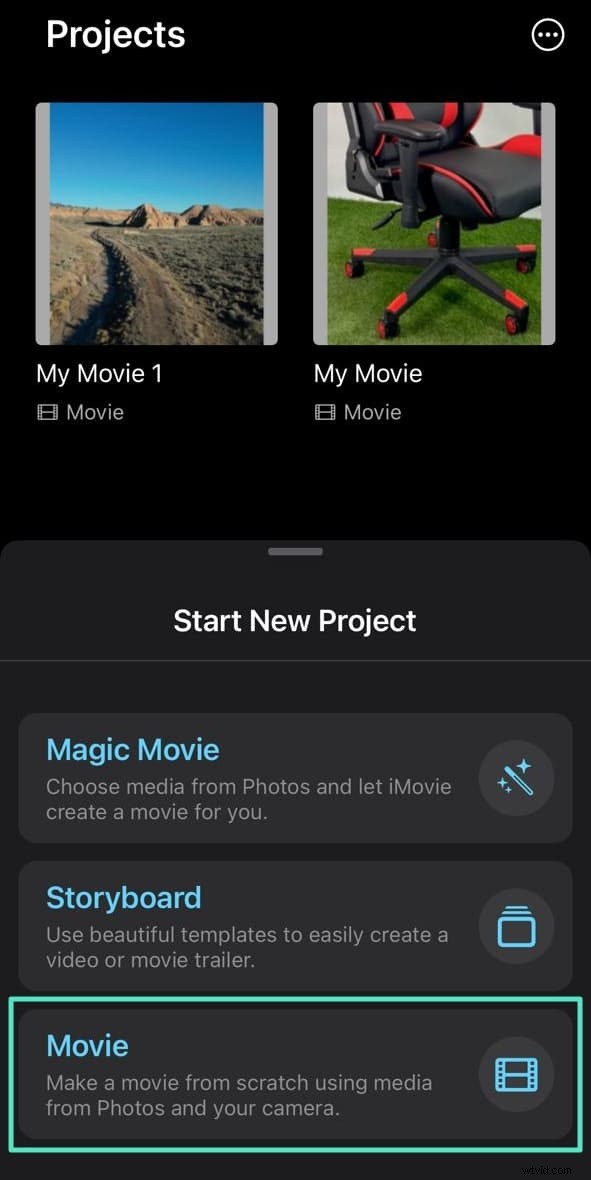
Step 1. Open iMovie and Select Movie
Launch iMovie on your iPhone and tap "Movie" from the homepage.
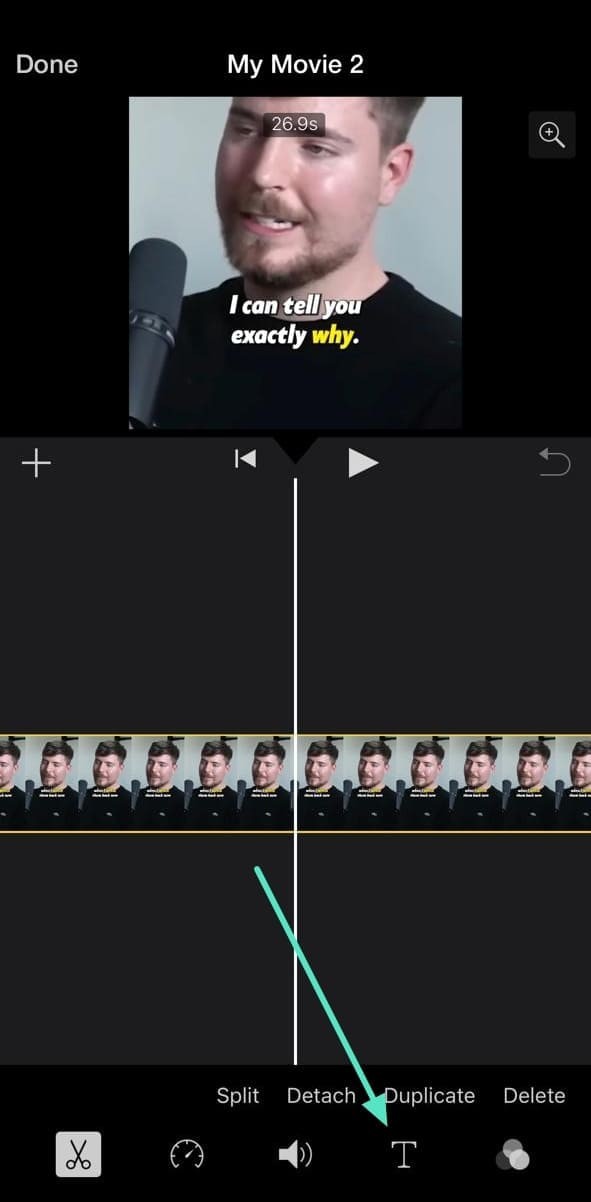
Step 2. Import Video and Access Text Tool
Choose your video and tap "Create Video." Tap the timeline and then tap the "Text" icon to add subtitles.
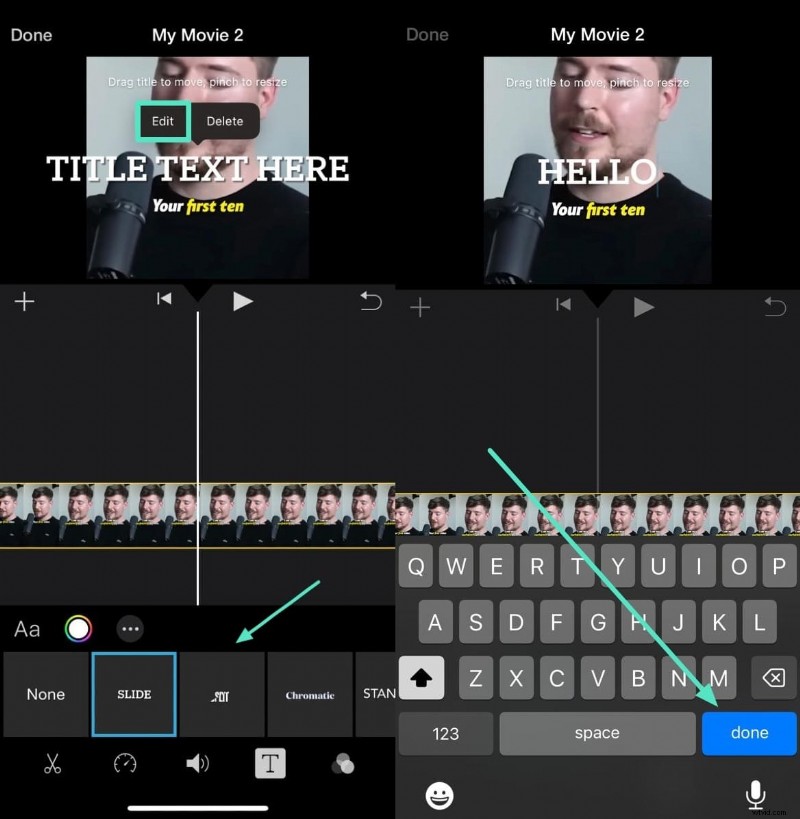
Step 3. Add and Edit Subtitles
Pick a caption style, tap the text on screen, then type your subtitles using the keyboard. Press "Done" to save.
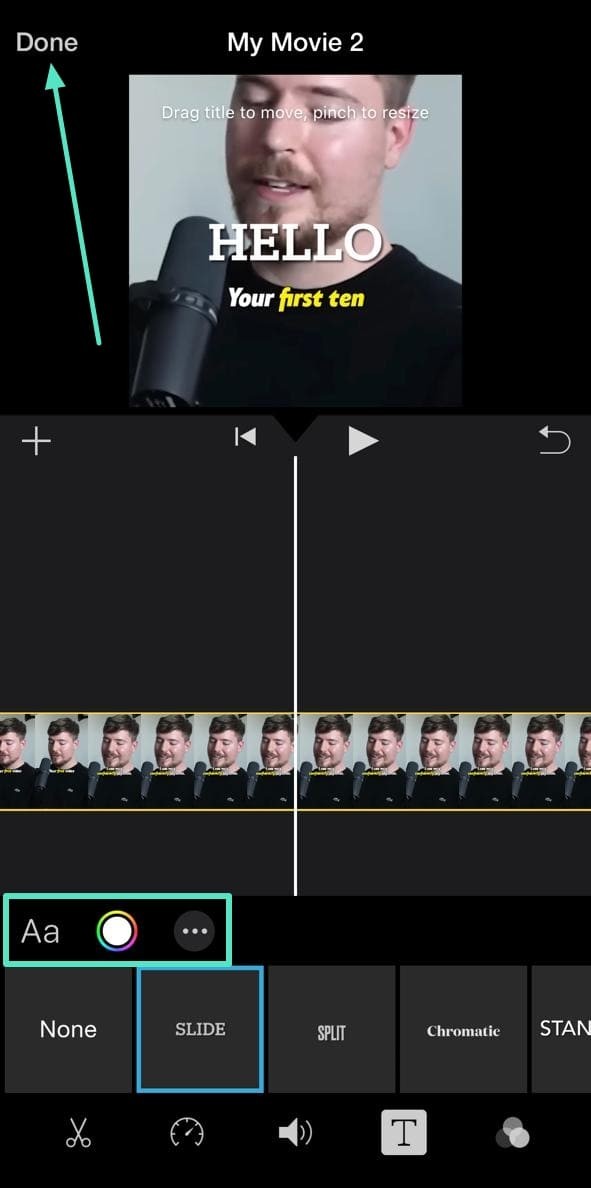
Step 4. Customize and Save
Change text color and style using options below the timeline. When finished, tap "Done" and save your video with subtitles.
Limitations of iMovie
- Basic Subtitle Features: iMovie offers only basic subtitle options, with limited styles and formatting choices. Users are restricted to a small selection of fonts and basic adjustments.
- Manual Subtitle Entry: iMovie lacks automatic subtitle generation. Users must manually enter each subtitle, which can be time-consuming for longer videos.
Part 2.Better Option: How To Add Subtitles Automatically in Videos?
Having discussed the steps on how to add subtitles in iMovie on iPhone, we analyze that the app lacks features that enhance the caption addition process. Although the app offers a straightforward way of adding video subtitles, users keep looking for better options. A comprehensive video editor is required to generate captions with an improved quality and better outlook.
One such application is Filmora App, which offers versatile capabilities for embedding subtitles. It automates your subtitle addition process over iPhone and provides a lot more than just subtitles.
Some Coherent Features of the Wondershare Filmora App
- Generate AI Caption: Using cutting-edge AI capabilities, the app allows users to generate automated captions for the visual content. Users can select any language for their captions before executing the captions generation process.
- A Sea of Resources: Filmora provides a wide range of title effects and templates, allowing you to easily add professional-looking text animations and pre-designed styles to your videos. These resources help speed up the editing process and elevate the overall quality of your content.
- Multiple Language Support: It is essential to make your video comprehensive for a diverse audience, which is why Filmora provides support in 19 different languages. To also identify the original language of any video, Filmora comes with an auto-identification option.
Steps for Generating AI Captions Using Filmora
As mentioned above, the Filmora app offers a comprehensive suite of features to generate automated captions using AI. To learn how to add subtitles in iMovie iPhone with Filmora App, follow the steps mentioned below:
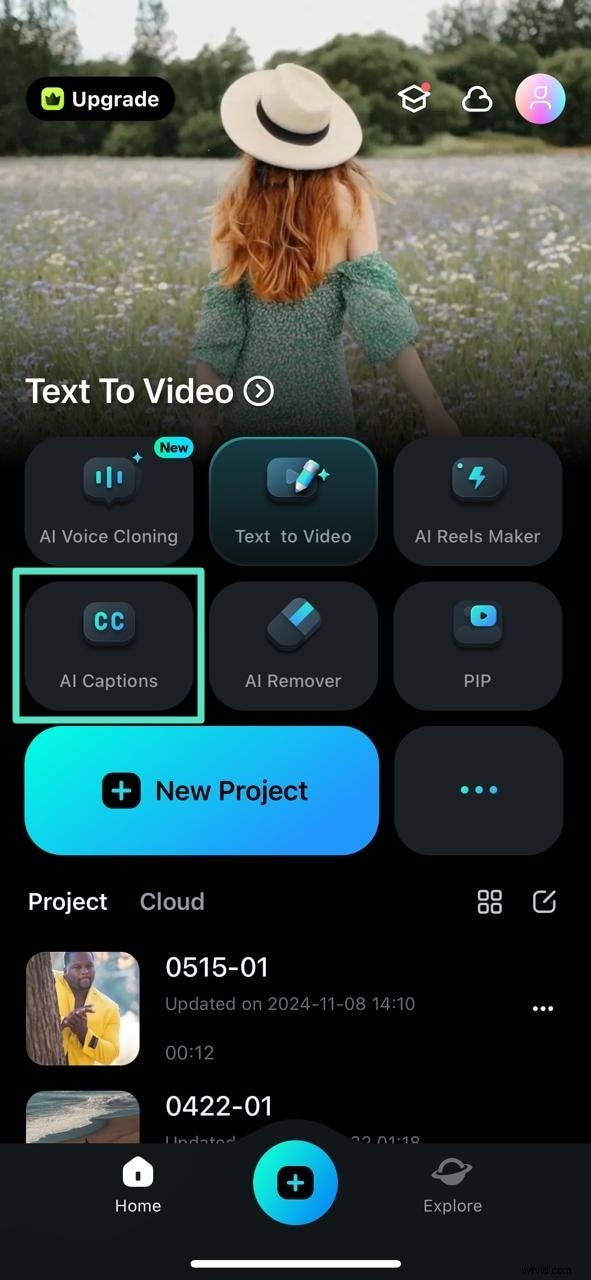
Step 1. Select the AI Captions Feature From the Homepage
After launching the app on your iPhone, tap the "AI Captions" tab on the application homepage.
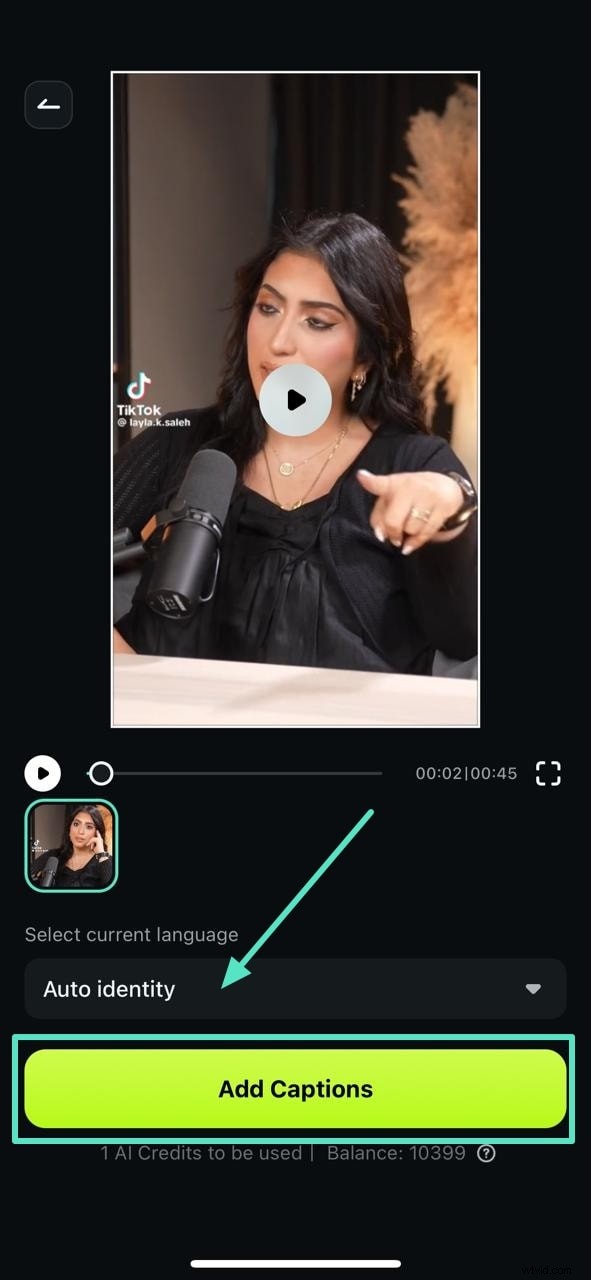
Step 2. Select the Language and Generate Captions
Next, import your video from your device using the "Import" button, and it’ll direct you to the editing interface. Select the language for the captions and choose "Add Captions" to automatically generate subtitles throughout the video.
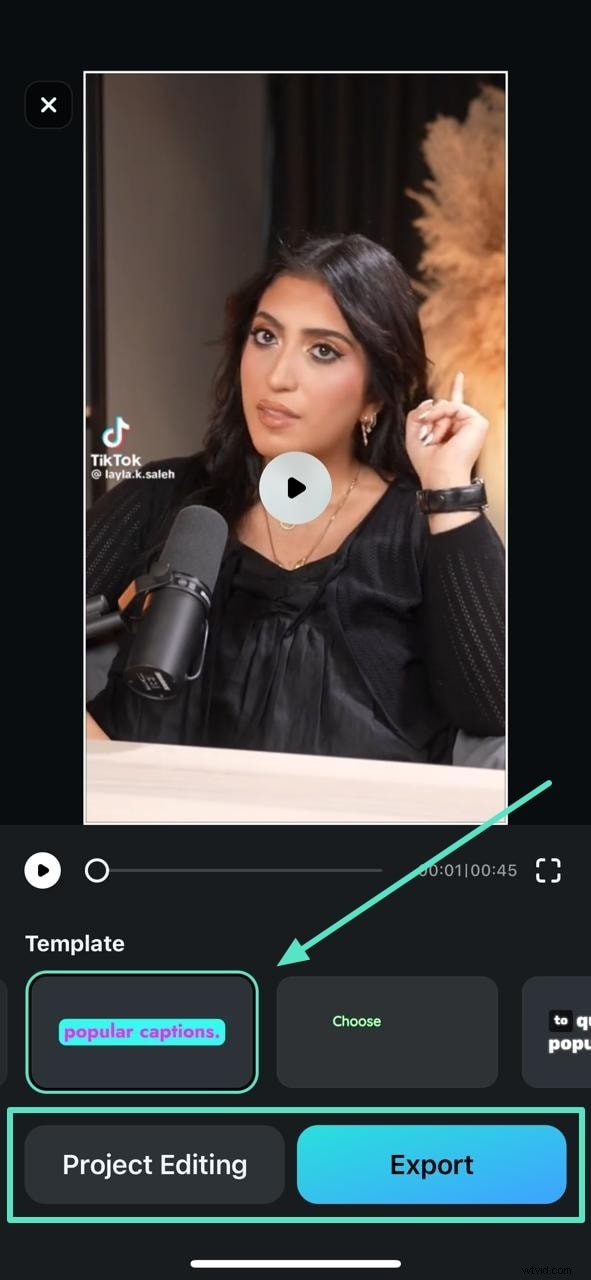
Step 3. Continue To Editing Video or Export
As soon as the captions are generated, you'll be navigated to the next window to select an appropriate template for your captions. After choosing one, continue to the "Export" section to set the parameters for the final video. Conversely, you can also select "Project Editing" to influence further changes in the video.
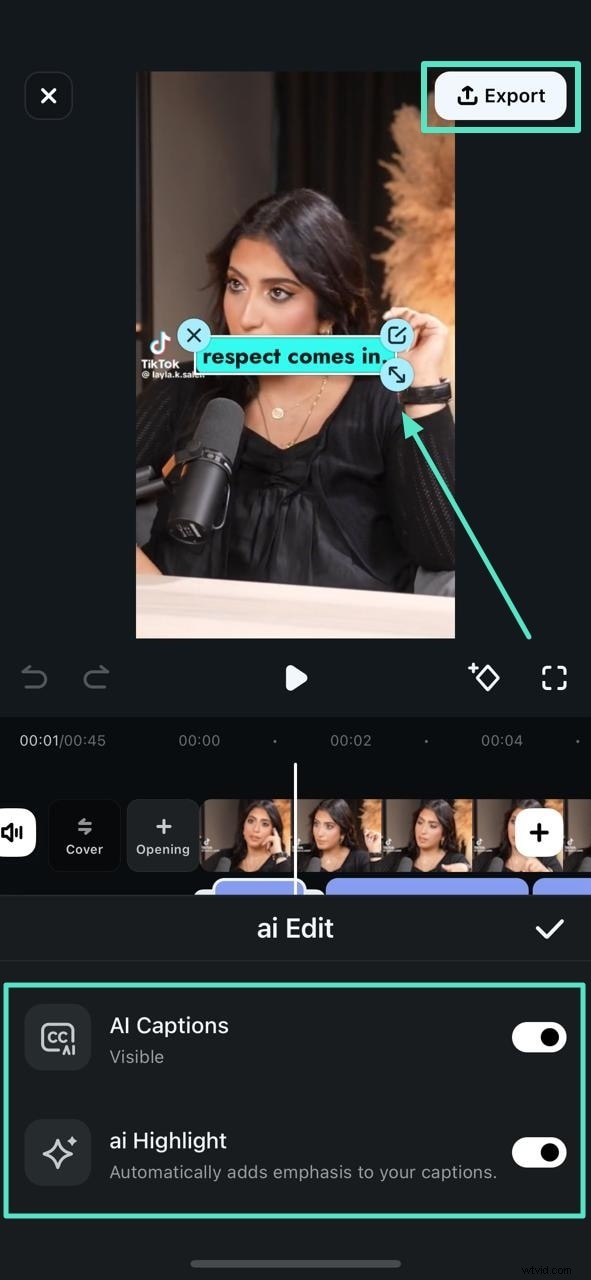
Step 4. Make Further Changes in Generated Captions and Export
You can adjust the position of the generated captions in the project editing window. There are several edits that can be done across the app, which include navigating into the "ai Edit" tab to ensure that the "ai Highlight" toggle is enabled. Once done, proceed to the "Export" button on the top right to download your edited creation.
Step 5. Define Exporting Parameters for Captioned Video
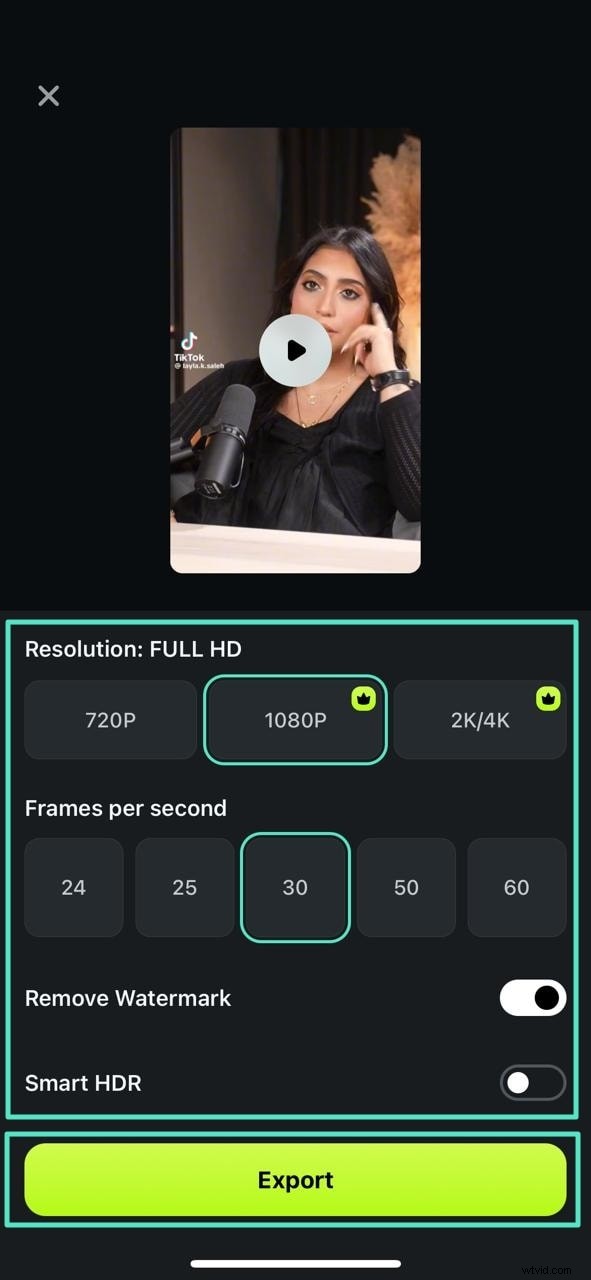
Define the "Resolution" along with the "Frames per second" option for the video. Furthermore, you can enable the toggles of the options "Remove Watermark" and "Smart HDR" before hitting the "Export" button.
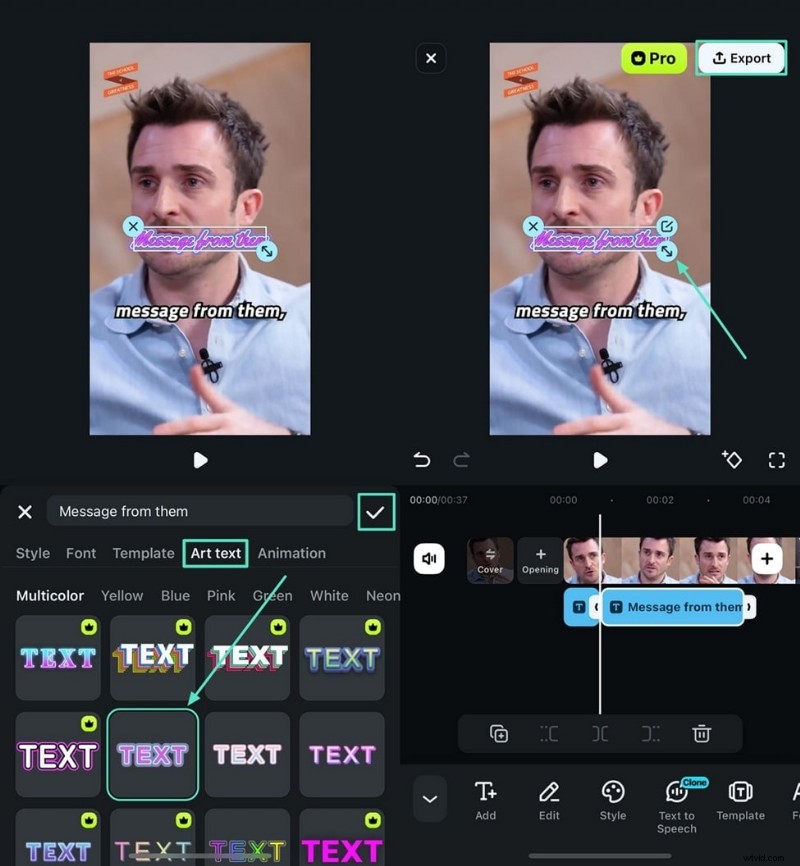
Besides adding automated captions, the app can manually integrate subtitles to their videos using the Text feature. From adding basic text to adjusting all essential parameters, you can manually define the entire style for your captions. Filmora Mobile App also comes with a dedicated "Art Text" section to help you set the captions according to available templates.
When it comes to longer videos or when detailed customization is needed, you can try Filmora's desktop software to add subtitles, which offers automated tool, and a larger screen for easier editing.
Comparison of Subtitle Addition Methods: iMovie Manual vs. Filmora Automated
| Aspect | iMovie on iPhone | Filmora App |
| Subtitle Addition | Manually add text overlays one by one | Auto-generate captions with AI |
| Editing Flexibility | Basic text style, color, shadow, and timing adjust | Rich title effects, templates, customizable animations |
| Language Support | Limited manual input, no language auto-detection | Supports 19 languages, auto language identification |
| Ease of Use | Time-consuming for long videos | Fast and efficient, few clicks to add and edit captions |
| Export Options | Save video with embedded subtitles | Export with captions, adjust resolution, watermark removal |
| Additional Features | Simple video editing | Full video editing suite, smart editing tools |
Conclusion
To conclude, this article discussed the top methods to generate captions for videos using various resources, enhancing the comprehension of visual content. It even demonstrates how to add subtitles in iMovie using the Filmora App. Ultimately, it is revealed that this mobile application has a comprehensive suite of features to craft accurate captions.

Filmora
⭐⭐⭐⭐⭐
The Best AI-powered Video Editing Software and App