
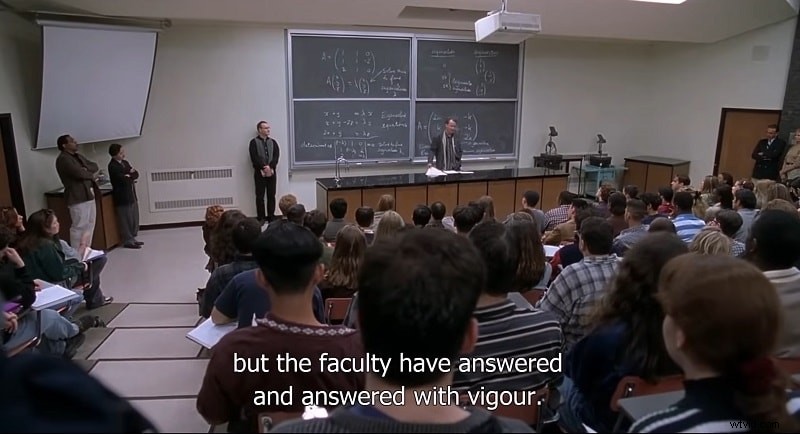
Watching a movie with subtitles can make a huge difference, especially if you're in a noisy environment or the movie is in a language you're not fluent in. But whether you're just a movie lover or a content creator looking to enhance your videos, you might wonder how to add subtitles to a movie on Android or iPhone. The good news is, with the right app, it's easier than ever!
In this guide, we'll show you how to add subtitles to a movie or video on your phone, no matter if you're using an Android or iPhone. From watching your favorite film to editing a new project, our easy-to-follow steps will help you add clear, readable subtitles in no time. Let's dive in and make your movie-watching or video-creation experience even better!
In this article
Part 1. Top Video Editor for Adding Subtitles to Movies on Your Phone
Alright, now that you know how adding subtitles can level up your movie-watching experience, let's dive into how to make it happen easily. But before learning how to add subtitles to a movie on your phone, obviously, you'll need a reliable video editing app to do the job. And the best choice out there is clearly Wondershare Filmora.
While it's mostly known for its desktop version, Filmora is also available on mobile, and it's just as powerful! It comes with a ton of great features that make adding subtitles super easy. Here's why Filmora is your go-to option:
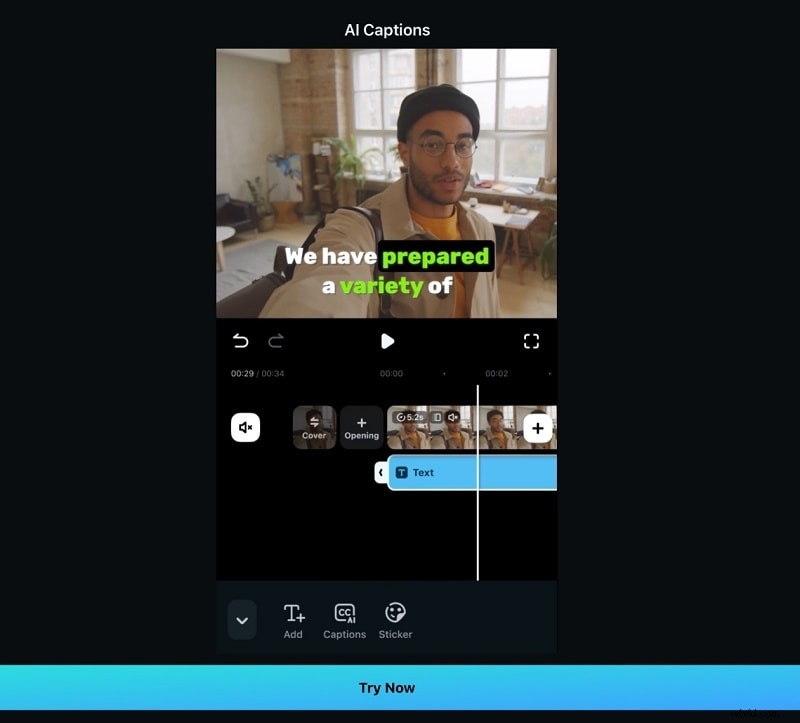
- 1. Flexibility in Adding Subtitles: For those still wondering how to put subtitles to a movie on your phone, Filmora has you covered. You can either use the AI Calitions feature to automatically generate subtitles or add them manually if you want to fine-tune each by yourself. This gives you the flexibility to get the subtitles exactly the way you like them.
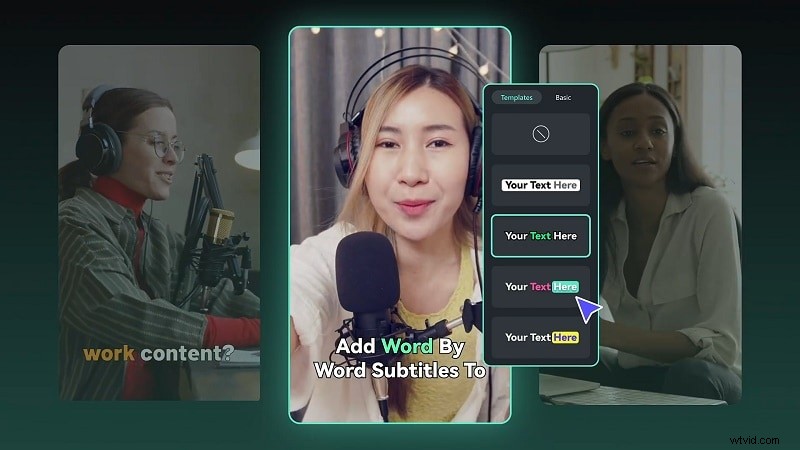
- 2. Creative Templates Galore: Why use plain, boring subtitles? Filmora gives you tons of creative templates to choose from. You can go for a fun, colorful style or keep it sleek and professional. It's a great way to add some personality and make your subtitles polished!
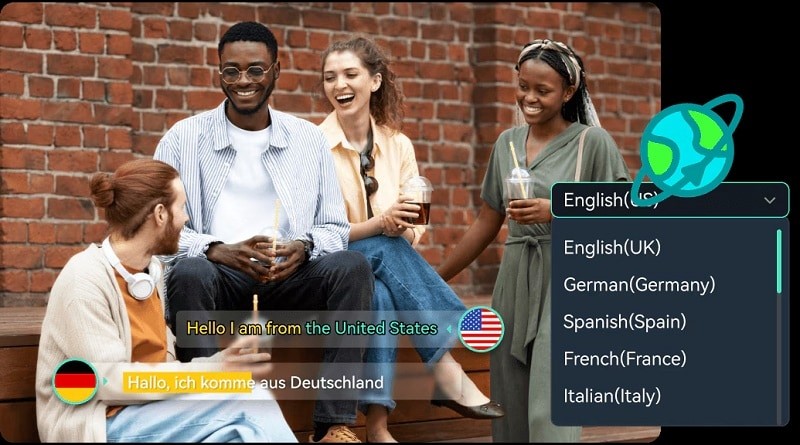
- 3. Multi-Language Support: Don't stress if the movie isn't in your language. Filmora's subtitle tool can handle multiple languages, so you can easily add subtitles to any international film. It's super handy for translating foreign movies or just making sure everyone can follow along!
- 4. Wide Range of powerful Features for Further Edits: Filmora isn't just for adding subtitles. You can also trim, cut, and add cool effects. Plus, it has awesome AI features like Voice Cloning, Reels Maker, and Text-to-Video. It's like having a full editing studio right on your phone, giving you everything you need to make your videos look great!
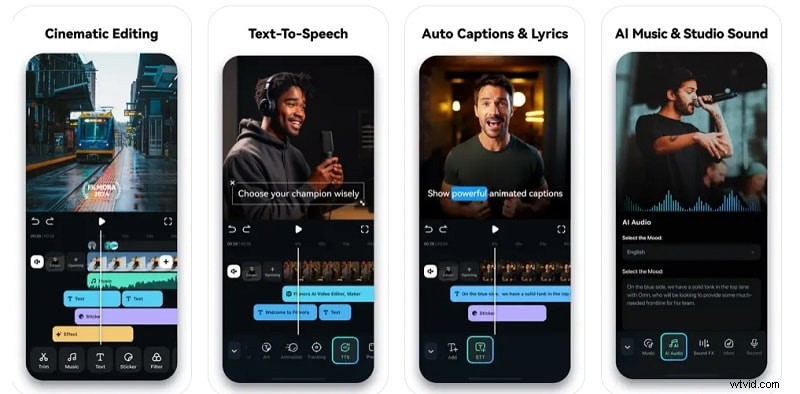
What's more, Filmora is available on both Google Play and the App Store, making it easy to add subtitles to movies on both Android and iPhone.
Part 2. How to Automatically Add Subtitles to Movies on Your Phone Using AI Caption
Now that you know all the cool features Filmora offers, let's dive into how to add subtitles to a downloaded movie on Android or iPhone. But before we get started, just a quick reminder: if you're downloading a movie to add subtitles, make sure you're not violating any copyright rules. It's always best to stick to legally downloaded content to avoid any trouble.
Now, let's jump into how you can easily add subtitles with Filmora to level up your movie-watching experience! As we mentioned earlier, the best way to do this is by using the Auto Caption tool. It automatically creates subtitles for you, making the whole process quick and effortless. Just follow this simple guide, and you'll be good to go!
Step 1. Open Filmora and access the AI Caption feature
First, download the Filmora Mobile app either on Google Play Store or Apple Store if you haven't already. Once it's installed, open the app and tap on the "AI Caption" option.
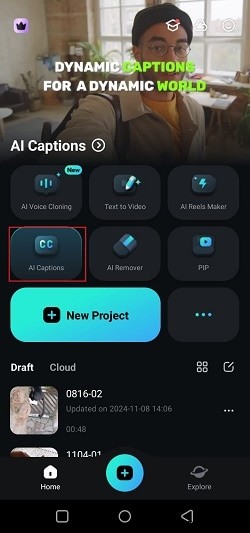
Alternatively, you can also access the AI Caption feature by clicking the three dots (...) button and selecting "AI Caption" in the next window that appears.
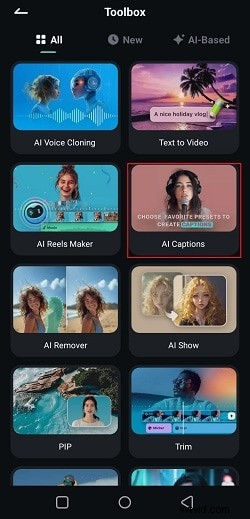
Step 2. Upload your movie
Next, find the movie you want to add subtitles to in your phone's library. Just select your clip, and then click "Import".
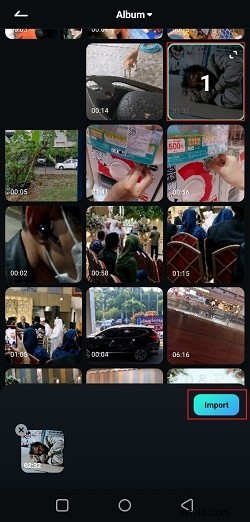
Step 3. Choose language and add captions
On the next screen, your video will play. Filmora's AI can detect the language automatically, but selecting the video’s language yourself improves accuracy. Then tap "Add Captions" to start subtitle creation.
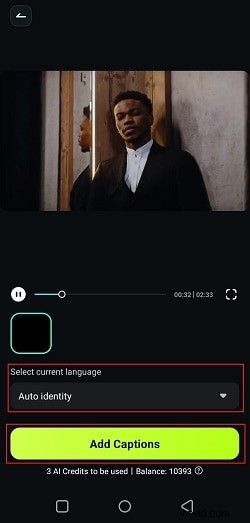
Step 4. Choose subtitles style
When the AI finishes, choose a subtitle style from Filmora’s templates. Tap your favorite and preview it. If you want, click "Project Edit" to customize more, or tap "Export" to save immediately.

Step 5. Adjust subtitles position
Tapping "Project Edit" opens the main editor. You can drag subtitles anywhere, like the bottom of the screen, to avoid covering the video. For corrections or adjustments, use the "Batch Edit" option in the toolbar.
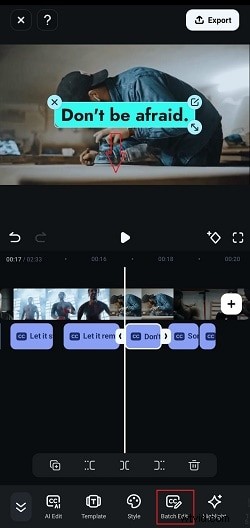
Step 6. Customize subtitles in batch edit
In batch edit, you can adjust subtitles freely. To combine two lines, tap "Merge above" or "Merge below." To split a long line, tap "Split." To delete a subtitle part, tap the trash can icon.

Step 7. Change subtitles style if necessary
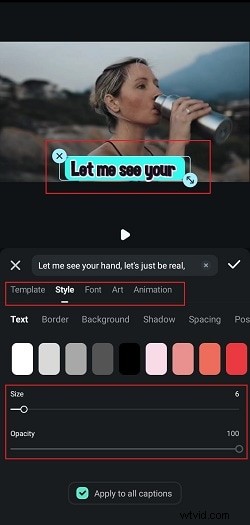
Next, if you want to update the look of your subtitles, tap the "Style" option in the toolbar.
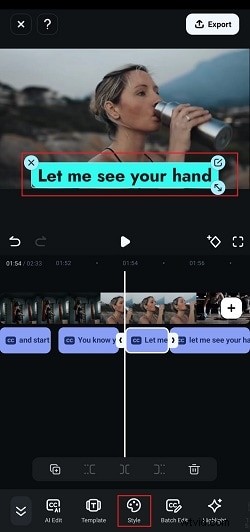
From there, you can change the font, size, and color, and even add some cool animations to your subtitles.
Step 8. Export your video
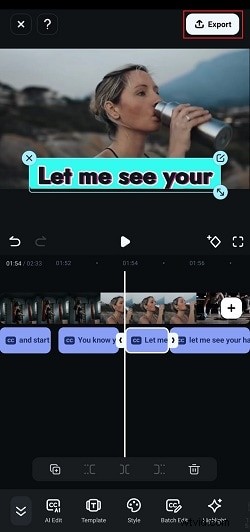
When you're done with all the edits, tap "Export" at the top right of the screen.
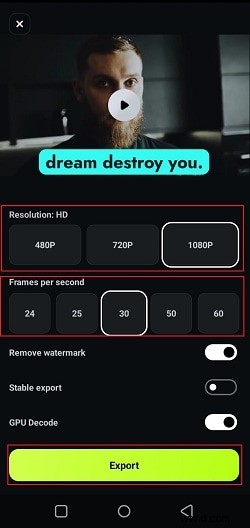
Then, choose your preferred resolution and frame rate, then tap "Export" again to save the video to your phone.
You can also check this video to get more information:
Part 3. How to Manually Add Subtitles to Movies on Your Phone
Now that you've learned how to automatically add subtitles to a movie permanently on Android and iPhone with Filmora's AI Caption tool, let's go over how to do it manually. As we mentioned before, Filmora also gives you the option to add subtitles yourself, and this can be super useful if you want more control over the timing, style, or content of your subtitles.
Here's a simple step-by-step guide to get started
Step 1. Open Filmora and start a new project
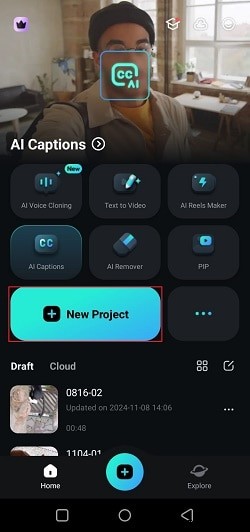
This time, once you open the Filmora mobile app on your phone, tap on "New Project" to get started with your editing.
Step 2. Select your video clips
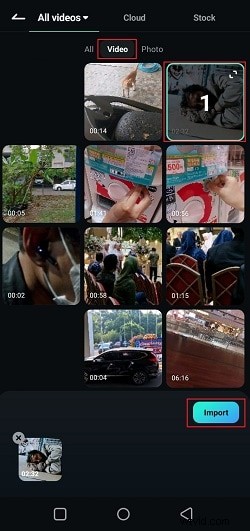
Next, choose the movie you want to subtitle from your phone's library. Tap on "Video", select your clip, and then press "Import". Your video will be added to the editing timeline, ready for you to start making edits.
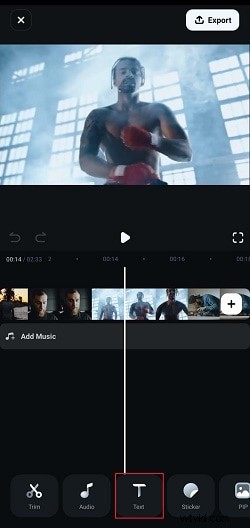
Step 3. Write subtitles manually
Once you're in the main editing screen, hit the "Text" option from the toolbar.
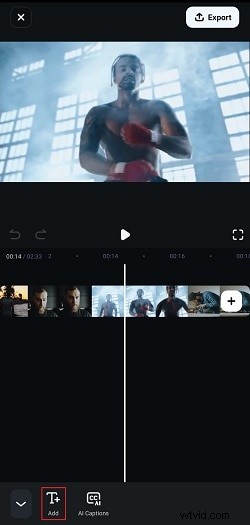
Then, select "Add" to start writing your subtitles.
Write the subtitles based on what you hear. Then, move the subtitles position to the bottom of the video so it doesn't block the movie.
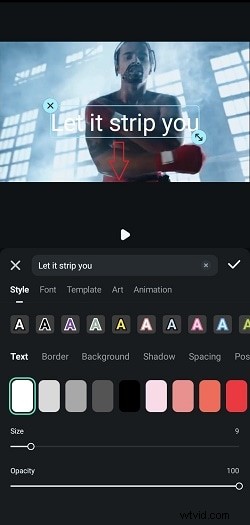
Step 4. Edit subtitles
Next, you can customize the subtitles by changing the style, size, and font, and even adding some animations—just like you would in the batch edit window with the AI Caption tool. When you're happy with your changes, tap the checkmark button to save them.

Now that the subtitles are added to your video, you can adjust their timing using the trim feature shown in the picture below. You'll need to repeat this process to manually add each subtitle line. It might take a bit of time, but this way you can make sure everything is perfectly accurate!
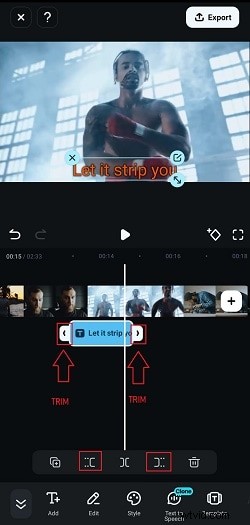
After that, you can tap Export and save the video like before.
Bonus: Adding Subtitles on PC for Greater Flexibility
As you can see, adding subtitles to your movie on iPhone and Android is easy with the help of Filmora's powerful tools. However, if your movie is an hour or two long it can be tricky to edit that on a mobile phone. The small editing space and potential performance issues on your phone can make it tough to edit such big files. In this case, switching to a PC might be a better option.
Luckily, Filmora also has a desktop version that comes with advanced features like Speech-to-Text. Plus, the PC version is more powerful than the mobile app and offers even more editing tools.
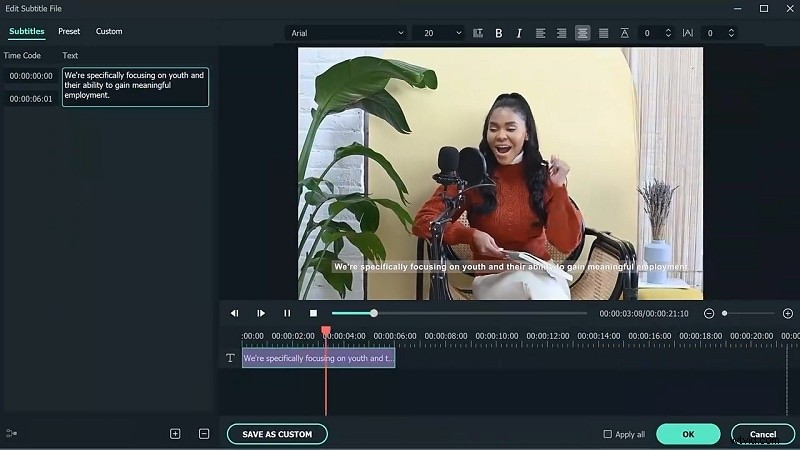
Here's why Filmora for desktop is also worth trying out:
Four Simple Methods for Adding Subtitles to Videos in Filmora:
- Auto-Transcribe with Speech-to-Text (STT): Filmora’s STT automatically detects and transcribes spoken words into subtitles, saving time and ensuring high accuracy. Watch the tutorial to see it in action.
- Import SRT Files: Easily add and sync existing SRT subtitle files with your video in Filmora. Check the tutorial to learn how.
- Manually Add Subtitles: For full control, manually create and edit subtitles in Filmora, customizing style, placement, and timing. Watch the manual subtitle tutorial for guidance.
- Effortless Translation: Filmora can auto-translate your subtitles into multiple languages with one click, perfect for reaching global audiences.
On top of that, Filmora is super flexible since it works on both Windows and macOS. It's also pretty affordable, with different pricing plans and even a free trial so you can see if it's the right fit for you.
Conclusion
Adding subtitles to a movie can really enhance your watching experience, making it easier to follow along. So, this guide covered how to add subtitles to a movie permanently on Android and iPhone using the powerful video editing app, Wondershare Filmora.
With its advanced AI Captions feature, Filmora makes it super easy to add subtitles to a video on iPhone and Android. And if you want more control, you can also add subtitles to a movie on your phone manually—and this article gave you a step-by-step guide for both methods.

Filmora
⭐⭐⭐⭐⭐
The Best AI-powered Video Editing Software and App
 secure download

