
Every day we consume endless video content, but creating one that stands out can feel daunting—especially on a mobile device. If you’re ready to shift from viewer to creator, this guide will walk you through every stage of editing videos on Android using Wondershare Filmora, a trusted tool used by millions of creators worldwide.
Part 1: Choosing the Right Editing App
When it comes to mobile video editing, Filmora stands out for its blend of power and ease. Whether you’re a beginner or an experienced editor, the app offers:
- Intuitive UI – drag‑and‑drop editing, clear timelines, and quick access to features.
- Rich media library – thousands of free music tracks, sound effects, and royalty‑free stock footage.
- AI‑powered tools – auto‑captioning, background removal, and AI‑generated reels that cut your workflow in half.
- Export versatility – native presets for Instagram, YouTube, TikTok, and more.
Download Filmora from the Google Play Store or the official website and install it on your Android device.
Part 2: The Core Editing Workflow
1. Start a New Project
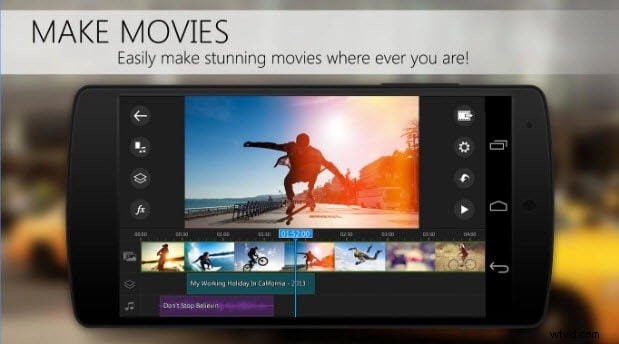
Open Filmora and tap New Project. Choose the clips you want to edit from your gallery.
2. Trim & Cut
Navigate the timeline, select the portion you want to remove, and use the Trim icon. Drag unwanted clips to the Bin icon to delete them.
3. Rearrange Clips
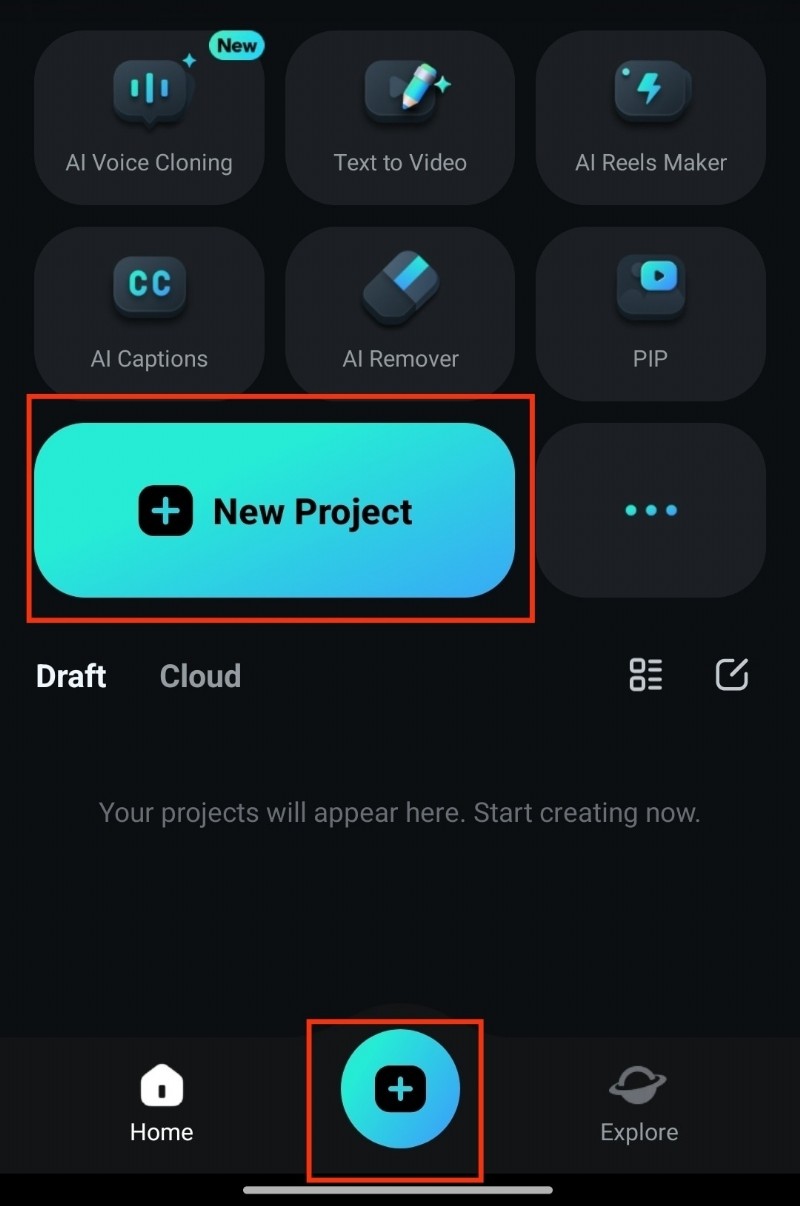
Long‑press a clip and drag it to the desired position.
4. Add Transitions
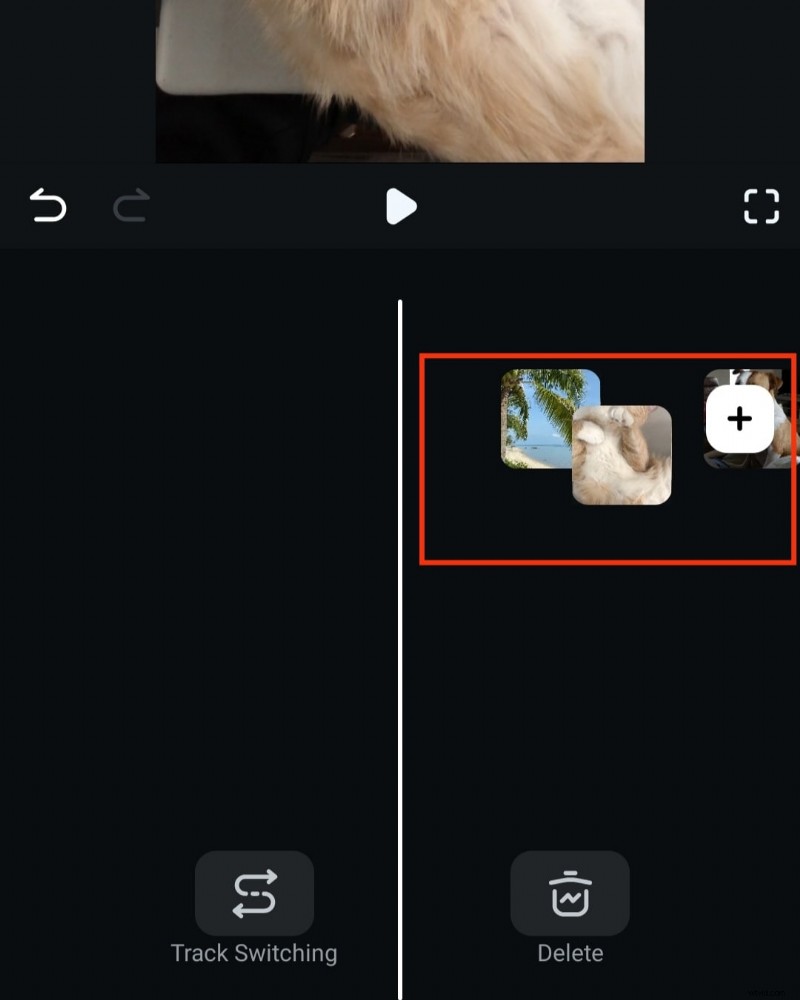
Tap the Transition button between clips to insert a seamless visual bridge.
5. Adjust Speed
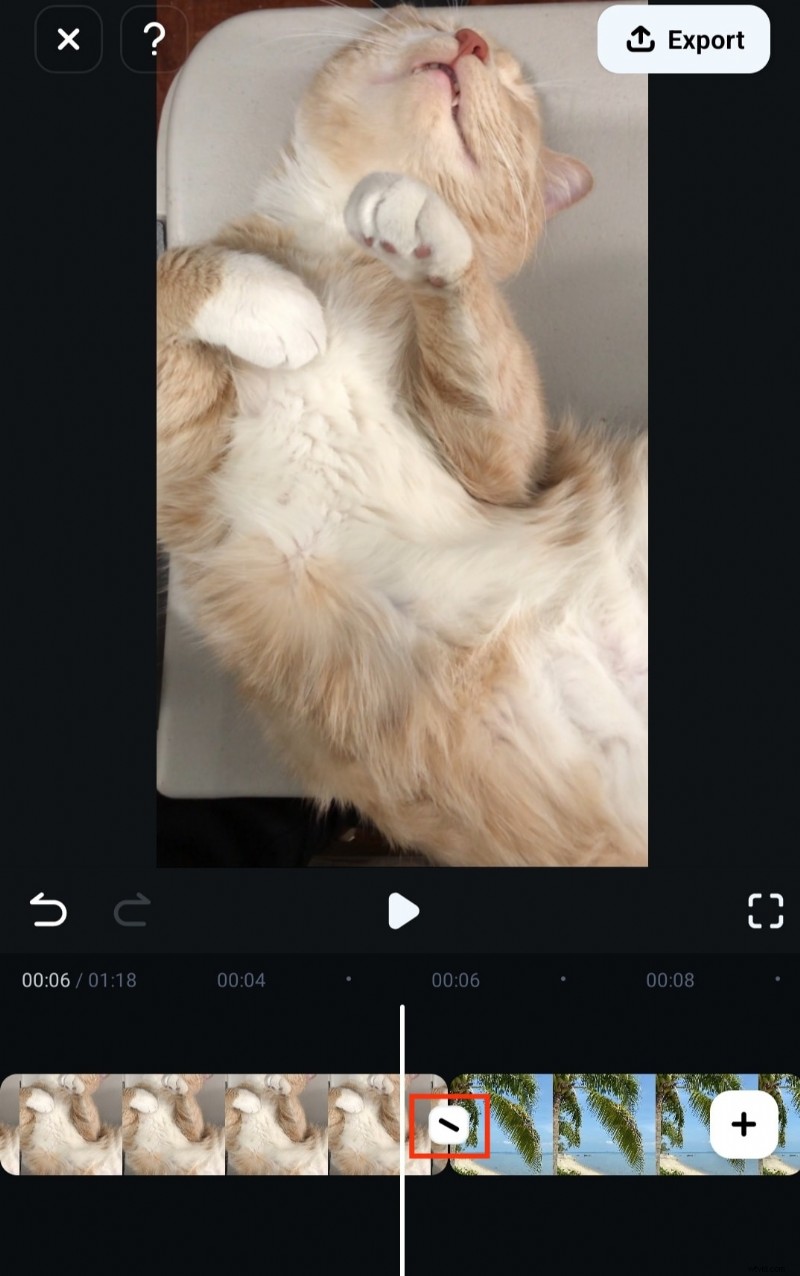
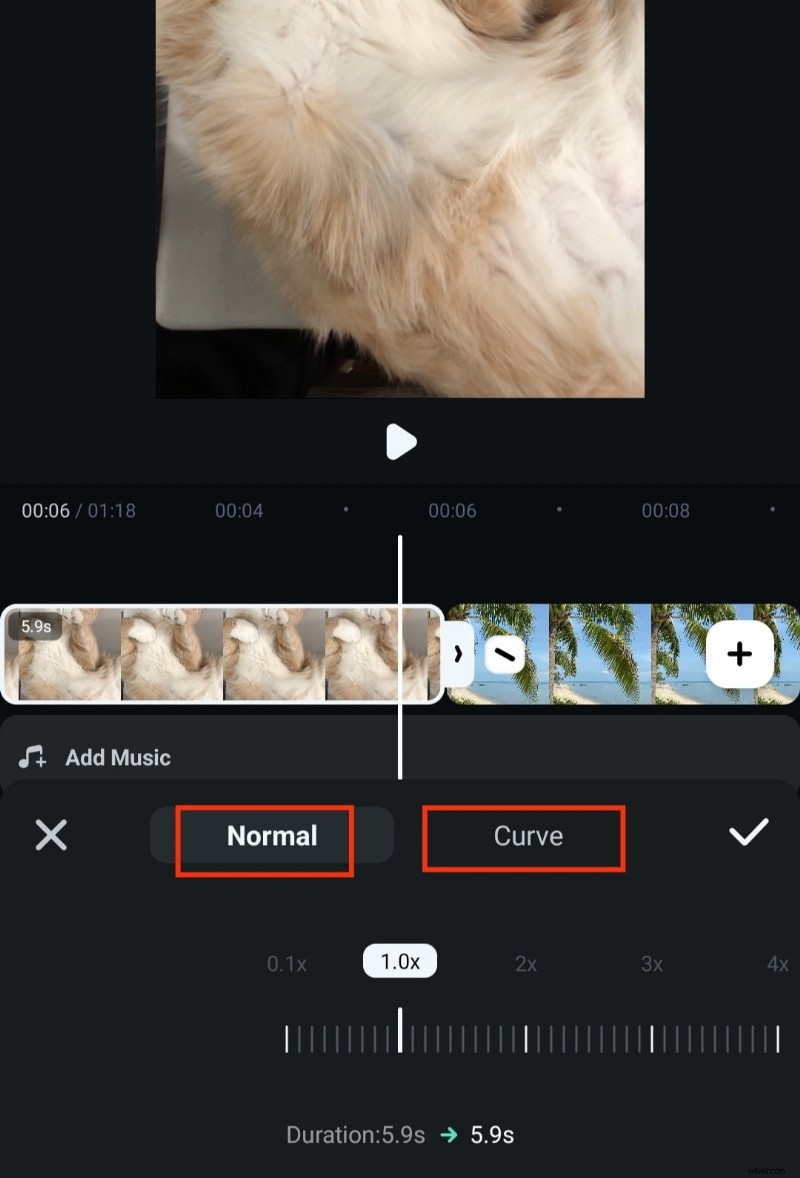
Click on a clip, tap the Speed icon, and choose Normal or Curve to create slow‑motion or fast‑forward effects.
6. Add Audio
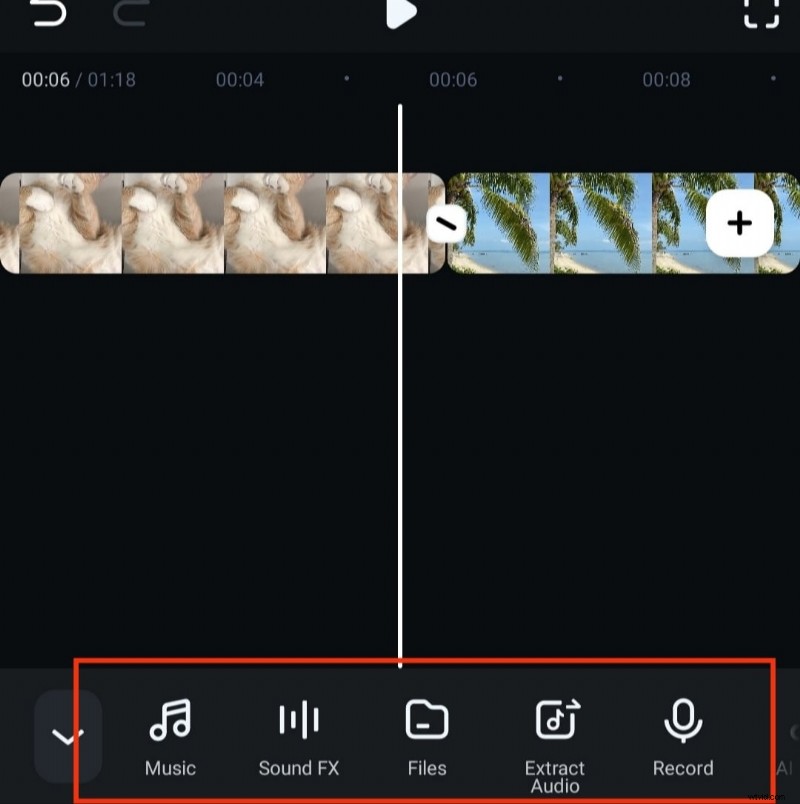
From the Audio panel, choose music from your device, Filmora’s library, or record a voice‑over. You can also extract audio from existing videos.
7. Insert Text & Stickers
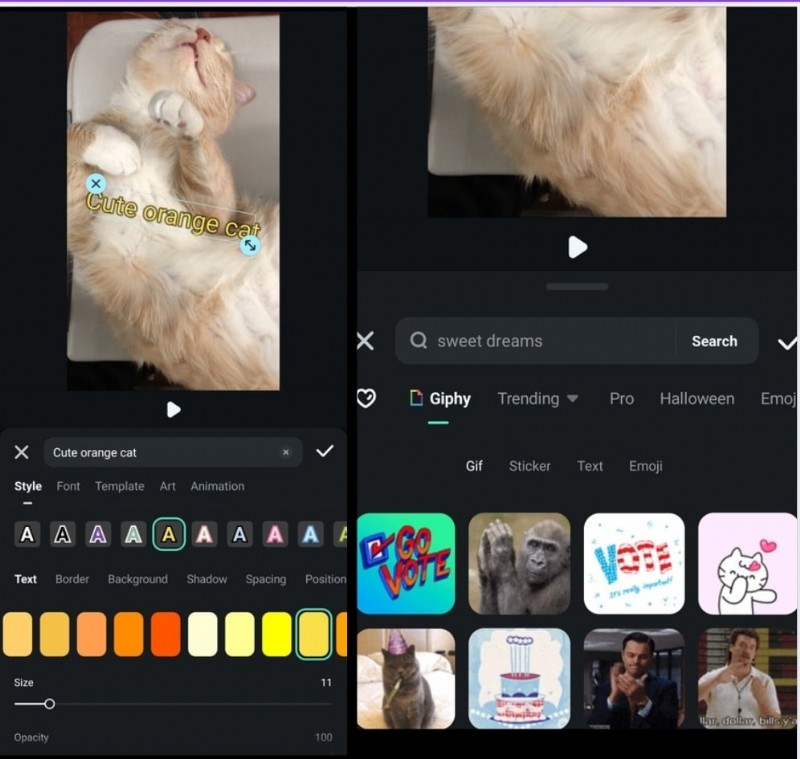
Use the Text tool for titles, subtitles, and captions. Drag stickers onto the timeline for a playful touch.
8. Apply Filters & Effects
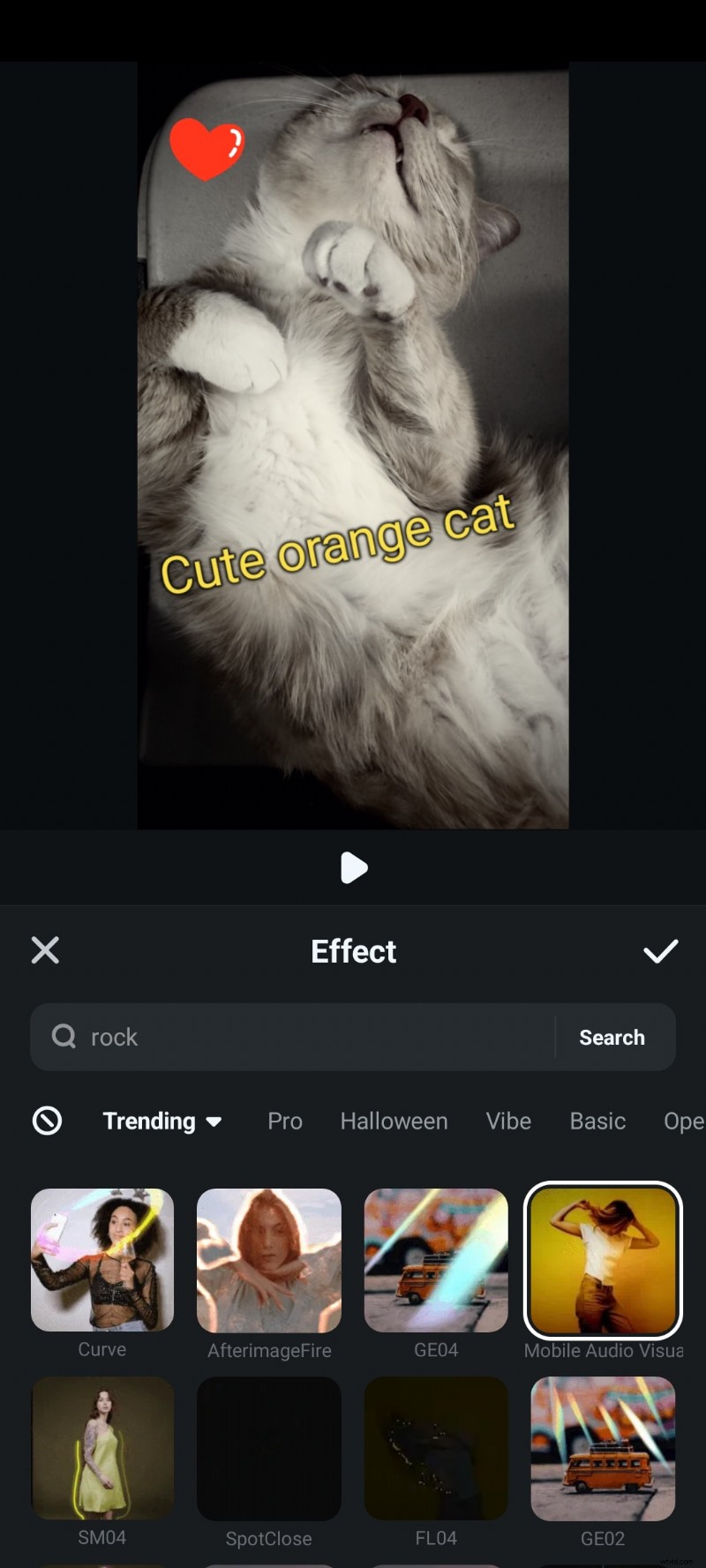
Choose from a wide range of filters or apply effects to enhance mood and visual appeal.
Preview & Refine
Regularly play back your edits. Filmora autosaves your progress, so you can tweak on the fly.
Export Your Video
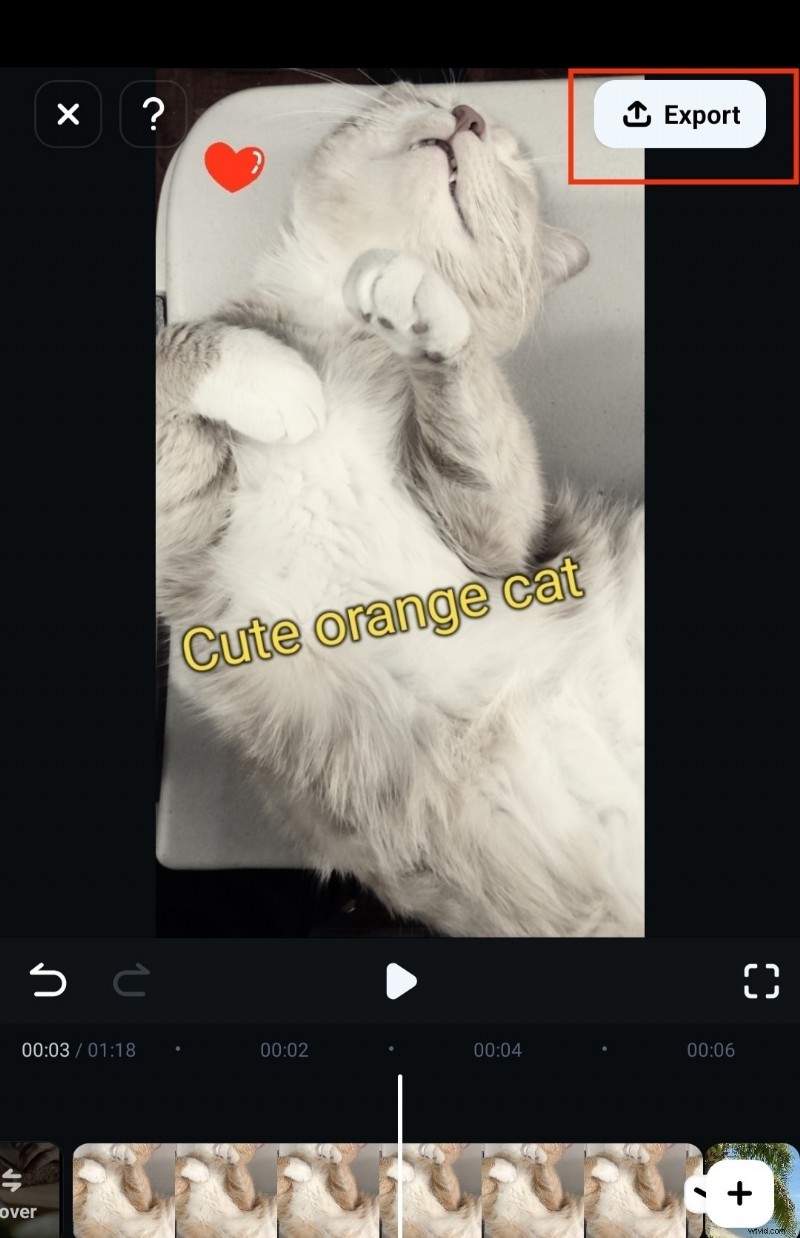
When satisfied, tap Export, select resolution and frame rate, then confirm. Your finished video will be ready for sharing.
Part 3: Unlocking Advanced Features
VEO 3 – AI‑Driven Video Creation
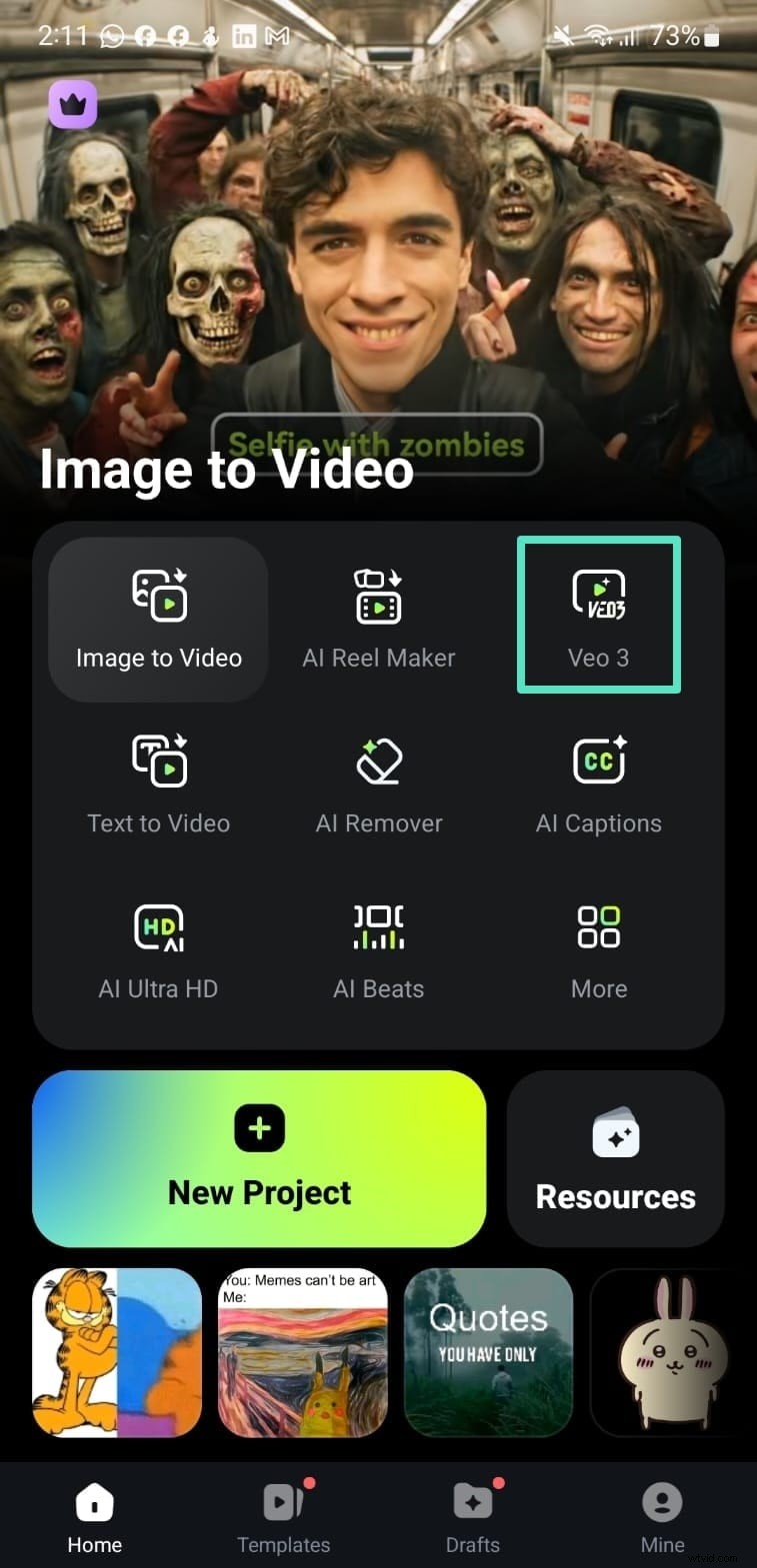
With VEO 3, you can generate entirely new scenes using AI. Choose Custom mode, upload a reference image, provide a text prompt, and let the tool render a unique video. You can also browse pre‑made templates for faster results.
Keyframing for Dynamic Animation
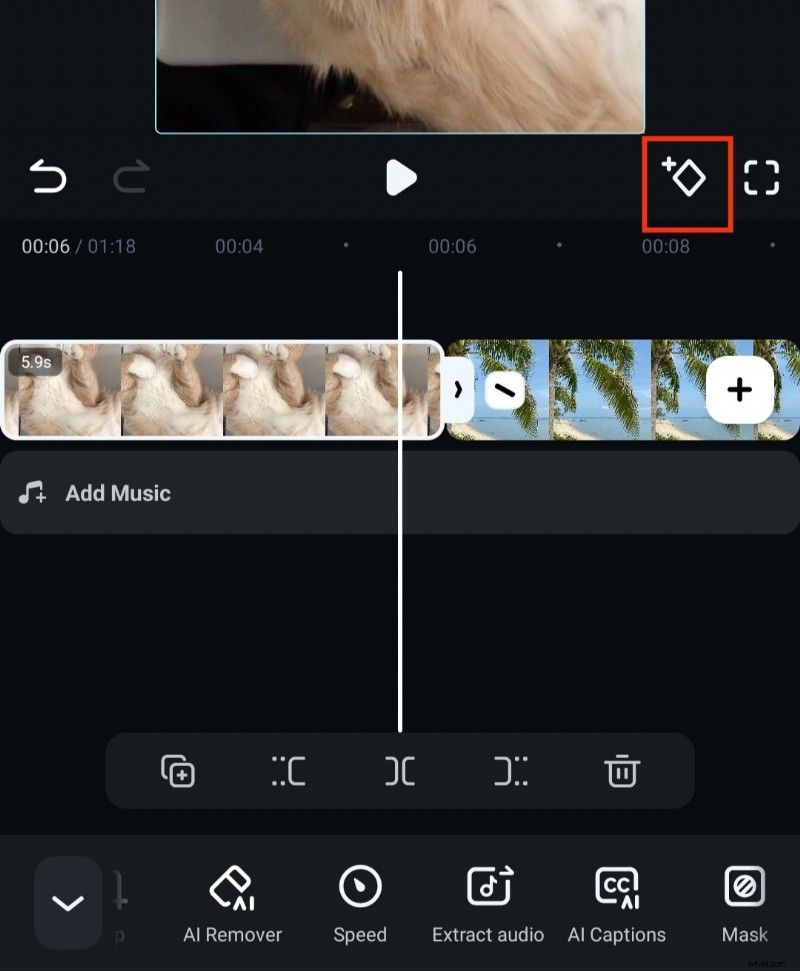
Animate text, images, or effects by adding keyframes. Place the first keyframe, adjust the element, then add a second keyframe to create motion.
Green Screen (Chroma Key)
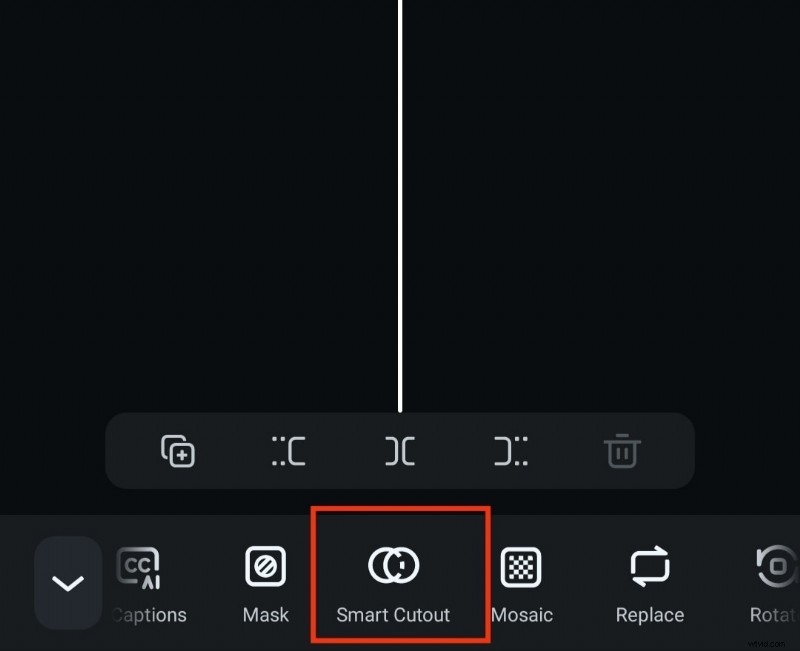
Remove a background and replace it with any image or video. Use Smart Cutout followed by Chroma Key, then fine‑tune strength and shadows.
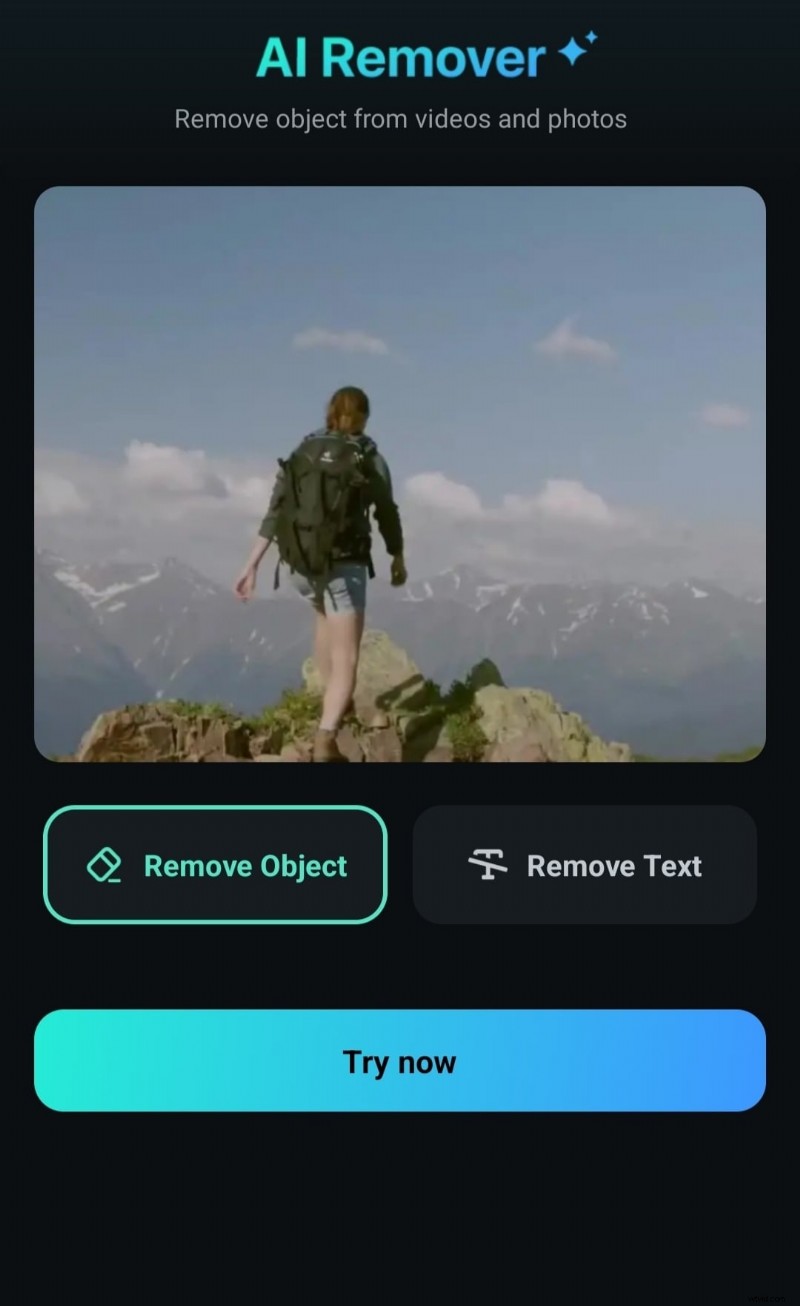
AI Object Remover
Erase unwanted objects by selecting the AI Remover tool, drawing over the target area, and processing.
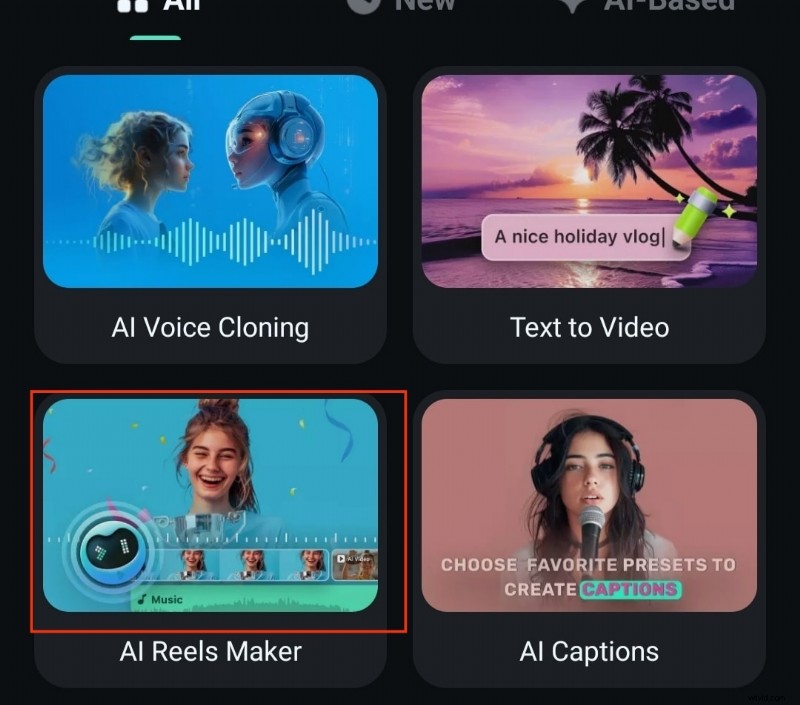
AI Auto‑Cut for Reels & Shorts
Generate polished Instagram Reels or YouTube Shorts with minimal effort. Pick a theme, import clips, and let the AI assemble a professional‑looking edit.
Conclusion
Wondershare Filmora remains a top choice for Android video editing, blending professional features with a beginner‑friendly interface. By mastering the basics and exploring its AI tools, you can elevate your mobile videos from casual clips to polished productions. Download Filmora today and start turning your creative ideas into shareable masterpieces.