
Is your computer RAM optimized for After Effects? In this post, we share a simple tip to rev up your processing speeds in AE.
If your rendering time is taking longer than expected, a change in RAM allocation may be all you need to speed up After Effects.
Why is RAM so important to After Effects? As you work, After Effects temporarily stores footage, layers, rendered frames, and source images in RAM. This helps speed up editing and previewing. So, the more RAM you have available for After Effects to use, the faster you’ll be able to work and render.
Adobe allows you to change how much of your computer’s RAM After Effects uses (and the other applications in the Creative Cloud Suite). Here are a few simple ways you can modify your After Effects RAM settings.
1. Go into the After Effects Preferences
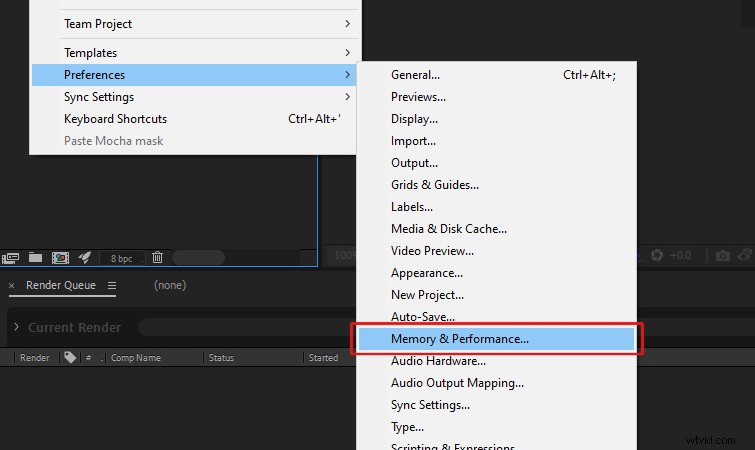
Open After Effects and navigate to Edit > Preferences > Memory & Performance.
2. Change RAM Reserved for Other Applications
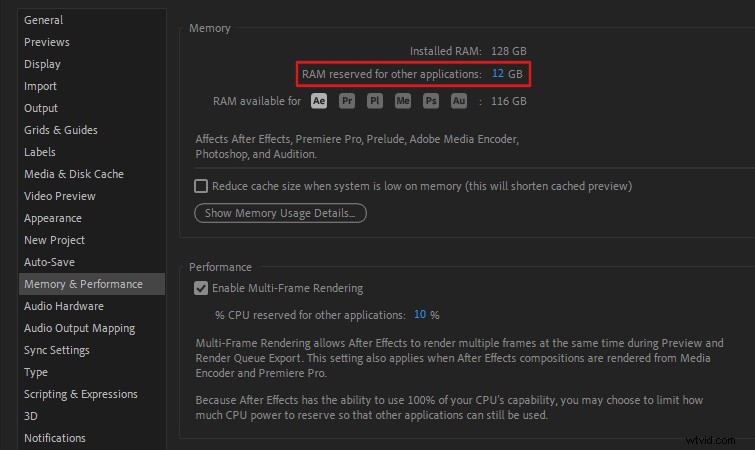
You can edit the RAM Reserved for Other Applications in the Memory section. In most cases, you can set this to the minimum value After Effects will allow. (Usually around 10% of your total RAM.)
After that, click OK.
More After Effects RAM Tips
As mentioned earlier, having a lot of RAM will speed up your workflow in After Effects. Adobe recommends having 32GB of RAM (or more) for the best results. (16 GB of RAM is the minimum required based on the After Effects System Requirements.)
Adobe also states that “optimum performance is achieved with at least 2GB of installed RAM per processor core.” So, if you have a 16-core processor for optimum performance, you would want to have at least 32GB of RAM installed on your computer.
Purging RAM Memory
Occasionally, After Effects may require more memory to preview a composition properly. (You may see a warning pop up, stating that After Effects requires more memory.) Or, you may run into previewing errors, where After Effects may display the wrong frames.
You can quickly purge your RAM to free up more memory if this happens. Navigate to Edit > Purge > All Memory & Disk Cache to do this.
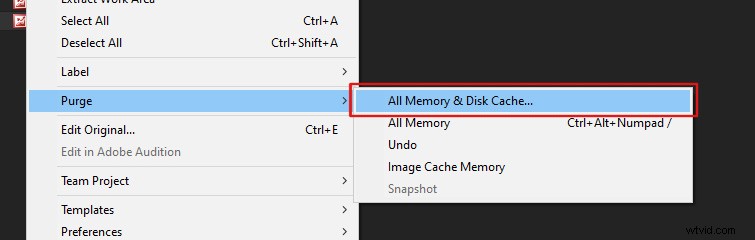
This should solve any previewing or cache-related issues you might encounter. To learn more about RAM in After Effects, check out the After Effects User Guide on Memory and Storage.
And, if you’re looking for more ways to speed up After Effects, check out 14 Tips for Faster Rendering in After Effects!