
After Effects makes it easy to remove unwanted logos and trademarks from your footage. Here’s how it’s done.
There are lots of reasons to remove logos from your footage. If you want to sell the footage as stock, you’ll need to avoid or remove logos before you upload it. If you’re shooting your own narrative work, removing brands and trademarks will simplify the process of obtaining E&O Insurance, a necessary step before selling your film to a distributor.
Ultimately, no matter what you’re doing with your footage, taking out brands in post can spare you some hassle (and maybe save you some money) down the line. Here’s a an easy way to do it quickly in After Effects.
Miss something? Take it at your own pace with the video transcription below.
Step 1: Track the Logo
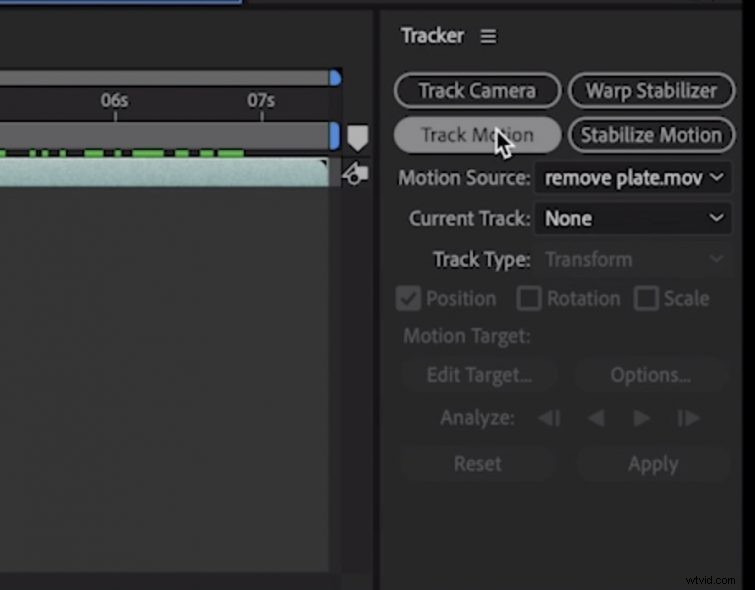
After loading the footage into After Effects, click on the clip, go to the tracker tab, and hit the Track Motion button. Place the tracking box over a high contrast area of the logo, and hit the track forward arrow.
Go to Layer > New > Null Object to create an object to inherit the tracking data. Back in the Tracking Tab, click Edit Target and make sure the Null you just created is selected, then click Apply.
Step 2: Create a Clean Plate
Now that we have the logo tracked through the shot, we need to create a clean plate to replace it with. Scroll to a frame that is a good representation of the logo and select Composition > Save Frame As > File. This will bring up a dialogue box and allow to you choose where you want the frame saved.
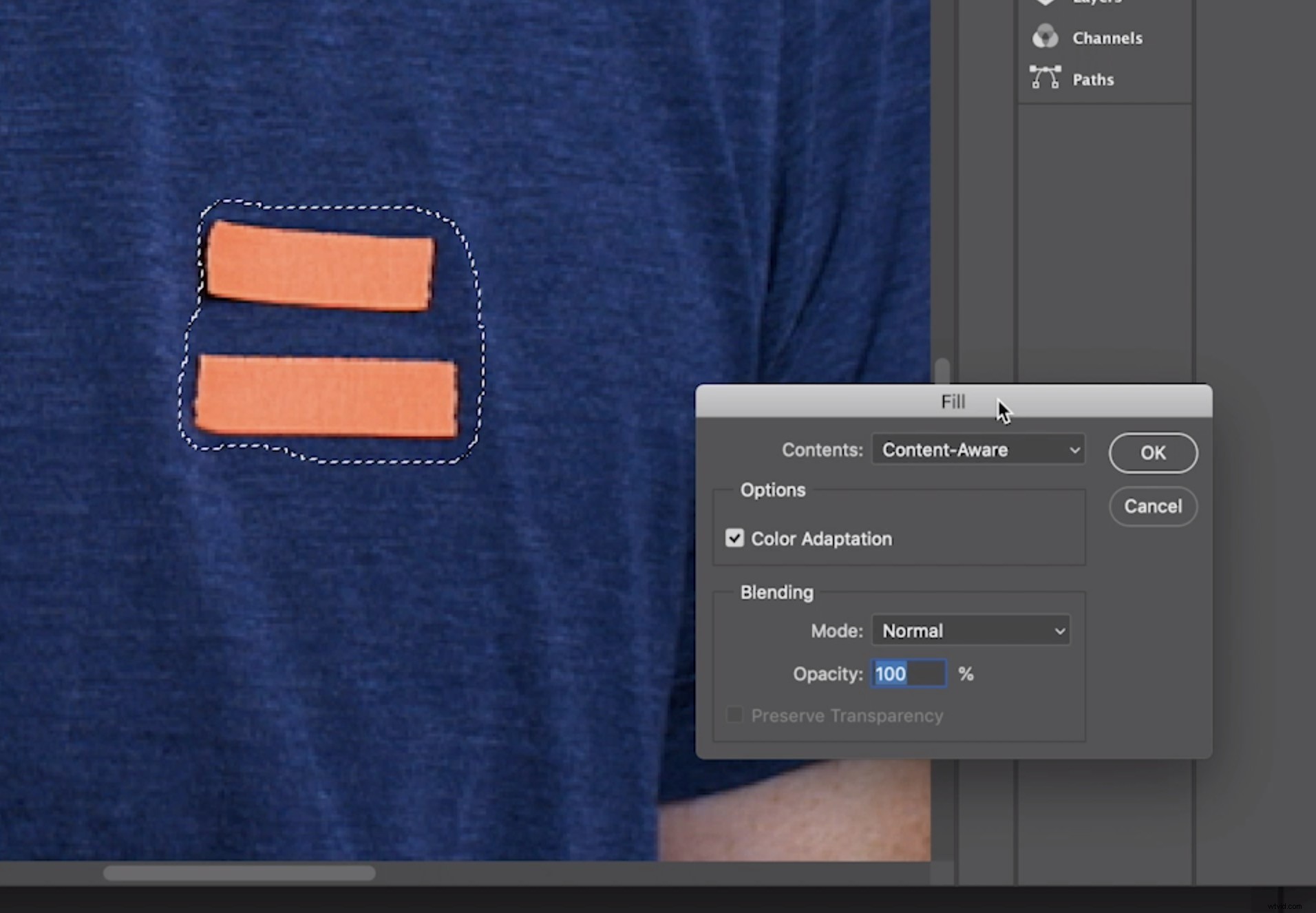
Now, boot up Photoshop and open the file you just saved. Select the logo using the Marquee tool and select Edit > Fill from the menu. In the dialogue box that appears, select Content-Aware and hit OK.
This should remove the logo and replace it with the surrounding area. If there are some vestigial remains of the logo, use the Stamp tool to remove them. Save the file, and head back to After Effects.
Step 3: Mask and Output
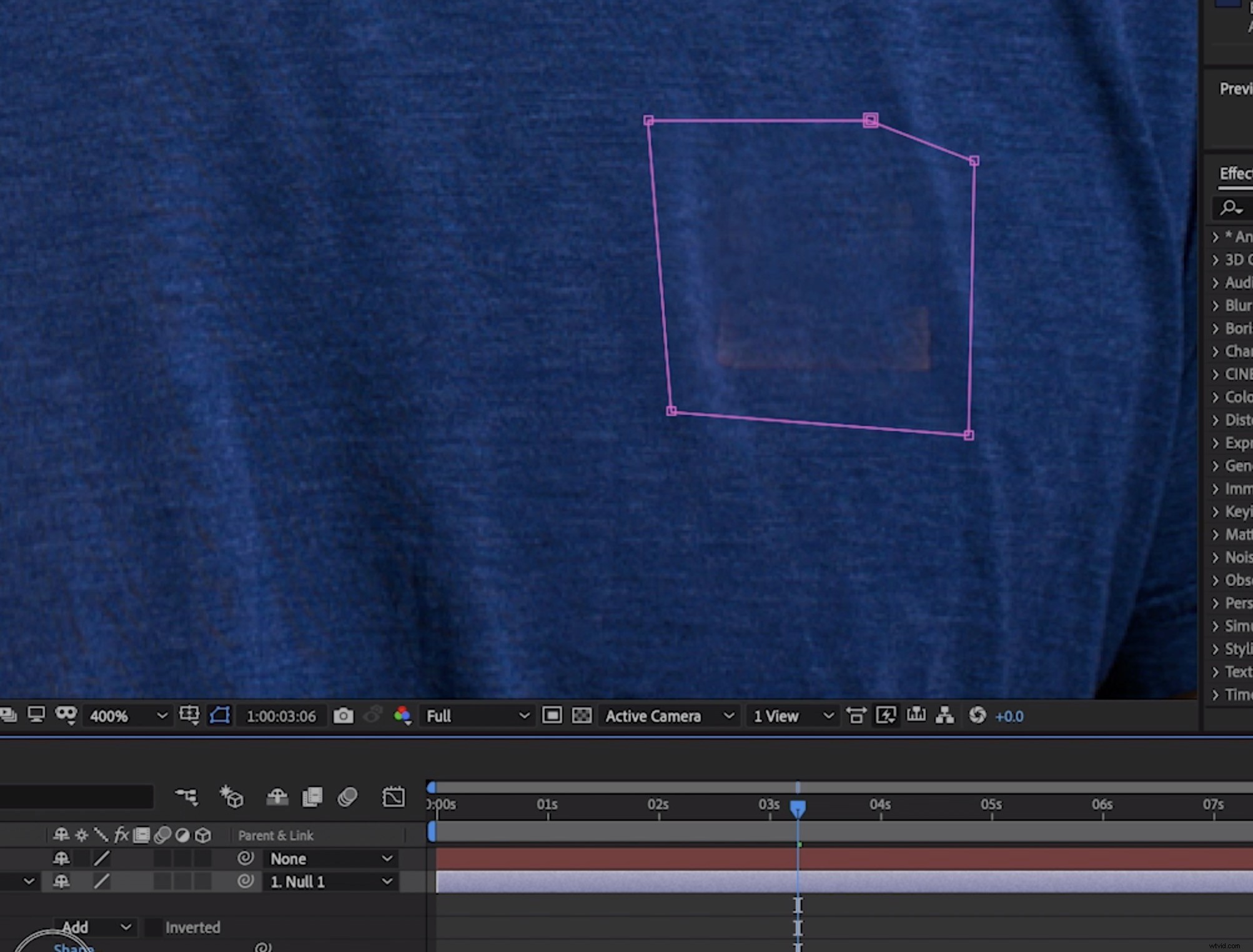
Import the image you just created into After Effects by choosing File > Import from the menu. Place it in a layer above the footage you just tracked, and line it up with your existing footage. You will need to make sure that the playhead is aligned with the frame you first exported.
Now, decrease the opacity of the new still layer so that you can see the logo location, and draw around the logo with the Pen tool. If you need to, feather and expand the mask so that the logo is completely covered and doesn’t show through.
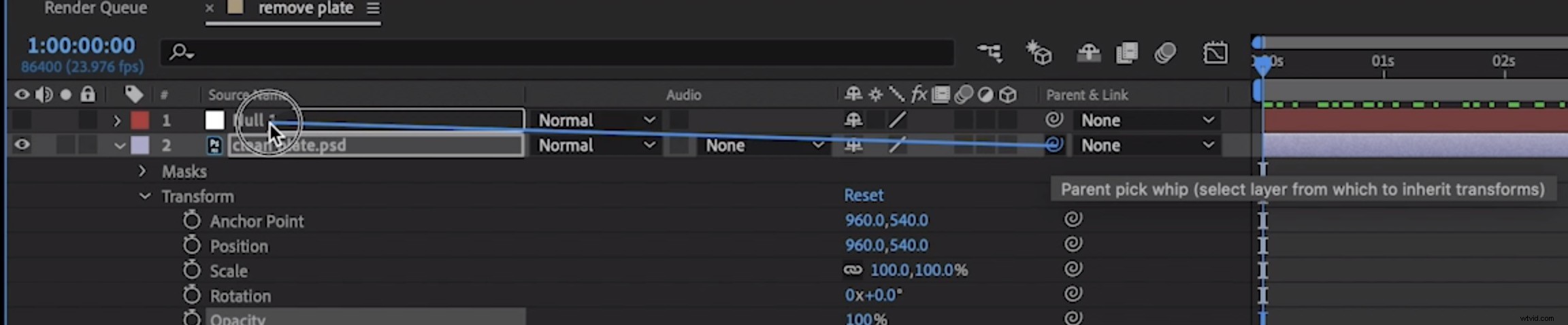
Now, using the pick whip (the tiny squiggle next to the still frame’s layer name), link the masked still frame to the tracked Null object. This will cause it to be linked to the moving Null object. Now, when you play through your video, you should have an invisible logo. Good job.
Looking for some more After Effects how-to content? Check out these tutorials and tips:
- How to Create Data-Driven Animations in Adobe After Effects
- How to Create a Retro Sci-Fi Disintegration Effect in After Effects
- 9 FREE After Effects Templates
- Create a Retrowave Background Loop with Adobe After Effects
Cover image via New Africa.