
Get a bird’s-eye view of your After Effects project with flowcharts.
When you’re working on a complex After Effects project, you might find yourself nesting compositions. A nest involves a composition within a composition. To create a nested composition, you simply highlight a single layer or group of layers and select Layer > Pre-compose. This creates a new composition in your project panel, and it will now show up as a layer in your original comp. We call this new composition a precomp.
Working with nesting and precomps can quickly become confusing. Trying to make your way to a specific layer that’s buried in precomps can be headache-inducing. This is when the flowchart panel comes in handy.
A flowchart offers you a bird’s-eye view of your project, so you can modify and customize your flowchart how you’d like and quickly navigate precomps and layers directly in the flowchart panel.
Let’s take a closer look at what you can do with this tool.
The Flowchart Panel
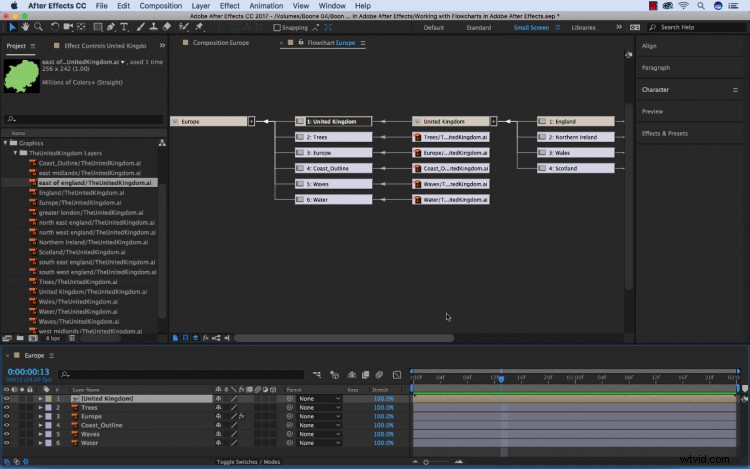
To access the flowchart, first I’ll make sure I have my desired composition open or selected in the project panel. Next, I’ll select Composition > Composition Flowchart. Once the flowchart panel opens, I’ll see all of my comps listed. I can also see all of the layers in each composition. The problem is that I’m not really enjoying this layout, so I’m going to customize my flowchart to make it more intuitive and easier to navigate.
Display Options
There are a number of ways I can customize the display of my flowchart, all of which are in the panel drop-down menu. First, I don’t really like that the chart is flowing up. I prefer a left-to-right layout, with the original comp at the far left, so I’m going to change this setting in the panel menu. I’ll set the justification to left. If I wanted a simpler view of things, I could strip the flowchart down so it’s displaying only the comps.

Navigating the Flowchart
One of my favorite aspects of the flowchart panel is the ability to quickly navigate and access comps and layers throughout my project. Anytime I select an asset in the flowchart panel, it will quickly show me that asset in the project or composition panel. If I select a layer in the composition panel, it will highlight the asset in the flowchart panel. Double-clicking a comp in the flowchart panel will open that comp.

The Mini-Flowchart
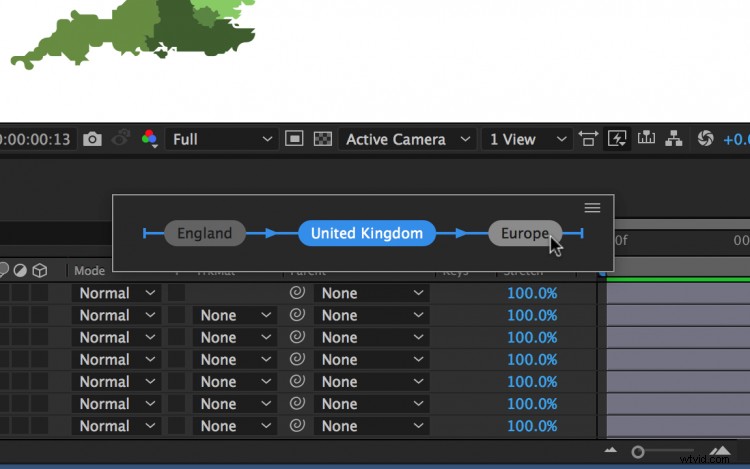
If working in the flowchart panel seems a bit too counterintuitive, check out the mini-flowchart. There are several ways to access this — the main way being Composition > Composition Mini-Flowchart. There’s also a mini-flowchart button in the composition panel, or you can just press the Tab key while your composition panel is highlighted. Quickly jump between comps and precomps in the mini-flowchart using the arrow key. To launch a comp, simply click on it.
Do you have tips for organizing your workflow in After Effects? Let us know in the comments.