
Use your Adobe Illustrator files to create stunning motion graphics for your next project in After Effects.
Adobe software applications work quite well together; you just need to know the ins and out of each program. In this tutorial, we’re going to take a look at how to work with Illustrator files in Adobe After Effects. Specifically, we’ll look at how to bring AI layers into AE and prepare them for animation. I’m going to show you how to prep your file in Illustrator, and I’ll also teach you all of the ways to import your file in After Effects. Finally, I will go over a few methods of manipulating the AI file further once it’s in After Effects.
Let’s get started!
The Project
I’m working on a motion graphics project that consists of animating a map of the United States. My client has provided me with a layered EPS vector graphic file of the United States that they want me to use in the animation. They’ve asked me to take this map and create a variety of animations, including an animation for each individual state. Let’s take a look at the file and see how I can work with this file in Adobe After Effects.
Prep the Illustrator File
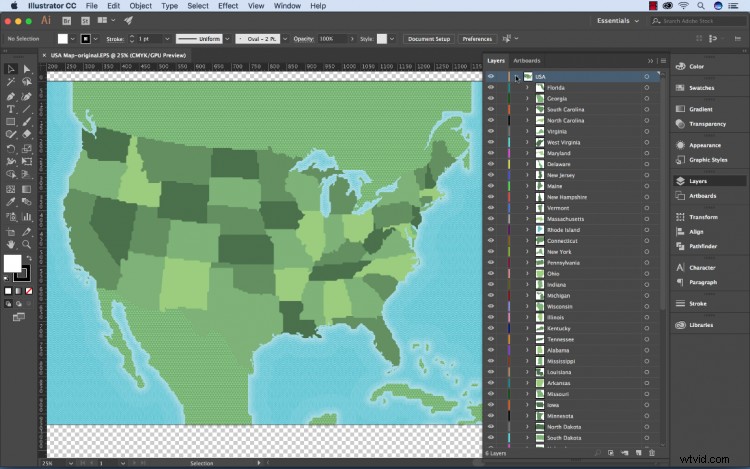
First, I will save my EPS file as an .ai or Adobe Illustrator file since After Effects provides more support for this file format. To ensure that Illustrator files appear correctly in After Effects, I’ll select Create PDF Compatible File in the Illustrator Options dialog box. Another issue I have with this file is the fact that everything is located in one layer. Since AE only displays AI layers, I need to put all of the individual states in their own layer. To do this, I’ll select all of the states in layer 1 and select Release to Layers. Now my AI file is prepped for import.
Import into After Effects
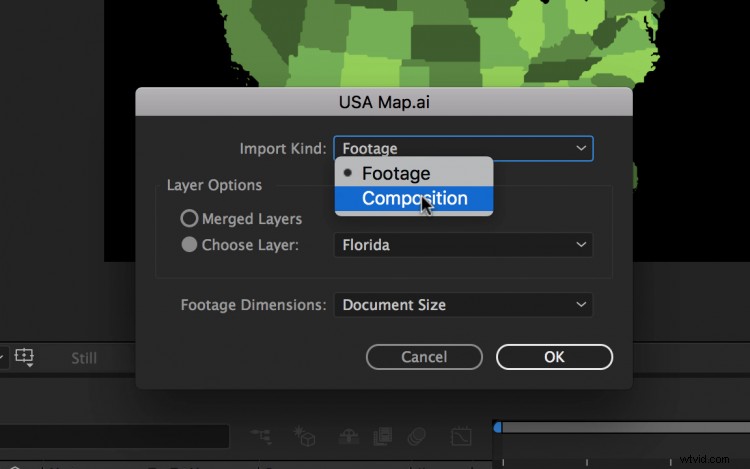
I have several options when bringing an AI file into After Effects. When I import an Illustrator file, I get the import dialogue box, which provides me with two options: Footage and Composition. If I import my file as Footage, I can choose to merge all of the layers into one, or I can import a specific layer on its own. I can further specify if I want the layers to retain their size or scale up to be the size of the document. If I choose Composition, a new composition will appear in my AE project that will include all of the imported layers from the file.
Create Shapes from Layers
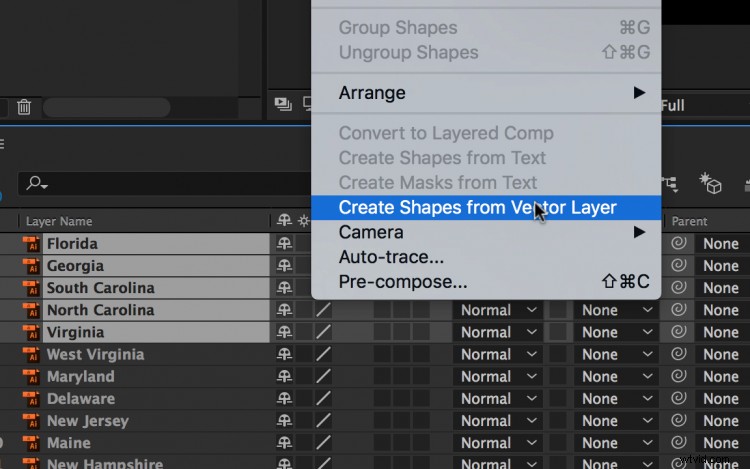
Once I have my Illustrator files in After Effects, I can make further adjustments. To provide myself with more versatility when animating, I can turn all of my Illustrator layers into shapes. To do this, I’ll select my layers in the comp I imported and go to Layer > Create Shapes From Layers. Using shape layers opens up a number possibilities, including quickly changing the fill and stroke options, adding a gradient, changing the path, adding a wiggle effect, and a handful of other features.