
In this video tutorial, we cover how to harness the power of this simple, hidden feature in Adobe After Effects — Trim Paths.
Trim Paths is a tool in Adobe After Effects that allows you to make precise adjustments to shape layer paths. However, new users may not know about it because it is hidden away under a shape layer submenu. So, what can you accomplish with this handy, little animator? Let’s have a look at five fun, useful projects.
1. Infographic
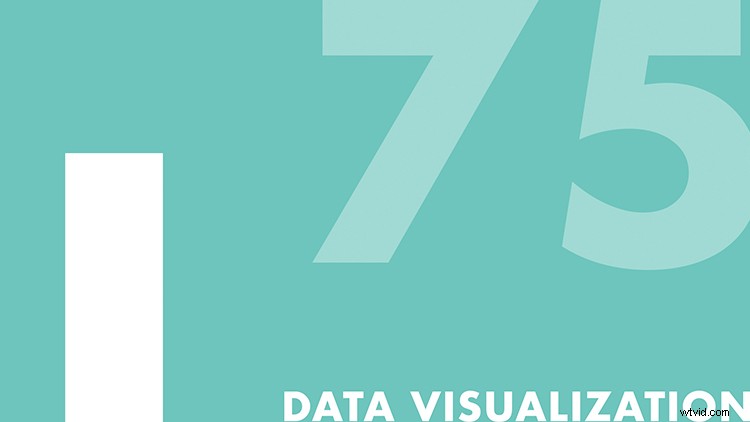
Creating an infographic can seem complex; however, it only takes a few simple steps. For a basic bar graph, I’ll first create a two-point path via the Pen tool, placing the first point at the bottom of the frame. Next, I’ll turn off the fill, and set the stroke to 150 pixels. Finally, I’ll add a Trim Path animator via the Add dropdown menu and animate the End property from 0% to 100%. To have a number dynamically change as the graph grows, I’ll add a text layer and parent the source text to the end property of the Trim Path. Lastly, I’ll add a simple value expression to round the numbers out to absolute values. And voilà — a dynamic infographic. (Check out my full tutorial on how to create infographics in After Effects here.)
2. Map Route
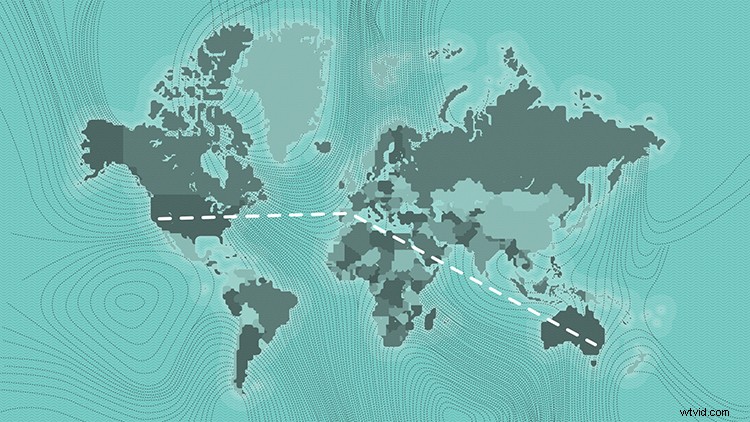
Maps are fun, and you can quickly create an animated route with Trim Paths. First, I’ll add points and a path to a map via the Pen tool, with the stroke at 5 pixels and no fill. I can customize and stylize my map route via the properties of the stroke element. For this example, I’ll add some dashes and change the Line Cap property. Once I’m happy with the look, I’ll add the Trim Path animator and animate the end position. For a full tutorial on how to animate a map route, check out my “Create a Map Path Inspired by Indiana Jones in After Effects“ tutorial. (That tutorial belongs in a museum.)
3. Text Box
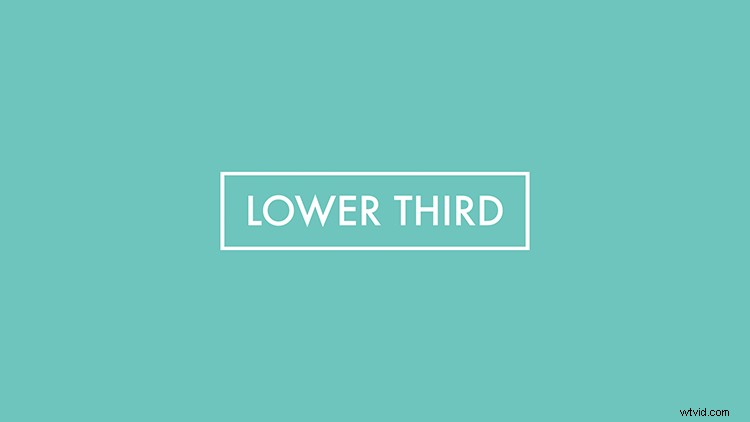
You can use Trim Paths to quickly add detail to a lower third — or another text element. A popular look for lower thirds, and other graphics, is the animated bounding box. To create one, I’ll simply grab the Rectangle Shape tool and set the stroke to 10 pixels, with no fill. Then, I’ll create a rectangle and align it with my text. Now, I can animate the end in conjunction with the Offset for some truly desirable results. (This also works great with simple underline elements.)
4. Text Stroke
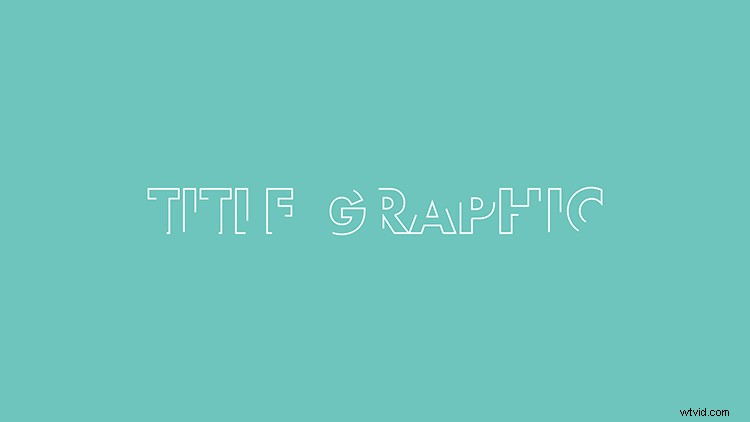
Another popular look is the animated text stroke. As opposed to creating a simple box or line element, adding and animating a text stroke can be a bit more tricky. For this, I’ll first take my text and select Layer > Create > Create Shapes from Text. To change the stoke of all the characters at once, select the layer, and use the Stroke option at the top of the interface. Once I’m happy with the look of my stroke, I can add Trim Paths and animate the range to get the look I want. (Check out my stand-alone tutorial on “How to Animate a Text Stroke in Adobe After Effects.”)
5. Circle Bursts

The circle burst is a fun animation element that creates simple movement, and Trim Paths can help bring these to life. Let’s create a quick circle burst and add it to a star-shaped animation. First, I’ll create a simple path (via the Pen tool) coming out from the top of the star. Next, I’ll add the Trim Path’s animator. To have the line shoot out from the center, I’ll animate both the start and end attributes, slightly offsetting each. Finally, I’ll add a Repeater with 9 copies, a Position of 0, and a Rotation of 40. Now, I can change the Y Position of the shape element to place it perfectly. (For more circle burst madness, check out this tutorial.)
Interested in the tracks we used to make this video?
- “Virtual Arrival” by Cymatix
- “Summer Cruising” by Mattijs Muller
- “Midnight City” by Make Music
- “Fake Awake” by Tonemassif
- “Street Signs” by Sound Force