
In this tutorial, we’ll take a step-by-step look at how to create some basic data-driven animations using Adobe After Effects.
For this example, let’s say that I’m creating a number of sales report animations to show at a recurring monthly meeting. To create these data-driven animations, I’ll be using the Capital After Effects template. This is a premium template from RocketStock, which has a number of infographics that are already rigged up and beautifully animated. To connect the properties of these animations to data files, I’ll be using the MamoworldJSON script — a free tool from aescripts.com.
The purpose of this technique is to control the animations of an After Effects project via a simple text file. This way, any team member can make adjustments to the animations via editing the values of a basic text file.
Let’s get into the tutorial.
1. Prep the AE Elements
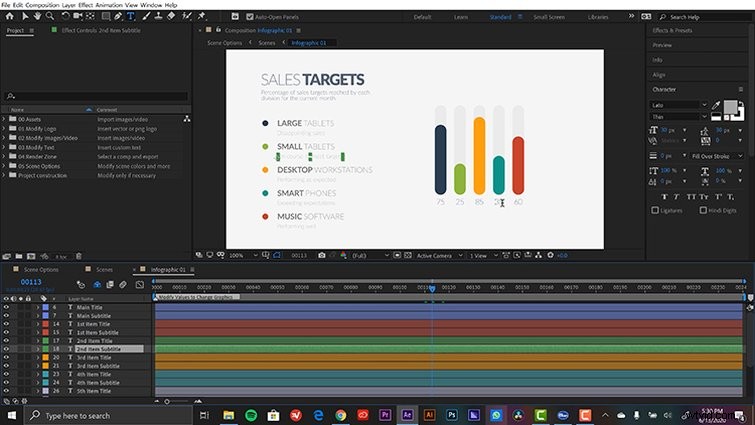
For the first step, you’ll want to prep all of your assets and animations in Adobe After Effects. Since I’m using a template, I’ll simply need to make slight changes to the existing elements. As I mentioned before, the Capital template from RocketStock is already rigged, animated, and ready for easy customization. I’ll grab the Infographic 01 comp and change the various text elements to match my sales report.
While I can make adjustments to all of the values directly in the template very quickly and easily, the purpose of this technique is to allow changes via a simple text file. Once edited and saved, the text file will automatically update the animations of the AE project.
2. Generate a JSON File
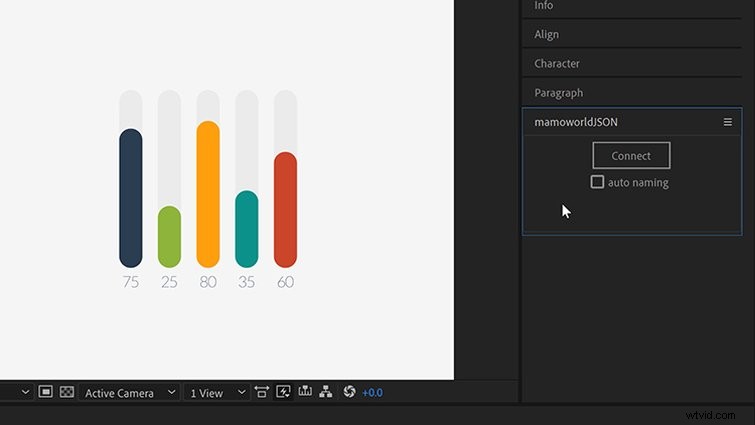
Once you’ve downloaded and installed the MamoworldJSON script, open it up via the Window menu. The beauty of this tool is that it allows you to automatically generate a JSON file from within your After Effects project.
JSON is a simple text file that can store data in a structured method. Normally, you’d need to write complex expressions to connect attributes to an existing JSON file. You’d also need to understand how to write a JSON file from scratch, if you didn’t already have an existing one with which to work.
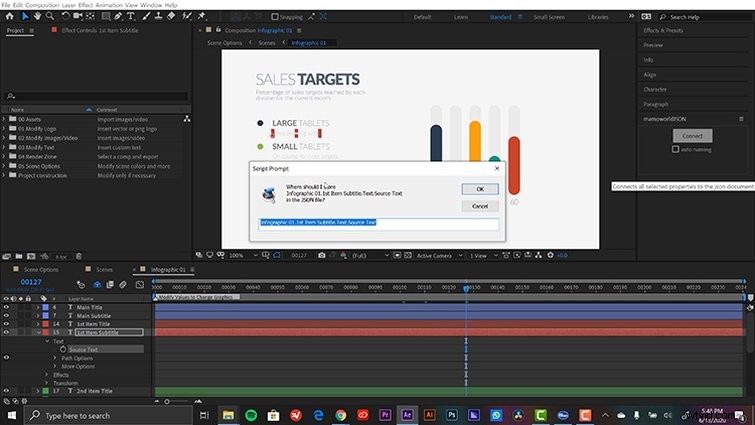
Generating a JSON file is as simple as selecting a property of a layer and pressing the Connect button in the MamoworldJSON panel. For my first property, I’ll select the Source Text of my Value 1 layer and press Connect. After I enter a name and press OK, a new file is created on my local drive and placed in the project.
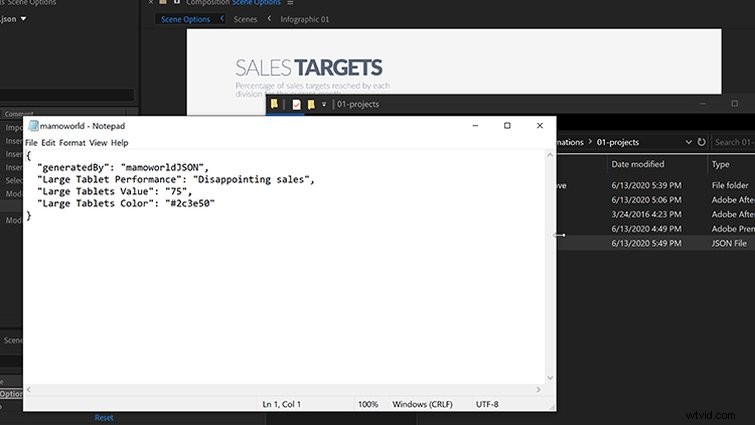
To connect additional assets, it’s as simple as repeating the previous step. I’ll connect the Source Text properties for all of my graph Value layers, as well as the Item Subtitles. MamoworldJSON allows me to connect nearly any attribute. This includes the colors of the graphs, the main titles, and almost any other property on screen.
3. Modify the Data
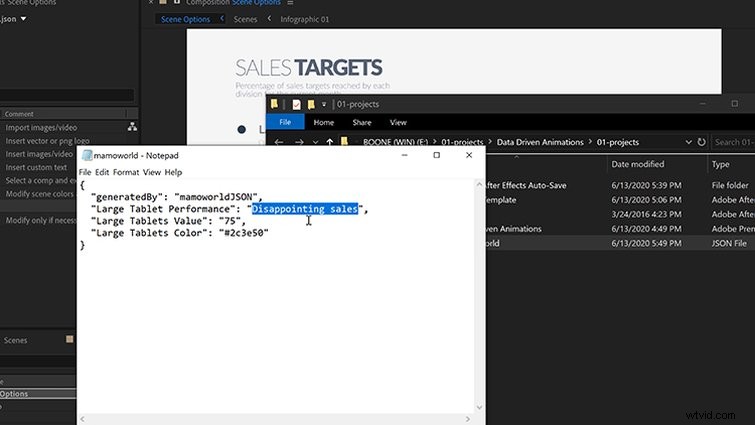
To open up the JSON file, I’ll right-click the document and select Find in Explorer/Finder. Again, I can open the JSON via a basic text editor. If you plan on working with a lot of data, you might want to find an app that can present the data in a more reader-friendly setup. And now, changing the animations is as simple as typing in new values in each data set, then saving the changes.
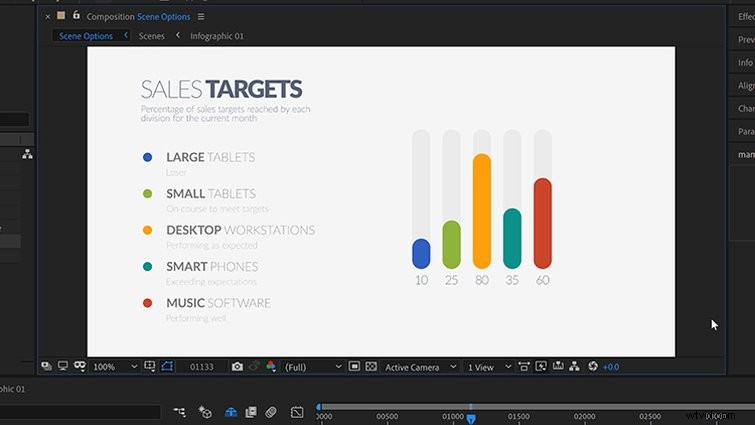
Since I’m using a template that’s already rigged and animated, the data will drive those animations. All I need to do is open the project and render out the comp. The beauty here is that now anyone can modify the text in the JSON file. There’s no need to have a bunch of people fiddling around in my AE project.
Final Thoughts
Now, there are only a few values in this example that I’m driving via my JSON file. However, the real power is when you start using large amounts of data. This is especially useful for weather reports, campaign election graphics, and sporting events. I’m only scratching the surface of what you can achieve with data-driven animations.
To check out other high-quality After Effects templates, head over to RocketStock.
Supercharge your motion graphics with this helpful After Effects content.
- How to Create a Retro Sci-Fi Disintegration Effect in After Effects
- 10 Minute Crash Course: Newton 3 After Effects Plugin
- Top 10 Paid and Free Scripts and Plugins for After Effects
- 9 FREE After Effects Templates