So you think frame-by-frame animation is just too tedious for your film or video project? In this tutorial, we invite you to think again.
Many people think animating frame by frame is tedious and time-consuming, but it doesn’t have to be. The animated scribble technique is a perfect example of an easy way to create dynamic, handmade graphic elements. You’ve seen this effect in a lot of popular music videos over the last few years, including videos by Justin Bieber and Bruno Mars. Let’s take a closer look at how, in just a few simple steps, you can add eye-catching graphics to your videos.
Step 1: Prepare the Workspace
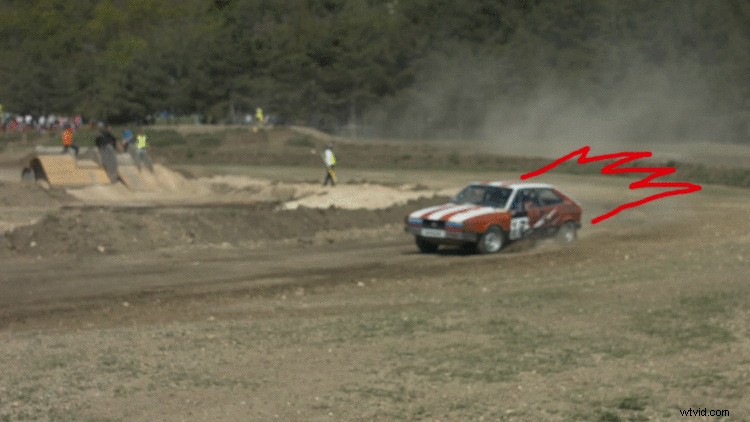
First, I need to set up my workspace. For this tutorial, I’m going to add some cartoonish flames that will come off the back of a race car. I’ll add the flames using the Brush tool, which you can find in the Tools panel or by using the Cmd (Mac) or Ctrl (PC) + B keyboard shortcut. The brush tool only works on the Layer panel — you can’t paint directly on the Composition panel. To open up my clip in the Layer panel, I’ll simply double-click the layer. Next, I’ll set up my brush.
Step 2: Prepare Your Brush
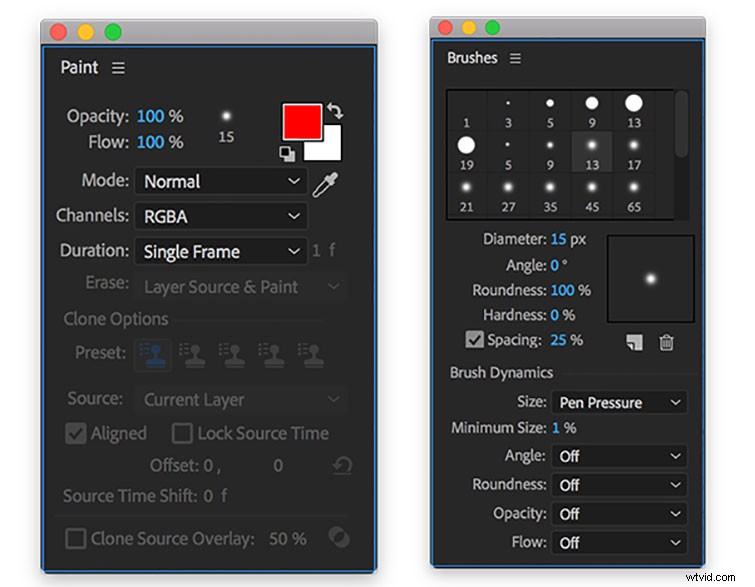
As soon as you select the Brush tool, both the Paint and Brushes panels will become visible. Both panels offer a variety of options. The Paint panel allows you to change the opacity, flow, color, diameter, blend mode, channels, and duration. Clicking on the diameter button will bring you directly to the Brushes panel, where you can specify the diameter, angle, roundness, hardness, and spacing of your brush. You can even save your brush settings for future use.
The duration section of your Paint panel is one of the most important properties. Since this is a fast-moving clip, I want my flames to animate as quickly and frenetically as possible. For this reason, I’ll change the duration to “Single Frame.” If I want something a bit more subdued or clunky, I can change the Duration to “Custom” and then manually type in whatever frame rate I want. With both my workspace and brush ready, it’s time to scribble.
Step 3: Scribble
To start my scribble animation, I’ll bring my playhead to the first frame of my clip in the timeline. Using the Brush tool directly on the Layer panel, I’ll draw my flames on the first frame. Now it’s as simple as drawing the same flames for each frame. This particular clip is two seconds in length, shot at 25fps, so if I want flames throughout the entire clip, I will need to draw these same flames 50 times. If you want to create an animation that changes over time, it’s imperative to know the length of your clip so you can make subtle changes.
Knowing a few shortcuts will save you a lot of time and possible headaches when creating a frame-by-frame animation. To quickly navigate by individual frames inside After Effects, use the Page Up/Down keys. To resize the diameter of your brush, hold the Command (Mac) or Control (PC) key while you click and drag up or down.
Et voilà! The final animation.