
Check out all of the possibilities for creating text animations using mattes in After Effects. Tutorial includes free project file!
In this tutorial, we explore several text animation possibilities using track mattes in After Effects. We’ll learn about what a track matte is and how we can use them to create several different text animations.
Ready for the tutorial? Let’s go! Be sure to download the free project file!
DOWNLOAD THE FREE AE PROJECT FILEBy downloading, you agree not to resell or redistribute these free assets.
What is a Track Matte?
Track mattes, also referred to as mattes, create a “cut out” of another shape. The cut out shape could be a graphic, text, or even footage. Let’s look at how this would work with text in After Effects.
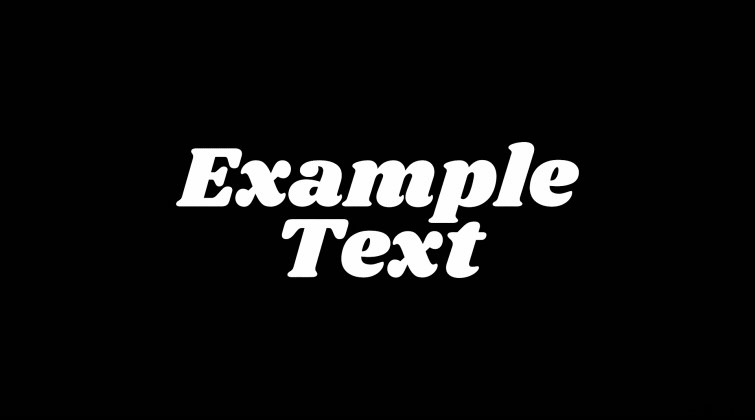
First, we start with some text, then use that text as a matte. This gives us a perfect “cut out” of our original text shape. We can then add effects and footage behind that text matte to create our text animation.
Creating a Simple Matte Text Animation
Let’s start by creating a simple matte text animation. First, create some text in your After Effects composition. Next, create a solid layer and put it underneath the text layer. (The color of the solid can be any color you want. It’ll serve as the background.)
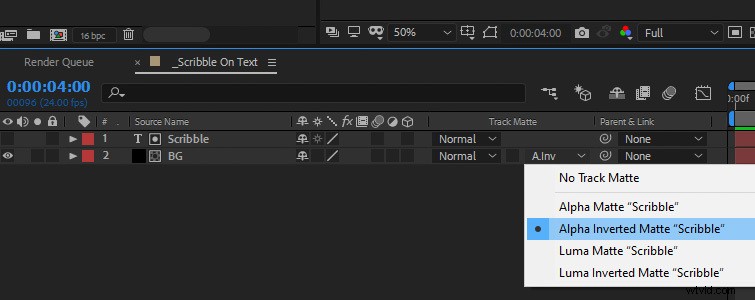
Then, under the Track Matte options, set the solid layer to Alpha Inverted Matte. (If you don’t see the Track Matte options, toggle F4 on your keyboard.) The visible text should now appear transparent. This is because we have now created a matte “cut out” of the text on the solid layer.
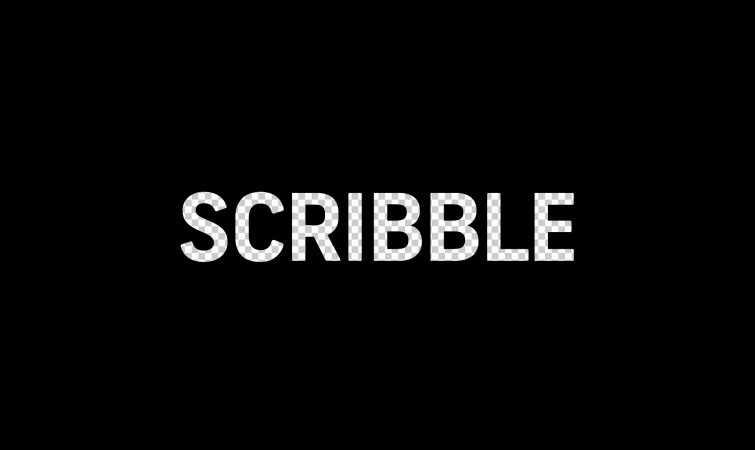
Now we can place some animating scribble footage underneath the solid layer. (The scribble footage is included in the project file.)
We can see through the “cut out” text on the solid layer and we can see the scribble footage animate on it. This, in turn, reveals the shape of our original text!
Using Video Footage Behind Text
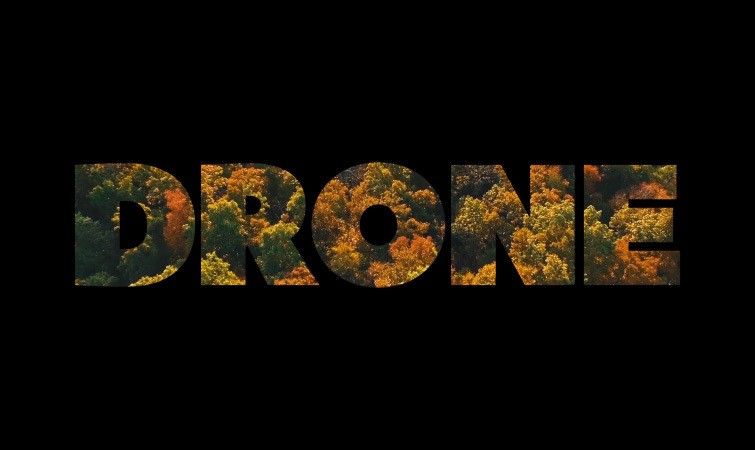
You don’t have to limit your text mattes to just motion graphics or animations. You can also place real-world footage behind mattes for some creative looks.
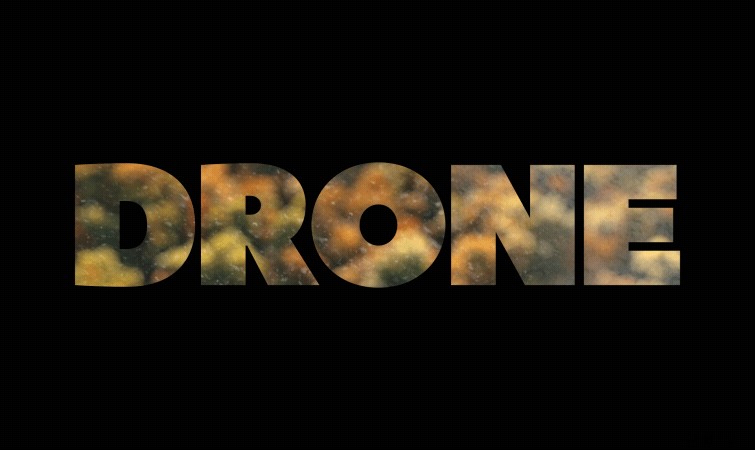
You can even add effects and textures to the footage. In this example, I’m using the Camera Lens Blur effect on my footage, along with a gritty texture. This opens up the door to easily create several different text looks.
Creative Matte Text Animations to Try
You can also create a second copy of your original matte text and place it below the matte solid layer. Then, you can offset the movement of the text underneath the other layers to create an interesting reveal animation.
Finally, you can experiment with 3D parallax on your matte text. To do this, make your text and the matte solid 3D layers, then add in more layers behind them. Also make those layers 3D and stagger them farther back at various distances.
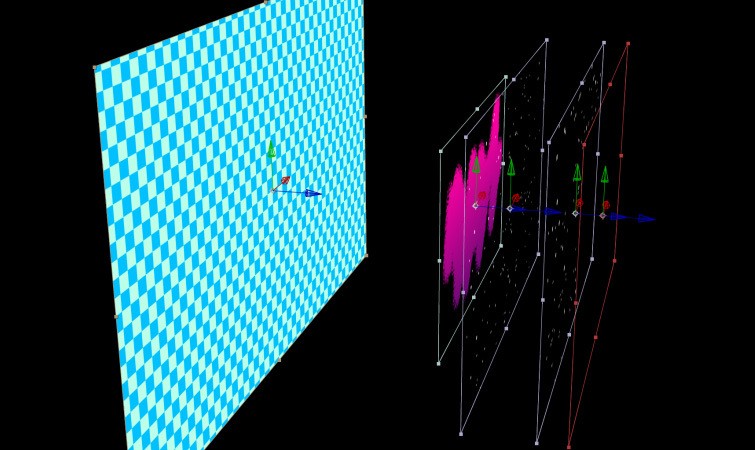
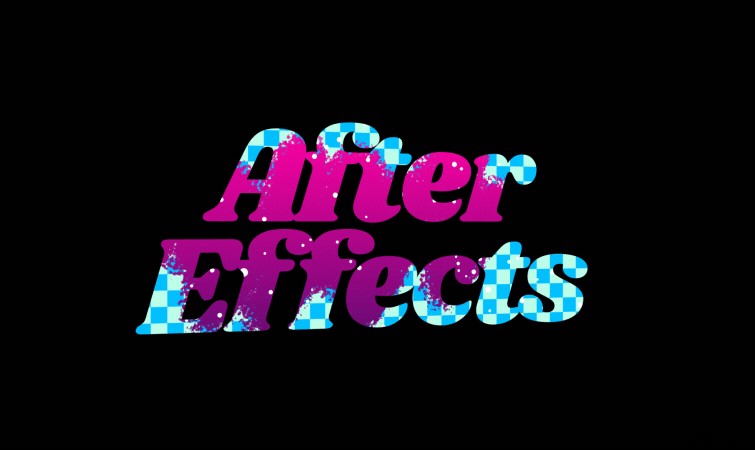
Now, create a 3D camera and keyframe a subtle movement animation. You can see through your text matte like a window, giving a neat parallax depth effect.
Interested in the royalty-free tracks we used to make this video? Give them another listen:
- “Lo Fi Beach Dawn” by Trending Music
- “Influencers” by FASSounds
- “Rain Rain Go Away” by Cosmo
- “Fresh Hip Hop” by Trending Music
Get the most out of After Effects with these tips and tutorials:
- How to Create a Watercolor Painting Look in After Effects
- Create a Stylish Walkthrough Portal Transition in After Effects
- 10 Practical Tips for Creating Sci-Fi HUDs in After Effects
- How to Animate Individual Letters in Adobe After Effects
- How to Create the Split Diopter Look in Adobe After Effects