
Learn how to create a drone selfie loop in Adobe After Effects with this video tutorial. With free project files!
In this tutorial, we are going to create a dronie loop (drone selfie) using some time-remapping techniques in Adobe After Effects. Before we get started, I want to mention that this effect isn’t limited to selfies — it’s just called that because this effect is common on Twitter and Instagram. (I’m not a big selfie guy myself.)
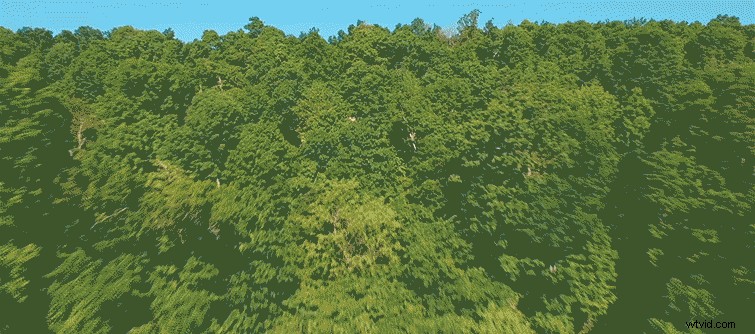
Essentially, we’re creating a seamless aerial loop — the camera moves from point A to point B and back again. What makes this effect look particularly nice is the speed ramping that occurs during the movement, giving the shot some motion blur and velocity.
This effect also isn’t limited to drones. However, it does look best with long, smooth camera moves, which are easy to do with drones. Experiment with the effect yourself and see what you can come up with.
Download the Free Footage and Project Files
To download the free footage and project files mentioned in the tutorial above, simply click the button below.
DOWNLOAD FREE PROJECT FILE AND CLIP
The Keys to Creating Your Aerial Drone Loop

The following points can help you create your visual loop in Adobe After Effects:
- Keep your drone (or hand-held camera) movement as smooth as possible when shooting.
- If you are filming yourself or other people, make sure they minimize their movement during the shot. (The speed ramp can create unwanted results if people move too much.)
- Use the Time-Remapping effect to speed up your footage. (I usually compress 15 seconds of footage to about 2 seconds.)
- Use the After Effects Ram Preview function to ensure a seamless loop. (And preview it at full resolution.)
- Finally, use CC Force Motion Blur (or Pixel Motion Blur) on an adjustment layer above your footage. (I recommend setting the samples to 12.)
Do you have any tips for creating a drone selfie effect in Adobe After Effects? Share in the comments.