Check out these four techniques to precisely position and align graphic elements in your next Adobe After Effects project.
If you’re relatively new to Adobe After Effects then you might not feel completely comfortable with the interface. You can quickly get lost if you don’t know the ins and outs of the program. It can be particularly frustrating if you don’t know how to properly control layers within the composition panel.
Perhaps you’re having trouble getting a graphic exactly where you want it. Or maybe you want to align several shape elements with a title, but you just can’t figure it out. Check out the four tips and tricks below to get a better grip on how to use Adobe After Effects.
Understand Anchor Points
All layers have an anchor point, also known as a transformation point or the transformation center. This is an apt name because all of the transformations you perform on a layer are affected in relation to the anchor point’s center. You can move an anchor point with the Pan Behind tool, or by adjusting the properties of the anchor point in the transform section. The anchor point is often located conveniently at the center of a layer. If it’s not, you can quickly move it there by selecting Layer > Transform > Center Anchor Point in Layer Content.

Manually Position Layers
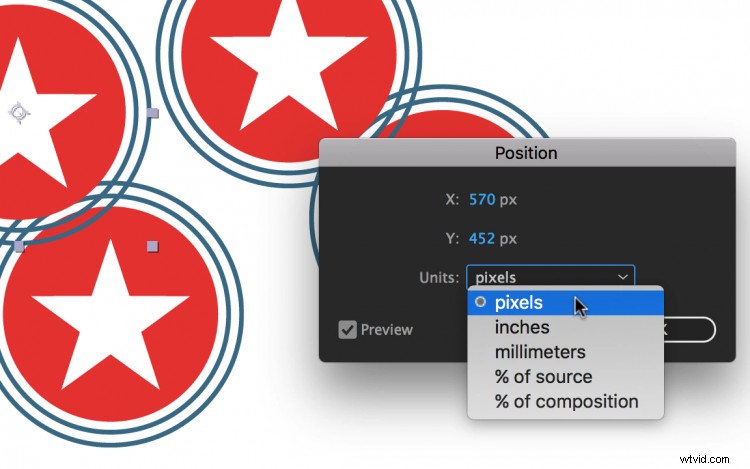
If you’re working on a project where eyeballing a graphic’s position is insufficient, you can always manually position the layer. To do this, first, choose the layer and then go to Layer > Transform > Position. This will bring up your position dialog box, which allows you to specify exactly where you want your layer to be on both the X and Y axes. Choose the location in a variety of different units, including pixels, inches, millimeters, or a percent of the source or composition. Bring up the position dialogue box with the keyboard shortcut Command+Shift+P.
Use Grids & Guides
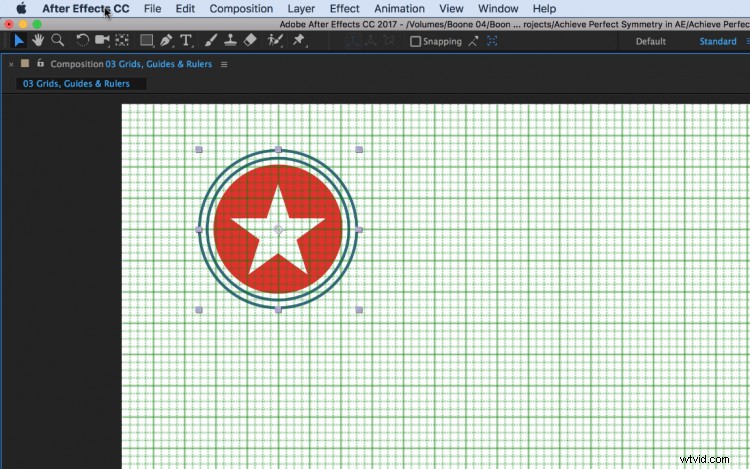
While positioning assets manually can prove helpful, it can also quickly become cumbersome. If you’re working with multiple assets and you need more precision, you’ll want to harness the power of grids, guides, and rulers. Both grids and guides help you quickly align and snap assets to specific locations. Whether you’re trying to keep your graphics proportional or align several elements, these tools can help. To use grids and guides, go to the View drop-down menu or click on the grids and guides button in the composition panel. Customize grids and guides in the Preferences panel.
Align & Distribute Assets
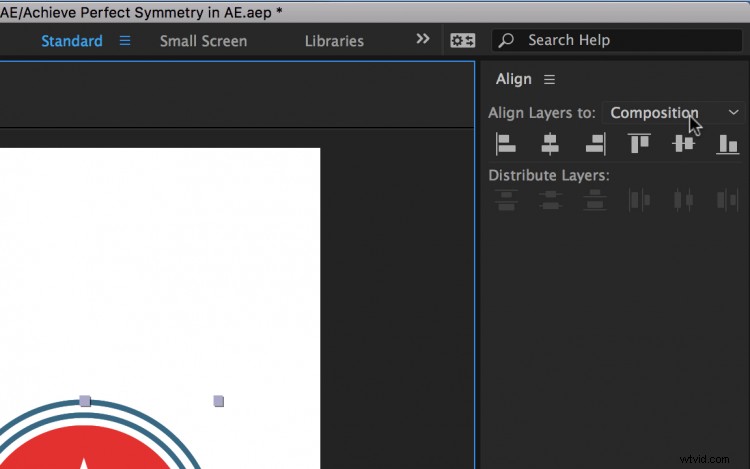
If you aren’t already using the Align panel then it’s time to start. The tools in this panel allow you to perfectly position single or multiple layers in After Effects. Quickly align a layer to the composition’s horizontal right, left, or center — or vertically to the top, bottom, or center. You can also align layers to other layers. This is especially useful when working with multiple text elements that need to be precisely positioned. In addition to aligning, you also have several options to distribute layers vertically and horizontally.