
BlueJeans is a video conferencing service that empowers users to host online meetings. It has become a popular solution to communicate with business partners and colleagues as BlueJeans allows you to share documents in meetings. Its built-in tool can record the conferences. But the built-in BlueJeans recording functionality has some limitations. It's easy to apply this function only if you are a meeting moderator.
Here, try an alternative tool that offers functions more than the built-in BlueJeans recorder, which records BlueJeans video meetings effectively, with desired options.
How to Record and Download BlueJeans Recording
If you're a BlueJeans standard user, you can record meetings for more than 5 hours, while BlueJeans Pro users can record meetings for up to 25 hours. Since the built-in recording feature is only accessible for the meeting moderator, in this part, you learn how to record and download a meeting in BlueJeans as a moderator.
How to Record a Meeting in BlueJeans
With the BlueJeans recorder, you can capture everything that's happening in a meeting (both video and audio) for playback later. This feature is convenient to record training sessions, new candidates' interviews, etc.
Whether you're using BlueJeans through a browser or downloading a dedicated BlueJeans application on your device, follow the below steps to record a meeting.
Here is a list of steps on recording BlueJeans:
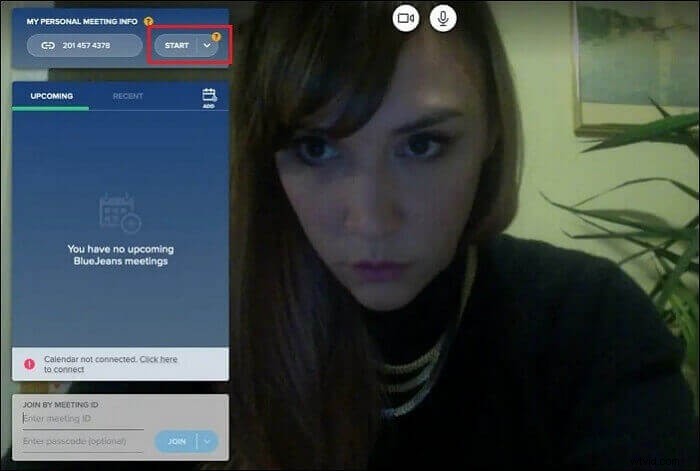
Step 1. Start a meeting by clicking "Start".
Step 2. As the moderator of the meeting, you hit "Start Rec/ Start Rec & Highlights" located at the top left corner of the screen. All participants in the recording can see the "Recording has started" notification.
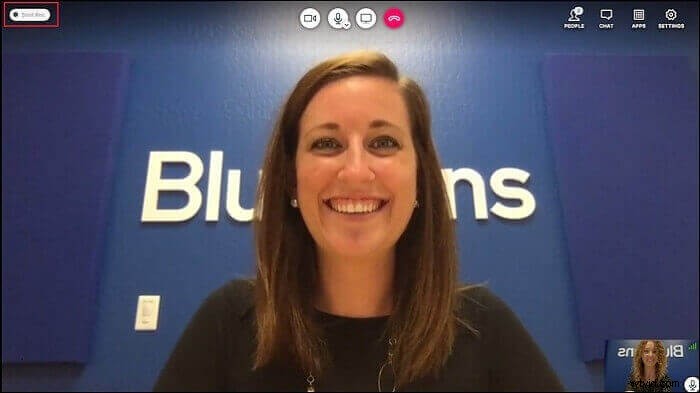
Meeting Recorder can capture all video and audio, except the chat. While a recording is ongoing, a blinking red icon is noticeable in the top left-hand corner. And all moderators have access to BlueJeans capturing controls.
Step 3. Once you're done, tap "Stop Rec/Stop Rec & Highlights" in the top-left corner of your screen.
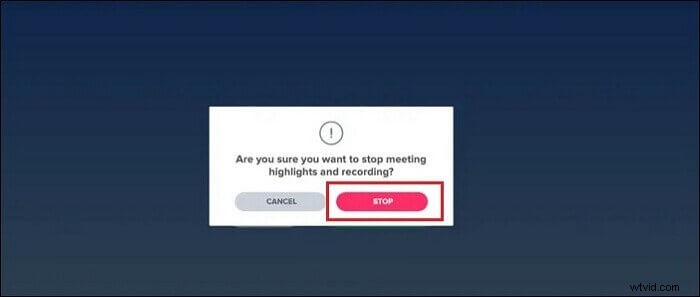
Step 4. You'll get a message to confirm if you're certain to stop recording. Click "Stop" to confirm.
That's how you can record a meeting in BlueJeans. To download the BlueJeans recording, continue reading.
How to Download a BlueJeans Meeting Recording
To share or refer to your BlueJeans meeting recording, you need to download it. The good news is that downloading a recorded BlueJeans meeting is easy, and you can do that using any browser on PC or Mac.
Step 1. On your PC or Mac, go to the BlueJeans site or open the BlueJeans app. Then, sign in to your account.
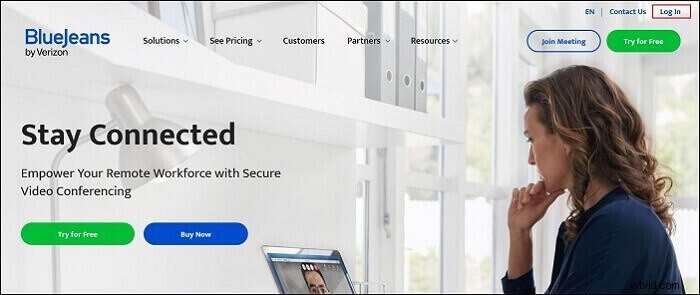
Step 2. You'll be navigated to the BlueJeans scheduling page. Tap "Recordings".
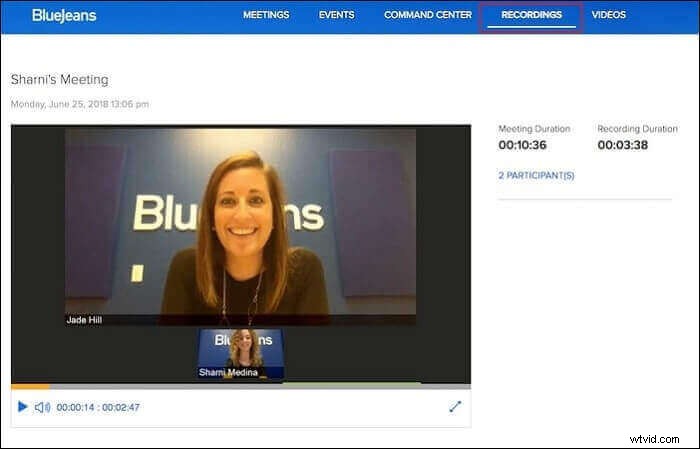
If you can't see "Recordings", your browser window may be too small. In that case, try to zoom out or click the three dots appearing in the place.
Step 3. Locate the recording you would like to download and tap on it to open it. A new page will appear where you can watch the recording.
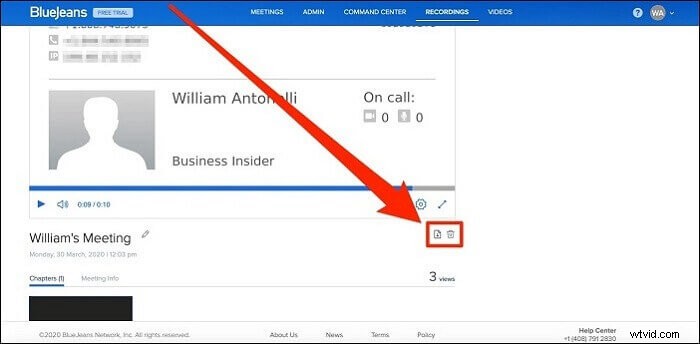
To download it, tap the icon that appears like a paper piece with an arrow pointing downwards, and you may be asked where you would like to save the recording.
Record and Download BlueJeans Recording with EaseUS RecExperts
No doubt, the built-in BlueJeans recorder is great, but it's accessible only to meeting moderators. That's why you need the alternative option, EaseUS RecExperts.
It is a full-featured screen recorder that can help record BlueJeans meetings with no time limit restrictions. On top of all, you can record it as a participant without notifying others. And it comes with a lot of features to make the recording process hassle-free and enjoyable.
It can help you capture whatever's happening on your screen with audio. You can capture a selected region of the screen, record full screen on Windows 10, and a webcam. With this wonderful recorder, you can save recorded meetings in various formats such as MP4, and more without any loss in quality.
Key Features:
- Record a BlueJeans meeting (both audio and video)
- Clean and user-friendly interface
- Schedule recording tasks
- Compatible with Windows as well as Mac
To record and edit your BlueJeans capturing in the simplest way, this tool is the best choice for you.
Here is a list of steps on recording online meetings with this recorder:Step 1. Configure Recording Options
Download this program on your computer. Choose "Full Screen" or "Region" to start capturing. Meanwhile, choose the sound by clicking on the bottom left button and selecting "System sound" or "Microphone".
Also, you can add an optional webcam overlay to your recording by clicking "Webcam".
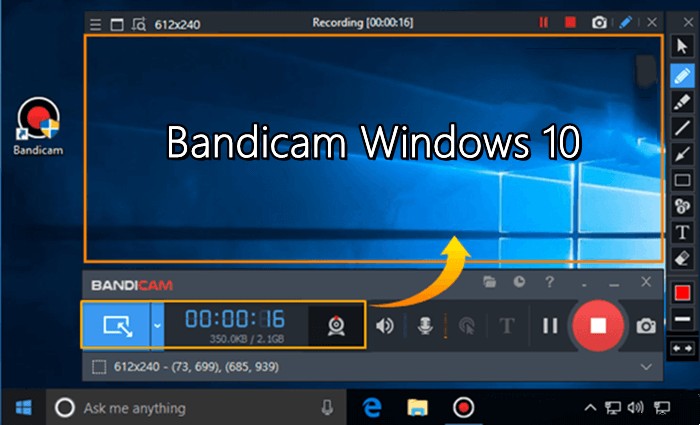
Step 2. Customize Advanced Recording Options
To set the hotkey or specify a custom format for saving videos, you click "Settings". You have options like choosing the output format, quality, etc. Click "OK" if you have configured these options.
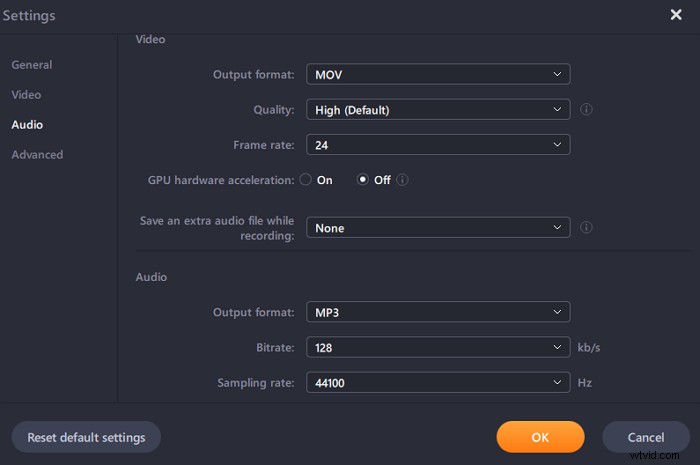
Step 3. Capture Your Conference
Open your meeting application and start the video task. Then, click "REC" to get started.

Step 4. Find Your Recordings
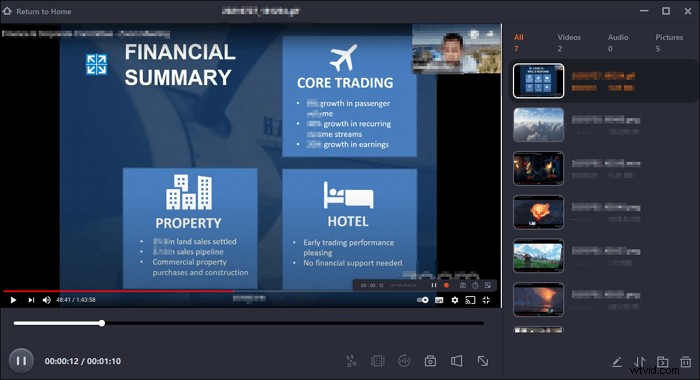
To view your video, click "Recordings", and the most recent one appears at the top of the list.
Record Video on Mac
If you want to know the steps to record videos or meetings on Mac, download EaseUS RecExperts for Mac and follow the guide in this article.

Conclusion
Believe that you have known how to record and download BlueJeans recording on your computer. If you're a host of the BlueJeans meeting, then the built-in recording feature comes in handy.
However, the recommended tool is EaseUS RecExperts which offers a much better solution to record online video meetings. Unlike the built-in BlueJeans meeting recording feature, it provides you with more beneficial functions. Anybody participating in the meeting can record a meeting. Try it now!!
FAQs About BleaJeans Recording
Keep on reading this part if you want to know more related information.
1. Where are the recordings of BlueJeans stored?
Once a recording is done, BlueJeans will email a link to you. You can then download the recording through your email. However, you can even find your recordings in the "Recordings" tab in the BlueJeans.
2. How do I edit the recording of BlueJeans?
Currently, BlueJeans doesn't have a built-in recording editor. Therefore, you can rely on 3rd-party programs to edit your recordings. That's why EaseUS RecExperts is a great alternative to the built-in BlueJeans meeting recording feature, as it offers powerful editing features as well.
3. Who can capture the recording of BlueJeans meeting?
Meeting moderators can record a meeting in BlueJeans. In other words, if you're a host of BlueJeans hosting, then you'll be to see and use the built-in recording feature in BlueJeans.