
Fascinating videos are all over there when we are browsing popular video hosting sites or social platforms. But if you want to download those videos from a website, it seems too hard to find a "Record" or "Download" button.
When you badly need a video for personal collection or further editing, you have an alternative way. You can capture flash video from the website by recording it in optimal quality and download the recordings to your computer.
This post will walk you through how to record flash video and download it. Follow those step-by-step tutorials to save the flash videos you like.
Related Article: Top 12 Screen Recorder Without Watermark
How to Record Flash Video from Chrome on Windows and Mac
Applies to Windows and macOS
Chrome is one of the most widely used browsers on the Windows and macOS systems. Some of us are accustomed to using it every day, but not everyone is clear about the best way to record streaming flash videos in Chrome.
First of all, you need to choose a powerful screen recording tool, such as EaseUS RecExperts. This versatile screen recorder has three main recording functions, including "Record Screen," "Record Audio," and "Record Webcam".
Its functionality enables you to record part of the screen or record the full screen as you want. If you need a YouTube recorder to download videos, it is definitely qualified to help you save them. In addition to that, the Task Scheduler enables you to start the recording automatically at a certain time.
Key Features:
- All-in-one streaming video recorder
- Help you start, stop, and even split the recording automatically
- Record Webex meeting smoothly
- Offer basic editing tools to modify the recorded files after recording
If you want to capture flash video streams from websites, this flash video recorder is a great choice for you since it's straightforward for beginners to use. Download it and follow this tutorial to save flash videos on chrome.
Tutorial of Recording Flash Video with EaseUS RecExperts: (here we take recording on Windows as an example)
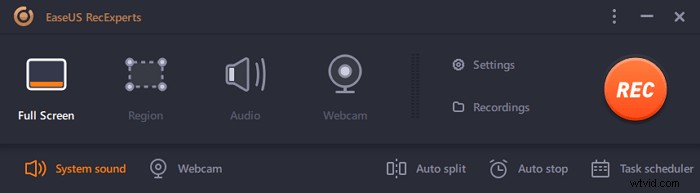
Step 1. Launch EaseUS RecExperts on your computer. The first option, "Full Screen", can help you capture everything on your screen. If you play the streaming video in full-screen mode, this is suitable for you.
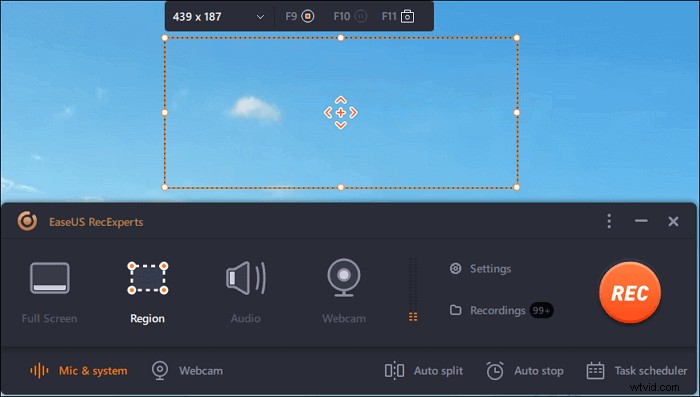
Step 2. If you play the streaming video in a window, it would be better to select the "Region" option to record only the specific area.
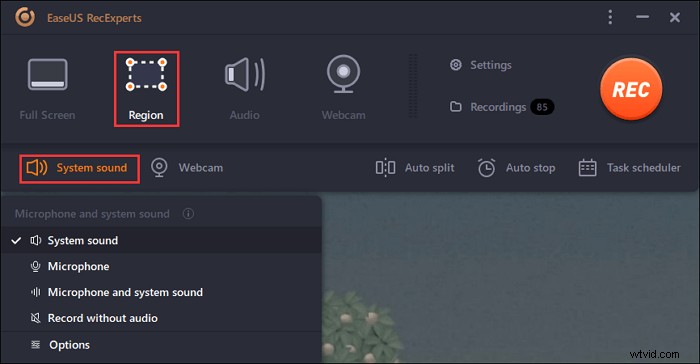
Step 3. Ensure that you are in "Region" mode. Then, click on the button in the bottom right-hand corner to select a suitable sound source and adjust the volume. After that, click on the "REC" button to start recording.
Step 4. There will be a floating toolbar on your screen when you are recording the video. The two buttons on it can help you pause or stop the recording.
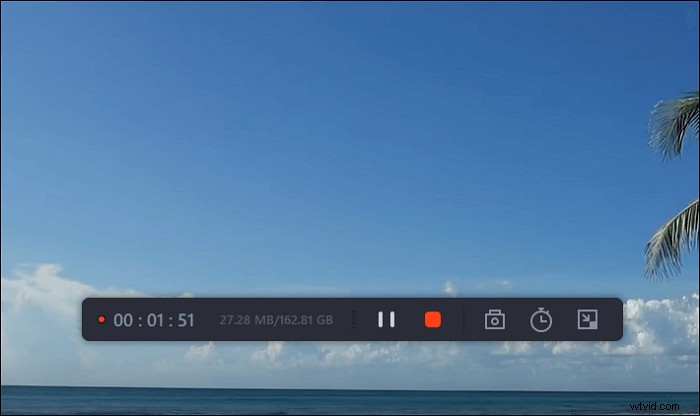
Step 5. If you click on the red stop button, the recording will be ended, and the captured video will be saved on your computer. When the built-in media player pops up, you can view the recording and use tools to trim it, extract audio from it, or add an opening and ending part.
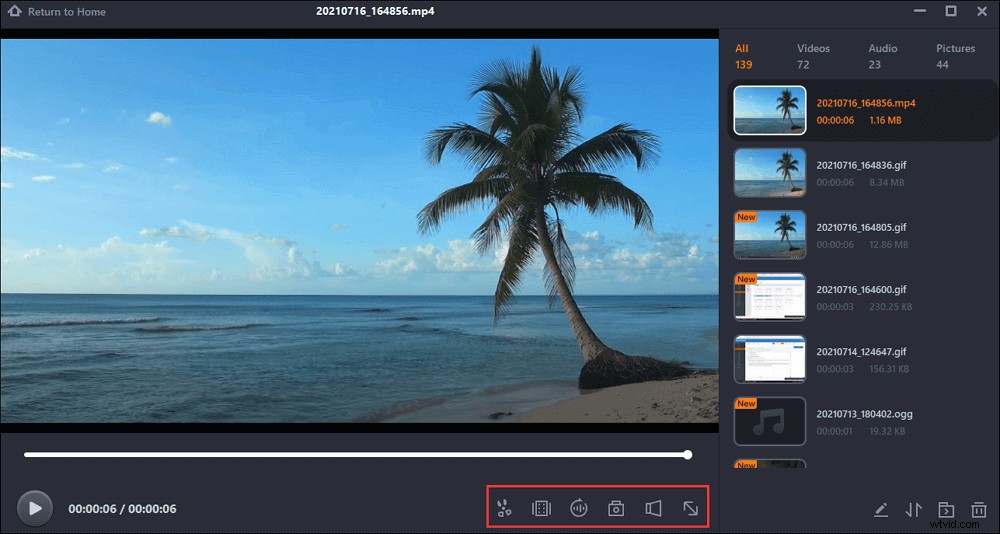
How to Download Flash Videos from Websites on Mac
For Mac users, there is a wonderful open-source recording tool that can help you capture streaming videos called VLC Media Player. Despite its name as a player, it can play many other roles in our daily lives. For instance, you can use it as a video editor, a format converter, and even a video recorder.
This all-in-one program supports the most popular formats of video, audio, and image so that you can use it to play files in MKV, FLV, WMV, SWF, and other formats with ease. While playing a video, you can record it with only a few clicks.
Features of VLC Media Player:
- No spyware or tracking
- Fully customizable
- Free to use
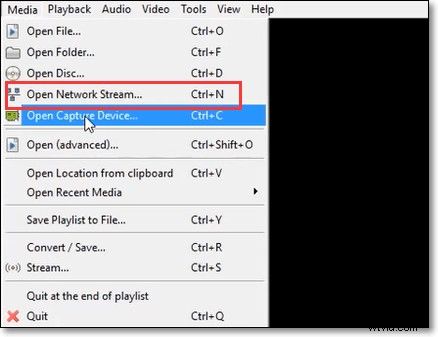
Method of Downloading Flash Video with VLC:
This guide will lead you to use the powerful Adobe screen video capture tool to save what you want.
Step 1. launch the program, click the "File" menu, and select the "Open Network Stream..." option.
Step 2. Paste the URL of the video in the designated field and tick the "Streaming/Saving" option.
Step 3. Click the red Record button to start capturing the video. Click it again when you want to stop recording.
Step 4. Click the "Media" button and choose Open Recent Media. Now, you can record the recordings on your computer.

How to Record Streaming Video on Mac
Since the VLC player can only offer some basic tools in recording videos, you can use some other flash video recorders to record the streaming Adobe videos you like.

How to Save Flash Videos by Recording on Android
It's not a simple task for you to utilize this pre-installed recording tool on Android since the steps to record streaming flash videos with it are complex and troublesome. You need to enter your PIN or passcode, go to Developer Options, and choose feature flags. Luckily, a versatile alternative, which is named AZ Screen Recorder, is available.
This application can record everything that happens on your Android phone screen without having the device rooted. Its simple and user-friendly interface makes it easy, even for beginners. With it, you can download any flash video you want to save on your mobile phone.
Features of AZ Screen Recorder:
- Record internal sound (from Android 10)
- Record gameplay with external sound
- Help you record the screen as GIF
- Transfer recorded videos and screenshots to your computer through WiFi
How to Download Flash Video By Recording on Android:
How to download flash videos from websites easily on Android? The guide below will walk you through that.
Step 1. Launch the AZ Screen Recorder. Tap the gear icon to adjust the recording settings, such as recording resolution, frame rate, and bit rate.
Step 2. Back to the home page. Start playing the flash video that you want to record.
Step 3. Tap the red camera shutter icon to record the part you need. Use your phone like normal until you're ready to stop recording.
Step 4. Pull down the notification shade, and choose "PAUSE," "STOP," "DRAW" options according to your requirements.
How to Rip Flash Video from Chrome Online
Though online tools usually have fewer functions, it works well in flash video capture. Veed. io is a multifunctional online flash video capture tool. You can select among eight layouts, including Webcam, Background swap, Background blur, Screen, and so on. To record streaming videos, you'd better choose the "Screen" layout.
After your recording, the powerful online editing tools can help you customize the result. You can add subtitles, create overlays, cut between scenes, and much more. Because of those functions, you are allowed to create product demos, walkthrough videos, annotated videos, and so on.
Features of Veed. io:
- Review your screen capture instantly
- Capture video from your screen and webcam simultaneously
- Many elements are available, like progress bars, Emojis, and sound waves
- No need for an account
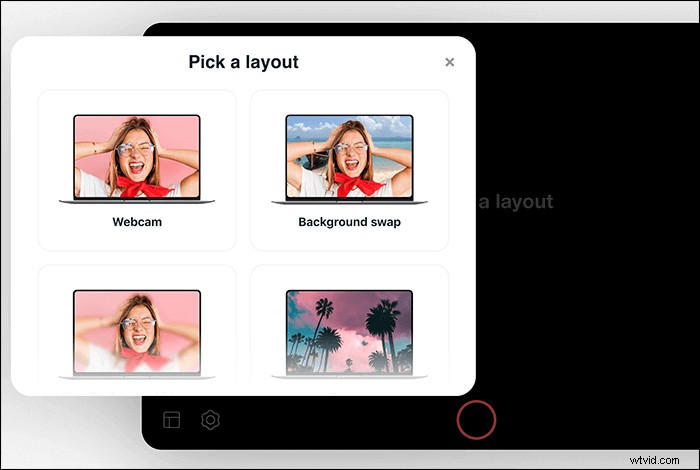
How to Rip Adobe Flash Video Online:
If you want to rip flash video without installing any software, this recorder can meet your needs.
Step 1. Select the screen from our list of layouts and accept the browser with the necessary permissions.
Step 2. Start playing the flash video you want to download. Click the red button to capture it.
Step 3. Click that red button again to stop the recording. Then click "Edit" if you need it. Or you can choose "Download" to save your video directly.
Step 4. If you edit the recording file, choose "Export" to save the recorder video.
Conclusion
As discussed above, there are different answers to how to download a flash video from a website. According to our analysis above, it's evident that the most efficient and full-featured flash video recorder is EaseUS RecExperts. You can record flash video, audio, webcam, and gameplay as quickly as possible with its help.
If you want to record Adobe flash video, don't miss those Adobe flash player recorders we mentioned above. Download and have a try.