
"My computer does not have a disc drive, but I want to enjoy my DVD movies, then is there any method to help me accomplish my task?"
MacBook or most laptops don't have a disc drive, so it seems that you cannot enjoy the movies from your DVD on such kinds of devices or mobile phones. But is it impossible to watch DVD videos on laptops or mobile devices?
Of course not. The easiest way to solve the problem is to use screen capture software. That's to say, you can record DVDs with screen recorder to watch them almost anywhere, anytime. And this page will introduce some DVD recorder software, and walk you through the steps to record DVD to computer easily.
How to Record DVD on Windows 10 and Mac with EaseUS RecExperts
If you want to record movies on DVD in different video formats, like MP4, MPV, AVI, etc., EaseUS RecExperts is an easy and smart tool you cannot miss.
This lightweight yet powerful video recorder allows you to grab videos from your DVD in simple clicks. It lets you capture full or part of your screen freely, record DVD videos with or without audio, or even add a webcam overlay. And before recording, you can flexibly set the output format, frame rate, and even the specific time to start or stop your DVD recording.
Most importantly, you can choose to save the audio track for editing separately once the recording is done.
More other functions:
- Record videos from DVD without losing any quality
- Allow taking screenshots while recording
- Inbuilt cutting tool for removing unwanted parts in the recorded file
- Export recordings in more than 10 common media formats
After knowing this free video recording software, you can follow the below tutorial to record DVD on Windows or Mac:
Stage 1. Prepare to Record DVD to Computer
Make sure that your computer has a DVD drive. If not, buy an external USB DVD drive and attach it to your computer.
Stage 2. Use EaseUS RecExperts to Start DVD Recording
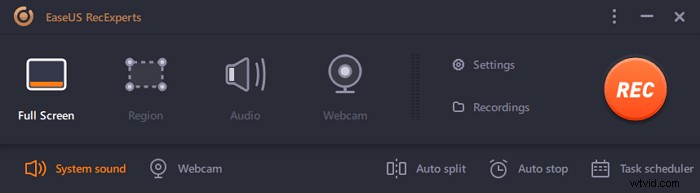
Step 1. Launch EaseUS RecExperts. There are two different options for screen recording, i.e., "Full Screen" and "Region". If you select "Full Screen", you will capture the whole screen.
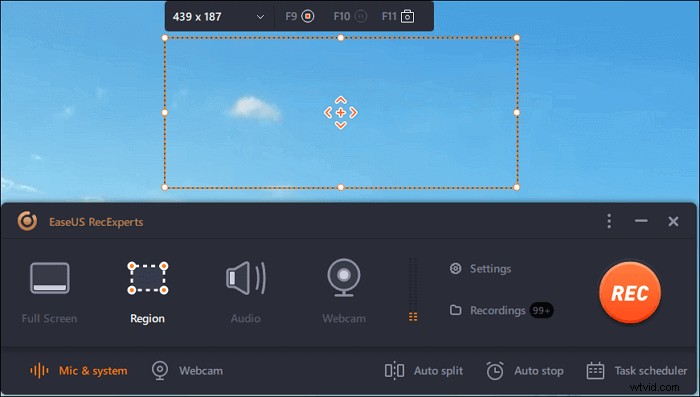
Step 2. If you select the "Region" option, this software will ask you to customize the recording area. Make sure that everything you want to capture is within the bounds of the select box.
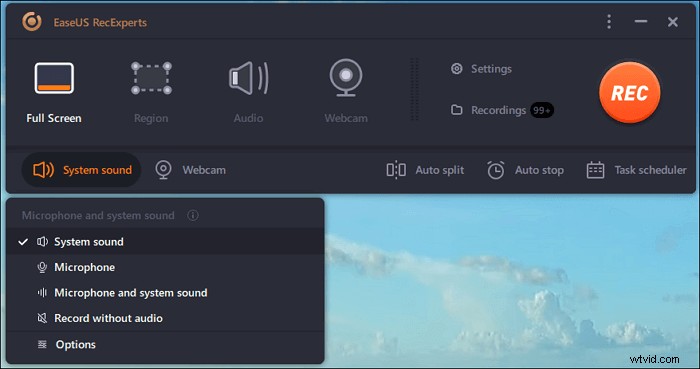
Step 3. Tap on the button at the bottom left side of the main interface, and there will be many options you can select. This recorder supports recording microphone and system sound separately or simultaneously. The "Options" button is for you to adjust the volume and microphone device.
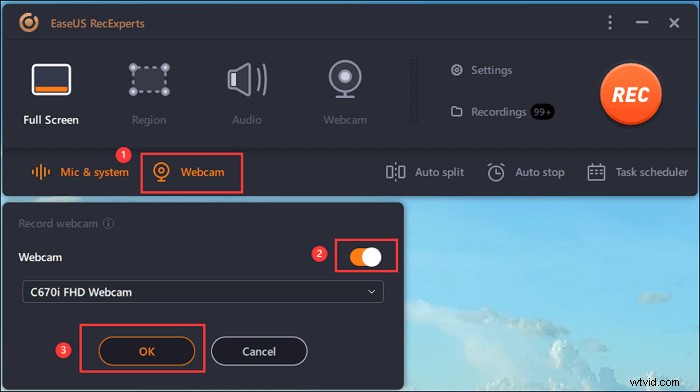
Step 4. To record the webcam simultaneously, click on the "Webcam" icon at the bottom of the interface. Tap on the button to enable the webcam recording, and there will be a drop-down menu to select the recording device. Click on "OK" to confirm your settings.
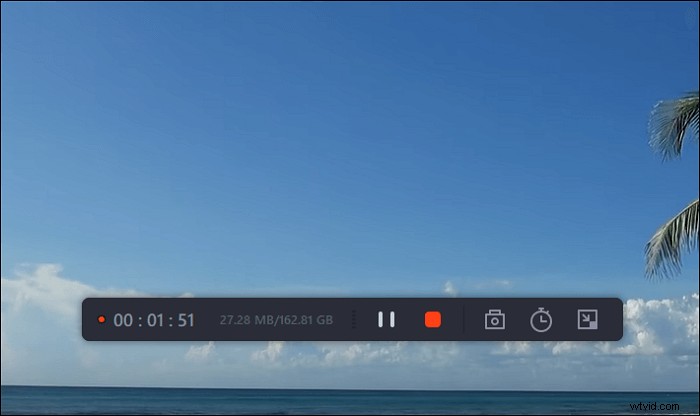
Step 5. When you turn back to the main interface, click on the "REC" button to start recording. A floating toolbar offers you buttons to pause or stop the recording during the recording process. In addition, the camera icon can be used to take screenshots, and the timer icon can help stop it automatically.
Step 6. The recorded video clips will be saved on your computer. When the media player appears, you see a set of tools you can use to trim the recordings, extract audio, and add opening title & closing credits to the savings.
How to Record Movies on DVD using VLC Media Player
Another way to rip DVD videos to the computer is VLC Media Player.
It is a famous media player all over the world, as its name implies; however, it can do a lot more than playing media files actually, like recording and ripping DVD videos and converting file formats. Here we want to focus on its recording and ripping features.
This freeware lets you do many video recoding and ripping activities, including capturing YouTube videos, ripping DVD movies, and even ripping CD to MP3. To conclude, you can use this versatile tool to record DVD into MP4.
Here's how to record DVD movies into MP4 using VLC:
Step 1. Open VLC Media Player on your Windows PC or Mac, then click "Media" in the top left corner and choose the "Convert/Save…" option from the drop-down menu.
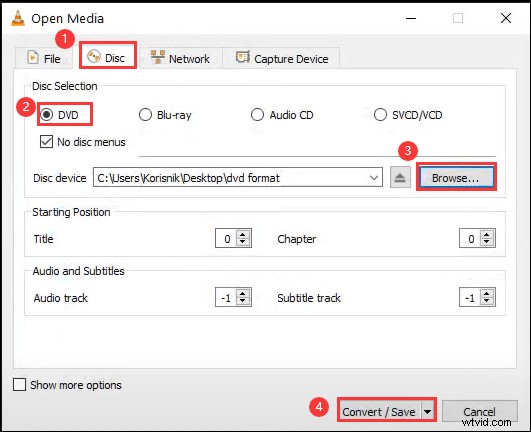
Step 2. The Open Media window will appear, and next, click on the "Disc" button to choose the "DVD" option. After that, select the DVD drive location by hitting "Browse.." and clicking "Convert/Save" at the bottom.
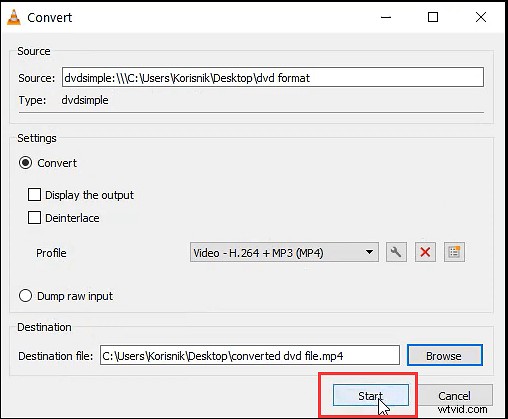
Step 3. Next, you need to set the output format and folder in the Convert window. Usually, here we choose the Video - H.264 + MP3 (MP4) as the output file format.
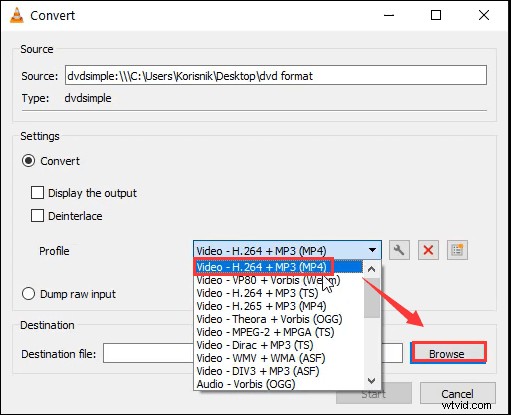
Step 4. Once done, click on the "Start" button to begin your DVD recording. The process will take some time, and after it's finished, you can see your recorded DVD files on your computer.
How to Rip DVD to Computer with Handbrake
Apart from VLC Media Player, there is also another open source screen recorder that can assist you in recording DVD on Windows 10 or Mac, which is Handbrake.
This is completely free software that is mainly used for media format conversion. But it also can provide help to capture from DVD. Like EaseUS screen recorder, it offers you options to save your recorded DVD files in various formats.
Check the following steps to record DVD with Handbrake:
Step 1. Search and launch Handbrake on your computer if you have already installed it. If not, get it from its official website.
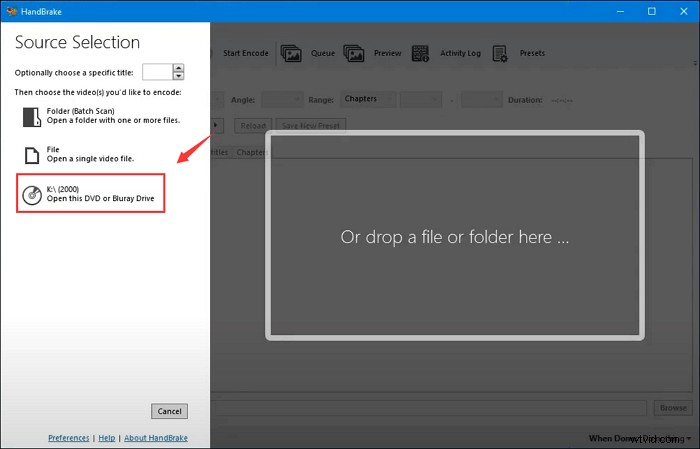
Step 2. Insert the DVD on your computer, then select your DVD player at the left pane, and this program will begin scanning it.
Step 3. Click "Title" to select the one you want to rip if there are multiple titles and also the desired preset under the Title option.
Next, click on "Video" to choose the video codec, FPS, and the location for saving your ripped files.
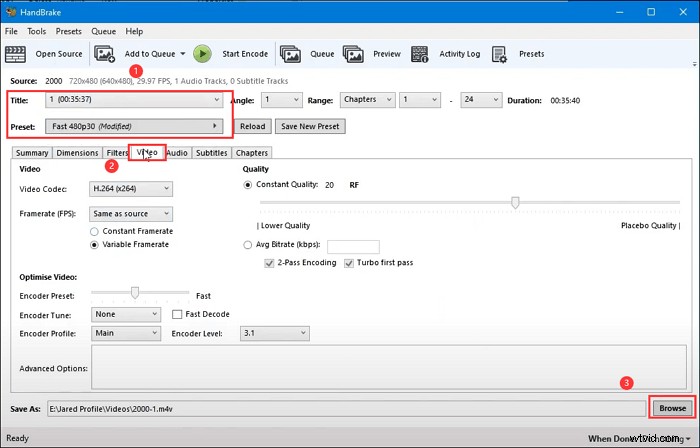
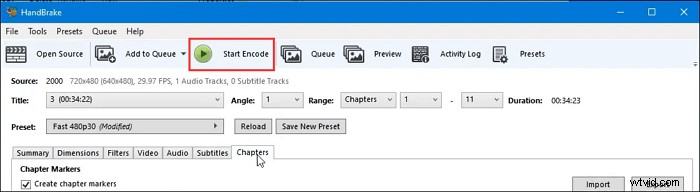
Step 4. When all are ready, you can start recording your DVD to MP4 with Handbrake by clicking "Start Encode" on the top toolbar.
The Bottom Line
This post shows you several ways to record movies from DVD on Windows or Mac. If you prefer freeware, VLC Media Player and Handbrake are great options to try. If you want to find a program combing both recording and editing features, you can opt for EaseUS RecExperts. Just hit the below button to try it now!