
"How to record Peacock live streaming video on the computer?" "Can I record on Peacock?"
As a video streaming service, Peacock provides users with the method to watch TV shows, sports, and movies online. People can find their favorites on this streaming platform. Meanwhile, some users are thinking can they record on Peacock? Because recording streaming video is not an easy task, it's helpful to find a method to record it without a black screen. Also, the audio can be captured as well.
Here, in this post, you learn the effective method of how to record on Peacock.
- Part 1. Can You Record on Peacock?
- Part 2. How to Record on Peacock on Windows
- Part 3. FAQs About How to Record on Peacock
Can You Record on Peacock?
You need to know that there is no cloud DVR storage in Peacock. Therefore, it's hard to find a default method to record streaming video on Peacock. However, you can try an external method to record TV shows on it.
When using efficient screen recording methods, you can record on streaming services like Peacock. Also, it's achievable to record streaming video with audio, including system and external audio. But most importantly, you need to follow the platform's Terms of Use and copyright laws in your country. Otherwise, there may be a violation of the law. To find more details about recording streaming services, find the answer in the next part.
How to Record on Peacock on Windows/Mac
To record streaming video on Windows PC, choose screen recording software like EaseUS RecExperts. Without losing quality, you can capture online streaming services like Peacock easily. Not only recording Peacock, but also you can screen record YouTube TV and other TV shows on your computer.
Also, this screen recorder provides the schedule recording function to capture the video when you are outside. By setting the start and end duration, you can easily capture the TV shows with high quality.
For Mac users, this screen recorder also meets your requirement. You can record streaming video with external or system sound. Also, it can record internal audio on Mac only, which means it's a practical method to record the audio from your online TV shows only. What's more, the output format can also be chosen.
Key Features:
- Record streaming video on Windows/Mac
- Capture audio, webcam, gameplay, and screen
- Screen record Netflix with audio (system/external)
- Best streaming video/audio recorder with no time limit
Start recording your streaming video now! No registration is needed.
Screen Record on Peacock:
Before recording the streaming video, register an account in Peacock. Then, choose the content to record.
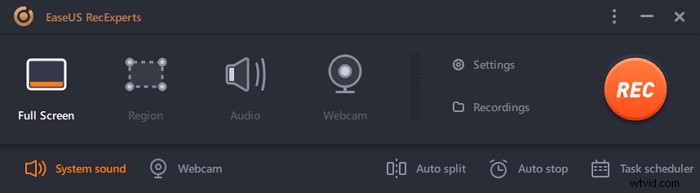
Step 1. Launch EaseUS RecExperts on your computer. The first option, "Full Screen", can help you capture everything on your screen. If you play the streaming video in full-screen mode, this is suitable for you.
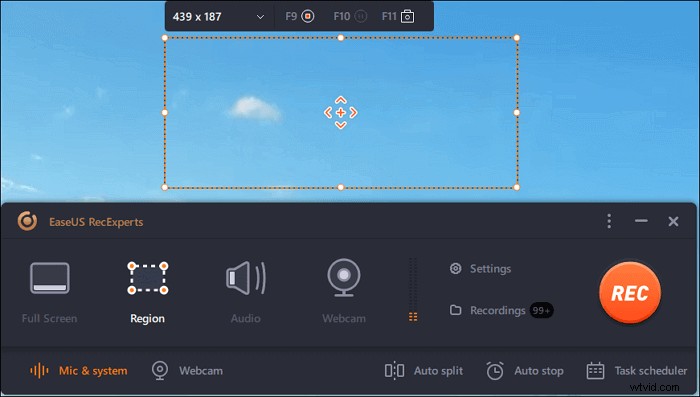
Step 2. If you play the streaming video in a window, it would be better to select the "Region" option to record only the specific area.
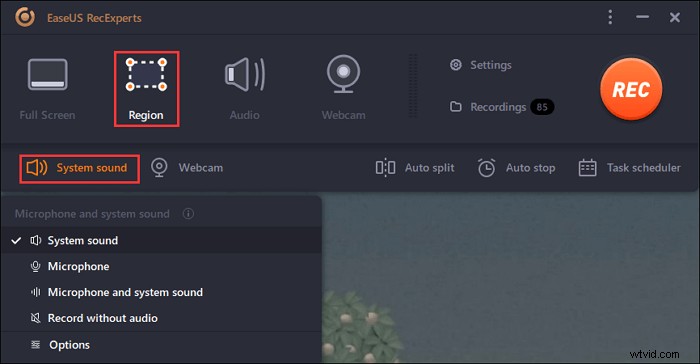
Step 3. Ensure that you are in "Region" mode. Then, click on the button in the bottom right-hand corner to select a suitable sound source and adjust the volume. After that, click on the "REC" button to start recording.
Step 4. There will be a floating toolbar on your screen when you are recording the video. The two buttons on it can help you pause or stop the recording.
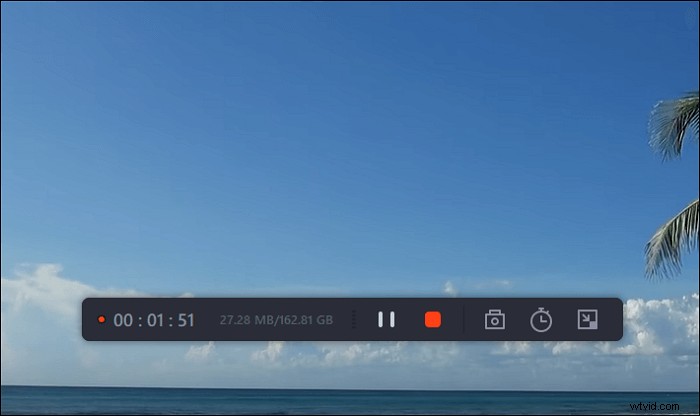
Step 5. If you click on the red stop button, the recording will be ended, and the captured video will be saved on your computer. When the built-in media player pops up, you can view the recording and use tools to trim it, extract audio from it, or add an opening and ending part.
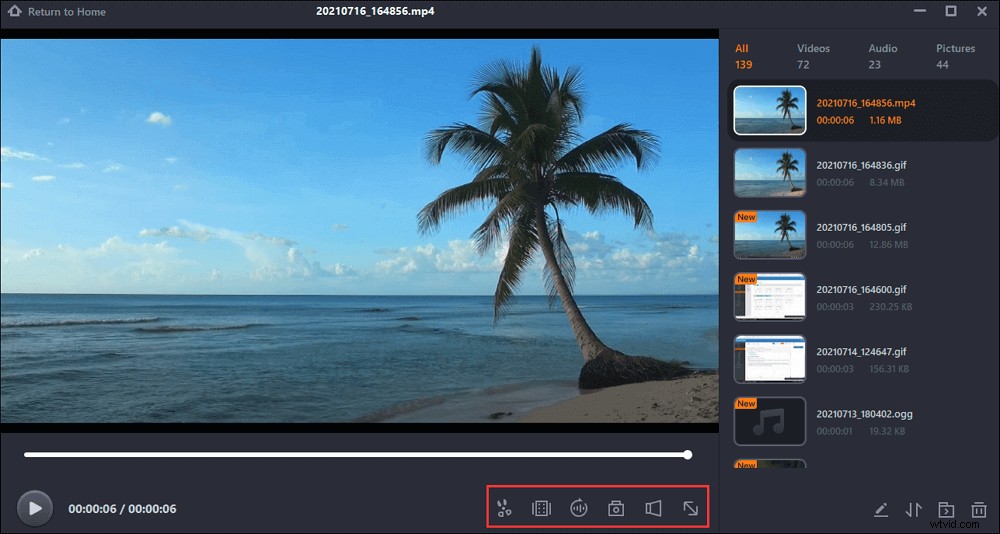
What if you want to capture the attractive audio from streaming video? You can record the streaming audio only. At the same time, it's accessible to choose the output format for audio and video.

How to record desktop audio?
To record audio only, find the method in the below post. No matter you are using Windows or Mac, the audio recorder mentioned is helpful.

Conclusion
Although there is no default recording solution on Peacock, some external recorders can be helpful. This post introduces one of the best screen recording software on Windows and Mac. The features it provides are helpful for recording streaming video and audio. Likewise, its schedule recording can help record TV shows easily.
Meanwhile, follow Peacock's Term of Use and obey the copyright laws in your country. Videos from Peacock are copyrighted, so you need to consider the recording usage. Otherwise, there may be a violation of copyright law.
FAQs About How to Record on Peacock
Here is some relevant information about recording on Peacock.
1. Does Peacock TV allow recording?
Although Peacock offers interesting movies and shows for many users, there is no cloud DVR storage capability. Also, most streaming video platforms like Peacock will use effective DRM protection against the recording. It's not easy to record streaming TV shows without a black screen. This post introduces a helpful method.
2. How can I record streaming TV?
You can record streaming video shows with screen recorders like EaseUS RecExperts. Before using the screen recorder, find your favorite show in the streaming service.
1. Download and install this streaming video recorder.
2. On the main interface, click "Full Screen" or "Region" to select the recording area.
3. Before hitting the REC button, you can click the "Settings" option to edit the output format and others.
4. Now, click red "REC" to start recording the streaming resource.
3. Can I use my DVR to record the Peacock app?
Because DVR can not be connected to streaming apps like Peacock, it's hard to use DVR for Peacock recording.