
Do you miss classic Disney movies like Snow White and the Seven Dwarfs? Have you ever thought about recording them in videos? After recording, you can watch such videos without the Internet. A rich-featured screen recorder is required when accomplishing the recording task, especially dealing with some protected content.
Disney + is a streaming service that provides users with solutions to watch theme movies. If you want to record some shows for personal use, find the capturing method here. You can learn the best ways on how to screen record Disney Plus on Windows PC, Mac, and Mobile.
- Part 1. How to Screen Record Disney + on Windows 10
- Part 2. How to Screen Record Disney Plus on Mac
- Part 3. How to Screen Record Disney Plus on Phone
How to Screen Record Disney + on Windows 10
For personal use like watching Disney movies at home, recording them in videos is one of the effective ways to share lovely moments with kids. EaseUS RecExperts is such a reliable and easy-to-use screen recording software to capture Disney movies with audio/webcam. Streaming videos can be effectively captured with this recorder.
Apart from capturing animated movies, you can use it to record online TV shows such as YouTube shows, etc. Meanwhile, this recorder has a built-in tool to play and view the savings.
Don't worry about the quality as you can change the recording settings such as frame rate, audio bitrate, etc.
Key Features:
- Record full screen on Windows 10
- Capture the screen, audio, gameplay, and webcam
- Screen record Netflix with sound effectively
- Take a screenshot from the saved movie/show
- Export the saving movie in MP4, AVI, MKV, GIF, etc.
Try this recorder to capture Disney + (no time limit)! Download it without registration.
How to screen record Disney videos on Windows 10, using EaseUS RecExperts(no time limit):
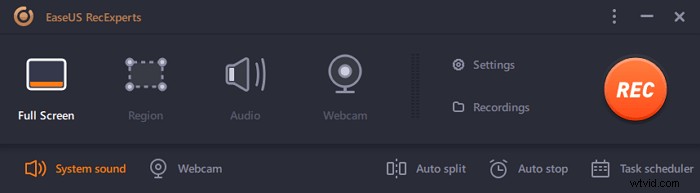
Step 1. Launch EaseUS RecExperts on your computer. The first option, "Full Screen", can help you capture everything on your screen. If you play the streaming video in full-screen mode, this is suitable for you.
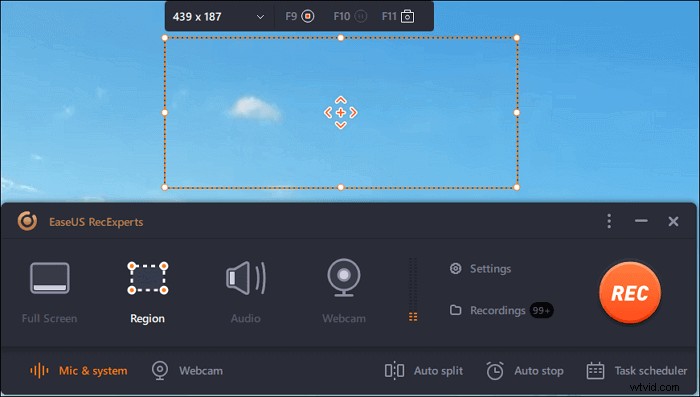
Step 2. If you play the streaming video in a window, it would be better to select the "Region" option to record only the specific area.
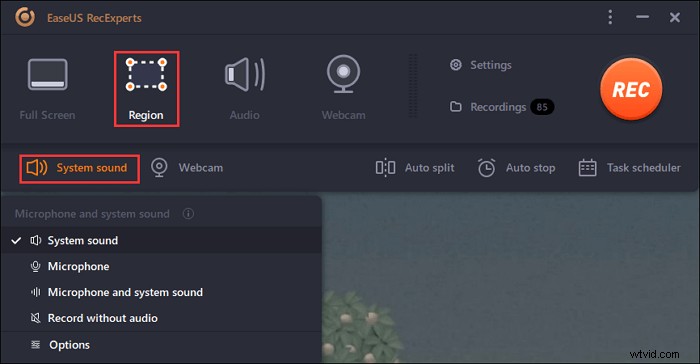
Step 3. Ensure that you are in "Region" mode. Then, click on the button in the bottom right-hand corner to select a suitable sound source and adjust the volume. After that, click on the "REC" button to start recording.
Step 4. There will be a floating toolbar on your screen when you are recording the video. The two buttons on it can help you pause or stop the recording.
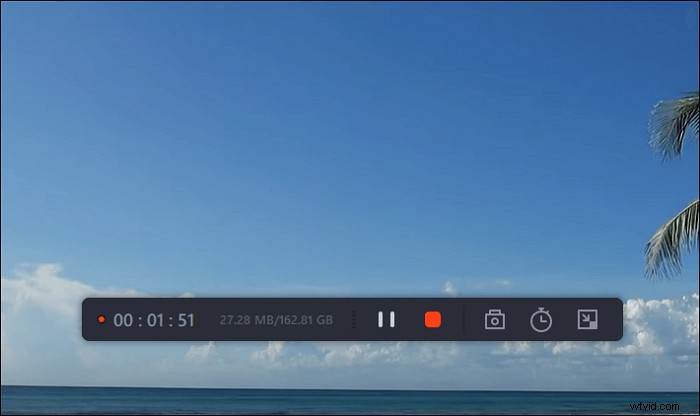
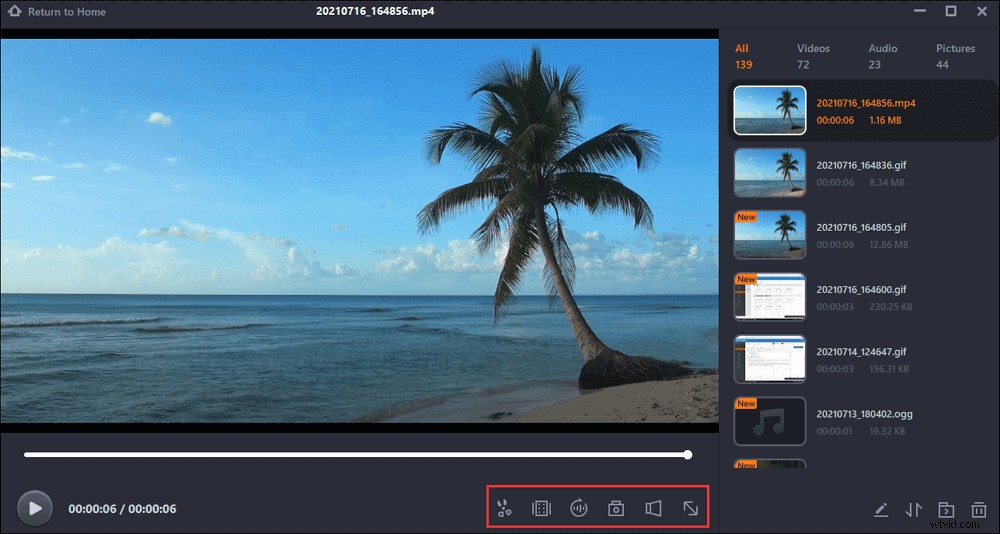
Step 5. If you click on the red stop button, the recording will be ended, and the captured video will be saved on your computer. When the built-in media player pops up, you can view the recording and use tools to trim it, extract audio from it, or add an opening and ending part.
How to Screen Record Disney Plus on Mac
As a streaming video recorder, EaseUS RecExperts for Mac is characterized with full capabilities to record Disney movies/shows on Mac. The streaming audio and video will be recorded in a stable quality when applying the remarkable settings. Also, you can choose the different output formats for its video and audio.
Besides that, this Mac screen recorder can edit the savings easily. The built-in trimmer is able to remove the unwanted part of the saved video. Therefore, it's easy to save the desired movie on the computer permanently.
Key Features:
- Capture Disney audio and video at the same time
- View the recorded Disney show with the built-in player
- Screen record Hulu on Mac with desired output format
- Capture the screen with a webcam to increase engagement
- Record internal audio on Mac without adding a plugin
Download it and start recording Disney Plus in a video on Mac. No registration is required.
Screen Record Disney +(no time limit):
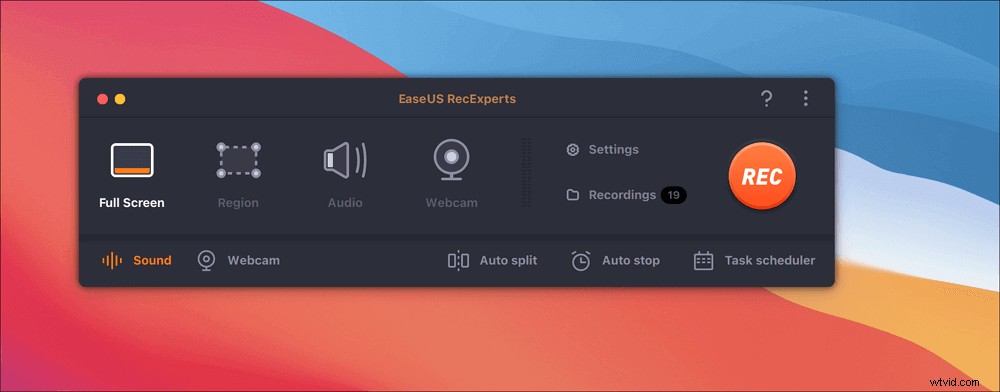
Step 1. Open the streaming video that you want to capture. Then launch EaseUS RecExperts to get used to its interface on your Mac. If you want to record the whole screen, you can click the "Full Screen" option. If you want to customize the recording area, hit "Region". Then, select the recording area with your mouse.
At the same time, to capture the screen with audio, you just hit the Sound icon in the lower left corner.
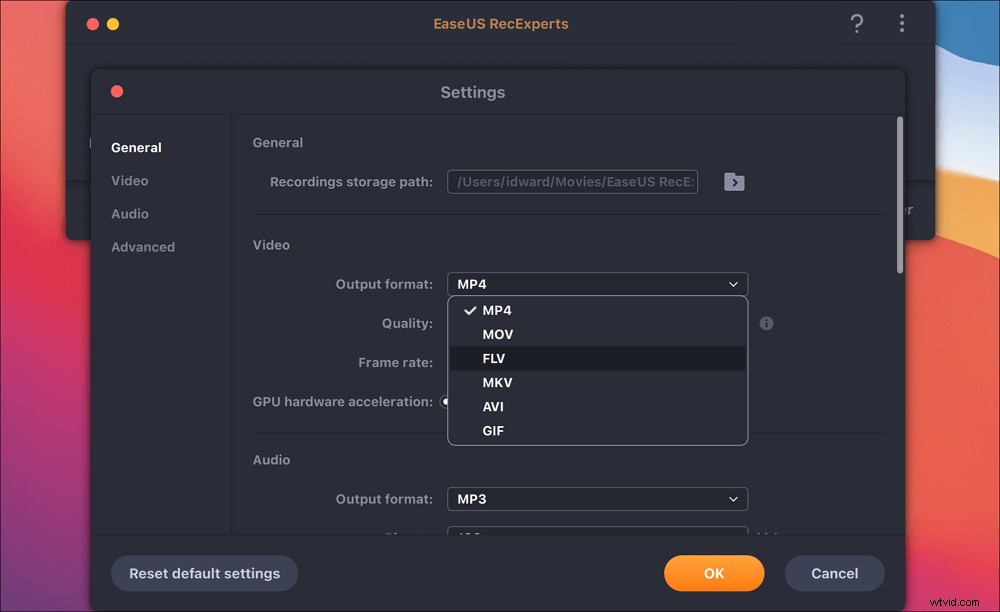
Step 2. Click "Settings" to apply more options, including changing the output format of the video, the quality, etc.
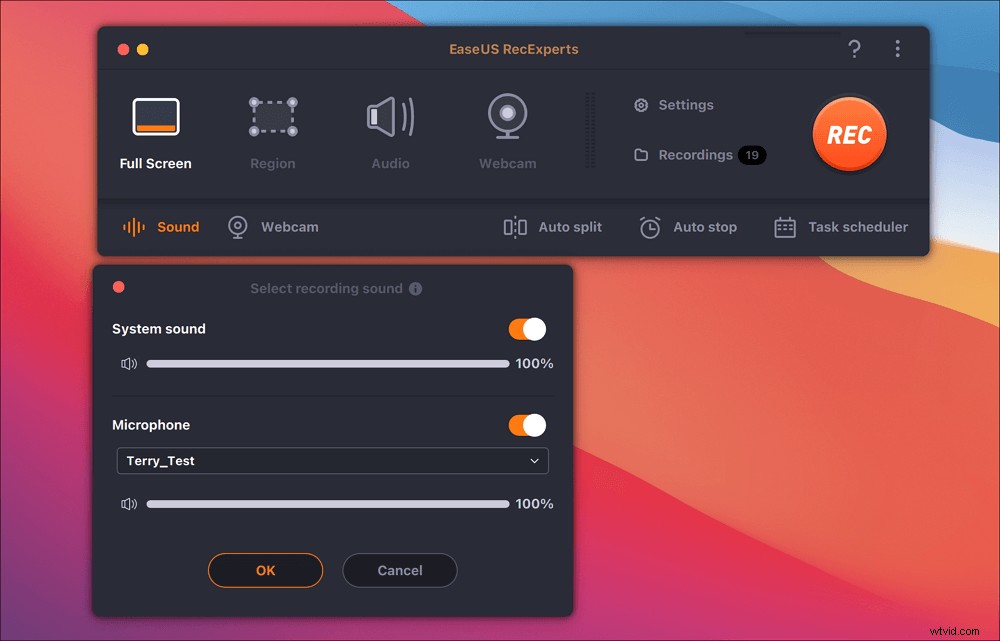
Step 3. Once you are satisfied with the settings, go back to the main screen and click the Sound icon. Then, enable the system or microphone sound if you want to record audio and screen at the same time. Click "OK" to ensure the audio options. After that, hit "REC" to start recording.
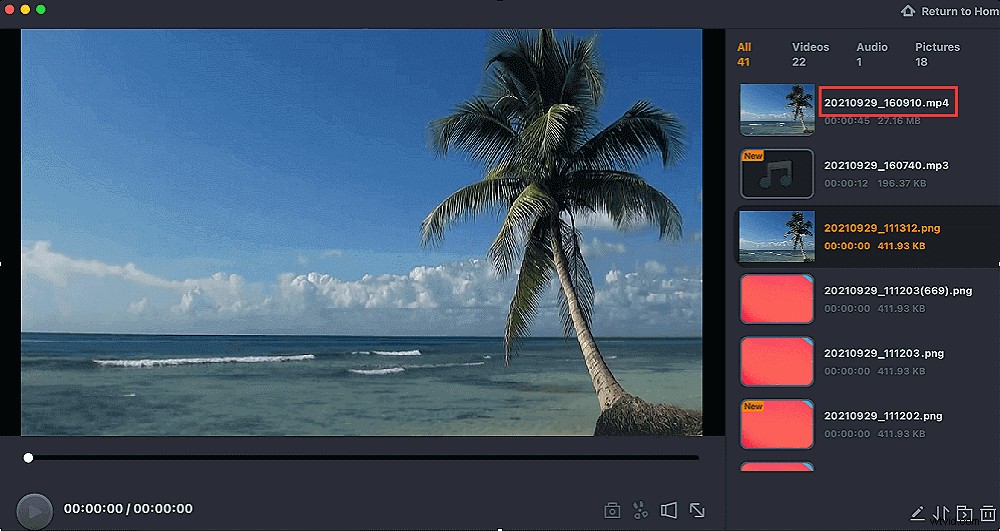
Step 4. Hit the Stop icon when you want to end the recording task. Then, watch the recorded video in "Recordings". The button can be found in the main interface. You can review the target saving from the lists.
Besides recording streaming videos like Disney Plus, this recorder also allows capturing meeting videos like Zoom.

How to Record Zoom Meeting without Permission
If you want to record meeting videos like Zoom, read this post. Even if you are not the host, it's effective to capture Zoom meeting easily.

How to Screen Record Disney Plus on Phone
Offline viewing is a need for some users. PlayOn Cloud is capable of recording some shows/movies from streaming video platforms like Netflix, Amazon Video, Disney Plus, etc. Its screen capturing technology can help deal with some protected movies. Recording some movies on the Phone offers inconveniences for you.
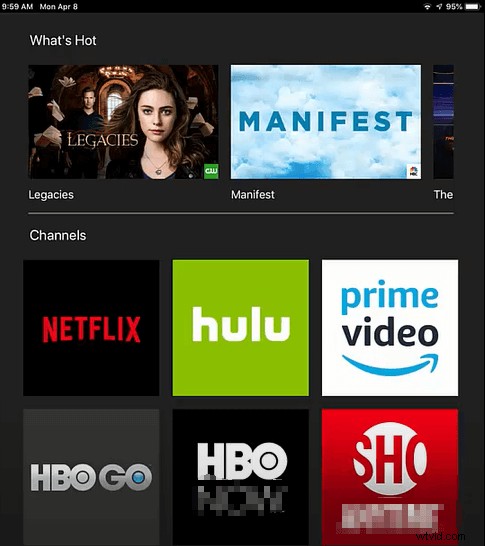
With PlayOn Cloud, you can download and capture classic movies from Disney. Luckily, this application offers a 7-day free trial for watching Disney +. Below is its interface and related guide.
Screen record Disney+ on iPhone, using PlayOn Cloud:
Step 1. For iPhone users, open App Store and type PlayOn Cloud. Dowload this app on your mobile phone.
Step 2. Find Disney + from different channels of this application. There might be hundreds of movies on the list. For most Disney movies, PlayOn Cloud allows you to record and download them.
Step 3. When you find the target movie, click the title and choose to record it.
Note: It's also available for Android users. Download this application on Google Play.
Conclusion
Disney movies remind us of precious memories from our childhood. If you want to leave the movies permanently, try to find a screen recorder to capture them and save the videos easily. Among various choices, EaseUS RecExperts provides you with recording solutions to capture movies/shows from Disney Plus.
FAQs About Screen Record Disney Movies
Some questions gathered from the public are listed here.
1. Does Disney + allow you to record the screen?
According to US Copyright Act, recording copyright-protected content is not allowed in most cases. Some streaming video and audio with DRM protection are hard to be treated when you want to record them.
2. Is illegal to screen record movies?
For sure, it's illegal to record copyright-protected content. You'd better follow the related laws and regulations in your country and the platform you use.