
When watching an interesting video on your desktop, do you want to record it for later viewing? You only need a beneficial screen recorder to help capture video with sound. The four best screen recorder for Mac are given in this post with the related steps on how to screen record on Mac. Based on your choice, choose one of them.
- How to Screen Record with Sound on Mac - EaseUS RecExperts
- How to Screen Record on Mac - QuickTime Player
- How to Screen Record with Audio on Mac - OBS Studio
- How to Screen Record on Mac - VLC Media Player
How to Screen Record with Sound on Mac - EaseUS RecExperts
The first recommendation is EaseUS RecExperts for Mac, which is a functional tool to capture any area of your screen. It's your choice to choose the full-screen or custom area of the target monitor.
Besides record screen with audio on Mac, you can use it to capture the gameplay and webcam at the same time. Also, it can capture video from social media platforms like YouTube.
Main features of this screen capturing software on Mac:
- Capture the gameplay, screen, audio, and webcam
- Choose the output format of savings
- Record PowerPoint presentation with audio and video Mac
- Select the audio resources from the system or external sound
Before referring to the below guide, download this Mac screen recorder!
Look at this tutorial on how to record screen and audio on Mac, using EaseUS RecExperts for Mac:
Step 1. Download and launch EaseUS RecExperts on your Mac. To capture the whole screen, click on the "Full Screen" button from the main interface. If you want to customize the recording area, choose the "Region" button.
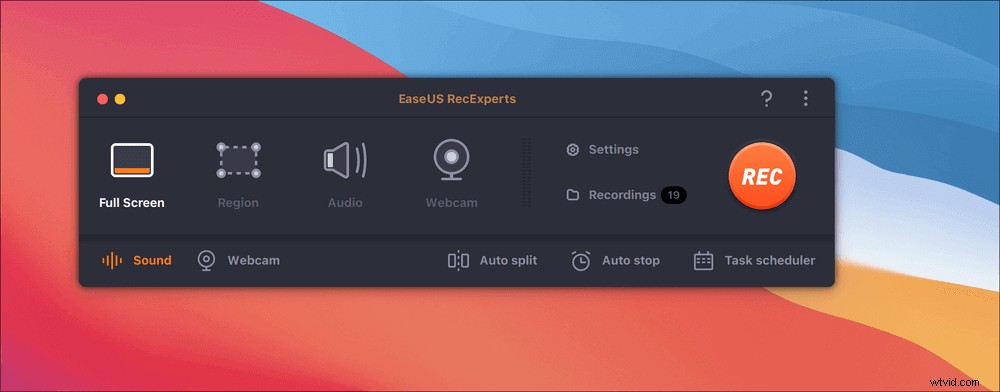
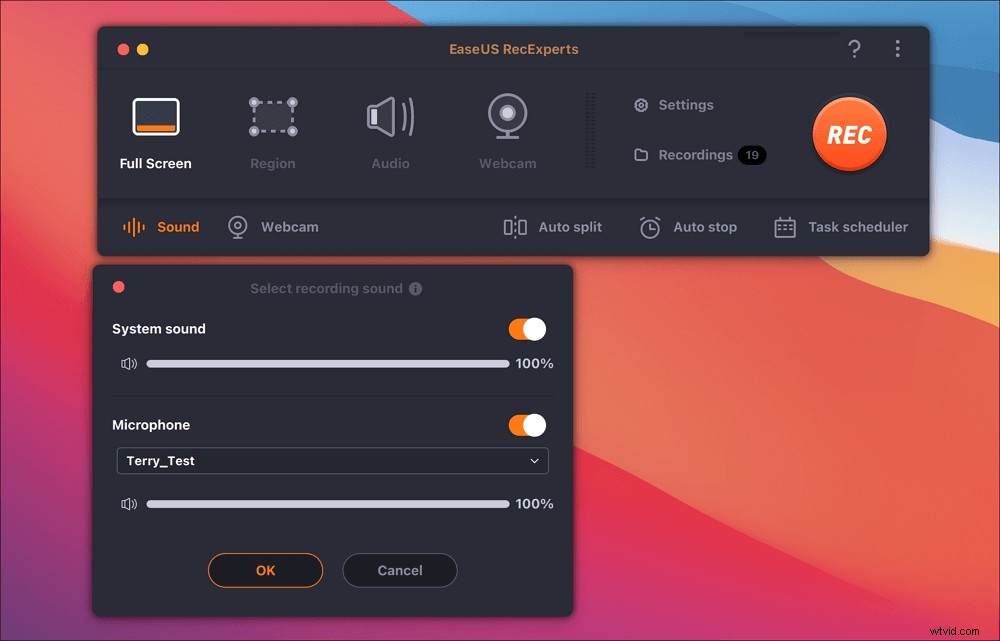
Step 2. To record the screen with audio, hit the Sound icon from the bottom left side of the toolbar. The audio resources can be your external sound or system audio. Based on your needs, enable the target option.
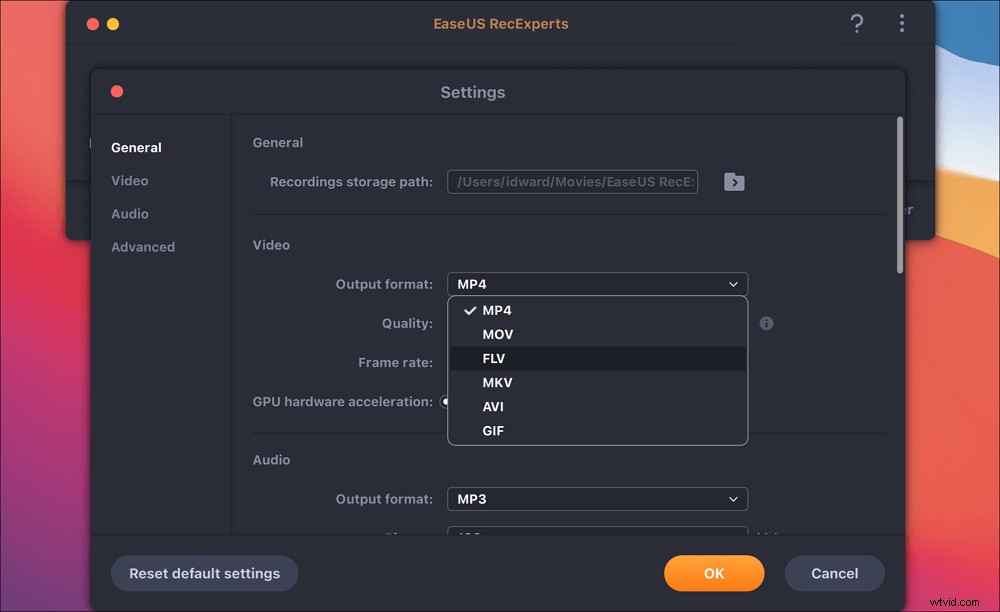
Step 3. Before capturing, you can change the output format of the recorded video by clicking "Settings" from the main interface. Then, scroll down the menu of Output format for Video. Choose the output type as you like.
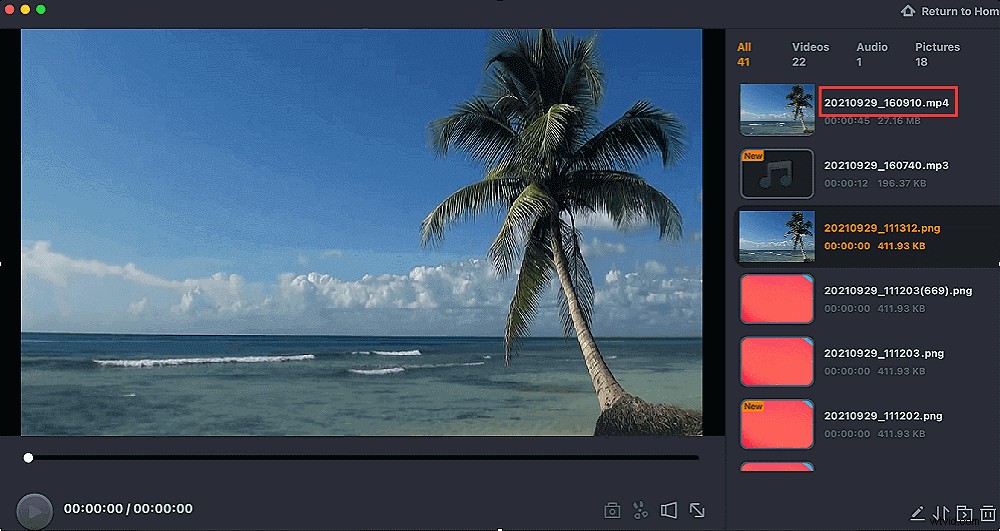
Step 4. Once done, click the REC button to begin recording. It captures anything displayed on your Mac screen. When you are done, click the Stop button. Then you can watch the recorded video from "Recordings".
How to Screen Record on Mac - QuickTime Player
QuickTime Player is the default tool on Mac that can help play and record various multimedia files. With a simple and friendly interface, this software can help you record any videos on the screen. For example, videos from social media platforms like FaceBook, etc.
The only limitation is that you cannot record system sound with this tool as macOS system requirements. But it's accessible to capture external sound and record screen and webcam on Mac.
Recording screen on your Mac with external sound, using QuickTime Player:
Step 1. Launch QuickTime Player on Mac. Navigate to "File" > "New Screen Recording". A screen capturing window appears, and you can set more options from the arrow-down menu. Choose audio resources and so on.
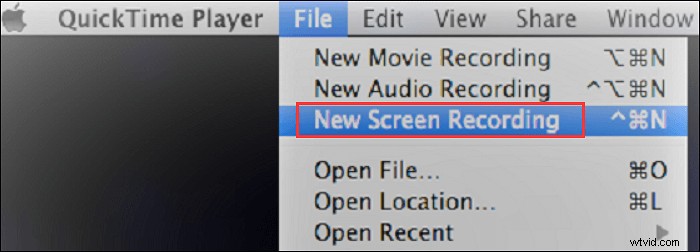
Step 2. From the last step, you can add the external microphone to record the screen with sound on Mac. Here you click the red button to start capturing.
Step 3. Once you want to stop, you click the Stop button. Or click the "Command-Control-Esc" button. The video is saved on the desktop of Mac originally.
Related Article>> Record Internal Audio on Mac
How to Screen Record with Audio on Mac - OBS Studio
As a famous open-source screen and audio capturer on Mac, OBS Studio offers abilities to record screens effectively. You can use it to capture video, such as record YouTube video with sound.
Most importantly, it's the professional tool that allows advanced settings in terms of audio and video output, hotkey settings, etc. Making screen recording becomes an easy task.
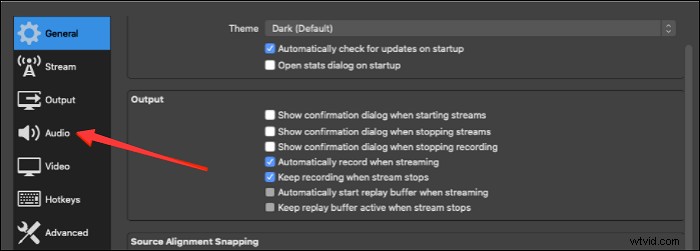
Step 1. To adjust recording settings, click "Settings" from the lower-left corner. When a window shows, you can choose from "General", "Stream", "Output", "Audio", etc. Adjust them as you like.
Step 2. Hit the "+" button under the Sources. Then, choose "Display Capture" to set up the recording mission. Meanwhile, you can change the name of this file.
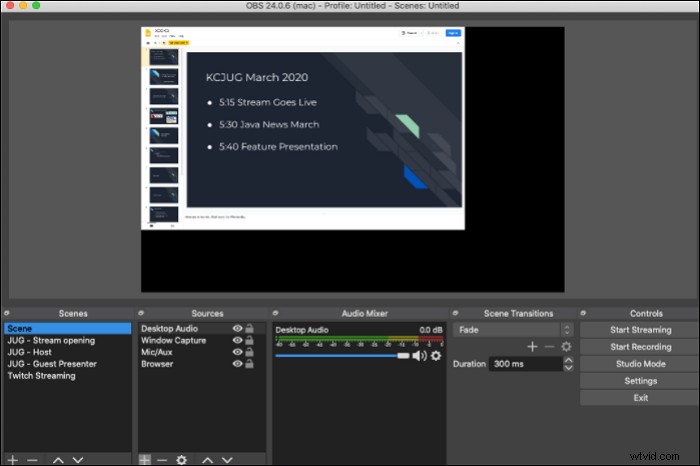
Step 3. From the left side of the interface, choose "Start Recording". Then, to stop it, click the Stop button in OBS.

Best Recording Settings for OBS
Do you want to record a high-quality video? Follow this guide to learn how to adjust settings in OBS such as the frame rate, etc.

How to Screen Record on Mac - VLC Media Player
The VLC media player is an open-source and cross-platform tool to play, record, edit, and convert media files. You can even play devices and network streaming protocols in this software. Also, recording the screen with sound on Mac is easy if you choose this tool. It's functional to record video on Mac.
Apart from capturing video, this tool can convert your audio files to video or vice versa.
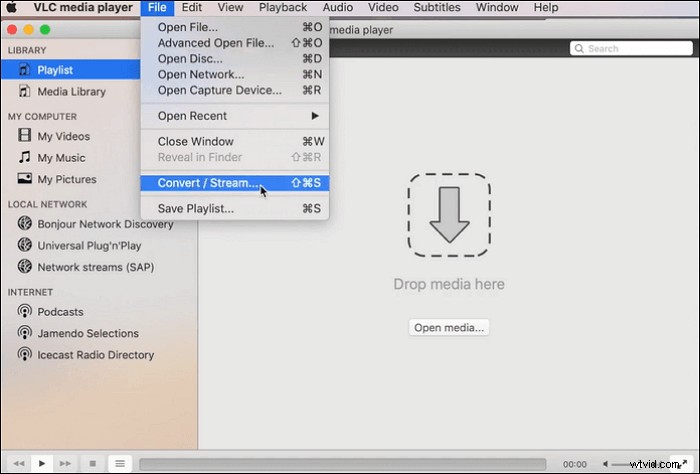
Here is a list of steps on how to screen capture on Mac, using the VLC media player:
Step 1. Download the VLC media player and open it. Choose "Media" > "Stream". Then, select "Capture Device".
Step 2. In a new window, find "Capture mode" and select "Desktop". At the same time, you are allowed to choose the desired frame rate for the screen capture.
Step 3. Finally, click "Stream" > "Next". Here you can also set the saving path in the "New destination". Choose "Stream" in the followed step to start capturing.
Tips: To set the capture size, hit "Video" from the toolbar and choose from "Fullscreen", "Always Fit Window", etc.
FAQs About How to Screen Record on Mac
Here are some questions gathered from the public, and you can keep reading this post.
1. Does Mac allow screen recording?
Yes. It has the default tool like QuickTime Player to capture your screen with microphone sound. The savings from this Mac screen recorder are of high quality. The only issue is the system audio. However, you can choose third-party software to handle that.
2. How do I record my screen with sound on Macbook Pro?
To capture the screen with external sound on Mac, choose the default recorder, QuickTime Player. You can even capture the webcam with it. If you are going to record the audio from the computer (internal sound), try tools like EaseUS RecExperts for Mac. It can capture the screen and audio at the same time or separately.
3. How do I record my Mac screen without QuickTime?
If the QuickTime Player cannot meet all your requirements. Try tools like EaseUS RecExperts. Here is a guide.
1. Launch this software on Mac. Go to its interface and choose "Video" > "Screen".
2. Set the recording area from the "Size" and allow audio resources as well.
3. Hit the red button to get started. To end it, hit the Stop button. You can view the video in the Preview window.