
Surface Pro is a detachable tablet, which is designed by Microsoft. Similar to a Microsoft laptop, it can run the Windows version from 8 to 10. For most people, it is like a Windows computer and makes it convenient to study and work anytime, anywhere.
There are times you need to record the screen on your Surface Pro whenever you are studying or working, but you may not know how to get the work done. Don't worry. This post covers 5 efficient ways to help you out. Just keep on reading to learn how to screen record on Surface Pro.
How to Screen Record Surface Pro with EaseUS RecExperts
EaseUS RecExperts is a lightweight yet full-featured screen recording software for Surface Pro users. It offers you options to record screen, audio, webcam, and gameplay in high quality. Unlike other Windows screen recorders, it enables you to flexibly capture your screen, like the entire screen or a selected region, or even take screenshots on Surface Pro with ease. All in all, this software can satisfy all your screen recording requirements.
Apart from the basic recording features, it also provides you with some editing tools. For instance, the recordings will be split automatically at a specific time or size if you enable the Auto split function. Moreover, once you stop the capture, you can edit your recording easily and quickly.
How to Screen Record on Surface Pro 7 with Sound:
Step 1. After downloading, launch the screen recording software. You'll encounter a small panel on your screen with many options.
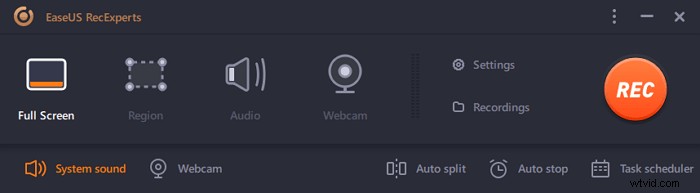
Step 2. On the panel, one can record the entire screen by clicking on the "Full Screen" option or a specific region by clicking on the "Region" option. Now, drag your cursor onto the screen to select the desired area.

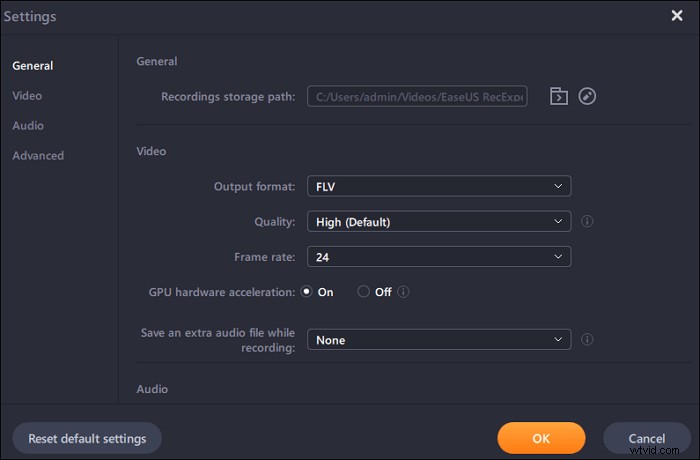
Step 3. For webcam recording, attach a webcam and click on the "Webcam" button from the main panel. Also, one can further choose the output format, quality, and frame rate from the settings.
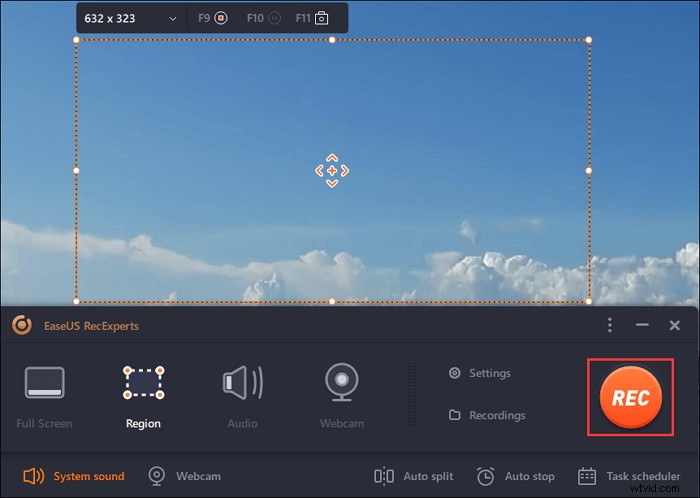
Step 4. Now, click on the "REC" button to start your recording.
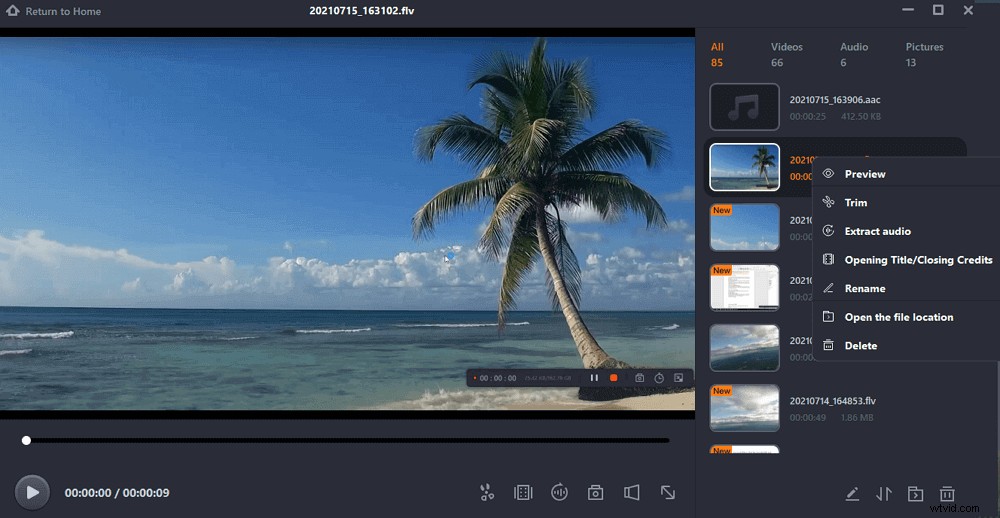
Step 5. Click on the "Stop" button once you are done. The recorded video will show up on the screen when a user stops recording. The editing features offers features like trim, rename a file or extract audio, and more. You can also take a screenshot by simply pressing F11.
If you want to get this screen capture software for Microsoft Surface recording, just hit the below button!
How to Screen Record on Microsoft Surface with Game DVR Free
If your Surface Pro runs on Windows 10 or later, you can use the best screen recorder windows 10 – Game DVR to capture the screen. The biggest advantage is that you don't need to search or download other third-part screen capture software on your Surface, and it won't take up much space in your CPU performance even you are playing gameplay and recording it at the same time.
How to record video on Surface Pro with Game DVR:
Step 1. First, you need to connect a keyboard to your Surface Pro.
Step 2. Press the Win + G to open the Game Bar dialog, then check the "Yes, this is a game" box to load the Game Bar.

Step 3. When you are ready to capture your Surface screen, you can click on the Start Recording button or press Win + Alt + R on your keyboard to begin the recording.

Step 4. Hit the blue recording bar to end the recording. And the recorded video will be saved in s subfolder called Capture on your Surface Pro.

How to Screen Record on Surface Laptop with OBS Studio
Another best recording software for Surface Pro is OBS Studio. As a completely free and open source screen recorder, it can meet your screen capture needs and live streaming. Using it, you can create scenes made up of multiple sources, including window captures, images, text, browser windows, webcams, capture cards, and more.
However, it is a little difficult for novices because of its complex user interface. If you are a beginner, you can read some guides or try other easy-to-use screen recorders.
Here's how to record screen on Microsoft Surface Pro with sound using OBS:
Step 1. Download and install OBS Studio on your Surface Pro, then launch it.
Step 2. In the Scene tab, click on the "+" button and select Display Capture, then click OK. After that, choose the Settings button to set the location of the recorded videos.
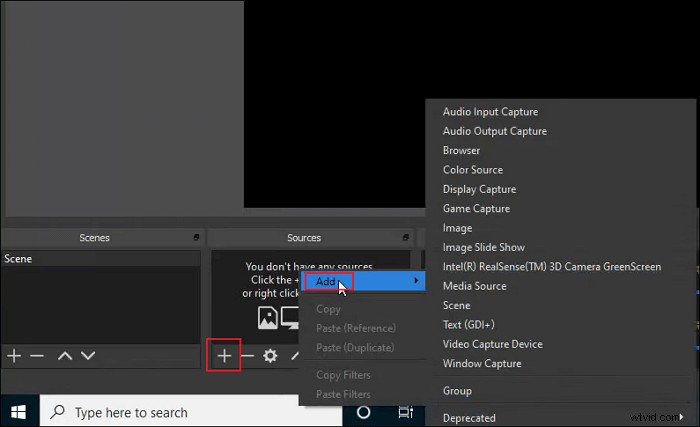
Step 3. When you are ready, you can click the Start Recording button at the bottom right.
Step 4. Once done, you just click the Stop Recording button, then the recorded video will be saved to your computer.
How to Screen Record on Surface Pro with Online Screen Recorder
ScreenApp is an online screen recorder. It is the easiest way to capture the screen on Surface Pro for those who don't like to download or install any software. This online screen capture software allows you to start your recording with a single click, and it offers you three options to select and record your screen according to your preference.
When the recording is done, it provides you with some basic editing tools to trim or modify the video.
How to screen record on Microsoft Surface Pro 7/6 online:
Step 1. Visit ScreenApp's website using Chrome or Firefox, then click on the "Get Started" button.
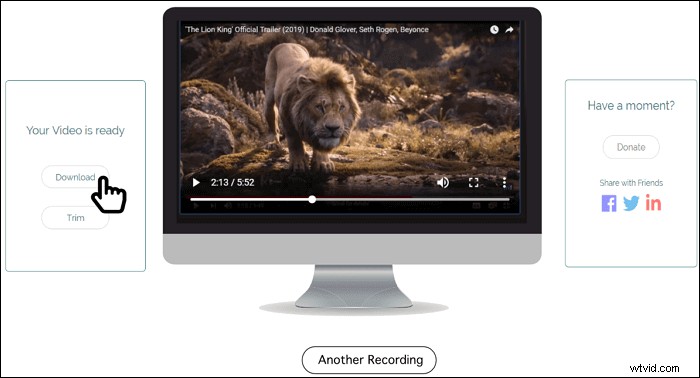
Step 2. Later, the Share Your Screen window pops up, then you can select to capture your entire screen, an application window, or a browser tab freely. Once done, click on the Share button.
Step 3. After all settings, you can click Start Recording, and the recording will start immediately.
Conclusion
How to screen record on Surface Pro? We have talked about four easy and workable ways to help you finish the job. You can choose any one that suits your needs best.
Among those screen recorders, we strongly recommend EaseUS RecExperts. This easy-to-use screen recorder offers basic screen capture and video editing tools, and even you are a beginner, you can make impressive recording clips with it.