
Chromebooks do not come with a pre-installed webcam recording app. It’s easy to take photos using the Camera app but there is no native option to record videos on Chromebook just yet.
As highlighted in a previous blog post, Clipchamp provides the solution in the shape of our webcam recorder. Due to a recent technology update that introduces a better recording experience, we decided to write a quick tutorial of how to use our new application.
No recording app – no problem!
You can access Clipchamp through the Chrome Web Store or by going to clipchamp.com.
Our video recorder allows you to record directly in your browser using your own webcam, and then gives you the option to save the videos locally or upload them to your Google Drive, YouTube or Facebook account. You can also compress and convert your videos at the end of the recording.
Follow this step-by-step guide to record videos on Chromebook.
1. Go to the Chrome Web Store and install Clipchamp
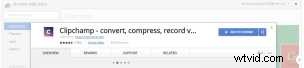
Search Clipchamp in the search bar and select Add To Chrome.
2. Launch Clipchamp

Click View Website on Chrome Web Store after installing, or go to clipchamp.com.
3. Select Record with Webcam
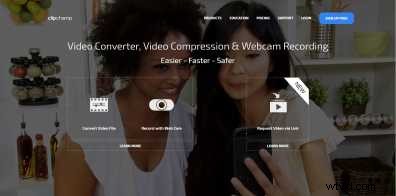
In addition to webcam recording, Clipchamp also offers video compression and conversion technology.
After logging into your Clipchamp account, the recorder will open and you can start recording. If you’re opening the video recorder for the first time, your browser will ask you to allow Clipchamp access to your camera and microphone.
Make sure to allow access, otherwise the webcam recorder will not work.
4. (Optional) Select Recording Quality
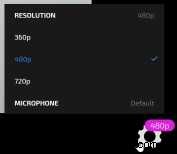
Click the gear icon in the bottom right corner of the recording screen to change the video resolution, select your camera (if there is more than 1 available, for instance if you’re using a USB cam) and select your microphone (if there is more than 1 available).
This step is optional and you can also just leave the defaults Clipchamp selected.
5. Start Recording
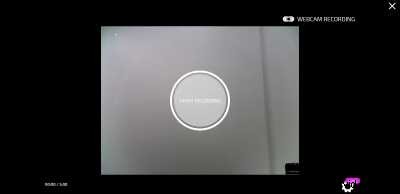
Click Start Recording to start. Your video will be capped at 5 minutes on the free plan.
6. Save or Share your Video!
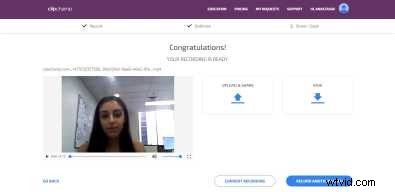
And voila! Video is recorded and you are now able to save it to your computer or share it to YouTube, Vimeo, Facebook or Google Drive.
If you’d like to further reduce your recording’s file size, an optional step is to click on “Convert Recording”:
7. (Optional) Click on Convert Recording to compress and convert your video file
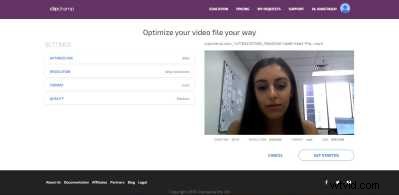
Choose from the Optimize For options depending on where you want to use your video. Selecting the web option will optimize your video for uploads to YouTube and Facebook etc.
That’s how easy it is to record video on Chromebooks. Happy Clipchamping!
PS: If you run into any problems, check out our Help Center for solutions to the most common issues.