
Join.Me is an outstanding online video conferencing service that allows you to create a personalized URL and join meetings over a computer or phone. Besides, it offers you a built-in recorder. When you want to give feedback, watch the meeting later, or share it with the company group, this feature will be handy.

This post guides you on how to get Join.Me recording and how to record the meetings with rich-featured third-party screen recording tools, which are helpful when you need advanced tools.
How to Record a Meeting in Join.Me
It is an excellent online service for attending or organizing a meeting. You can share the screen, add annotations, and record the meeting as a host.
While online meetings can be managed through the web interface, you need to install the desktop software when using annotations. Once you have installed it, select a region to share. You can also use the annotation tools and other features that are available online.
Tutorial of Recording Join.Me Meetings as a Host:
Step 1. First, signup with Join.Me. Then, either choose to start a meeting or join a meeting. You can then use a unique URL to start a meeting or create a custom one.
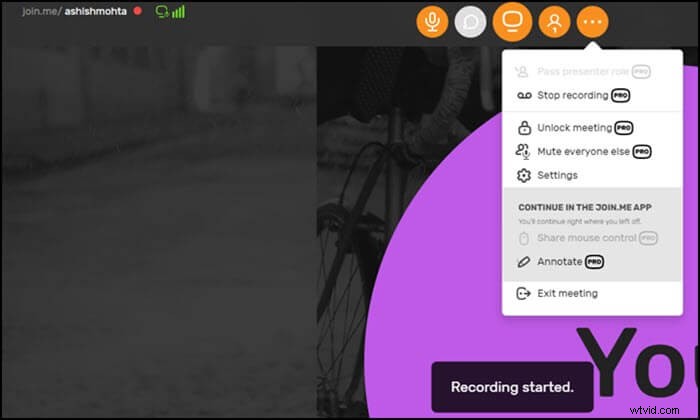
Step 2. Once the meeting starts, click "More" > "Record". It will instantly start recording the meeting, including audio and video. Once it starts, a red icon will show up to help understand that the recording has started.
Step 3. Once the meeting is over, hit the stop recording button. To view and download the meeting, access Join.Me website and go to "My meetings". Then click "Recordings" to find your recorded meetings.
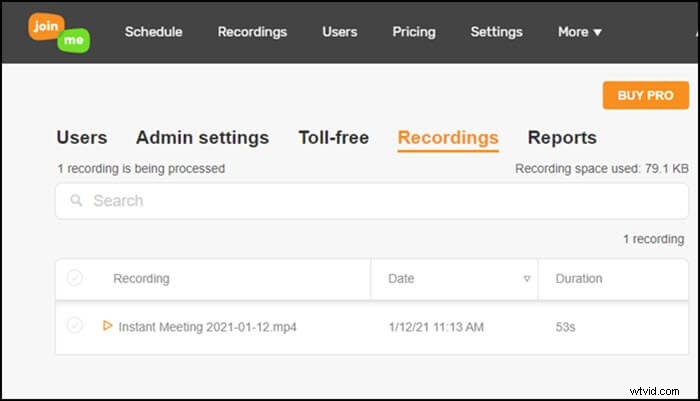
Record and Download Join.Me Recording on Windows
Since all the recordings in Join.Me are saved online, and there is no control over them on the computer. Thus, it may take a lot of time to process the video once you stop recording, and it doesn't allow attendees to record the meeting. That's why you need third-party software like EaseUS RecExperts to record online meetings.
This Windows screen recorder enables you to create high-quality video tutorials, record Zoom meeting in the best quality. You can select a part of the screen or the full screen as the recording region. These features make it an incredible software to record the meeting you attend or host on Join.Me. Once recorded, a copy of the video is saved on the computer, and you can preview it or trim it with the built-in tools.
To aviod missing anything, use schedule recording to start recording at a fixed time. This arrangement makes sure that you can still watch the recording later even if you are absent from the live-streamed meeting.
Key Features:
- Capture any area on your screen flexibly
- Record GoToMeeting sessions, Zoom meetings, Join.Me meetings, etc.
- Configure high audio and video quality for video recording
- Support webcam and game recording with ease
- Set a task scheduler to record automatically
Don't miss this wonderful meeting recorder. No registration is required.
How to Capture Join.Me Meeting on Windows 10: The following content is the method of recording an online meeting. You can use this way to record online courses, gameplay, or anything you need to record.Step 1. Configure Recording Options
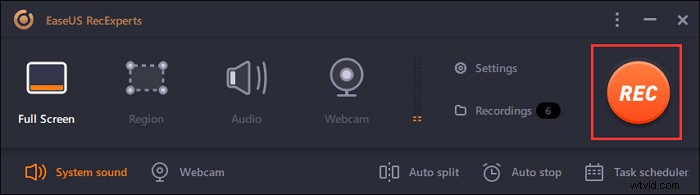
Download this program on your computer. Choose "Full Screen" or "Region" to start capturing. Meanwhile, choose the sound by clicking on the bottom left button and selecting "System sound" or "Microphone".
Also, you can add an optional webcam overlay to your recording by clicking "Webcam".
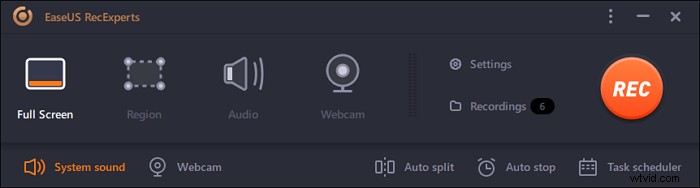
Step 2. Customize Advanced Recording Options
To set the hotkey or specify a custom format for saving videos, you click "Settings". You have options like choosing the output format, quality, etc. Click "OK" if you have configured these options.
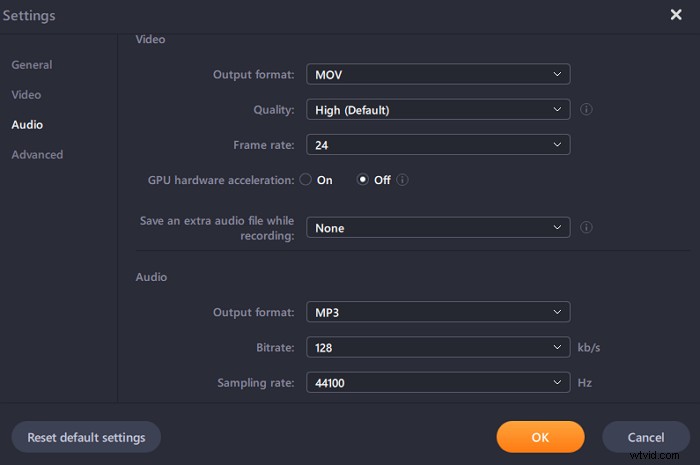
Step 3. Capture Your Conference
Open your meeting application and start the video task. Then, click "REC" to get started.
Step 4. Find Your Recordings
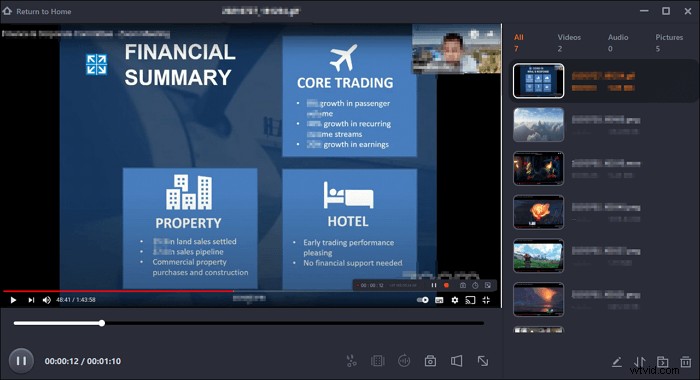
To view your video, click "Recordings", and the most recent one appears at the top of the list.
Record and Download Join.Me Recording on Mac
EaseUS RecExperts is also available to record Join.Me meeting on Mac. It is an easy-to-use screen recording software that enables users to capture anything on the screen. Whether you need a full screen recorder or a recorder that can record only part of the screen, it can always be useful.
Apart from these basic recording options, this software supports scheduling recordings as well, and it allows you to set the time and duration for screen recording, while you can only set the duration in audio recording.
Key Features:
- Capture screen, gameplay, and webcam
- Record Join.Me meeting on macOS with simple clicks
- Powerful internal audio recorder on Mac
- Schedule recording for both screen and audio recording
Catch this chance to download this tool! No registration is required.
Record an Online Meeting on Mac:Step 1. Before joining the meeting, download and launch EaseUS RecExperts for Mac. Then, choose a suitable meeting recording area from two options: "Full Screen" or "Region".
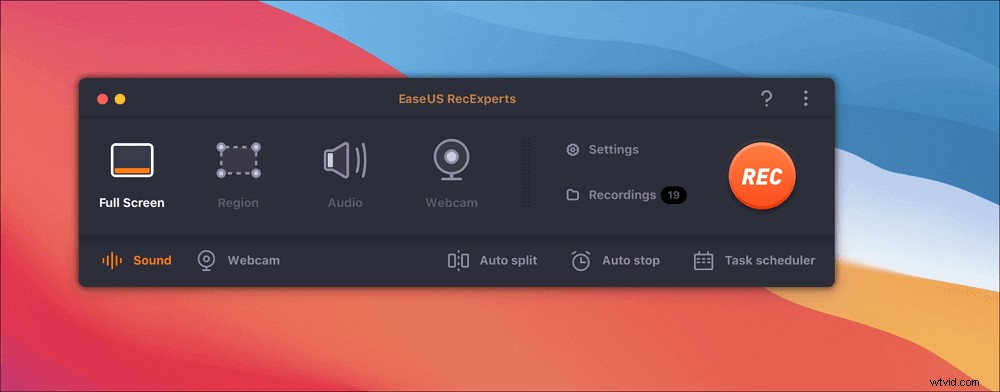
Step 2. Then, click on the "Sound" button at the bottom left corner to select the suitable audio source. The two buttons on the "Select recording sound" window are available to decide if you want to capture system sound, microphone audio, or both of them.
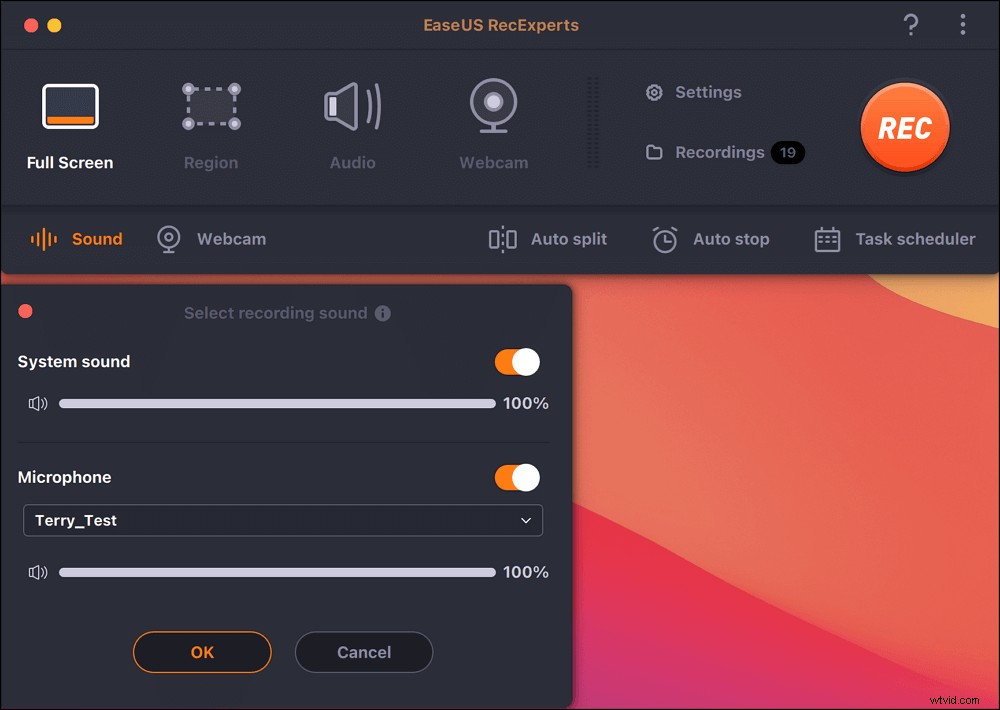
(Optional) To capture the webcam along with the meeting screen, the "Webcam" icon beside the "Sound" button can help activate a built-in camera or an external camera.
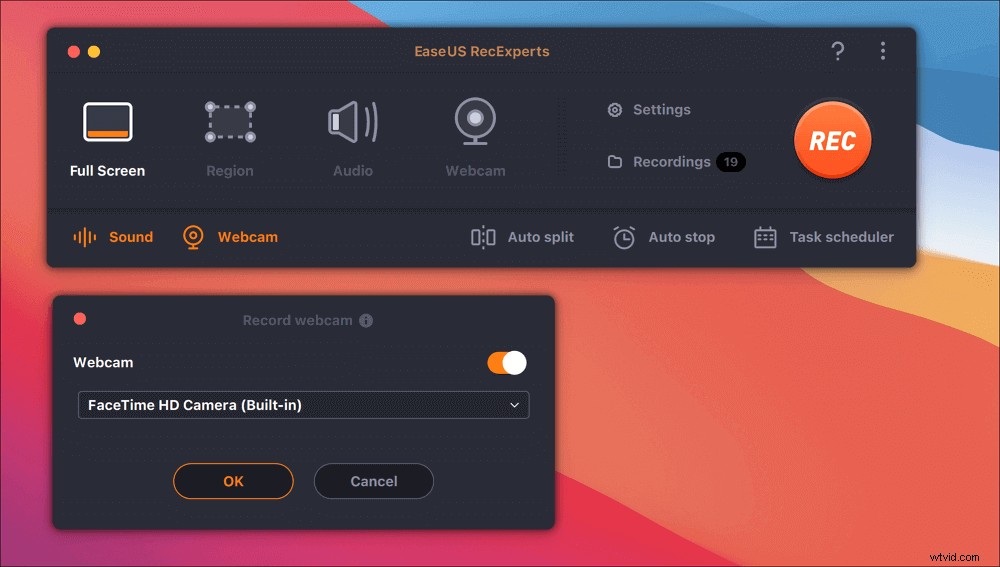
After adjusting the settings, hit "REC" to start recording.
Step 3. During the recording, there will be a floating toolbar that enables you to pause or stop the recording, as well as take screenshots. When you want to save the video you captured, click "Stop" on this toolbar.

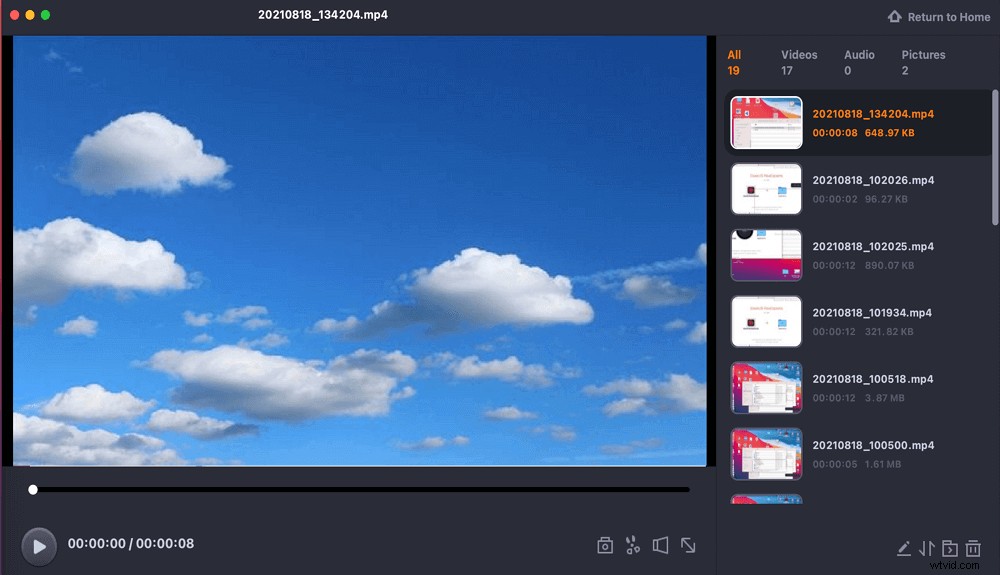
Step 4. When the recording stops, a built-in player will pop up, and you can view the recorded video directly.
Conclusion
Recording a meeting is important, especially when you need to go through all the important minutes of the meeting, which are usually missed. That's why you need recording software that can record the meeting offline and is available without a problem.
Software like EaseUS RecExperts offers a one-stop solution to record meetings. It also offers to record games, streaming videos, and audio content.
FAQs About Join.Me Recording
Here are some of the frequently asked questions about recording meetings.
1. How do you record on Join.Me?
Join.Me is a web-based service that allows users to hold online meetings and webinars. Its built-in tools enable users to record audio and video of their online meetings easily.
To record a Join.Me meeting, follow these steps:
- Step 1. Join the meeting and test your microphone and webcam.
- Step 2. Press the "more" button.
- Step 3. Select "recording" and then select the recording method you want to use. Once done, you can download the video and then edit if required or view it offline.
2. Can you voice record a meeting?
Yes, you can! You can voice record the meeting using a voice recorder app or the built-in Windows voice recorder. This way, you can have the best of both worlds, where you can learn more and give your input more effectively as you can replay the audio anytime you want.
3. What is the best app for recording meetings?
EaseUS RecExperts is the best for recording meetings because it allows you to record video and record the system audio, ensuring the meeting is exactly as it should be.
The software also offers to record webcam, schedule recording, record system audio, and so on. While you may try other recording applications, not everyone includes all the features in one place. You can also trim parts of the video at the start or end, which are usually not needed.