
How long does it usually take to schedule a meeting where everyone is available? It takes forever, or at least a huge chunk of your priceless time. But thanks to Slack, you can now quickly schedule a meeting using a few simple steps.
Automating your Slack account to schedule a meeting will save your time and effort. This way, you will be able to coordinate better and quicker with a Slack meeting. And you can even record Slack meeting to review or reference it later. No more delays trying to schedule a meeting that fits into everyone's busy routine. You don't even have to worry about missing the meeting because Slack issues reminders to notify when the Slack meeting starts. Allowing easy meeting scheduling, Slack is undoubtedly making remote working as well as premise jobs easier.
So, follow our lead on how to schedule a meeting in a few clicks.

- Part1: How to Schedule a Meeting on Slack
- Part 2: How to Record Slack Meetings
- Part 3: Slack Video Call Settings
Part1: How to Schedule a Meeting on Slack
To schedule a meeting anywhere is a tedious task, but, luckily, not on Slack. Figuring out the free slots on your guest's schedule can now be automated using Outlook or Google Calendar app to schedule a meeting on Slack.
All it takes is a few clicks to schedule a meeting on Slack. And after you schedule a meeting, Slack also notifies you with a reminder. This way, you can never miss a Slack meeting or be late.
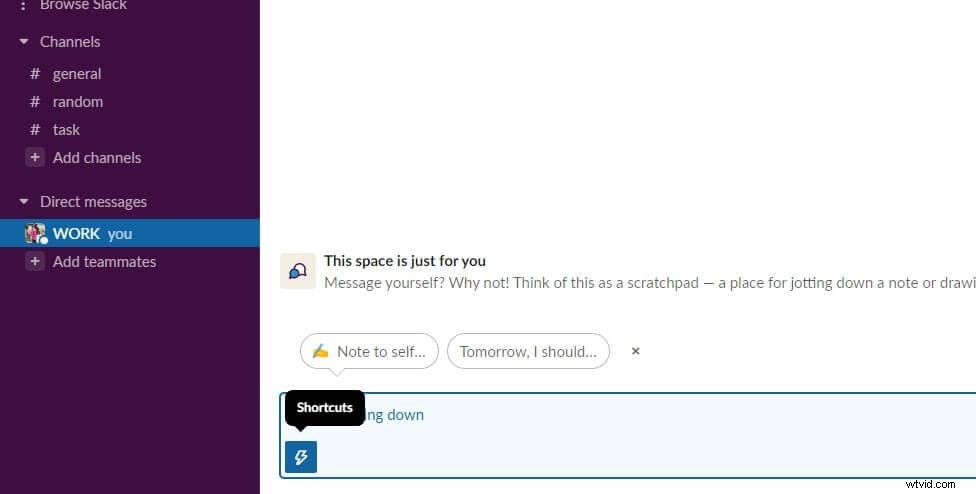
1.Open your Slack account and choose a workspace. In the chatbox, click on the Shortcut icon.
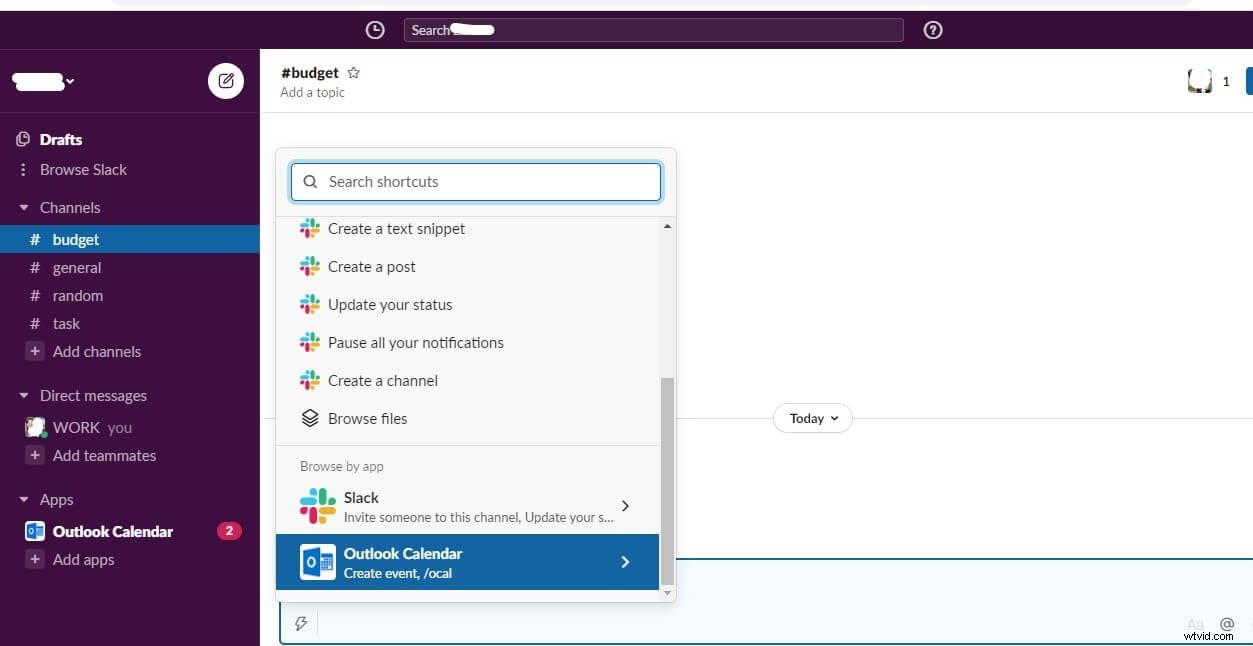
2.Scroll down to find the option of Create Event (To schedule a meeting this way, you must first install the Outlook Calendar or Google Calendar)
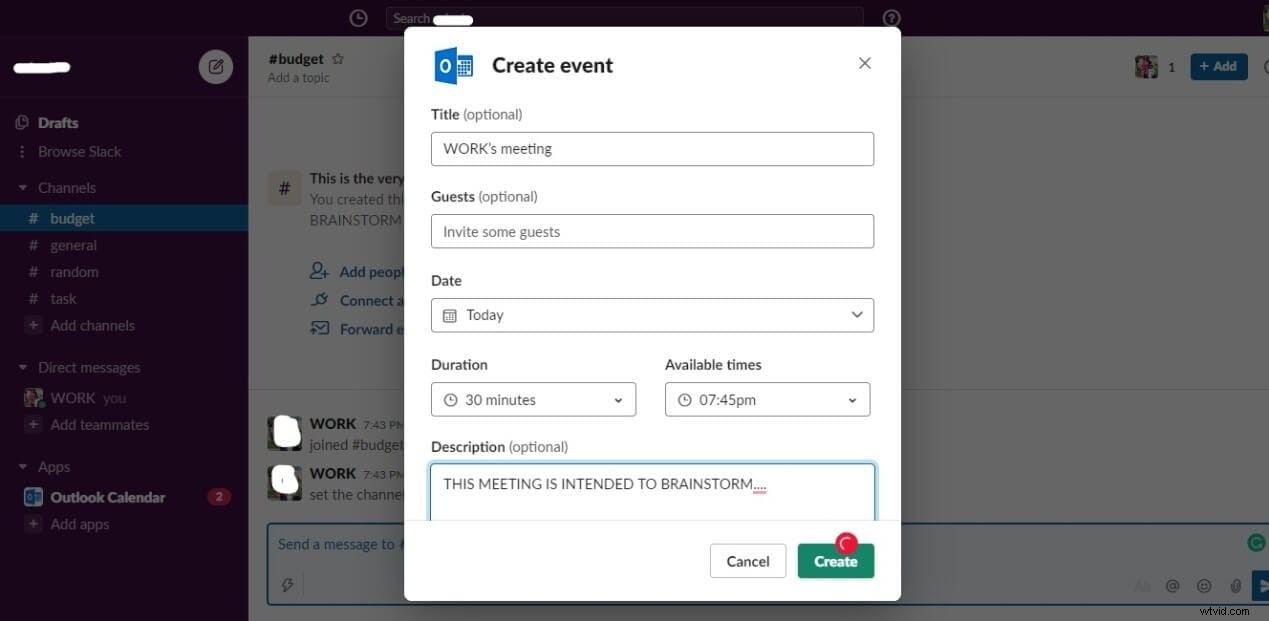
3.Enter the details to schedule Slack meeting, including the date, duration, timing, etc. If you want to view the recommended Slack meeting timings, the guests must be connected to the Outlook calendar. Click on Create.
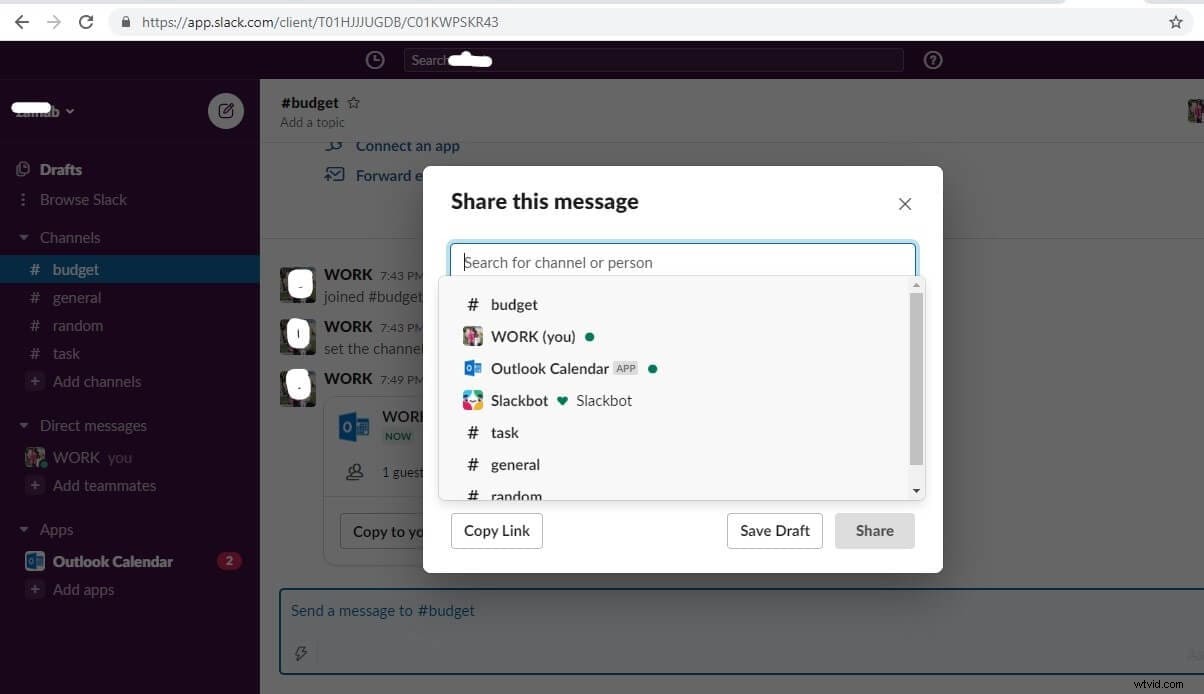
4.The Slack meeting will be displayed in the chat instantly. You can click on the Share icon.
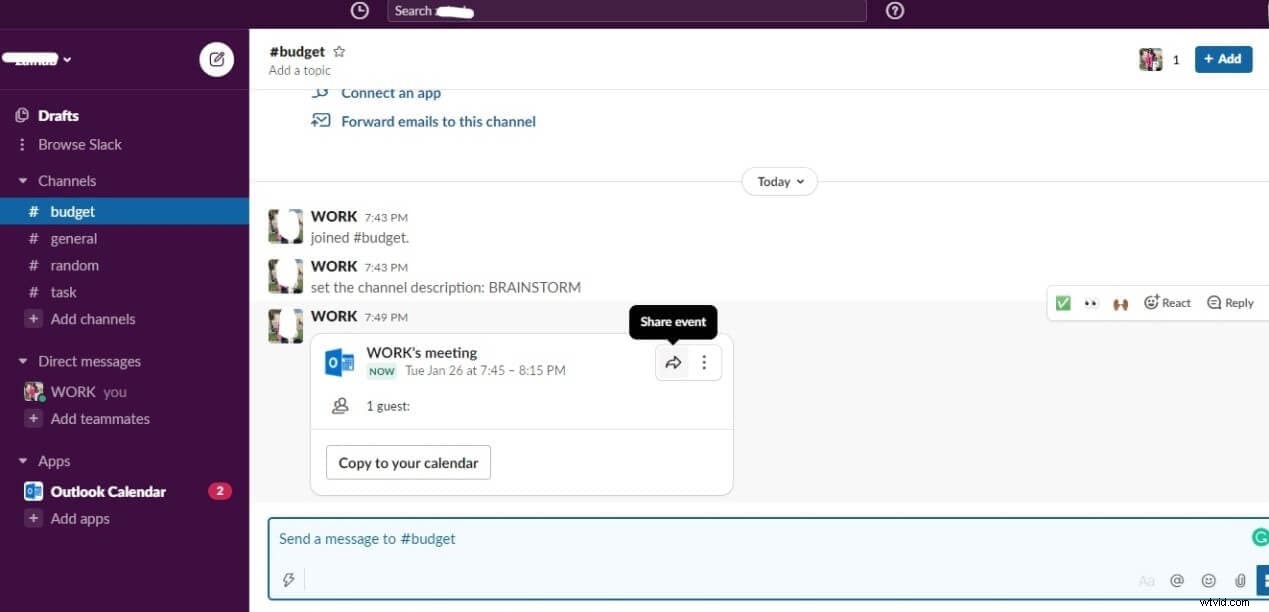
5.Choose a channel to share the Slack meeting or copy the link to paste in other workspaces.
Part 2: How to Record Slack Meetings
All the text messages on Slack are backed up and can easily be searched and shared again. But, what if you start an audio or video Slack meeting? Until now, no feature enables you to record Slack meeting.
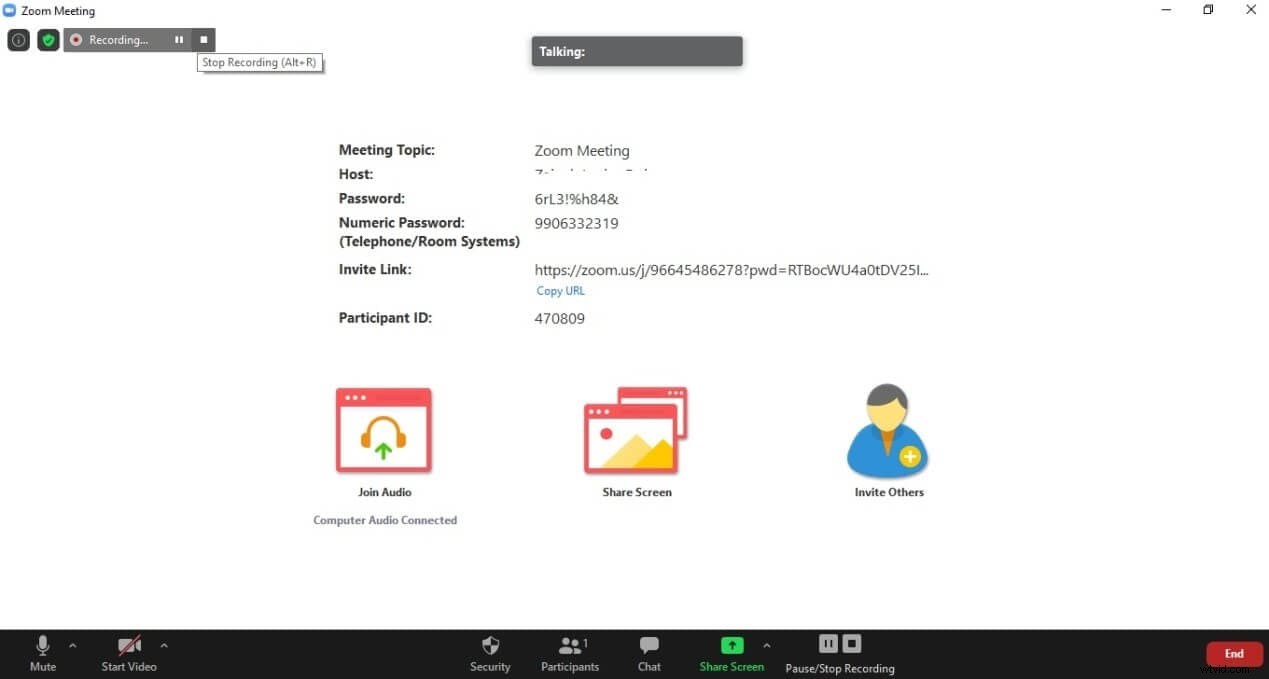
Therefore, to record Slack meeting for later use, you will have to use a third-party app like Zoom and integrate it with Slack.
Here is how you can record Slack meeting.
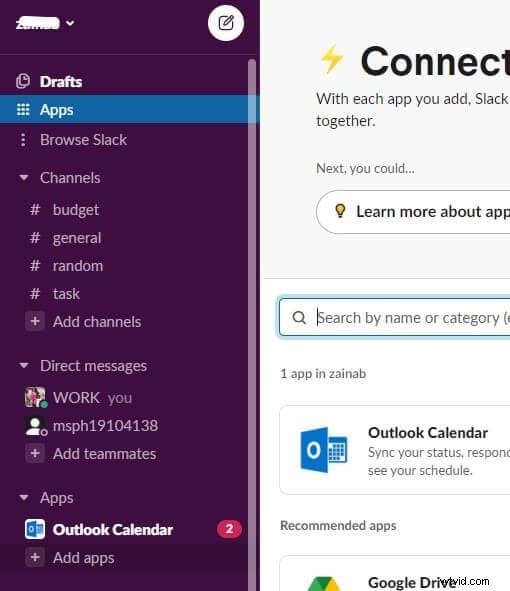
1.Click on the Appstab on the left side menu. Click on Add apps.
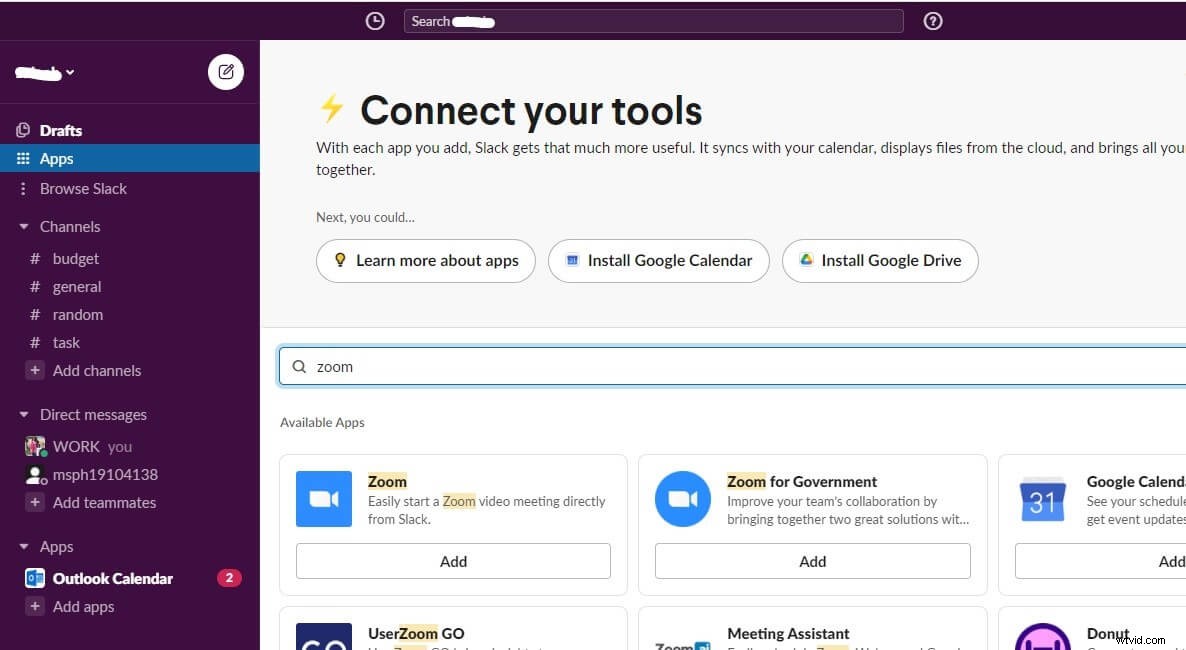
2.Now, in the search bar, type and search Zoom. Click on the Add This will take you to the Slack App Directory.
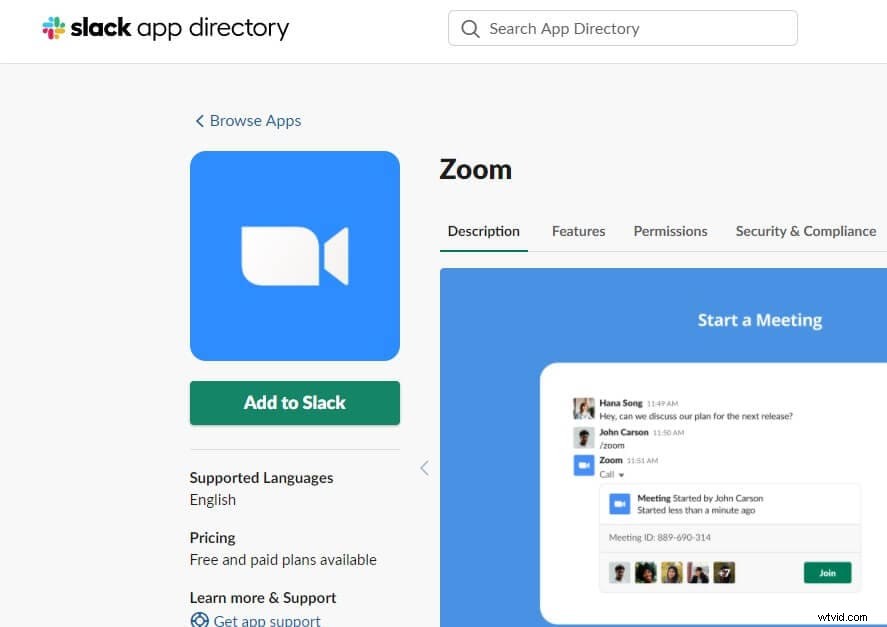
3.Tap on Addto Slack.
4.AllowZoom to access your data and enable the app.
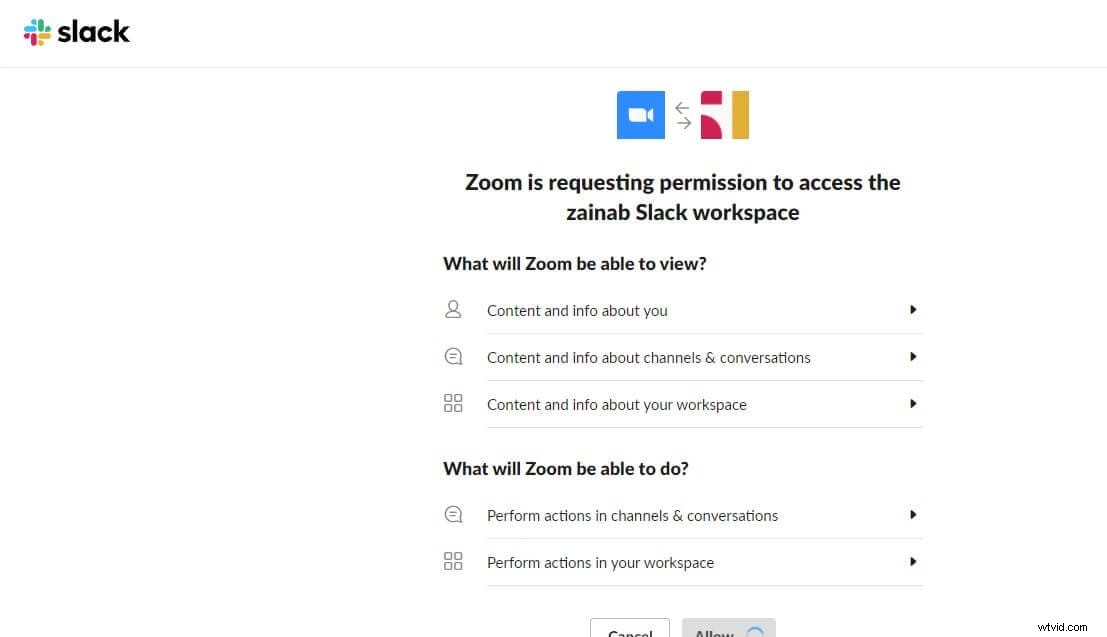
5.Now, go to your workspace and type the "/zoom"command in the chatbox. Tap on the Zoom meeting tab.
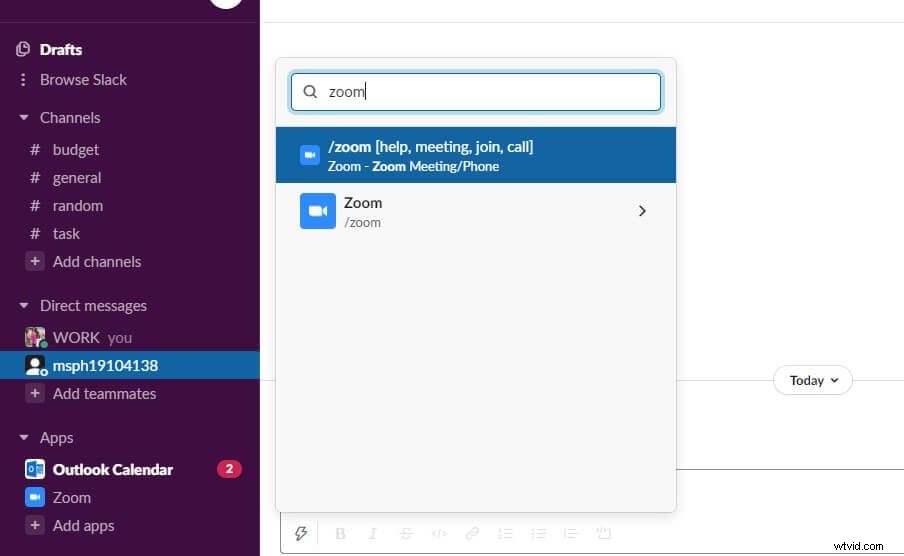
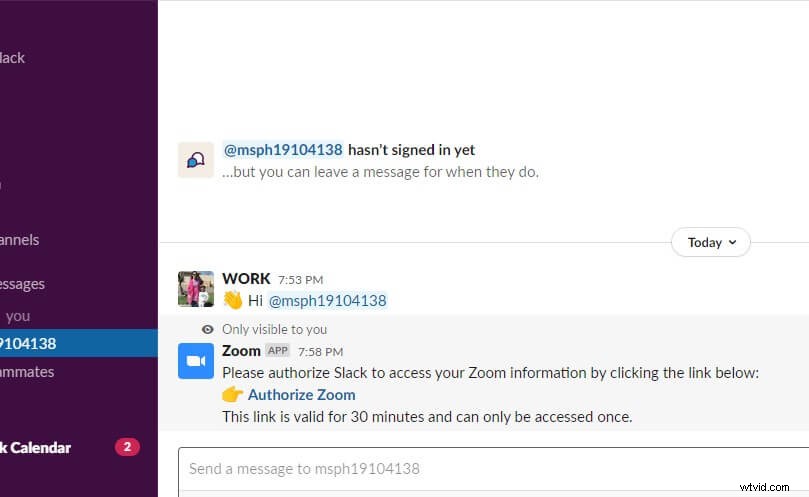
6.Click on AuthorizeZoom and adjust the settings.
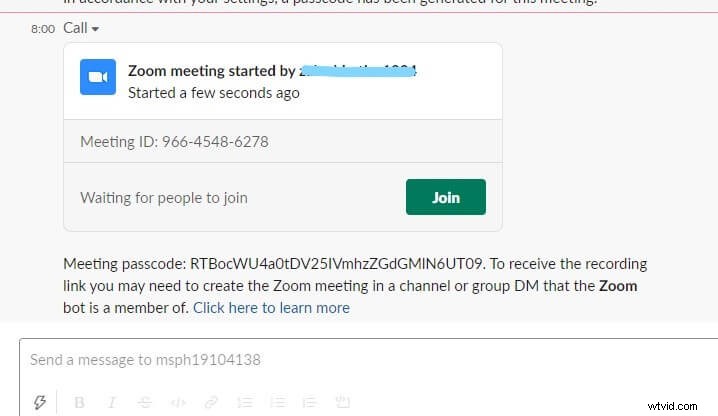
7.Click on Join to start the meeting.
8.Finally, tap on the Recordicon to record Slack meeting. You can click on the Pause button or Stop to finish recording. Once the recording finishes, it will be automatically sent to your public or private channel(depending on the type of Slack meeting you scheduled).
Part 3: Slack Video Call Settings
Slack allows users to schedule a meeting with third-party apps or in Slack itself. You can just as easily have a Slack meeting using the in-built video call option.
You can either have a one-on-one video call in a DM chat or have a Slack meeting with 14 other participants through a channel video call. Either way, Slack has multiple video call settings to make your work and communication easier.
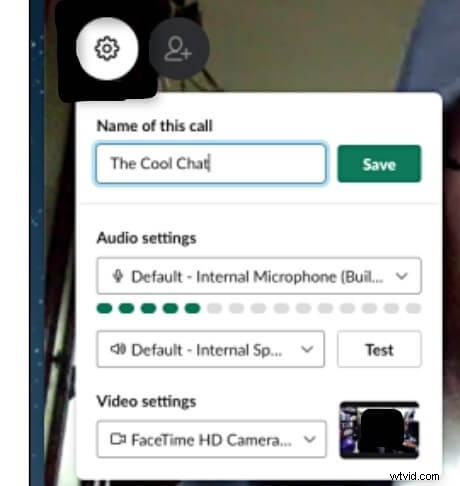
The settings tab in the video call enables you to create a name for the video call. There are also audio and video settings that can be changed to enhance the video call experience.
Moreover, if you wish to stay on mute and still engage with the speaker, just click on the emoji on the screen. Select from a variety of reactions or type a text message right on the video screen.

Conclusion
Slack is dedicated to making virtual communication and workflow seamless. This versatile app has now made it simpler to schedule a meeting in a few taps. Saving precious time, Slack meeting is shifting the norm. By using Slack, you can now schedule a meeting easily and circulate the meeting timings and inform all the team members. And if you want to save the meetings for later use, you can also record Slack meeting using an app like Zoom.
With this powerful tool and our guide at hand, you can transform your work life and be more productive. Whether you want to start an audio or video meeting, Slack has got you covered. Collaborate and coordinate quickly using a Slack meeting. So, schedule a meeting on Slack and communicate seamlessly.