
When you want to record the operating steps to do some tasks, you may want to record the mouse tracks on your screen. But do you know how to record mouse movements on Windows and Mac? An all-in-one mouse recorder and best free screen recorder is needed. This post shows you the best 3 mouse recording software to help record mouse clicks on the screen.
How to Record Mouse on Windows 10
Many people will probably ignore that Windows 10 has a powerful built-in screen recording software - Game Bar. Also, you can capture the mouse with a third-party screen recorder.
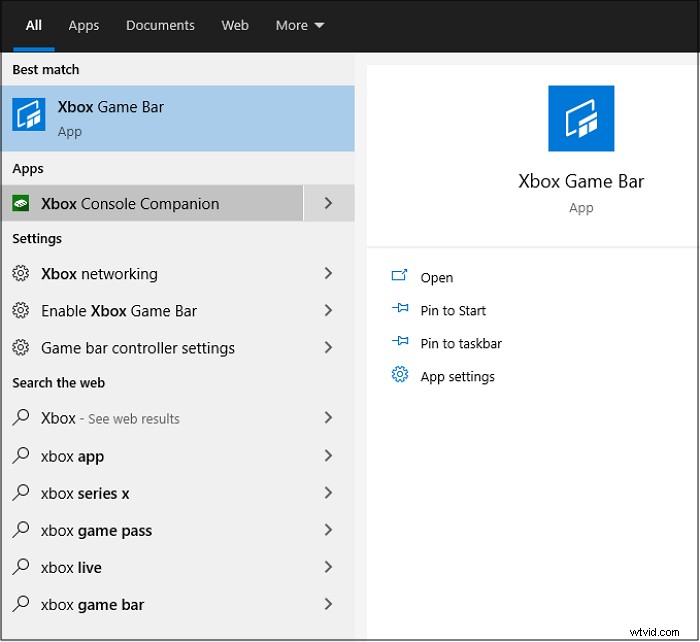
#1. Xbox Game Bar
Xbox Game Bar is a screen recorder on Windows 10, which can record and broadcast video games. Compared with other screen recording software, it does not support editing your video after finishing the recording.
The convenience of using this software is that you do not need to download or install any software on a PC. And this free software is easy to use, and you can follow the steps below to record the mouse clicks on your screen.
Key Features:
- Free mouse recorder with a simple interface
- No need to download software on a computer
How to Record Mouse Movements Using Game Bar:
Step 1. Click the default keyboard shortcut "Windows + G" to launch this software.

Step 2. Then you see the main screen of the Game Bar. Click the circle in the middle to start recording. Click "Stop" to stop recording your mouse on the screen, and the recording video will save on your computer.
Here is a list of commonly used keyboard shortcuts in recording mouse on screen:
- Windows+G: Open this software
- Windows+Alt+R: Start/stop recording
- Windows+Alt+T: Show/hide recording timer
Although Game Bar is convenient to use, this software supports recording the full screen. If you need to record the part of the screen or edit the recording video, you may need a third-party screen recorder.
#2. EaseUS RecExperts (Recommended)
It is an all-in-one screen recording software, which can record video, audio, and webcam. The functions of this software are also powerful, such as supporting recording both full screen on Windows 10 and record part of screen. You can record sound from a computer or your voice from the microphone effortlessly.
And this software even supports a built-in trimming tool. You can edit your video when you finish recording. If you want to know more about this powerful screen recorder, click the following button to download it and have a try.
Key Features:
- Record the mouse movements on the screen
- Capture audio on Windows, including the system and external sound
- Record streaming video and audio easily
- Support various video and audio formats
How to record screen on Windows 10, including the mouse click movement:

How to Record Full Screen on Window 10?
To help record screen, audio, and gameplay on Windows 10, you need a good screen recorder to capture the mouse movement...

How to Use Best Mouse Recorder on Mac
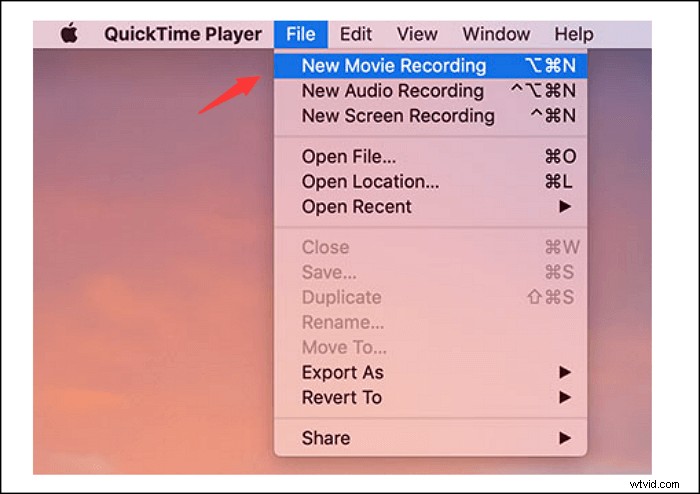
For a Mac user, you must know QuickTime Player, which is a powerful video multimedia software. This software uses onscreen controls similar to a CD or DVD player to use this program to play video or audio files.
This software also supports the recording screen with external audio from a microphone. Also, you can add a webcam to make a facecam video easily. Also, recording the mouse click is easy when you choose it.
Key Features:
- Support recording mouse on the screen easily
- Play video or audio files
- Capture the screen, gameplay, and external audio
How to Record Screen with Mac Mouse Recorder, QuickTime Player:
Step 1. Open this default tool on Mac. Then click "File" > "New Screen Recording" to create a new recording file.
Step 2. Select "Open System Preferences" to set the QuickTime Player.
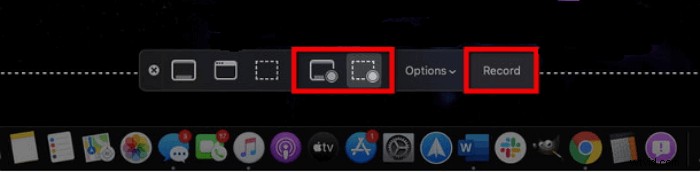
Step 3. Then record windows will appear at the bottom of the main screen. Click the "Record" to start recording your mouse on the screen. And you can also select to record the full screen or capture the part of the screen.
Step 4. To finish recording, click the Stop button to stop and save the recording file on your device.
Conclusion
This page discussed the 3 best ways to record mouse on the computer screen on Windows and Mac. You can select the best mouse recorder according to your needs. For Windows users, choose EaseUS RecExperts. With its favorable price and multitudinous functions, it becomes a truly worthy choice!