
In this time of telecommuting, you may have to attend one after another online meeting or online course. For people who don't want to take notes, recording the conferences and classes as videos may be the most convenient way. You only need to capture the screen of your device and the audio simultaneously, and you can get a video with voice with simple steps.
But how to screen record with voice? A powerful screen recorder will help you. This post will introduce the best screen recorder with voice on different platforms and guide you in screen recording with voice-over effortlessly. Come and know more.
How to Screen Record with Voice on Windows
EaseUS RecExperts is one of the most popular screen recording software this year, which has attracted plenty of people's attention. This powerful software can also work as a screen and audio recorder to make various types of videos. For instance, this software helps you make your own reaction videos and tutorial video with voice narration.
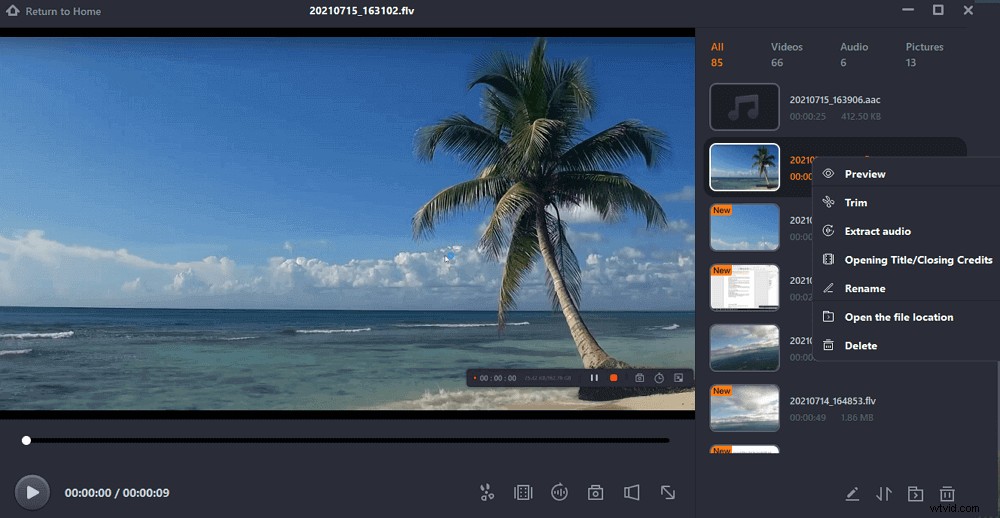
Besides that, EaseUS RecExperts offers you a video/audio trimmer for you to edit the recordings effortlessly. You don't have to waste time finding and downloading a third-party editing program to edit the multi-media files. This recorder even helps you add the opening title and closing credits, if needed.
Key Features:
- Record screen, audio, and webcam in high resolution
- Support adding schedule recording tasks
- Free video recording software to capture live streaming videos
- Export and save your recording in more than 10 formats
EaseUS RecExperts is versatile but easy to use, and even beginners can use it to capture video and audio on a computer and make a unique video. If this software is what you are looking for, click on this button to download it for free.
Here's how to do screen recording with voice by using EaseUS RecExperts:
Step 1. Configure the Screen Recording Options
Open EaseUS RecExperts on your computer and click "Full Screen" or "Region" to choose the area on your screen that you want to capture. Then select an audio source by clicking the Sound icon at the bottom left of the panel. If needed, click the "Webcam" icon at the bottom to add an overlay of your webcam footage to your screencast.
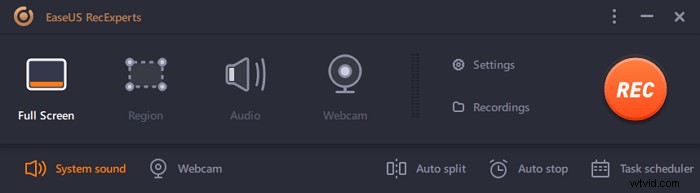
If you want to split the recorded file after recording, click "Auto split", and then your recording files will be split automatically according to file size or recording time that you have set.
Step 2. Specify Recording Settings
Once you have configured the basic recording options, you might want to configure the advanced settings.
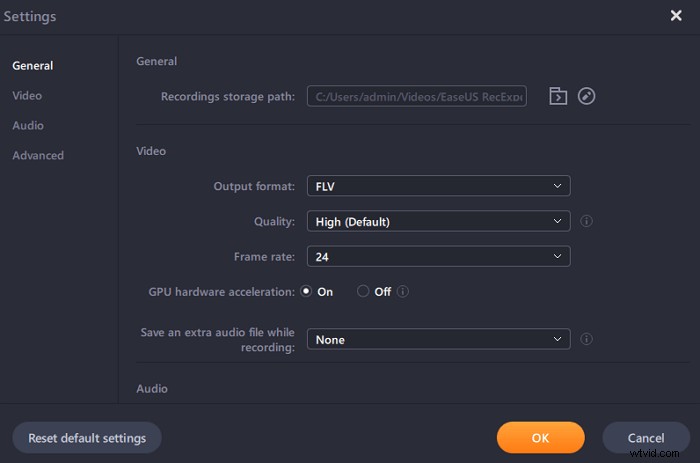
Click "Settings" to open the menu. On the following menu, select a format for your screencast and specify other options as you feel appropriate. Then click "OK" at the bottom to save your settings.
Step 3. Start and Stop Making a Recording
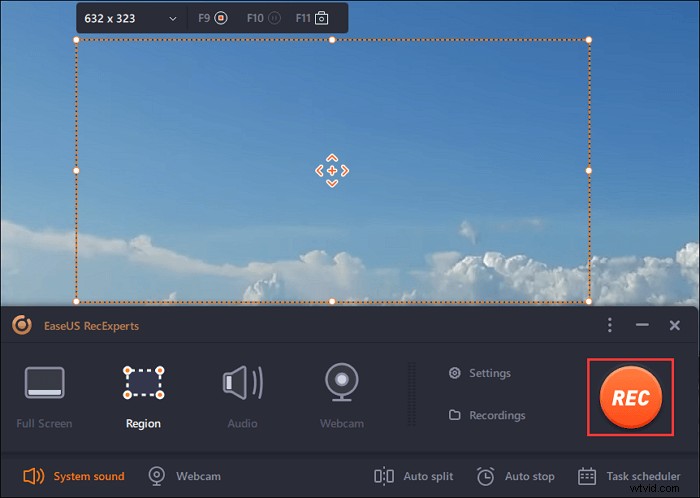
You should now be back to the main interface. Open up the screen that you want to capture, and then click "REC" in the software. Then it will start recording everything that is displayed on your screen.
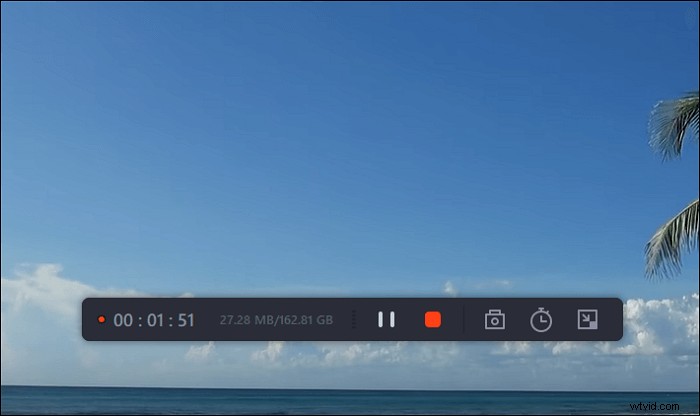
Then you will see the toolbar where you can pause or stop the recording, take screenshots while recording, or set a specific time to stop the recording.
Step 4. View All Your Recordings
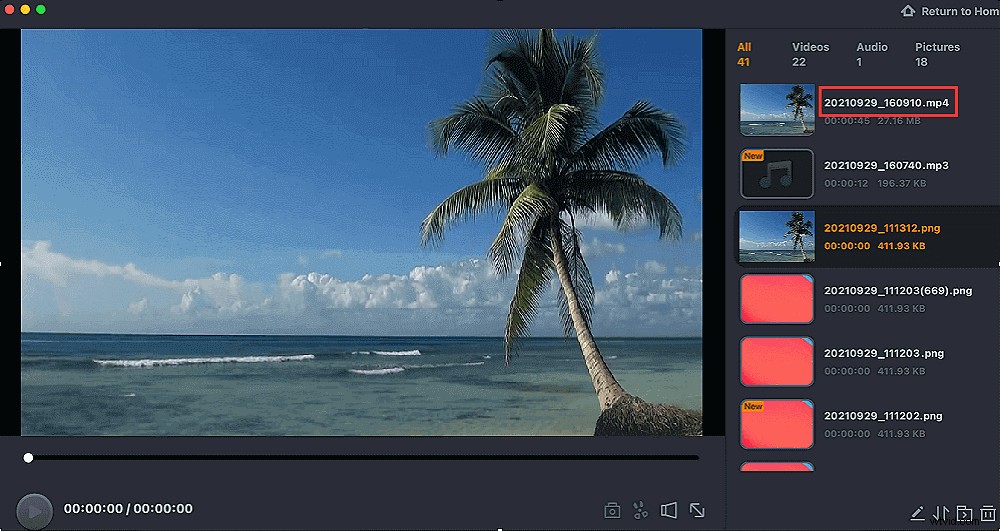
Once the recording is done, this software keeps all your recordings at a single location for you to view. You can preview and edit the recorded file here.
How to Record Screen on Mac with Voiceover
The most famous screen recorder on Mac might be QuickTime Player. This is a built-in tool for Apple that comes with every Mac device, and you can use this program to watch video and audio and capture your screen. Although it supports recording, it also has many weaknesses such as low audio and video quality, low performance, etc.
To avoid that problem, you must find an alternative to this program, such as EaseUS RecExperts, one of the most helpful recording tools you can find on your MacBook. This Mac screen recorder enables you to record your screen, webcam, and audio with simple clicks and an intuitive workflow. It supports capturing audio from the system, microphone, or external audio device while recording the screen.
Key Features:
- Easy and intuitive user interface
- Allows you to record internal audio on Mac directly
- Enable to add a webcam overlay while recording screen
- Automatically start, stop, and split screen recordings
Don't hesitate to click the below button to explore more stunning functions.
How to record voice in screen recording on Mac:
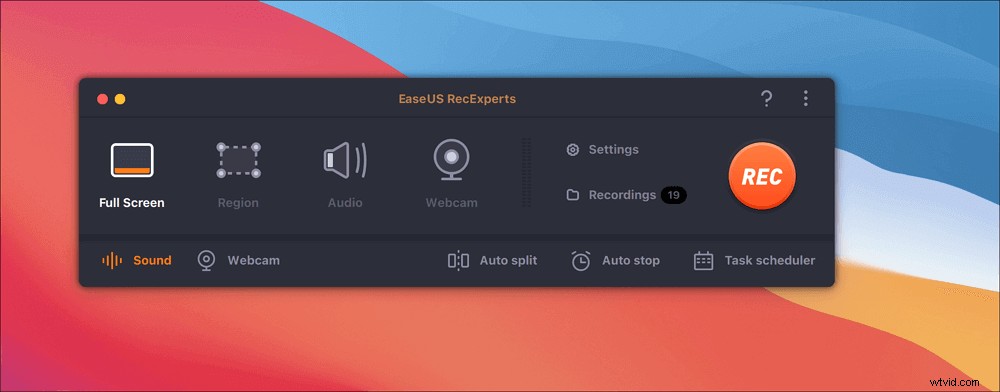
Step 1. Download and launch EaseUS RecExperts on your Mac. To capture the whole screen, click on the "Full Screen" button from the main interface. If you want to customize the recording area, choose the "Region" button.
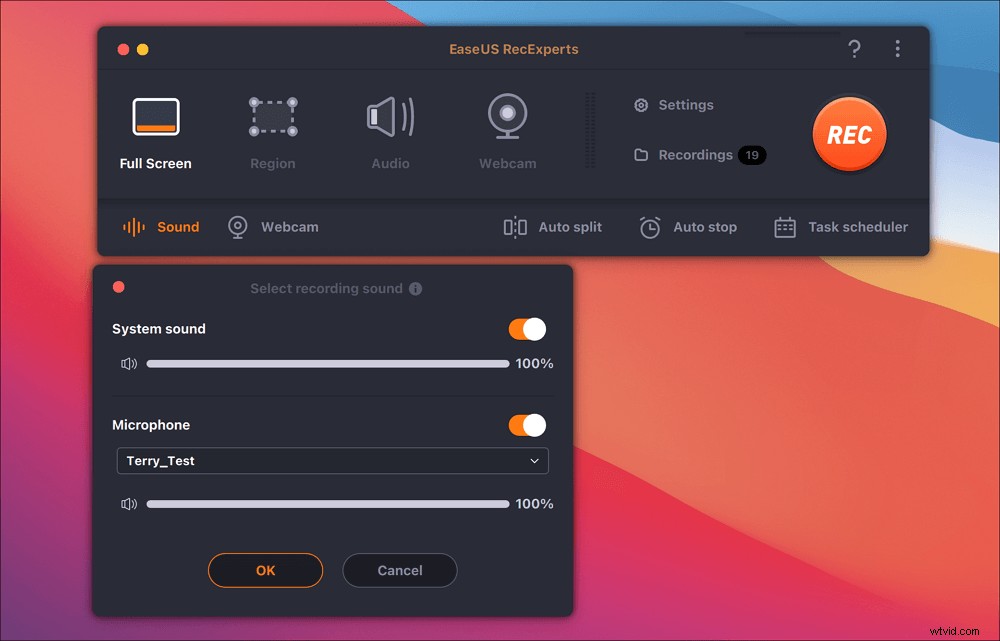
Step 2. To record the screen with audio, hit the Sound icon from the bottom left side of the toolbar. The audio resources can be your external sound or system audio. Based on your needs, enable the target option.
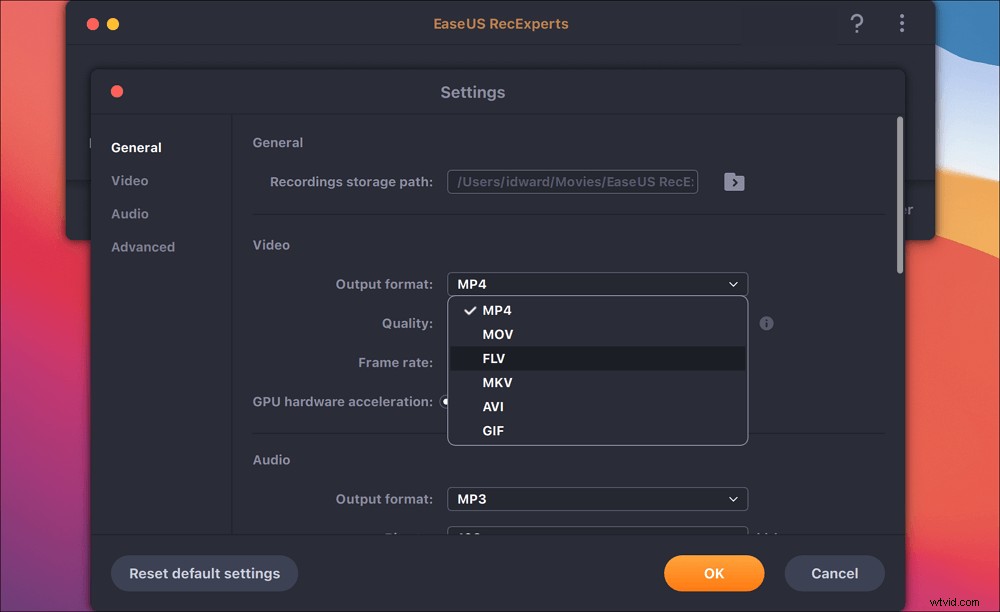
Step 3. Before capturing, you can change the output format of the recorded video by clicking "Settings" from the main interface. Then, scroll down the menu of Output format for Video. Choose the output type as you like.
Step 4. Once done, click the REC button to begin recording. It captures anything displayed on your Mac screen. When you are done, click the Stop button. Then you can watch the recorded video from "Recordings".
How to Screen Record on iPad/iPhone with Voice
When you want to share some interesting videos or the steps of some apps' operation with a friend on the iPhone or iPad, recording the screen with your voice explains is the best way! And you even do not need to install some recorder apps or software to capture your sound and screen on your phone. Because the iPhone has a built-in recording tool, you can easily record your screen and voice when you open the Screen Recording on the Control Center.
The steps of getting a voice in screen recording with iPhone:
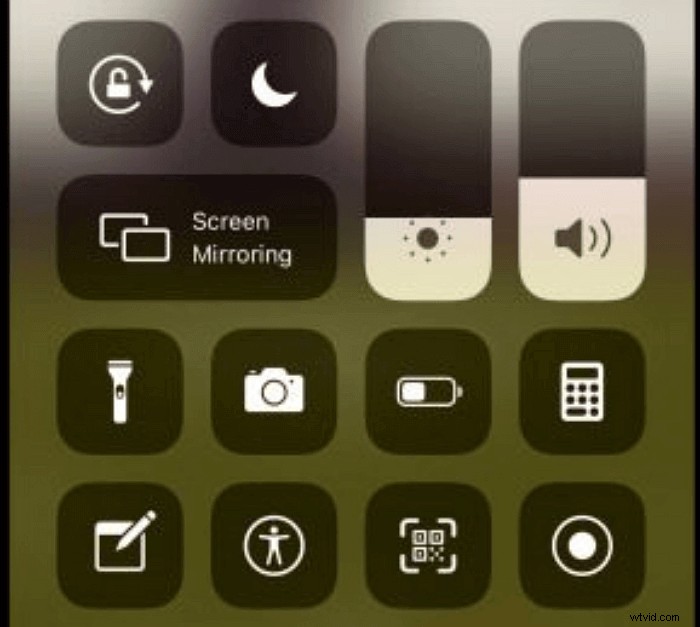
Step 1. Open the "Control Center" and long-press the "Screen Record icon" button to launch the recording function.
Step 2. Select the video or app you want to record and click the "Microphone" button to record your voice.
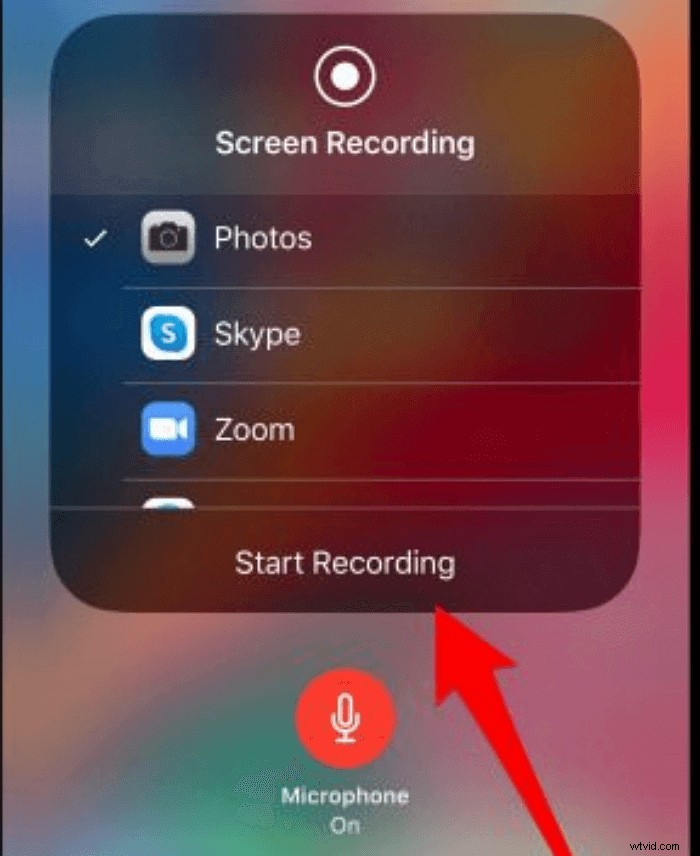
Step 3. Then click "Start Recording" that your phone will record the screen and voice. When you finish recording, tap the "Stop Recording" to end the operation and save the recording file.
Conclusion
To sum up, this post talked about the best screen recorder with voice on Windows, Mac, and iPhone and taught you how to screen record with voice. You can choose the best one according to your needs. EaseUS RecExperts is a worthy choice for beginners, as its user interface makes it extremely easy to use among those screen and audio recorders.