
Adobe’s Capture app can instantly turn your drawings into vectors using your phone’s camera. Now you can take your After Effects projects everywhere.
Adobe offers a number of really great mobile apps that work in conjunction with their desktop programs. One of my personal favorites is Adobe Capture. You can do a lot with this app, including creating patterns, color schemes, and vectors — all from a single photograph.
All of your mobile app creations will save to your Adobe Creative Cloud account, meaning you can access them from desktop applications via the Libraries panel. In this tutorial, I want to show you how, in four simple steps, you can create a vector shape for use in Adobe After Effects.
Step 1 — Capture
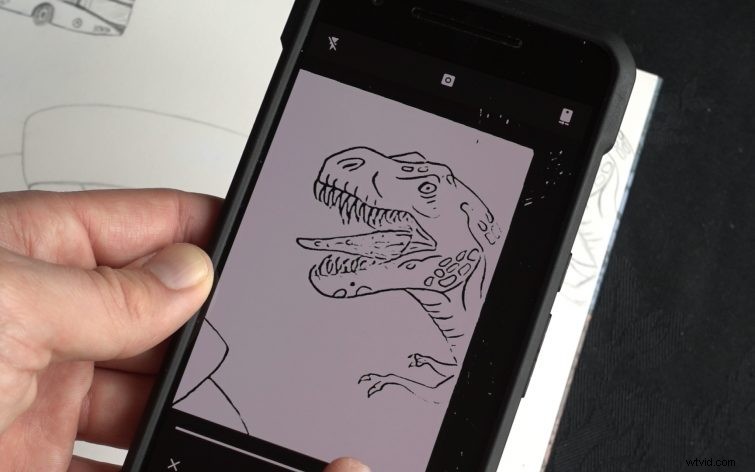
To create a new vector, I will select the plus button under the Shapes tab. The camera on my phone is now active, and I have several options.
With a single tap, I can switch between Live and Shape preview modes. Live view provides me with trace lines in green, while Shape preview mode shows what my final shape will look like.
Using the slider bar, I can adjust the intensity of the trace lines to get the look I want.
Step 2 — Edit and Refine
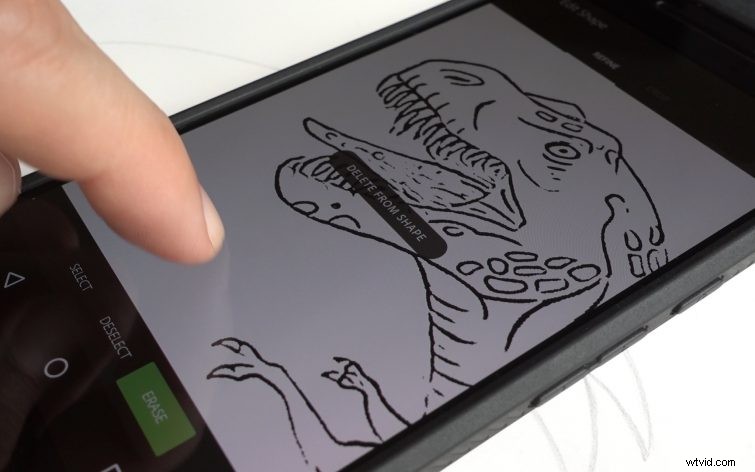
Once I have my t-rex shape captured, I can make further refinements. You’ll notice I have two tabs: Refine and Crop.
First, I need to crop the image to remove all of the unwanted content. Next, I’ll clean up the image by using the Select, Deselect, and Erase tools.
Finally, I’ll finish up by turning Smoothing on. Now our image is ready to save.
Step 3 — Save to the Creative Cloud
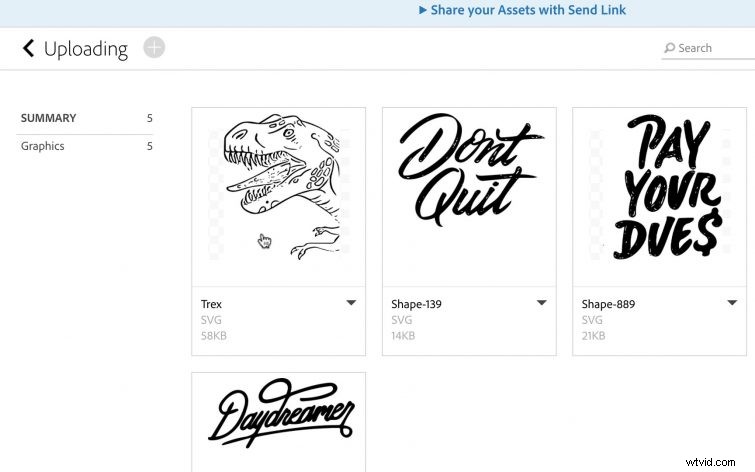
To save my new vector shape, I’ll simply create a name and select a library. I can create a new library or save it to the default Uploading library. This saves the vector shape to my Creative Cloud library.
As long as I have an internet connection, my new shape will show up in all of my corresponding Adobe desktop applications, including Premiere, Photoshop, Illustrator, and After Effects.
If you aren’t familiar with storing and managing your assets in the Creative Cloud, use this tutorial as a quick guide to your online library and assets.
Step 4 — Save as a Vector
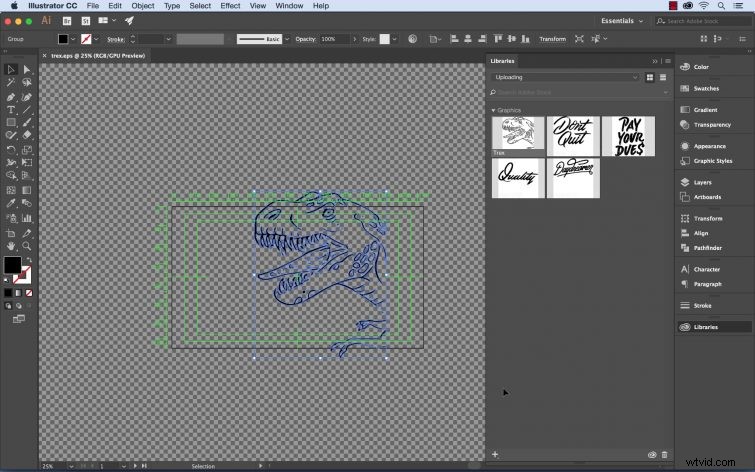
Finally, I need to save the file out as a vector graphic, which I can bring into After Effects. To do this, I’ll open the file in Adobe Illustrator. Once I’ve created a new project in Illustrator, I’ll open up the Libraries panel by selecting Window > Libraries.
Right away, I can see a thumbnail of my t-rex graphic in the panel. I can simply drag and drop the graphic into my project and resize the image accordingly. Finally, I’ll save the project out as an EPS file. And there you have it! A vector graphic prepped and ready for use.
(Note: If you try and use the file from the Libraries panel in Adobe After Effects, the graphic will import as a PNG file, not a vector. This is because After Effects does not currently support SVG files.)
Do you have tips for working with vectors using the Adobe Capture app? Let us know in the comments.