
Instagram remains one of the most popular platforms for sharing photos and videos. Whether you’re building a brand, creating engaging content, or simply preserving memories, capturing Instagram stories or Reels for later use can be invaluable.
Because Instagram stories disappear after 24 hours, you’ll need a reliable screen‑recording tool to save them to your device. This guide walks you through every method available on desktop, mobile, and online, so you can choose the one that best fits your workflow.
In this article
- How to Record Instagram Videos on a Desktop
- How to Record Instagram Videos Online
- How to Record Instagram Videos on iPhone With Built‑in Recorder
- How to Record Instagram Videos on iPhone With a Third‑Party App
- How to Record Instagram Videos on Android With Built‑in Recorder
- How to Record Instagram Videos on Android With a Third‑Party App
Things to Know About Recording Instagram Videos
Recording your own videos is perfectly legal. However, if you plan to capture someone else’s content, you must obtain explicit permission. Instagram’s policies prohibit saving or reposting others’ material without consent. In many jurisdictions, fair‑use exceptions allow commentary, criticism, or parody, but you should always seek permission whenever possible.
Re‑editing a recorded clip, adding commentary, or using licensed footage are legitimate ways to transform the original material into something new and unique.
How to Record Instagram Videos – All Methods
How to Record Instagram Videos on a Desktop
For Windows and macOS users, Wondershare Filmora offers a powerful screen‑recording feature that also lets you edit footage instantly. Here’s how:
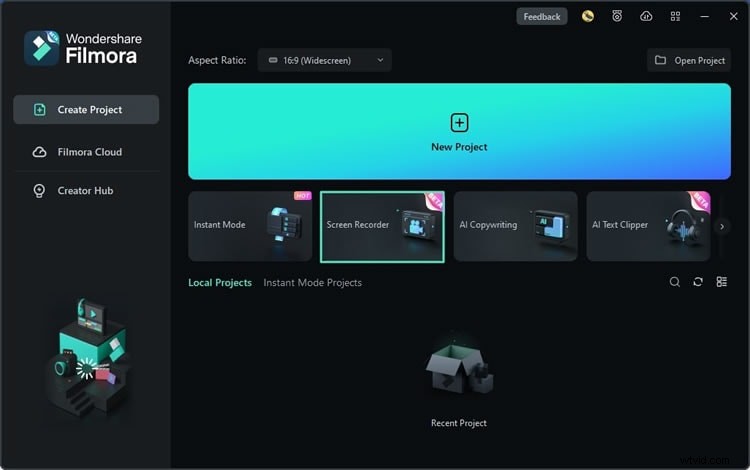
Step 1: Launch Filmora, click Create Project, and choose Screen Recorder.
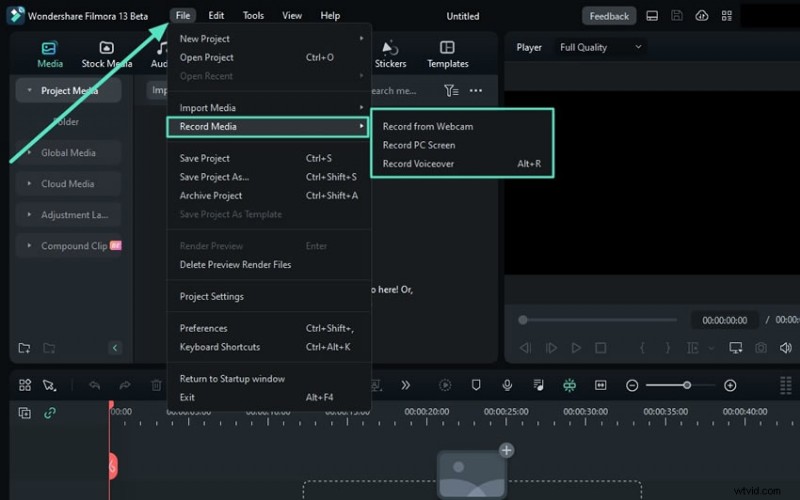
Step 2: In the top menu, select File > Record Media and choose Record PC Screen.
Step 3: Open Instagram in your browser, return to Filmora, click the first icon on the left, and select Target Window to highlight your Instagram tab.
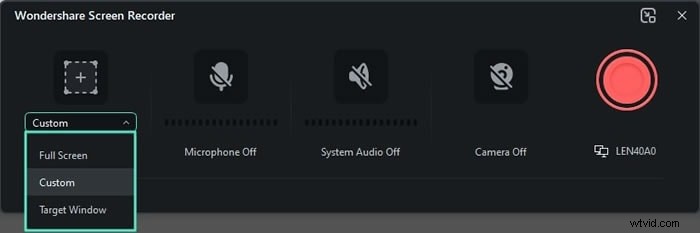
Step 4: Configure audio options—choose whether to record your microphone, system audio, or webcam feed.
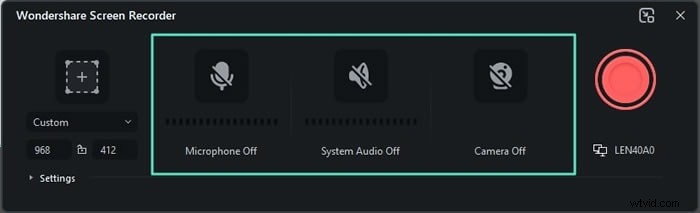
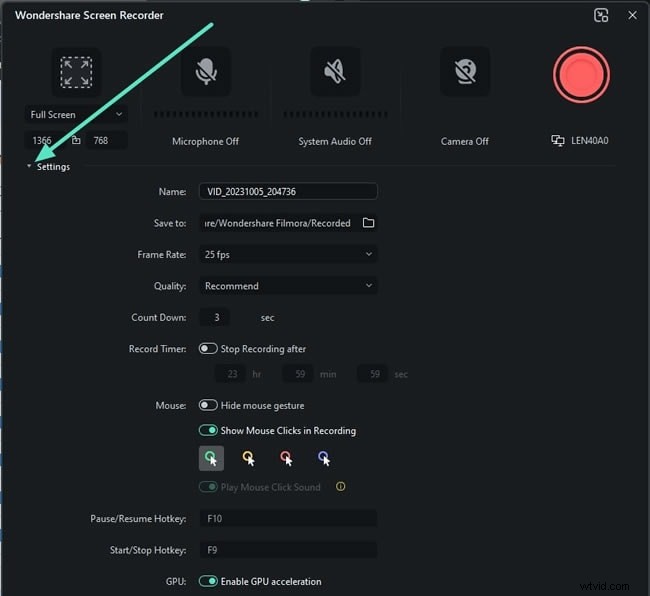
Step 5: Adjust any additional settings, then click Record to begin capturing.
How to Record Instagram Videos Online
If you prefer a browser‑based solution, DemoAir’s online recorder works on any device with an internet connection. Follow these steps:
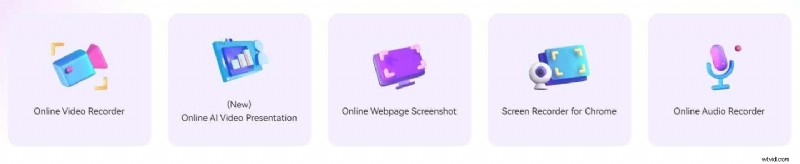
Step 1: Navigate to the official DemoAir page and click Online Video Recorder.
Step 2: Select Screen Only, set your audio preferences, and click Start Recording.
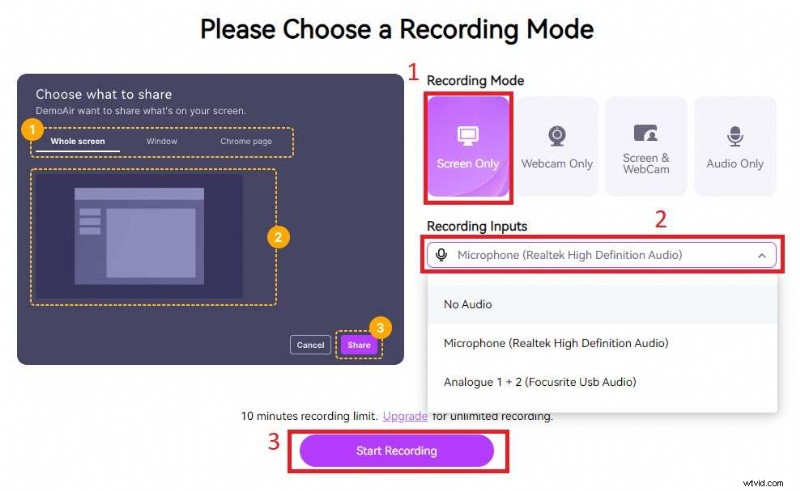
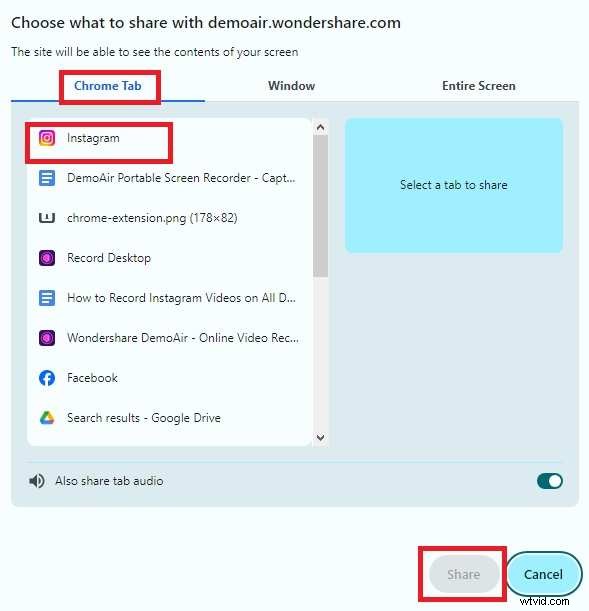
Step 3: Choose the Chrome tab that displays Instagram, click Share, and DemoAir will begin recording.
How to Record Instagram Videos on iPhone With Built‑in Recorder
The iPhone’s native screen‑recording feature is quick and easy to set up:
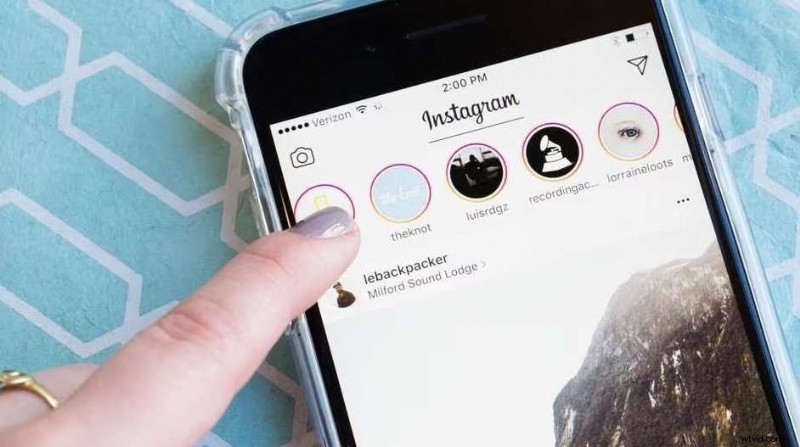
Step 1: Open Instagram and start the story you wish to capture.
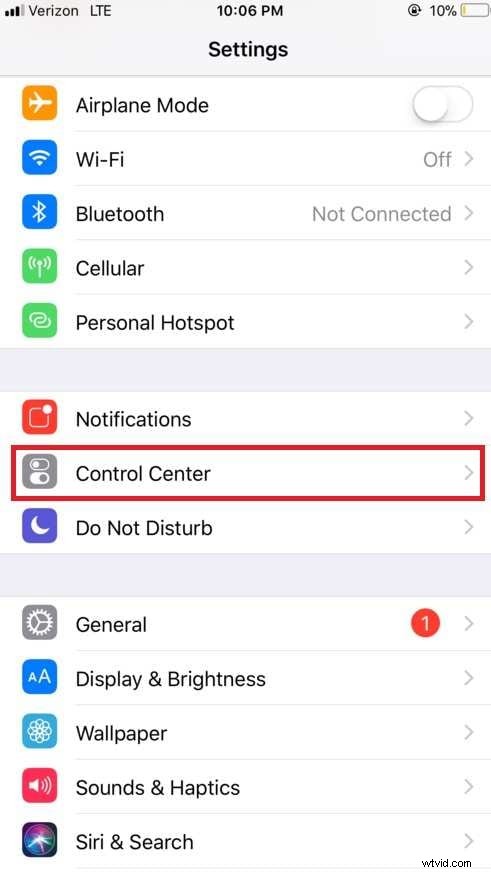
Step 2: Go to Settings > Control Center.
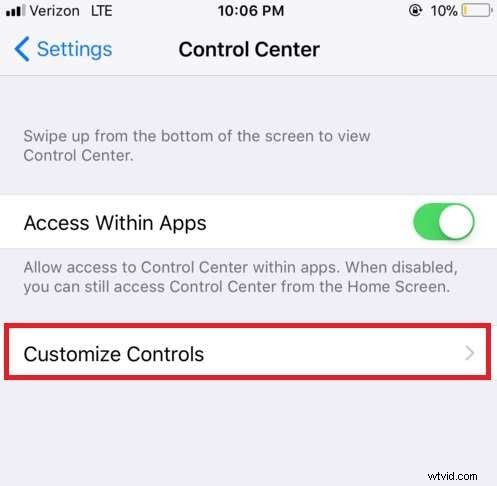
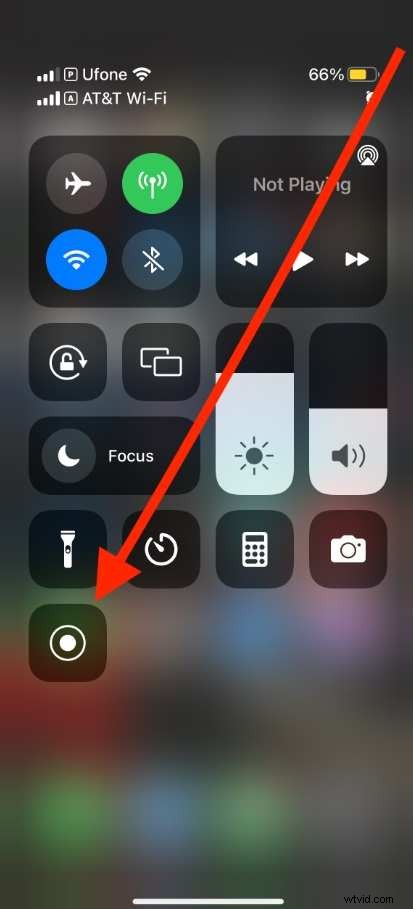
Step 3: Tap Customize Controls and add Screen Recording to your control center.
Step 4: Swipe down from the top right corner to open the control center and tap the record icon.
How to Record Instagram Videos on iPhone With a Third‑Party App
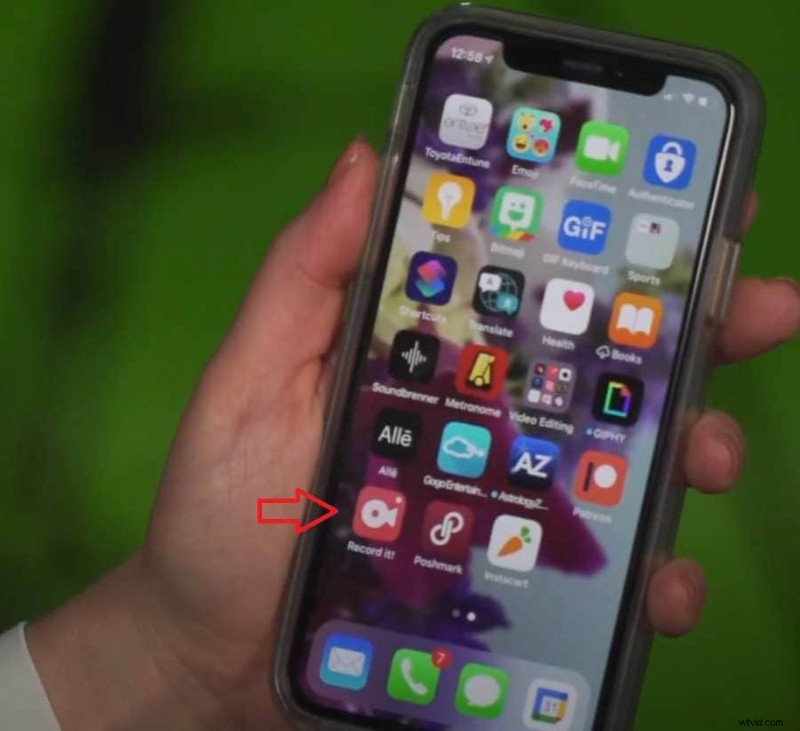
For more advanced features, the Record It! app offers a simple interface and cloud integration:
Step 1: Download and launch Record It!
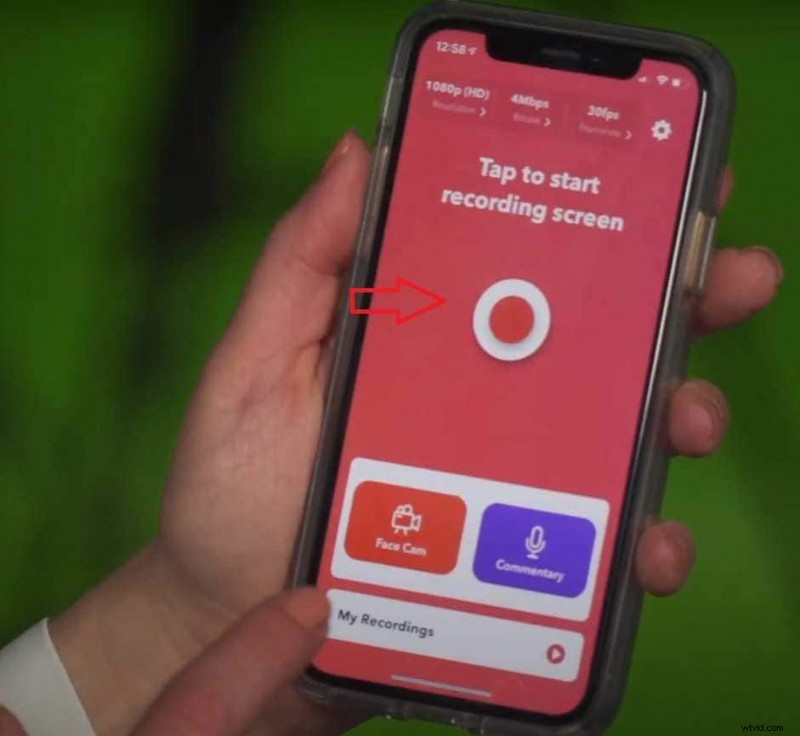
Step 2: Tap the Record button.
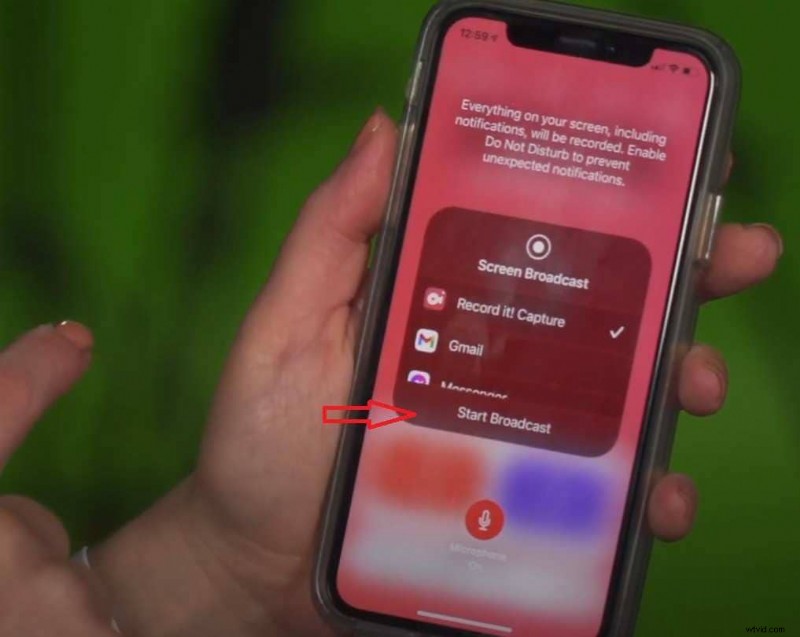
Step 3: Choose Start Broadcast, swipe to the Instagram story you want to record, and let the app capture the screen.
How to Record Instagram Videos on Android With Built‑in Recorder
Android devices come with a native screen‑recording tool that works out of the box:
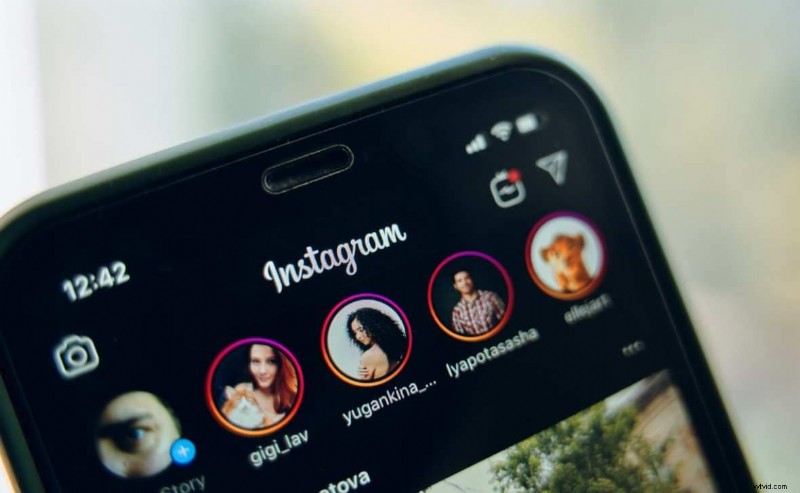
Step 1: Open Instagram and locate the story you want to record.
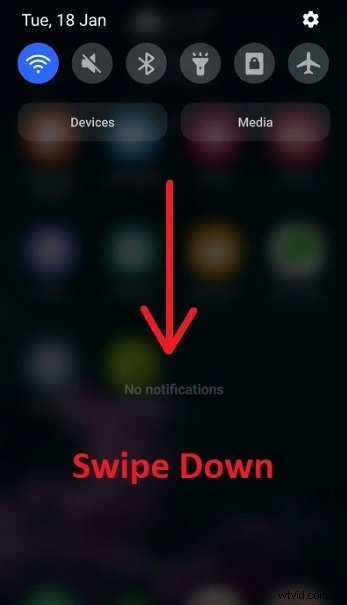
Step 2: Swipe down from the top to access the quick settings panel.
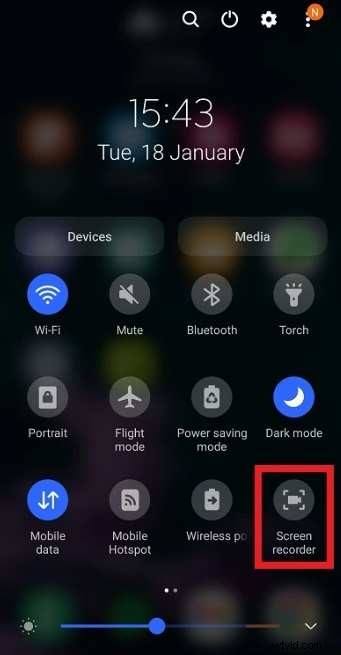
Step 3: Tap Screen Recorder.
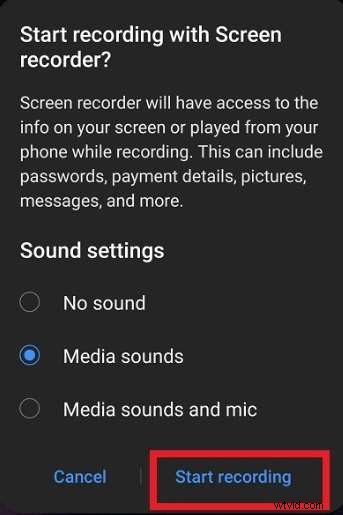
Step 4: Choose audio options and tap Start Recording.
How to Record Instagram Videos on Android With a Third‑Party App
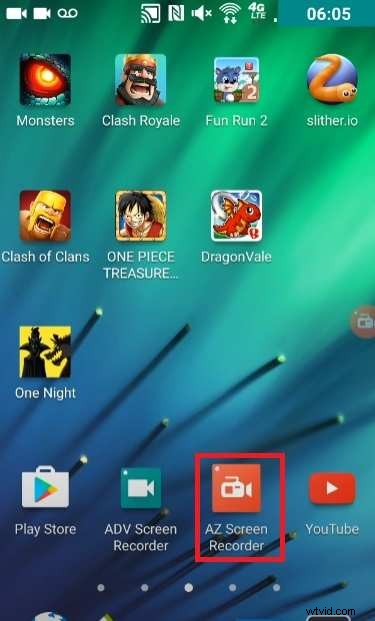
For extra flexibility, AZ Screen Recorder is a popular choice. Here’s how to use it:
Step 1: Open the AZ Screen Recorder app.
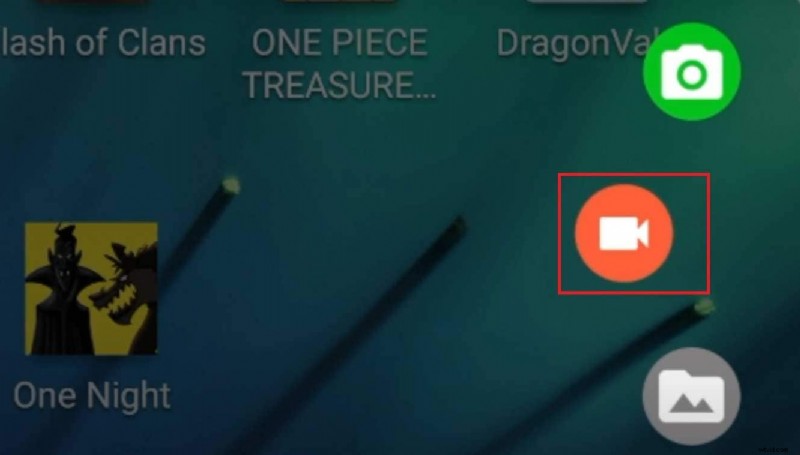
Step 2: Tap the camera icon to begin recording.
Step 3: Switch back to Instagram to capture the desired story.
Conclusion
This guide covered how to record Instagram videos on Windows, macOS, Android, and iOS, as well as using an online recorder. While the built‑in options are quick and convenient, dedicated tools like Filmora, DemoAir, or AZ Screen Recorder provide more customization, higher quality, and immediate editing capabilities.
Choosing the right recorder depends on your needs—whether you value speed, advanced editing, or cross‑platform support.
FAQ
-
Can I record Instagram videos?
Yes. You can capture Instagram content on desktop or mobile devices using screen‑recording software or apps.
-
What is the best Instagram recorder?
For Windows and macOS, Filmora, DemoCreator, and OBS Studio are top choices. If you prefer a browser‑based solution, DemoAir is reliable.
-
Why should I screen‑record Instagram videos?
Screen recording lets you save stories for later use, create tutorials, or repurpose content for other platforms.