

Jul 14, 2025 • Proven solutions
Periscope broadcasts vanish after 24 hours, making it hard to keep content for future reference. The following guide explains reliable ways to record or download Periscope videos on iOS, Android, Mac, and PC.
1. Capture Periscope on iOS or Mac
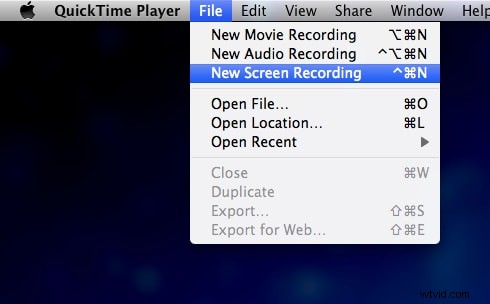
Using QuickTime Player (iPhone + Mac)
QuickTime Player is a powerful, built‑in tool that records your iPhone’s screen with audio. Follow these steps:
- Connect your iPhone to the Mac with a USB cable. Keep the device unlocked, mute off, and grant any permission requests.
- Launch QuickTime Player.
- Choose File → New Movie Recording.
- Click the arrow beside the Record button and select your iPhone as the camera and microphone source.
- Open the Periscope app and navigate to the broadcast you wish to capture.
- Press the Record button in QuickTime, then play the Periscope video.
- When finished, click Stop and use File → Export As → Movie to save the recording.
Screen‑capture via Filmora (Mac)
After sharing a Periscope link and opening it on your Mac, use a screen‑recording application. Filmora is recommended for its professional features and zero‑time limits.
- Free recording with no time restriction.
- Over 300 visual effects and a growing library of file formats.
- Over 150 supported media formats.
- Rich motion overlays and templates.
- Free version provides essential tools; the paid version unlocks advanced editing and templates.


2. Capture Periscope on Android or PC
Scopedown – Browser or Chrome Extension
Scopedown simplifies downloading Periscope videos on any computer or Android device. It supports multiple formats, folder selection, and future updates promise live‑broadcast downloads and simultaneous streams.
To download a video:
- Select the desired broadcast and tap the share button.
- Copy the URL and paste it into Scopedown’s download field.
- Click Download and the file will appear in the chosen folder.

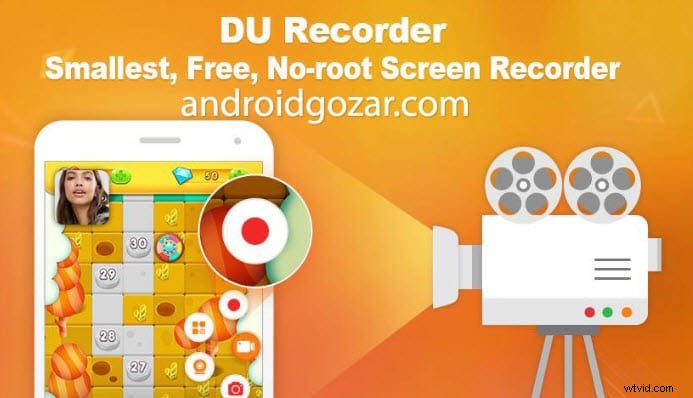
Android Screen Recorder – DU Recorder
DU Recorder records your entire screen, including Periscope, without requiring root access. It offers in‑app editing, a clean interface, and supports over 20 languages.
- No ads or in‑app purchases.
- Free of charge.
- Advanced editing tools.
- Quick image and screenshot editing.
- Notification bar displays recording status.
Richard Bennett
Richard Bennett is a writer and a lover of all things video.
Follow @Richard Bennett