
Growing a robust social‑media following hinges on consistent, varied content. Instagram offers photos, reels, stories, carousels, and, most powerfully, live videos. Live streams boost engagement, visibility, and real‑time interaction, but they vanish once the broadcast ends. This guide shows you how to record IG Live sessions on Android, iOS, Windows, Mac, and with web‑based tools, turning fleeting broadcasts into lasting assets.
In this article
- Why recording IG Live matters
- Step‑by‑step: Recording on mobile devices
- Capturing live streams on Windows with Filmora
- Using QuickTime on Mac for screen capture
- Online recording via DemoAir
- Best practices for editing and sharing recorded content
- Key takeaways
Why Record Your IG Live Sessions?
IG Live offers:
- Real‑time engagement: Respond to comments instantly, creating a personal connection.
- Increased reach: Instagram notifies followers when you go live, driving higher viewership.
- Enhanced visibility: Live videos appear at the top of your profile with a bright pink ring, attracting casual browsers.
- Content repurposing: Recorded clips can be trimmed, annotated, and shared as Reels, Stories, or IGTV uploads.
Because live streams are not archived by default, recording ensures you retain valuable moments for future content cycles.
Recording IG Live on Mobile Devices
Both Android and iOS devices include native screen‑recorders, making it straightforward to capture your live session. You’ll need two devices: one for broadcasting (primary account) and one for recording (secondary account).
Android
- Start your live broadcast from your primary Instagram account.
- On a secondary device, pull down the Quick Menu and tap Screen Recorder.
- Grant permissions and tap Start Recording.
- After you finish, find the video in your Gallery.

iPhone
- Begin your live stream on the primary device.
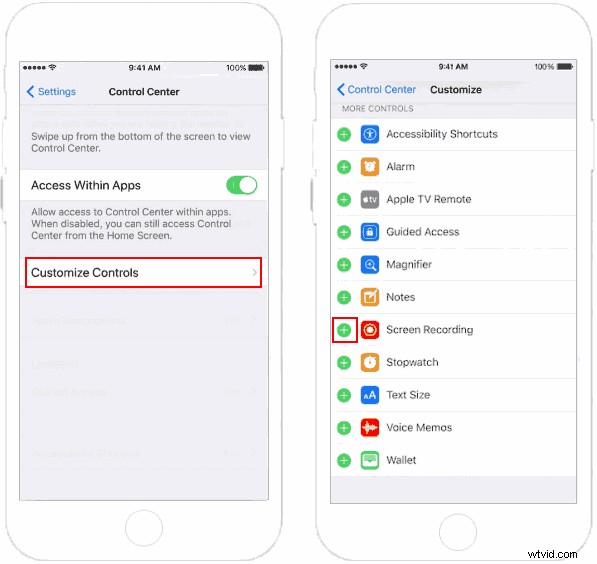
- On a secondary device, go to Settings > Control Center > Customize Controls and add Screen Recording.
- Open Control Center, tap the gray record button, and wait for the three‑second countdown.
- Stop recording and locate the video in the Photos app.
Recording IG Live on Windows with Filmora
Filmora is a professional‑grade video editor that also offers robust screen‑capture capabilities. Follow these steps:
- Log into a secondary Instagram account via a web browser on your PC to join the live as an audience member.
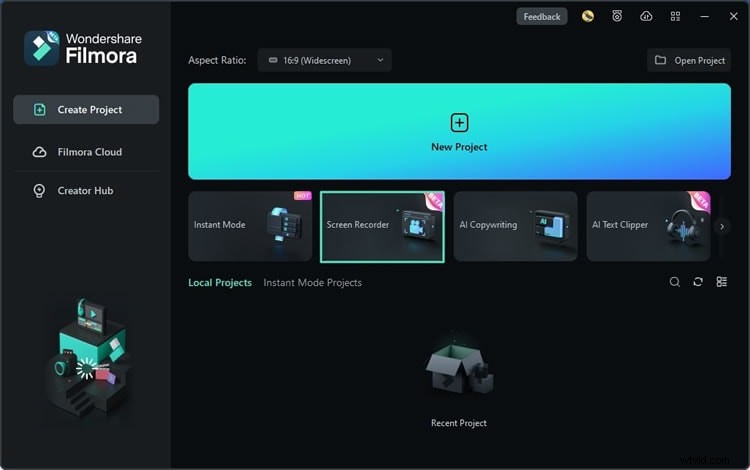
- Install and launch Filmora.
- Select Screen Recorder from the main menu.
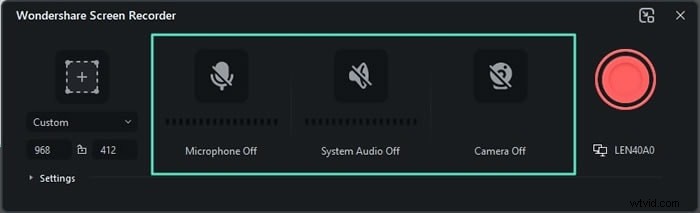
- Choose the recording area (full screen, window, or custom region).
- Configure audio sources: microphone, system sound, and webcam.
- Adjust advanced settings—frame rate, resolution, and quality.
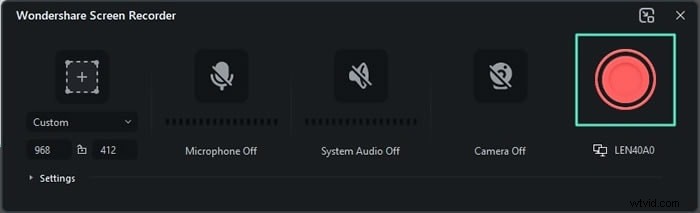
- Click Record to begin capturing.
- Start your live broadcast on the primary Instagram account; Filmora will record the session.
Capturing IG Live on macOS with QuickTime Player
QuickTime offers a straightforward screen‑capture tool suitable for Mac users.
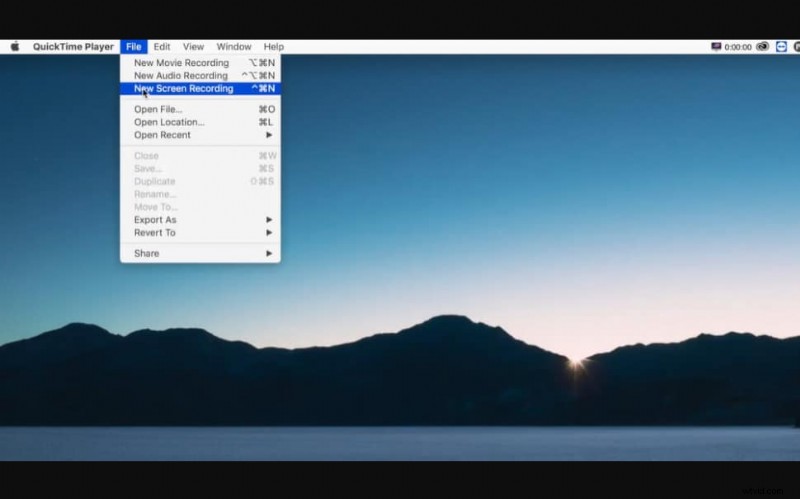
- Open QuickTime Player.
- Navigate to File > New Screen Recording.
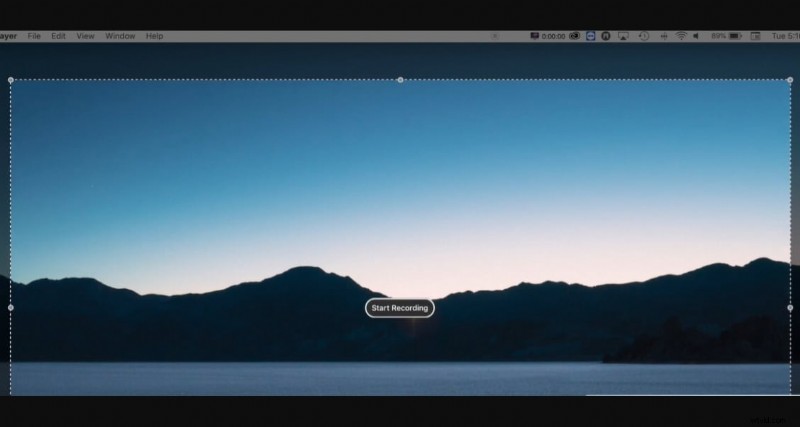
- Click the arrow next to the record button to select your microphone.
- Start your live video on the primary account and view it on the secondary device.
- Click anywhere on the screen to record the entire view, or drag to select a custom area.
- After recording, edit the clip in any video editor before publishing.
Online Recording with DemoAir
DemoAir is a lightweight, browser‑based recorder that captures screen, webcam, and microphone input. It’s ideal for users who prefer a cloud solution.
- Visit the DemoAir website and sign in (optional).
- Choose Online Video Recorder and select your desired mode (screen, tab, camera).
- Click Start Recording.
- As with other methods, use a secondary account to watch the live stream on the web.
- When finished, download the recorded file for editing.
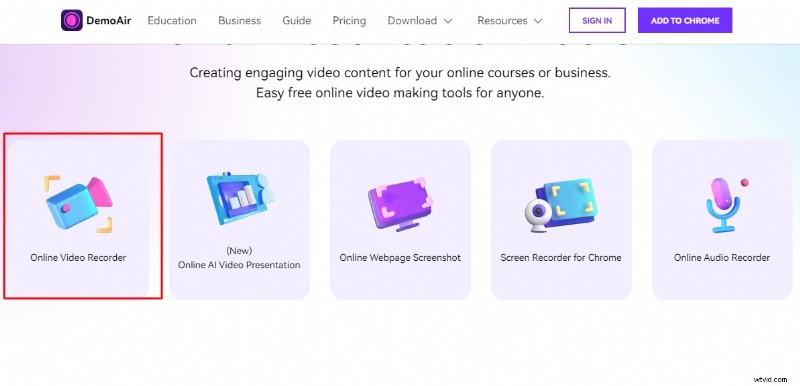
DemoAir also offers a Chrome extension for quick access.
Editing and Repurposing Your Recorded Live Video
Once captured, your live footage can be transformed into engaging short‑form content:
- Trim highlights: Use Filmora, iMovie, or online editors to isolate key moments.
- Add captions and graphics: Enhance accessibility and brand consistency.
- Repost as Reels or IGTV: Extend the lifespan of your content and reach new audiences.
- Share across platforms: Upload to YouTube, TikTok, or LinkedIn for broader exposure.
Key Takeaways
- Live broadcasts on Instagram cannot be viewed after the session ends unless recorded.
- Recording tools—Filmora, QuickTime, DemoAir, and built‑in mobile screen recorders—provide reliable capture solutions.
- Repurposing recorded content maximizes ROI, turning one-time live sessions into evergreen assets.
- Always test your recording setup before going live to avoid technical hiccups.
Conclusion
Live videos are a powerful engagement tool, but without recording, their value is fleeting. By employing the right tools and following best practices, you can preserve and amplify your IG Live sessions, turning spontaneous broadcasts into long‑term, high‑impact content.