

Jan 06, 2026• Proven solutions
I would like to add a logo to the video I created. Is there a possible way to have a logo show for the duration of the video?
Well, people in today’s world tend to distinguish themselves in various ways, including the video creation. Yes, adding a logo to the video is a very important feature that will set you apart from others in your niche, or increase your branding.
To do this, Wondershare Filmora is highly recommended. With it, adding a logo or watermark to all your video files is a piece of cake to you. Meanwhile, you can apply various transitions to make the video smoother and even set its displaying position (e.g. in one of the corners of the video), showing time duration like only in the beginning of the video, somewhere in the middle or the whole video length.
- Part 1: [Video Tutorial] How to Add Your Logo to A Video
- Part 2: How to Add Logo to Video in Filmora - Step-by-step Guide
- Part 3: How To Add Logos to Videos on Mobile Devices
- Part 4: Alternative Ways to Insert a Logo in a Video
Part 1: [Video Tutorial] How to Add Your Logo to A Video
Part 2: How to Add Logo to Video in Filmora?
To add logos to your videos with Filmora, follow the steps below:
Step 1: From the homepage, create a New Project.
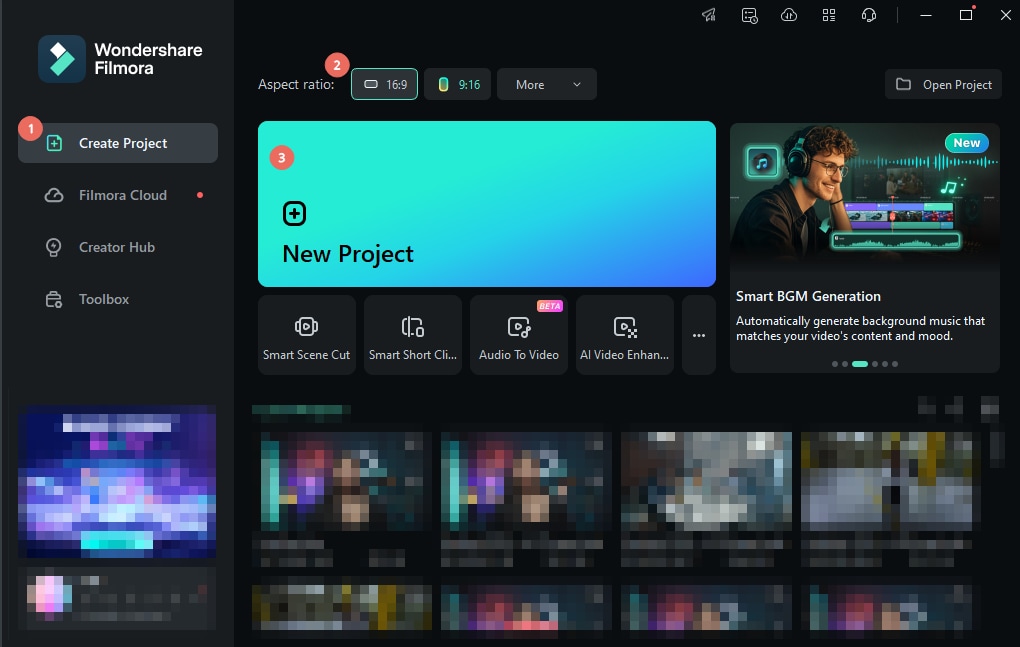
Tips: This program supports almost all video, audio and image formats out there. For all its supported formats, please refer to the tech spec here.
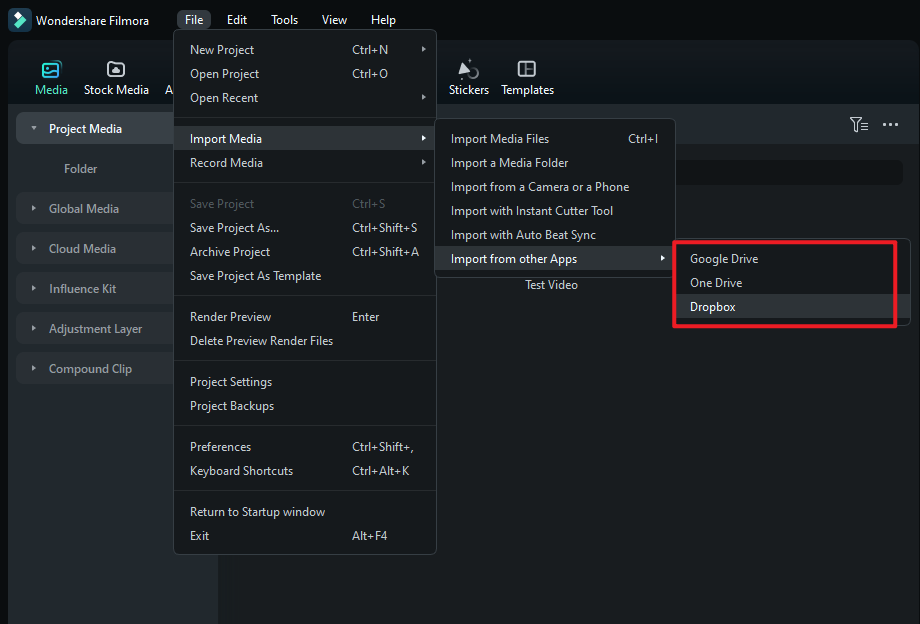
Step 2: Go to File > Import Media in the editing interface. You can select videos for your computer or take videos directly from online drives.
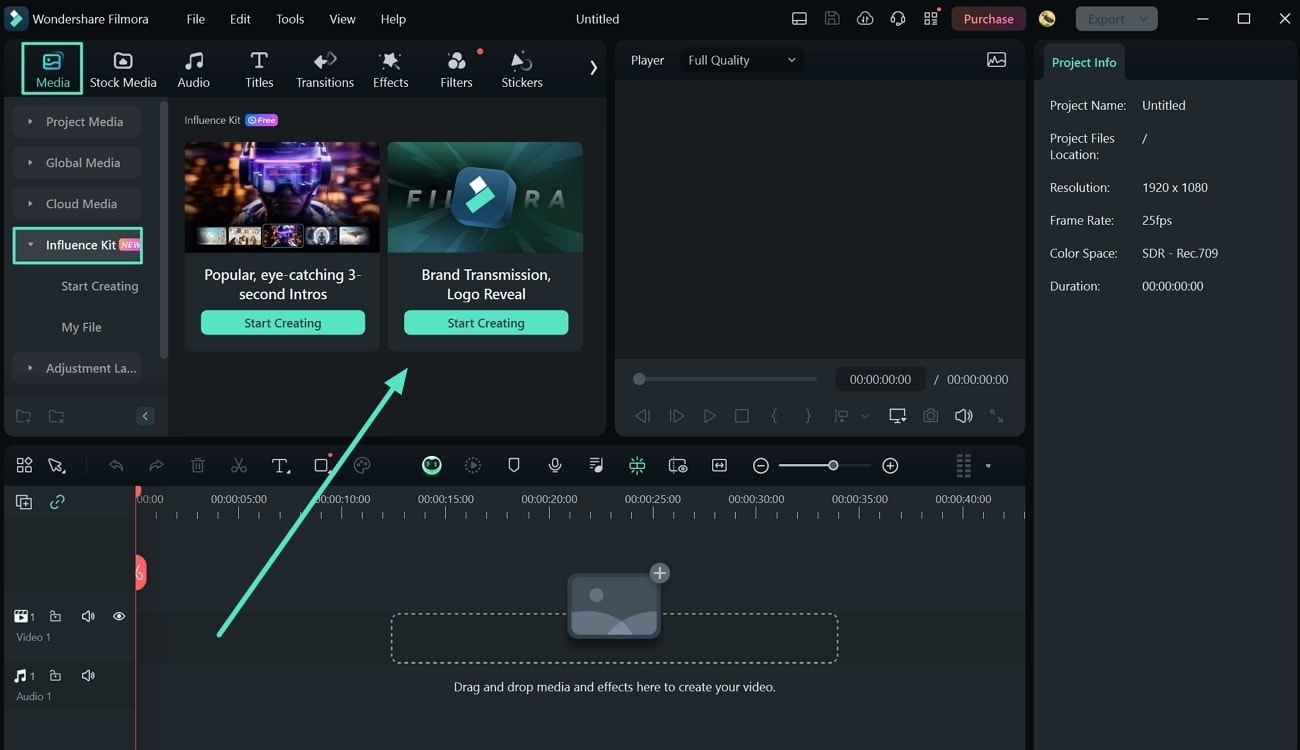
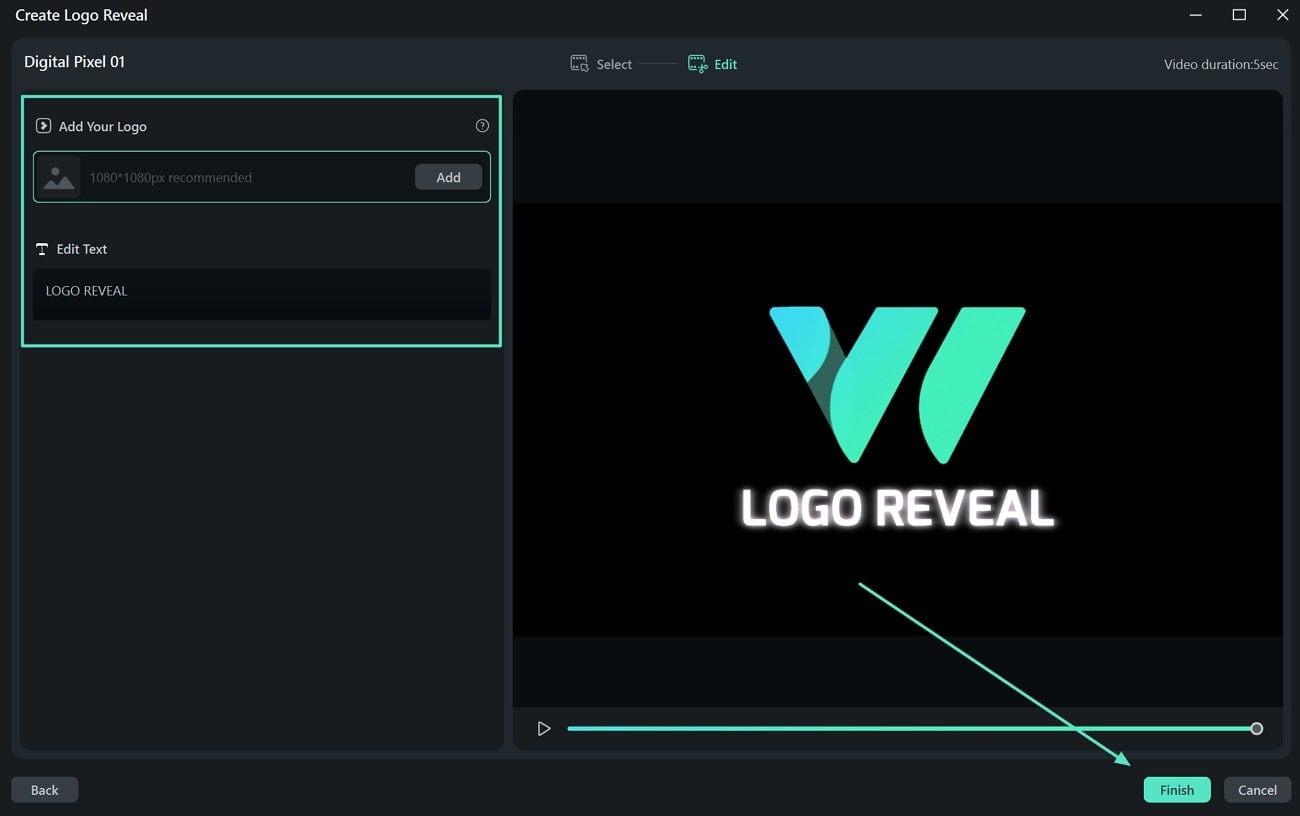
Step 3: Start by going to Media > Influence Kit. Then, select Start Creating under Brand Transmission, Logo Reveal.
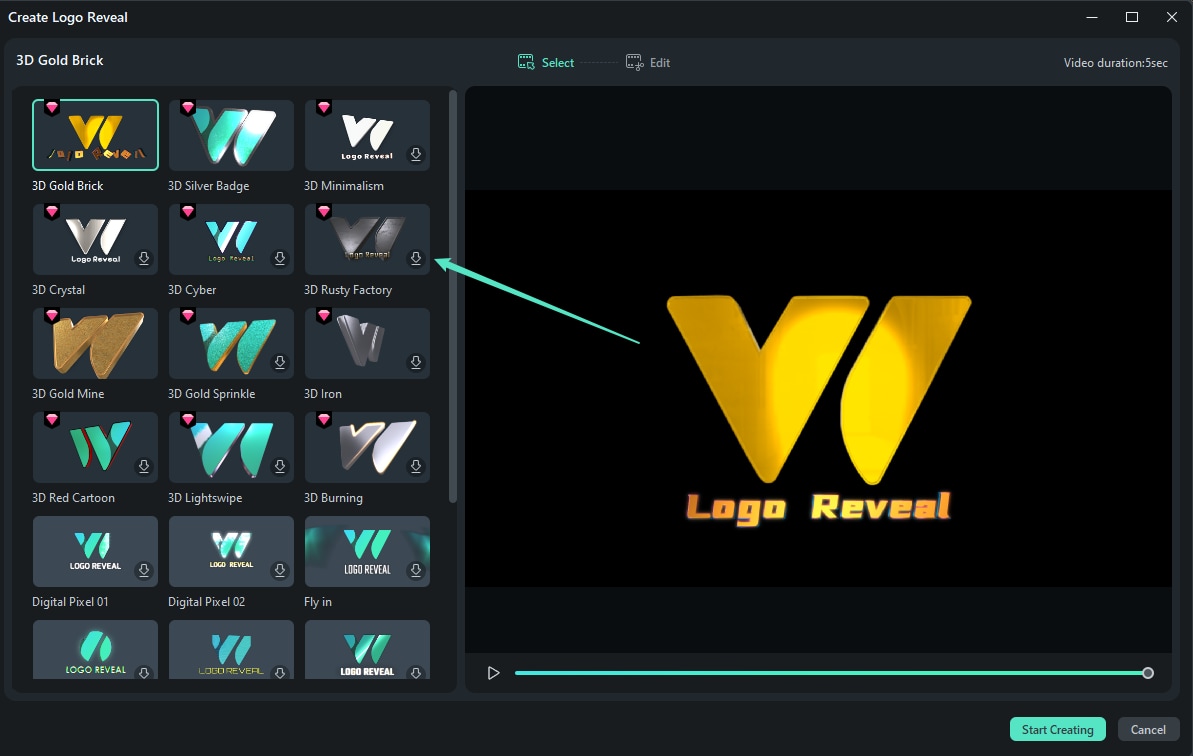
Step 4: Choose which logo reveal effect you want to use.
Step 5: Next, you’ll be asked to create a logo. You can Add Your Logo and then Edit Text around it. Click Finish once done.
Learn how to use Filmora as a free 4k video converter.
Part 3: How To Add Logos to Videos With Filmora Mobile
If you want to add logos to videos with your phone instead, there’s another solution. It just so happens sometimes that logos we create are saved on our phones, so this might be a lot more convenient for the typical user. After all, demand for mobile video editing tools is also on the rise. Thus, Filmora allows you to add logos to videos easily.
Just follow the steps below:
Step 1: Install Filmora from the App Store or Play Store.
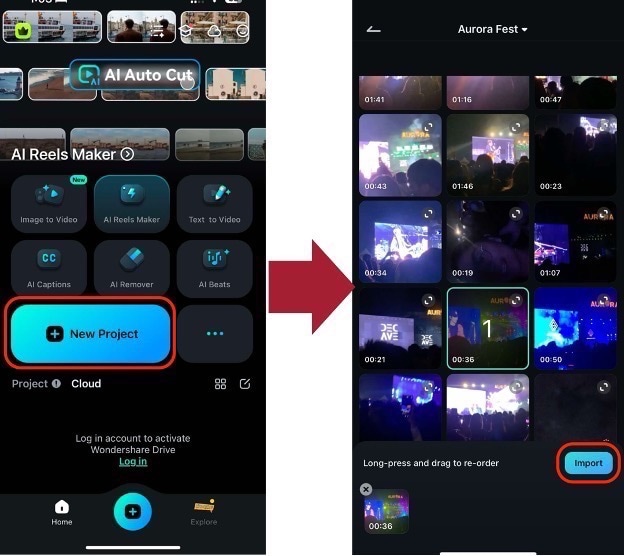
Step 2: Go to New Project, then Import the video to which you want to add a logo.
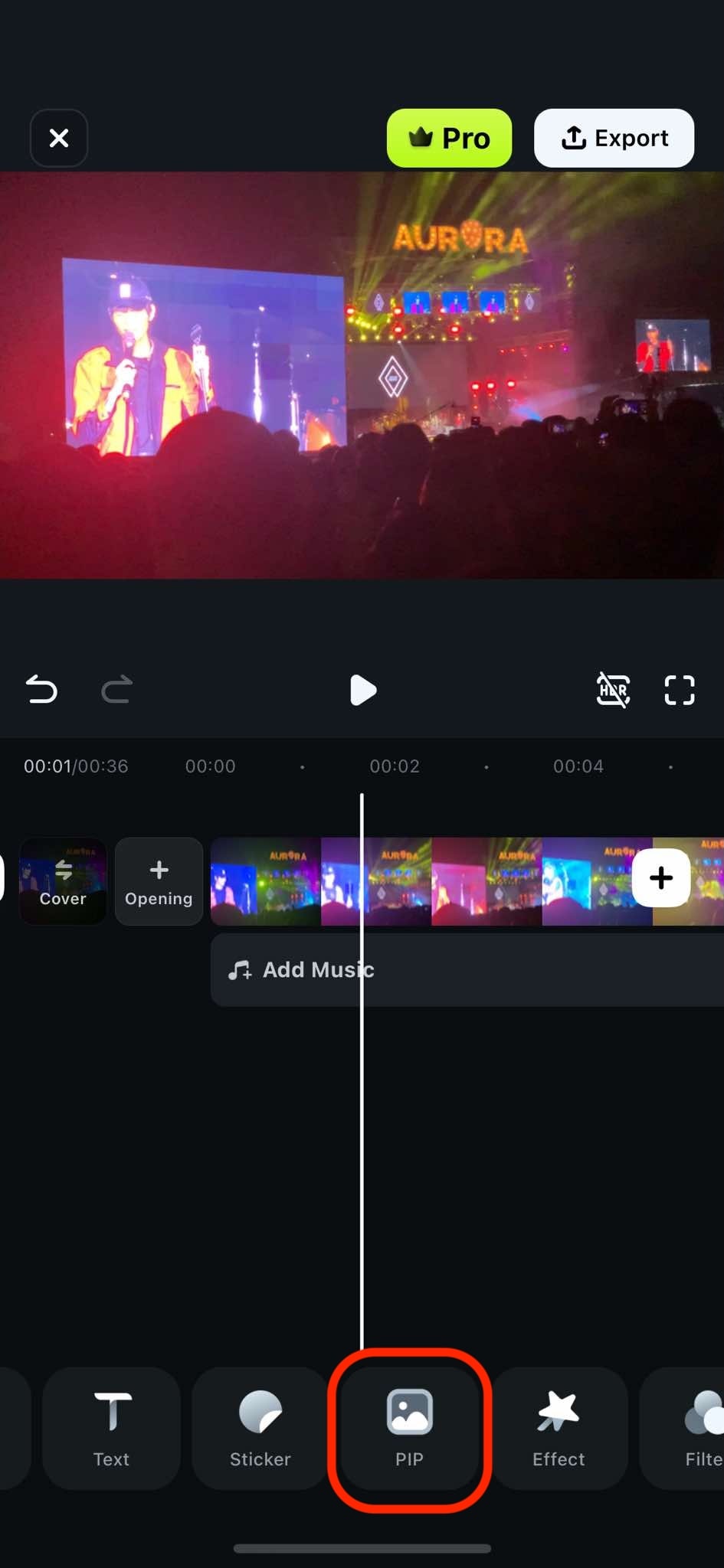
Step 3: Once in, add your logo to the video by looking for the PIP tool.
Step 4: Select your logo from the timeline. Go to Animation and choose an effect you like.
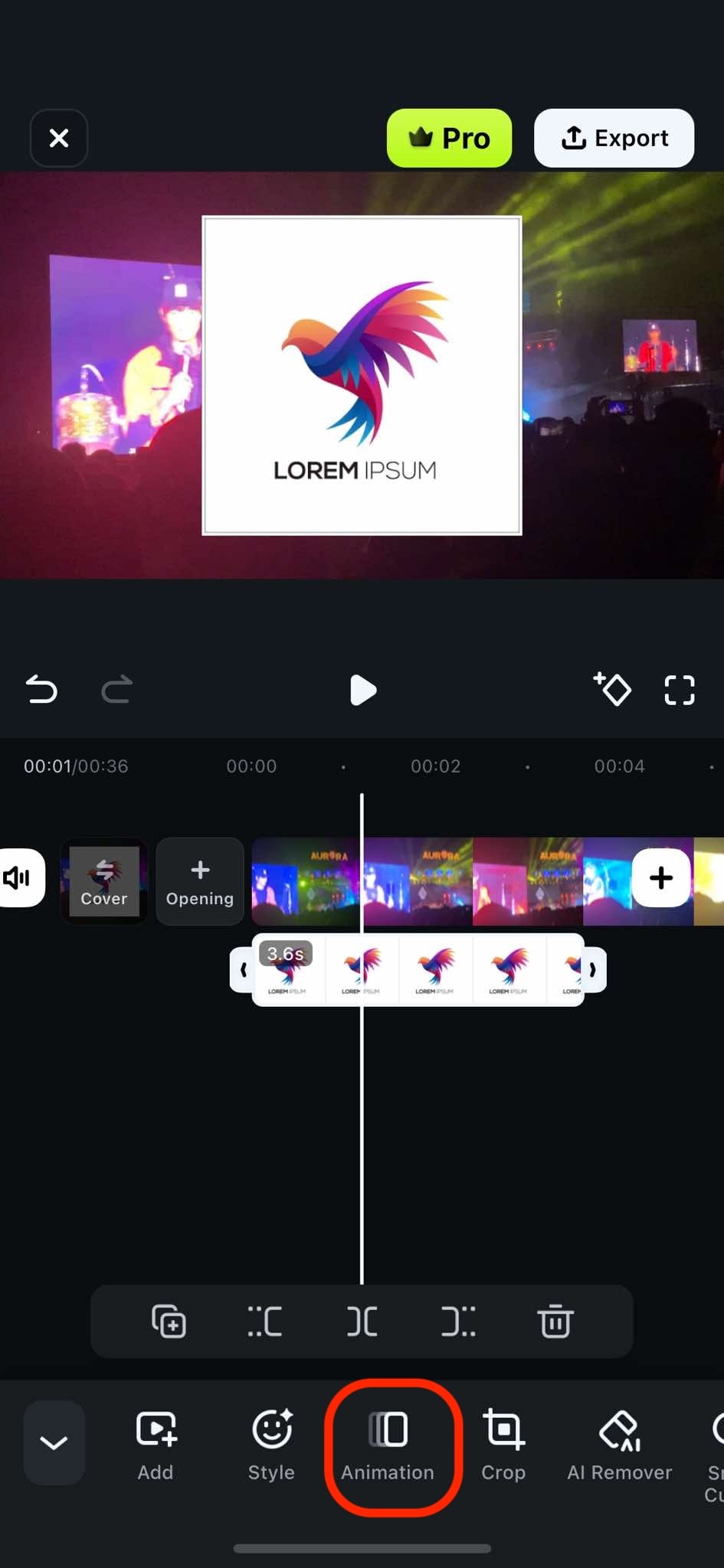
Step 5: Lastly, use your finger to drag and resize (by pinching) the logo and place it in your video.
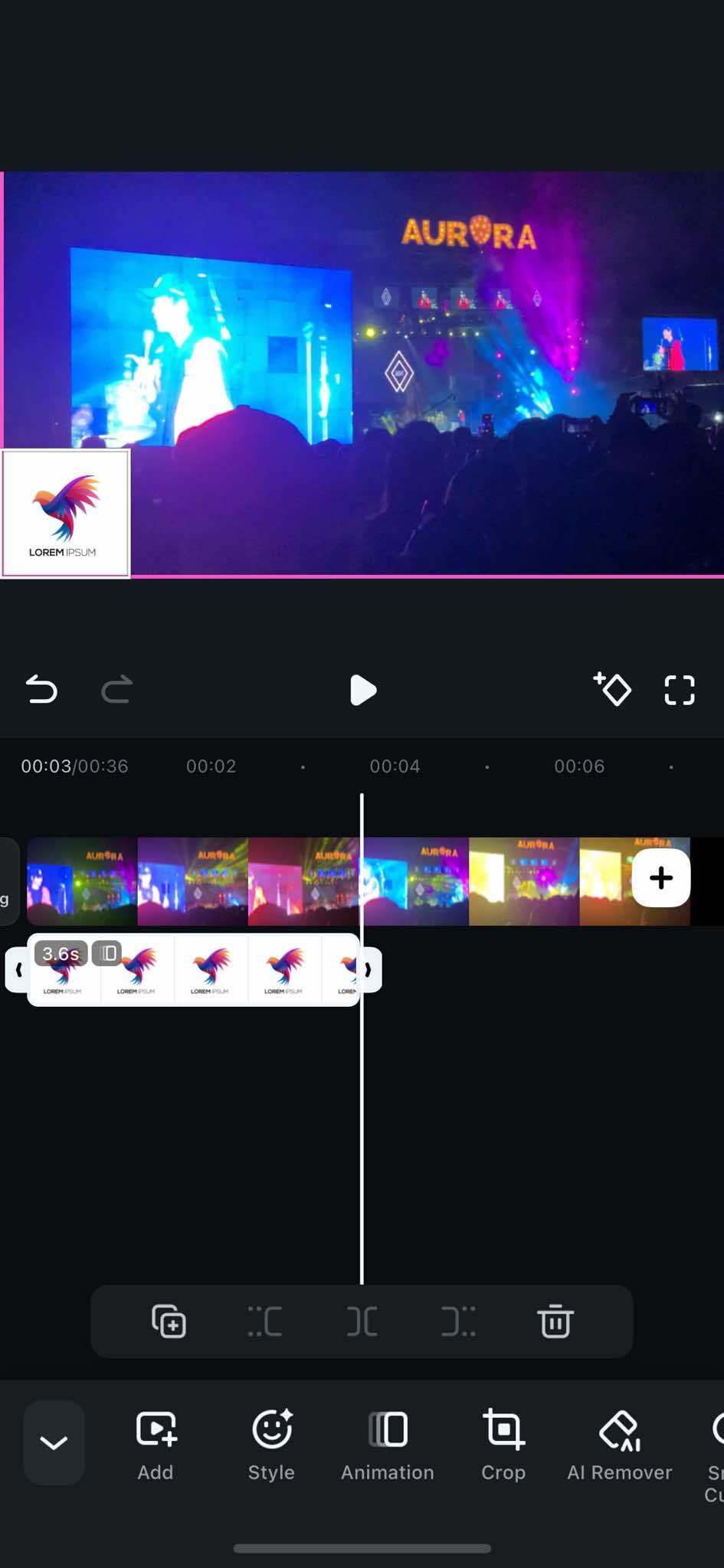
With these steps, you can now add logos to videos using Filmora on your desktop or mobile phone. Amazed? Try out these powerful tools today!
Part 4: Alternative Ways to Insert a Logo in a Video
Method 1: Insert Logo in Video Using Microsoft Clipchamp
If you're looking for a free and easy-to-use option, Microsoft Clipchamp is a great choice. It’s a browser-based video editor that lets you insert a logo in a few simple steps.
Steps to add a logo using Clipchamp:
- Open Clipchamp and create a new project.
- Upload your video and drag it onto the timeline.
- Click Import Media to upload your logo image (preferably a PNG for transparency).
- Drag the logo onto the overlay track and position it where you want.
- Resize the logo and adjust opacity if needed.
- Export your video with the embedded logo.
Method 2: Insert Logo in Video Using Online Tools (No Software Needed)
For those who prefer a quick and easy solution without downloading software, online video editors like Kapwing and Canva allow you to insert a logo in a video directly in your browser.
Steps to add a logo using online editors:
- Open an online editor like Kapwing or Canva Video Editor.
- Upload your video file and logo image.
- Drag the logo onto the video and adjust its position and size.
- Set opacity, duration, or apply animations.
- Click Export to download the final branded video.
Conclusion
Check the video tutorial about adding watermark. Download Wondershare Filmora to have try!
Liza Brown
Liza Brown is a writer and a lover of all things video.
Follow @Liza Brown