
In this digital world, communication is easy and expressive through animated images. Using humor and emotions, GIFs offer an easy interaction with people. Creative GIFs are frequently used by social media users to respond to texts and communicate ideas without giving explanations in lengthy paragraphs.
The digital creators keep their consumers attached to their products more effectively by generating more memorable and attractive content using these GIFs. In this article, you will learn how to save GIFs on your iPhone, thereby being in a position to enjoy the colorful world of the social media.
In this article
-
- Method 1. Convert Your Live Photo to a GIF Using the Photos App
- Method 2. Create a GIF of Your Photo Using the Shortcuts App
- Method 3. Save Your iMessage GIF on Your iPhone
-
- Method 2. Creating GIFs Using the Idea to Video Feature of Filmora Using Desktop
- Method 3. Generate GIFs Using Filmora App on Your iPhone
Part 1. Why are GIFs Preferred Across iPhone Users?
Many iPhone users prefer to use GIFs in social interactions because they're quick and an effective way of communication. These animated graphics load quickly on mobile devices and are simple for sharing on social media sites like WhatsApp. The iPhone has advanced features that allow sharing and saving GIFs without technical assistance, including Shortcuts and Live Photos.
Consequently, GIFs are regularly used by iPhone users to share special moments with friends. In the subsequent section, let's explore the key benefits of GIFs used by iPhone users:
- Enhance Emotional Display: Emotions are a simple way for users to express themselves, which makes digital communication more humorous and sarcastic.
- Rapid Communication: Through its rapid delivery and iterative structure, it offers a swift mode of communication that draws the attention of users.
- Smooth Integration with iPhone: Users may navigate and GIFs are save GIFs on iPhone without the need of any external software because GIFs are natively supported in iOS apps like messages and photos.
- Engagement Boost and Interaction: GIFs are so expressive and vivid, users can easily get more likes and shares on posts and tweets through them.
Part 2. How to Save GIFs on an iPhone Using Different Methods
For iOS users, saving GIFs is a quick and accessible method for expressing thoughts and emotions. Therefore, saving GIFs to the iPhone will help users to stand out and participate in engaging conversations. In this section, we'll thoroughly explore how to save GIFs on the iPhone through different apps in the latest iOS 26 version.
Method 1. Convert Your Live Photo to a GIF Using the Photos App
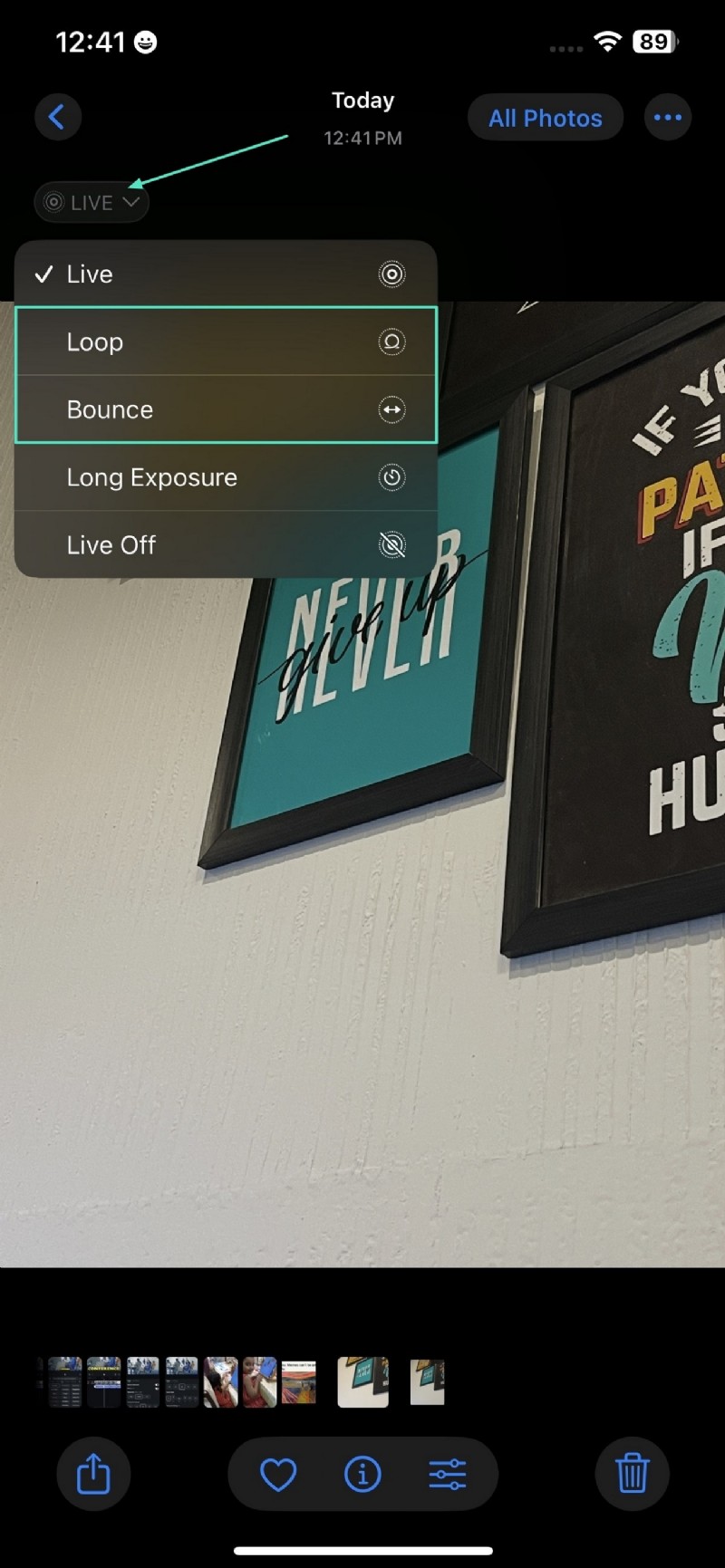
The popularity of GIFs among iPhone users is explained by the fact that they help to make chats and posts more interesting. Following is a guide on how to convert live photos into a GIF by using Photos App on iPhone to the iOS 26 users:
Instructions. Open your live photo and press the drop down menu control under "Live" at the left corner of your screen. The next step is to go to the "Loop" or "Bounce" button so that your animation plays in a loop. GIF effect is auto-saved in your album under the category of "Animated." You can just share it on the social media of your choice simply by clicking on it.
Method 2. Create a GIF of Your Photo Using the Shortcuts App
The Shortcuts App on iPhone provides a quick solution for turning your photos into GIFs. The following steps will guide you on how to transform your best moments into GIFs within seconds:
Method 3. Save Your iMessage GIF on Your iPhone
Do you want to save your fun message GIFs received from a friend through iMessage? Then, keeping these GIFs in your gallery is relatively easy because the iPhone 26 version allows you to relive your core memories dynamically. Here, below are the simple and easy steps on how you can save GIFs to your iPhone:
Instructions. Access iMessages on your iPhone and go to the conversation where you receive a GIF from your friend. Press and hold the GIF until a drop-down menu appears. From the menu, select the "Save" option, and your GIF can easily be saved into your "Photos App."

Part 3. Explore the Creative GIF Making Through Filmora
For individuals running a marketing business who want to showcase their product features, GIFs are a straightforward solution to add versatility and uniqueness to their work campaigns. Wondershare Filmora is an advanced tool that not only offers editing tools but also provides the option to export your animation into high-quality GIF files.
It is a cross-platform tool available online, on PC and smartphone, allowing users to create dynamic GIFs and give a creative voice to their products. The AI-powered effects of this tool can transform your video clips into GIFs in a visually appealing and concise way. In the following section, we'll guide you on how Filmora helps create GIFs on iPhone and other devices:
Method 1. Creating GIFs Using the Idea to Video Feature of Filmora Using Desktop
Using Filmora AI Idea to Video feature, you can easily transform your text prompts into an animated video or save them as a GIF. The following steps allow you to create a GIF through Filmora desktop using its "Idea to Video" feature:
Please find the export effect GIF below for your reference.

Method 2. Generate GIFs Using Filmora App on Your iPhone
Creating GIFs on your iPhone with the Filmora App [iOS/Android] is a creative way to transform your images into Live Photos. The process of how to save GIFs to an iPhone using the Filmora App is given below:
To observe the export effect, please watch the video provided below.
Conclusion
To sum up, GIFs are an essential tool of digital communication due to their capability to attract the audience through humor, emotions, and a positive narrative. Filmora is the best option for digital creators who want to create innovative content and brand networking due to its powerful editing features and meme-making tools. In this article, we explained how to create and save GIFs to an iPhone (iOS 26), desktop, and online using Filmora.