
A movie night should be an immersive experience, not hindered by hard‑to‑read subtitles. The right subtitle font turns complex dialogue into crystal‑clear text, allowing viewers to focus on the story rather than struggling with readability.
Table of Contents
-
- Arial Font
- Helvetica Font
- Roboto Font
- Open Sans Font
- Montserrat Font
- Lato Font
- Futura Font
- Times New Roman
- Verdana Font
- Tahoma Font
- Avenir LT Pro Font
- IBM Plex Sana
- Poppins
- Inter Font
- Fenwick
-
- Incredible Font Features Offered by Filmora
- How to Edit and Customize Text Fonts in Filmora 2025 Guide
-
- Steps of Giving Captions to Your Videos
Why Subtitle Fonts Matter
Subtitle fonts play a crucial role in creating an inclusive viewing experience. By selecting the right typeface, filmmakers ensure that dialogue is clear, even in noisy environments or on small screens. Key attributes of an excellent subtitle font include:
- High contrast and crisp outlines that remain readable in varied lighting conditions.
- Consistent letter spacing and size that reduce eye strain during long viewing sessions.
- A neutral design that complements on‑screen action without drawing attention away from the visuals.
- Multilingual support for global audiences, enabling clear representation of diverse scripts.
Top 15 Subtitle Fonts for Movies
Below are 15 typefaces that consistently deliver clarity and professionalism across platforms. Each entry includes a brief rationale for its effectiveness in subtitles.
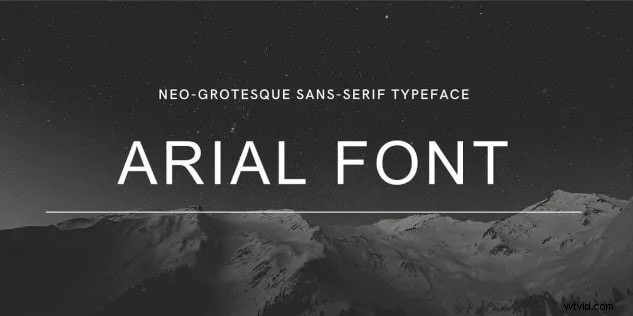
1. Arial
Arial is a widely supported sans‑serif that offers clean, evenly spaced characters. Its neutrality and excellent legibility make it a staple for multilingual subtitles.
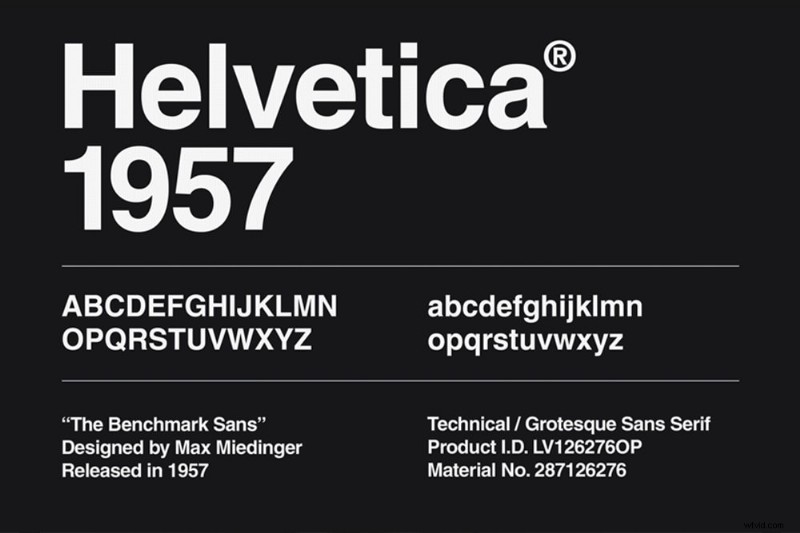
2. Helvetica
Helvetica’s balanced geometry and minimalistic strokes provide a timeless, readable look that works well on both large screens and mobile devices.
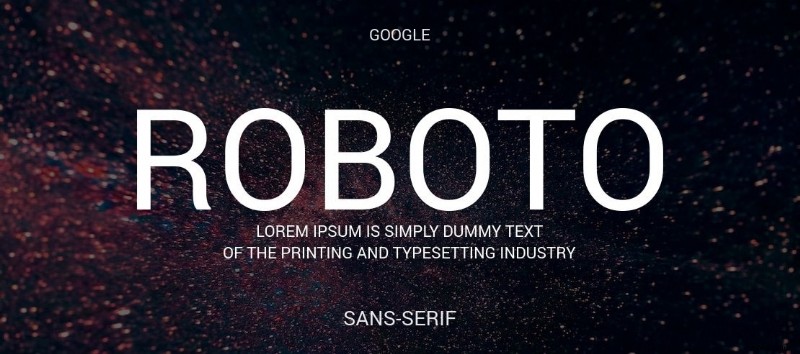
3. Roboto
Designed by Google, Roboto combines geometric structure with friendly curves, ensuring clear readability on a wide range of screen sizes.
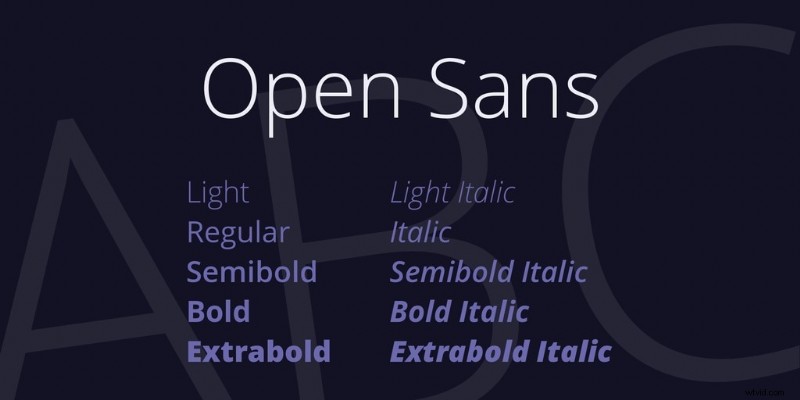
4. Open Sans
Open Sans is a humanist sans‑serif with 900+ glyphs, making it ideal for subtitles that require extensive language support while maintaining visual harmony.
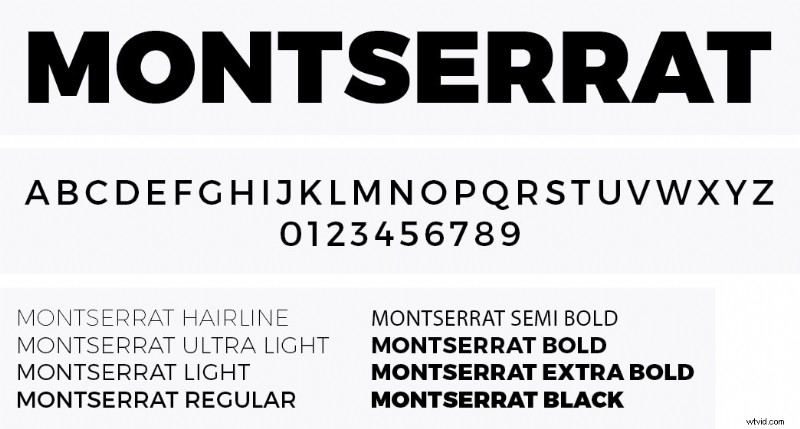
5. Montserrat
With its contemporary style and excellent legibility, Montserrat blends seamlessly into both high‑contrast and muted visual contexts.
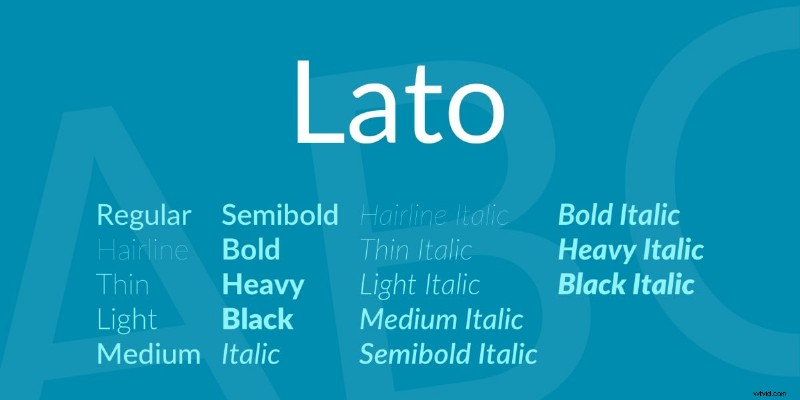
6. Lato
Lato’s humanist design offers a warm yet professional feel, making it suitable for dialogue-heavy scenes that demand quick comprehension.
7. Futura
Futura’s geometric clarity and consistent proportions make it a favorite for sci‑fi and action titles, where visual speed is paramount.

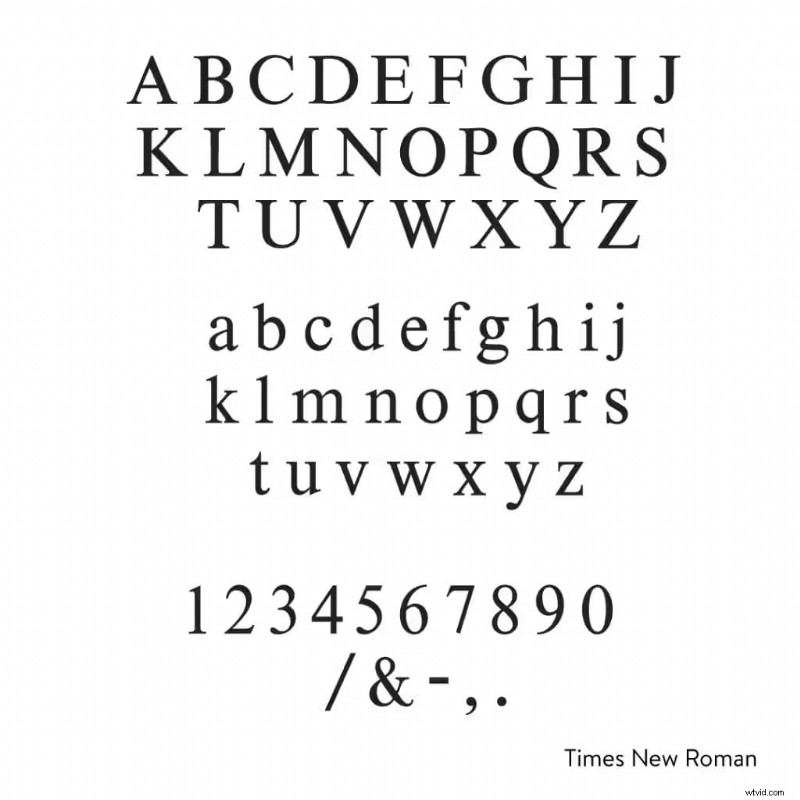
8. Times New Roman
As a classic serif, Times New Roman provides authoritative readability, especially in productions that favor a more traditional aesthetic.
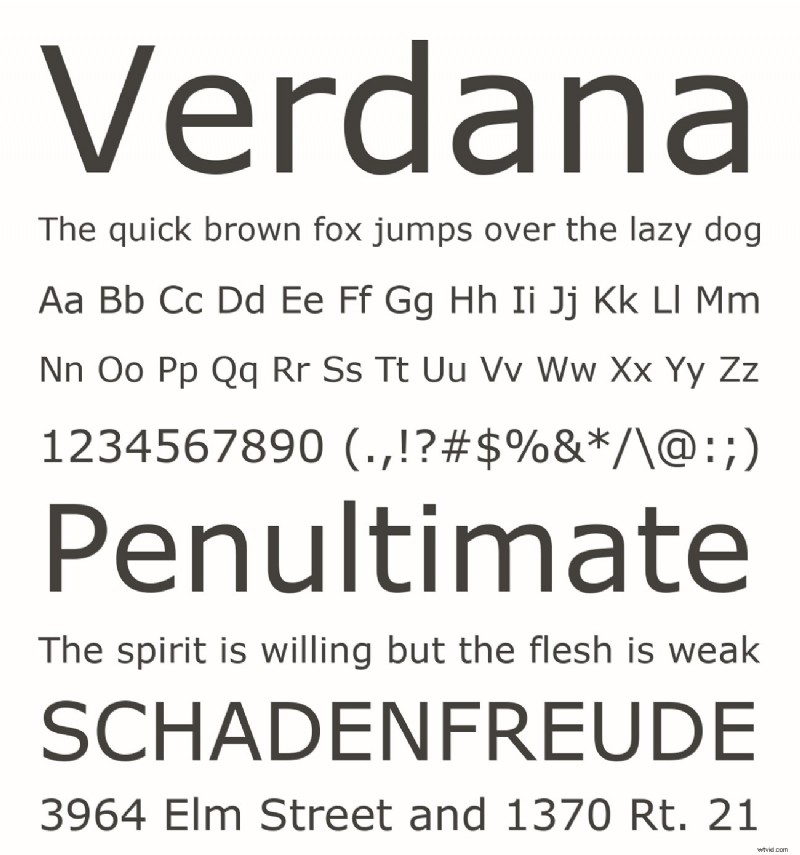
9. Verdana
Verdana’s wide letterforms and generous spacing make it highly effective on low‑resolution displays and for audiences with visual impairments.
10. Tahoma
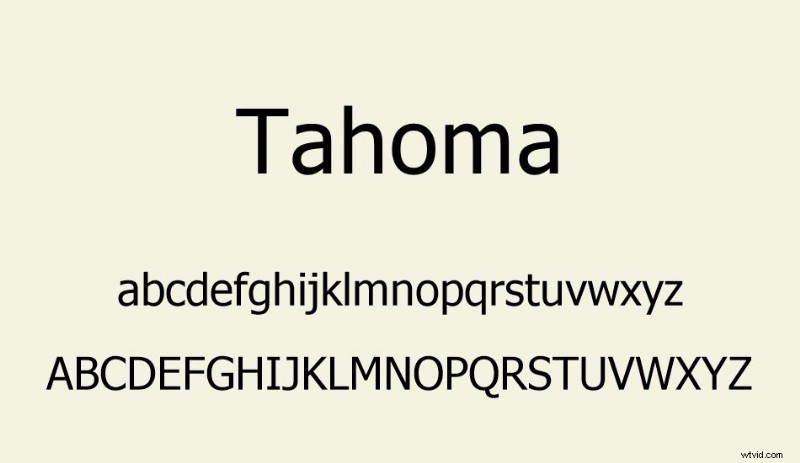
Tahoma’s compact design is ideal for fast‑paced dialogue, ensuring clarity even when screen real estate is limited.
11. Avenir LT Pro
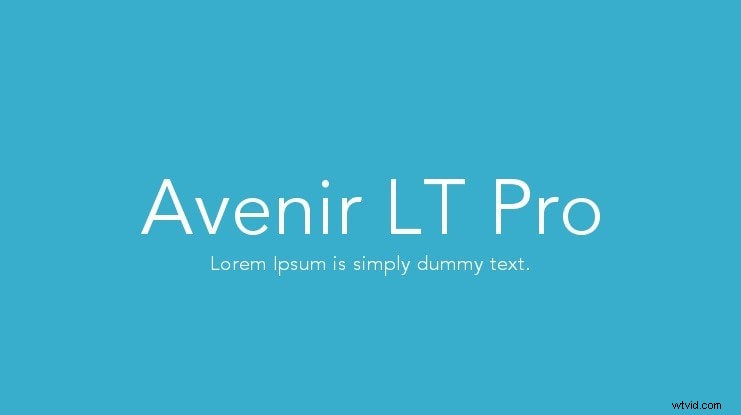
Avenir LT Pro blends geometric precision with subtle humanist touches, supporting dynamic visual narratives across diverse platforms.
12. IBM Plex Sana
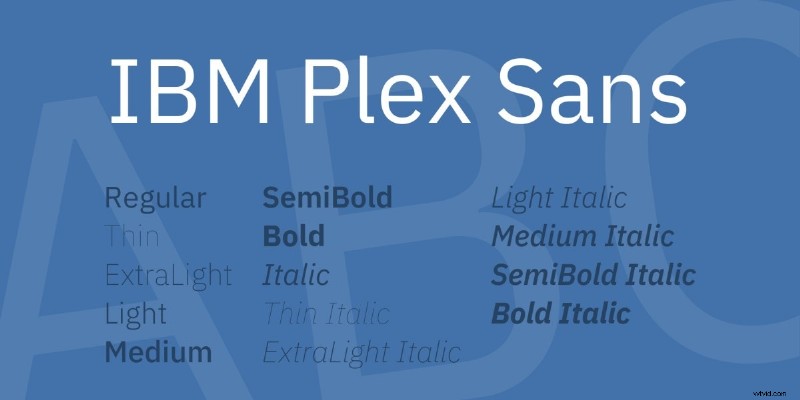
IBM Plex Sana offers a modern grotesque aesthetic with clear character spacing, making it suitable for small‑screen subtitles and low‑def media.
13. Poppins
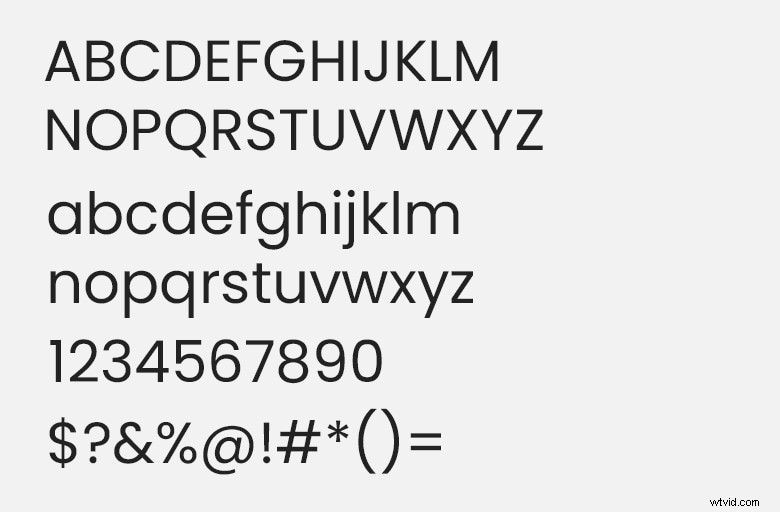
Poppins’ monolinear strokes and round forms provide a friendly, contemporary look that works well in cinematic visuals.
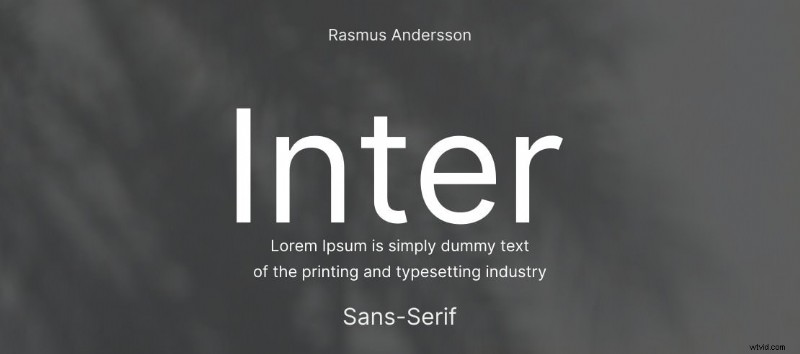
14. Inter
Inter is an open‑source typeface that excels in multilingual contexts, offering clear, unobtrusive text for worldwide audiences.
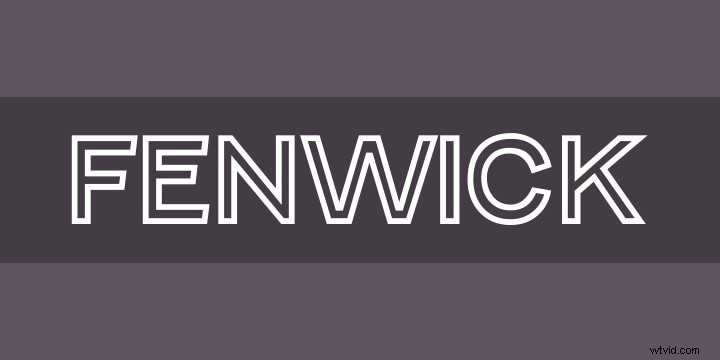
15. Fenwick
Fenwick balances aesthetic elegance with functional clarity, ensuring subtitles are both stylish and easily readable across various media.
Customizing Subtitle Fonts with Wondershare Filmora
Filmora’s intuitive interface and extensive font library make it straightforward to add and style subtitles. Below is a step‑by‑step guide for Filmora 2025 users.
Incredible Font Features Offered by Filmora
- Text animations such as kinetic typography are fully editable through Filmora’s built‑in library.
- The Preset option allows you to maintain a cohesive look across an entire project.
- 3D font effects, including overlays and textures, give subtitles a cinematic edge.
- AI‑powered transcription tools auto‑generate subtitles from audio, with font customization available immediately.
- Creators can fine‑tune font size, weight, and spacing via the Style tab to achieve a unique visual identity.
How to Edit and Customize Text Fonts in Filmora 2025
Follow these steps to produce professional‑looking subtitles.
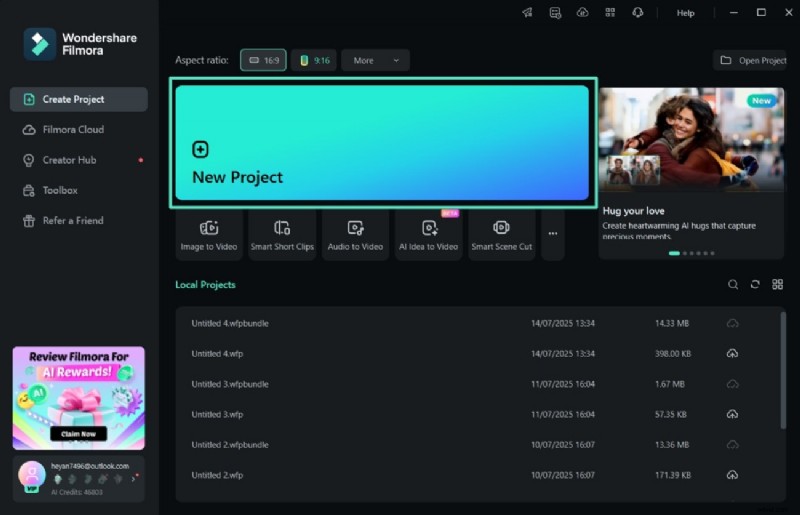
- Step 1: Launch Filmora, select "New Project," and import your clip. Drag the video onto the timeline.
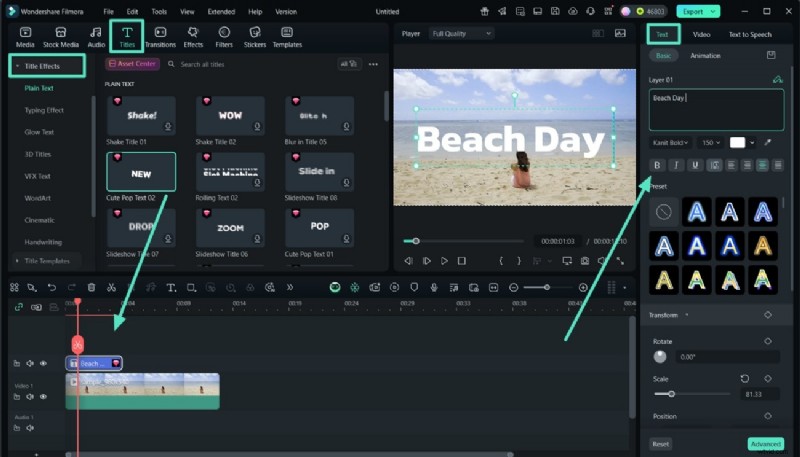
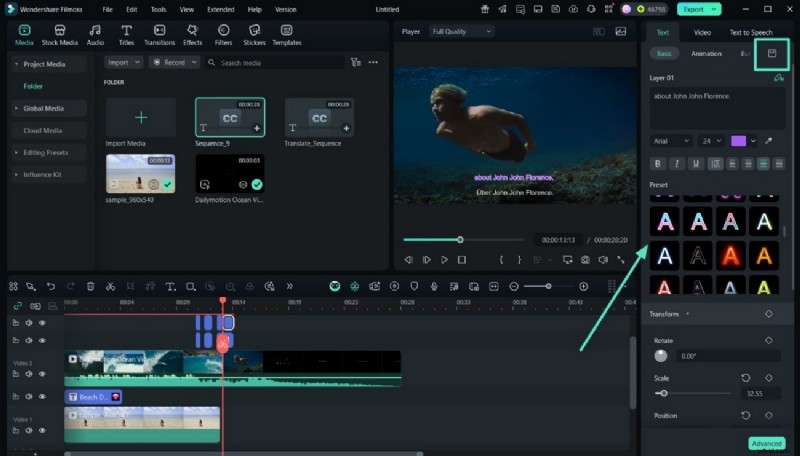
- Step 2: Click the "Titles" icon, choose "Title Effects," and add it with the "+" button. From the right pane, select the "Text" option and type your subtitle in the Basic section.
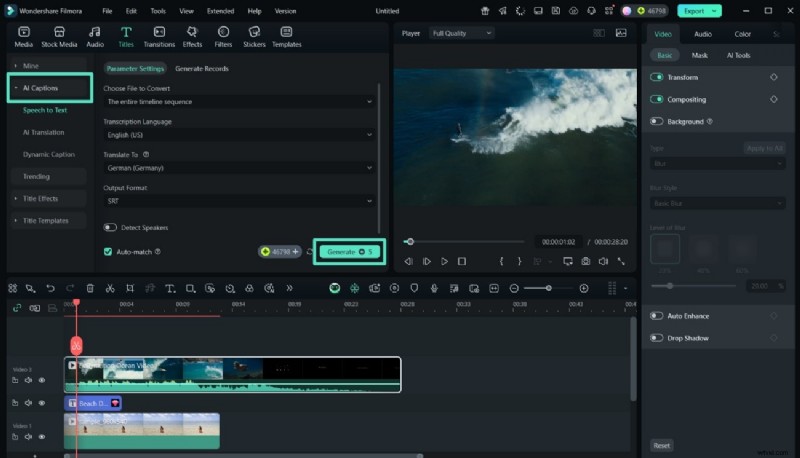
- Step 3: Enable "Speech to Text" under the AI Captions panel, pick the desired language, and hit "Generate." Once captions appear, double‑click the title track to edit.
- Step 4: In the fonts library, select the preferred subtitle typeface. Click "Apply to All" and then "Save."
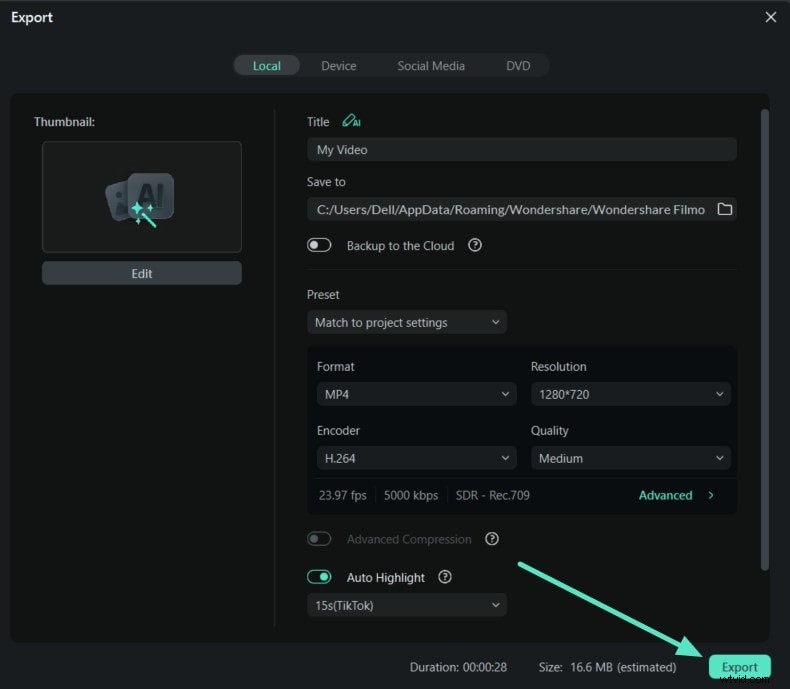
- Step 5: Review the subtitles on the timeline, then click "Export" to save or share directly to social platforms.
Using the Preset Font Library on Filmora Mobile
The Filmora app (Android/iOS) streamlines subtitle creation with a unified text editor. Users can browse a curated preset library, eliminating the need to download external fonts.
Steps for Adding Captions on Mobile
Follow the same general workflow as on desktop, selecting from the mobile preset options to ensure consistent typography.
Conclusion
Subtitle fonts are essential for accessibility and viewer engagement. By choosing from the top 15 fonts listed above and leveraging Filmora’s robust tools, creators can deliver clear, professional subtitles that resonate with audiences worldwide.