
Have you ever listened to a podcast that was so slow it felt like a lullaby, or an audio clip that rushed past, making it impossible to follow? Whether you’re reviewing a lecture, streaming a podcast, or watching a video, the playback speed can profoundly affect your experience. Unfortunately, many media players and editing tools lack an intuitive way to adjust speed without degrading sound quality.
This guide walks you through the most user‑friendly desktop, online, and mobile solutions for changing audio speed—so you can edit quickly, professionally, and even offline.
In this article
-
- Learning & Transcription
- Audiobook & Podcast Listening
- Video & Media Editing
- Correcting Recording Errors
- Technical & Platform Alignment
-
- MP3 Cutter – Speed Control
- Vocal Remover – Speed & Pitch
- Windows Media Player
-
- Filmora Desktop – Audio Tweaking
- Method 1: Uniform Speed & Ramping
- Method 2: Detach & Adjust
-
- Music Speed Changer (iOS/Android)
- Audipo – Speed & Bookmarking
- Up Tempo – Pitch & Tempo
-
- Filmora Mobile – Advanced Editing
Part 1. Common Use Cases for Adjusting Audio Speed
Before diving into the tools, let’s explore real‑world scenarios where speed adjustment matters:
1. Learning & Transcription
Complex pronunciations, tonal nuances, or rapid speech can obscure critical details. Slowing playback lets learners dissect each word, improving accuracy in transcriptions and deepening comprehension.
2. Audiobook & Podcast Listening
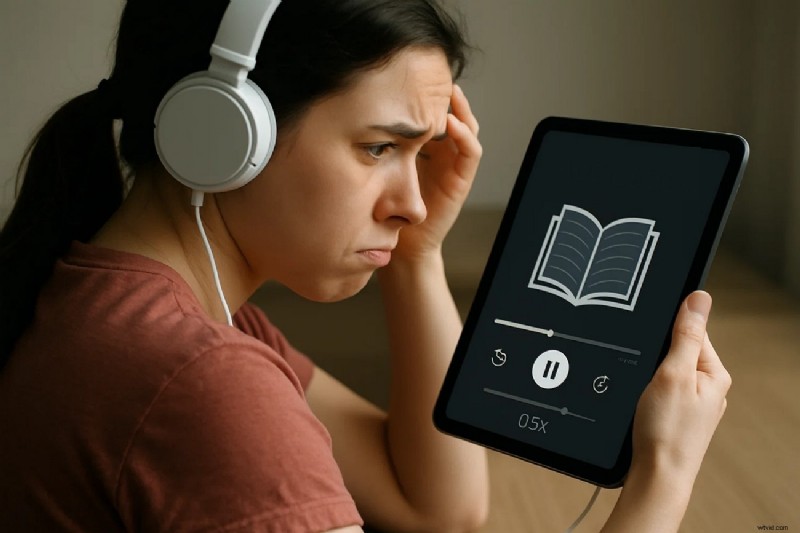
Listeners who want to cover more content in less time benefit from higher playback rates. Conversely, slowing down dense material can aid understanding—an essential feature for busy professionals and students alike.
3. Video & Media Editing
Synchronizing audio with video is pivotal for a polished final product. Adjusting speed lets editors match soundtracks to visuals, create time‑lapse effects, or craft dramatic slow‑motion sequences without re‑recording.
4. Correcting Recording Errors
Irregular pacing—whether due to a speaker’s tempo or a recording glitch—can throw off timing. Speed adjustments restore the intended rhythm, making the audio flow naturally again.
5. Technical & Platform Alignment
Broadcasts, streaming services, or mobile apps often require specific audio frame rates. Modifying speed ensures seamless compatibility, preventing sync glitches and playback failures.
Part 2. Top 3 Desktop Tools for Speed Adjustment
Here are three reliable desktop applications that make speed control straightforward:
1. MP3 Cutter – Speed Control
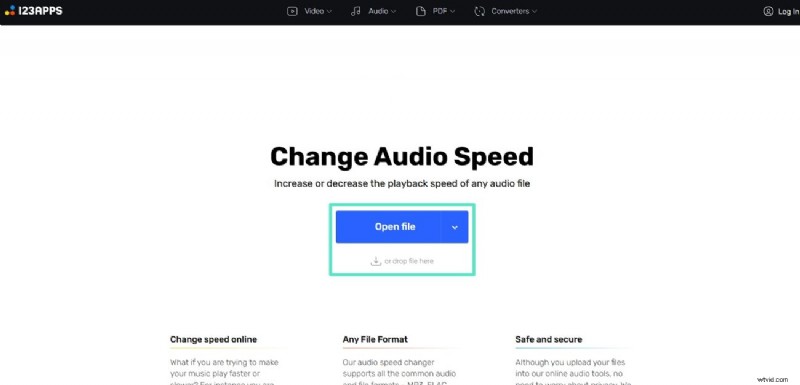
MP3 Cutter combines trimming and speed adjustment in a single, intuitive interface. It supports files up to 10 GB and all common audio formats.
Step 1. Click Open File to load your audio.
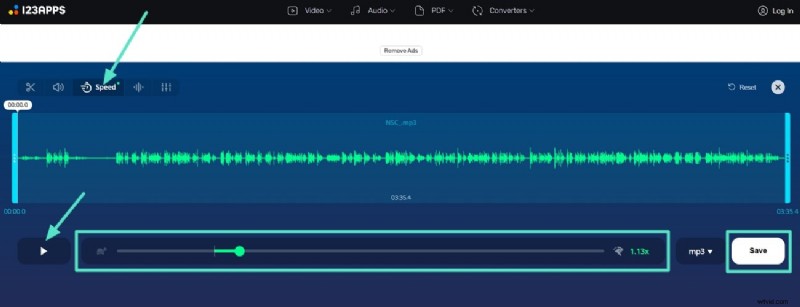
Step 2. In the Speed tab, slide the knob to slow or accelerate playback. Press Play to preview, then Save to export the edited file.
2. Vocal Remover – Speed & Pitch
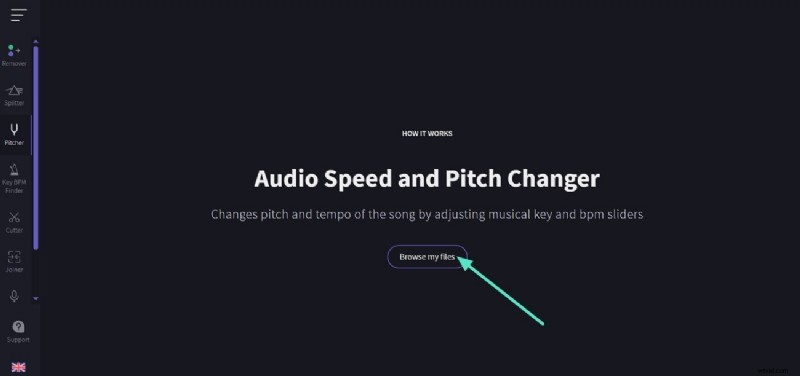
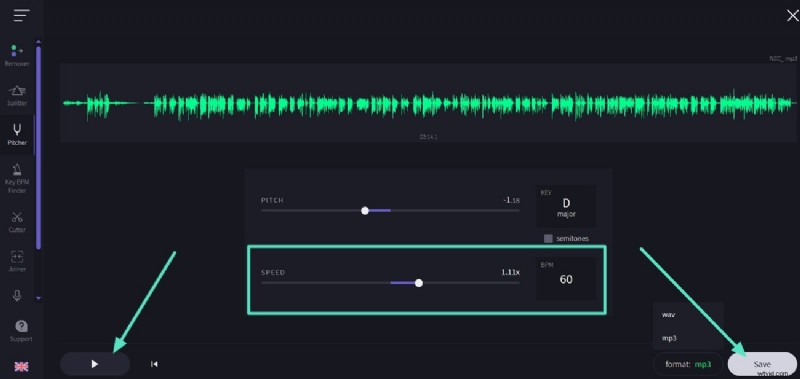
Beyond vocal isolation, this web tool offers precise speed and pitch control. You can view BPM for exact adjustments and export in various formats.
Step 1. Click Browse My Files and choose your track.
Step 2. Adjust the Speed slider, preview, and then Save the new file.
3. Windows Media Player
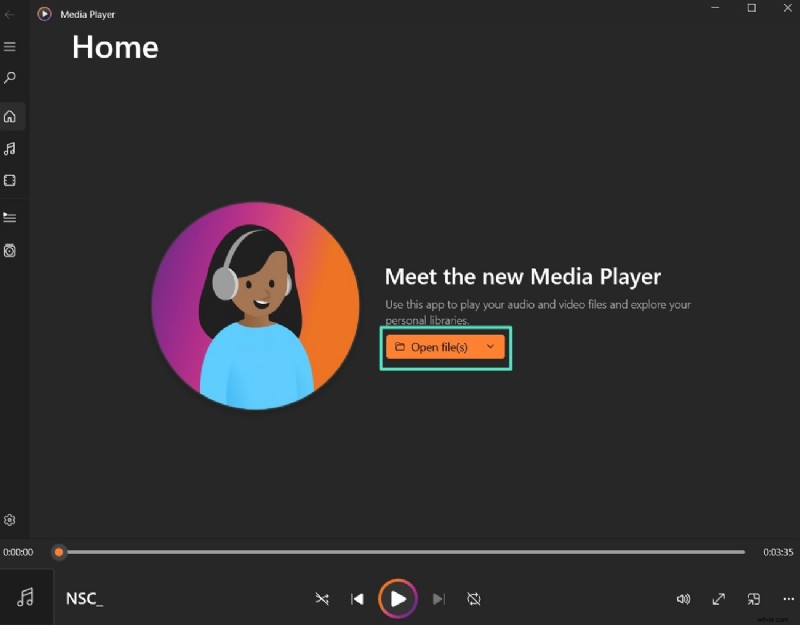
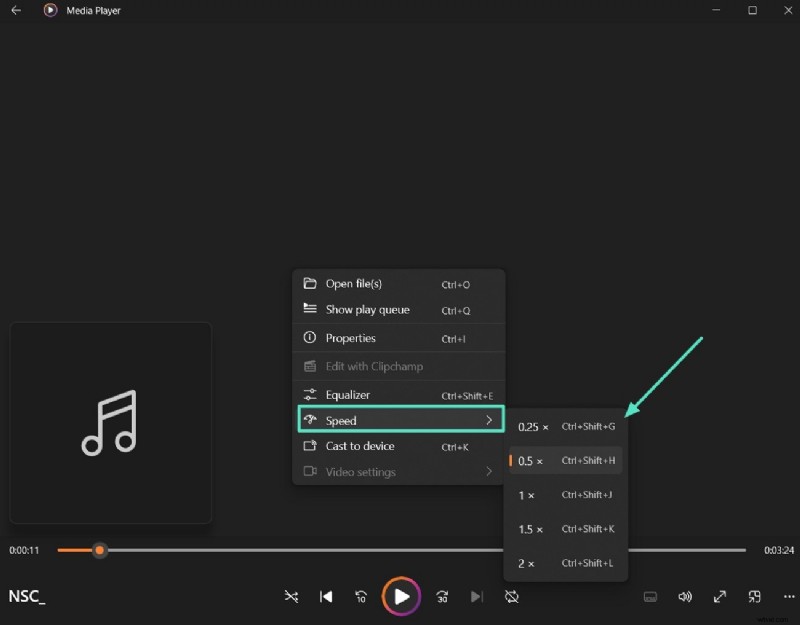
Built into Windows, this player offers quick speed changes without additional software.
Step 1. Open the media file.
Step 2. Right‑click during playback, select Speed, and choose the desired rate.
Part 3. Comprehensive Desktop Solution – Wondershare Filmora
For editors who need more than just speed control, Filmora delivers a full‑featured audio & video editing suite. Its AI‑powered tools enhance quality, while the intuitive UI allows even novices to adjust speed, pitch, and more.
Filmora also lets you detach audio from video, edit files separately, and even add AI‑generated audio tracks.
Simple Guide to Tweaking Audio in Filmora
Method 1: Uniform Speed & Ramping
Method 2: Detach Audio & Adjust
Part 4. Best Mobile Apps for Speed Adjustment
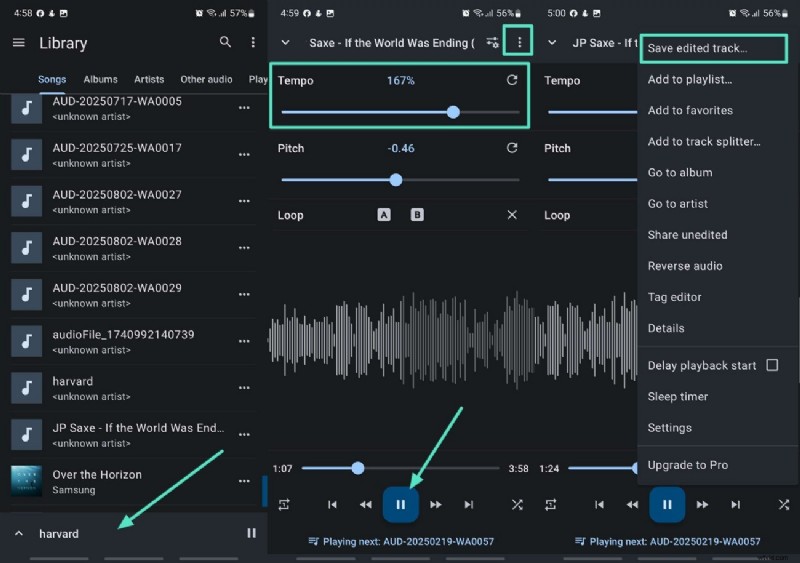
Music Speed Changer (iOS/Android)
Ideal for musicians, podcasters, and learners, this app offers real‑time tempo changes, looping, and waveform visualization.
Open the app, select a track, adjust the Tempo slider, preview, and tap the three‑dot menu to Save Edited Track.
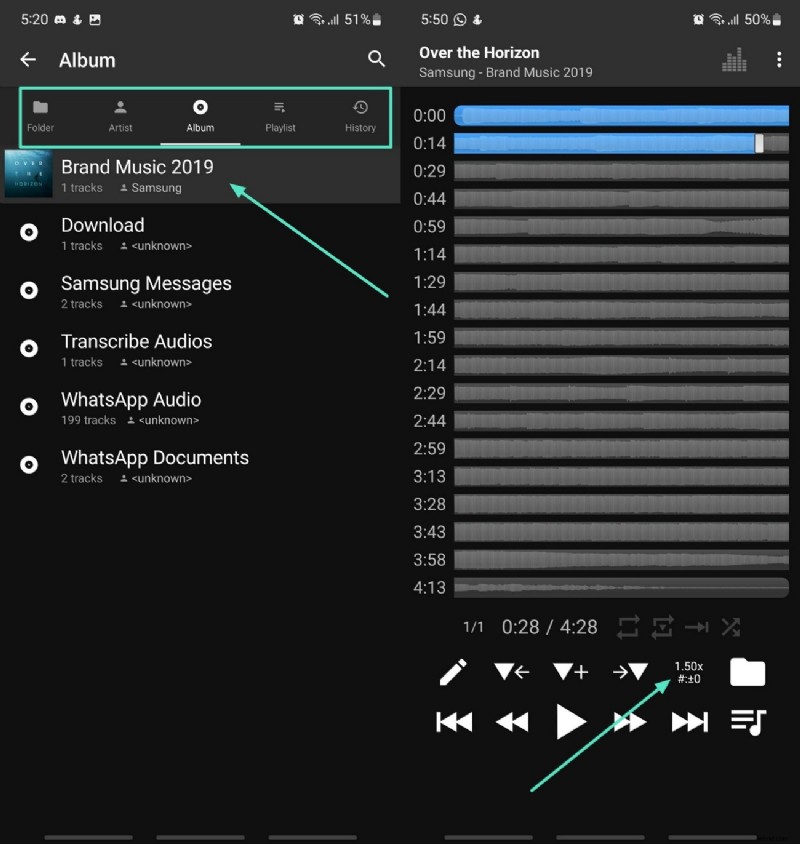
Audipo – Speed & Bookmarking (iOS/Android)
Perfect for long recordings, Audipo lets you set bookmarks, loop sections, and fine‑tune playback speed.
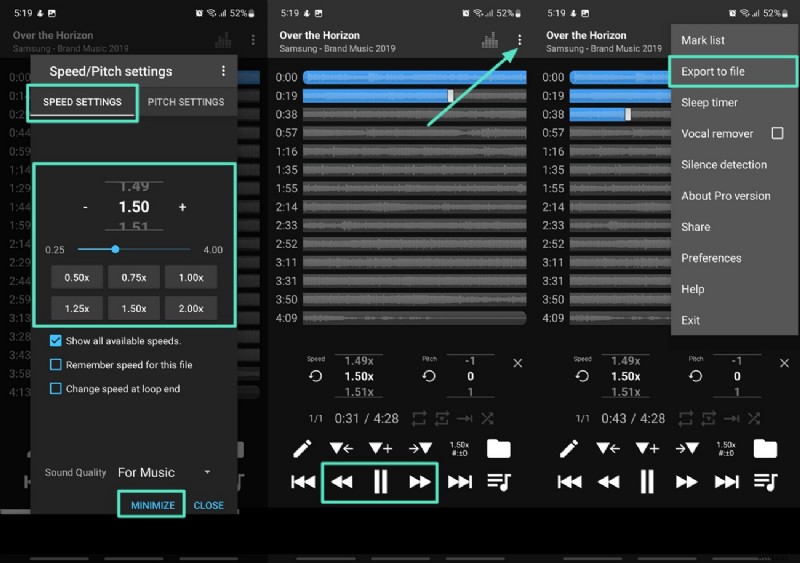
Step 1. Upload a file, tap the Speed Control icon.
Step 2. Choose a preset speed, preview, then export via the top‑right menu.
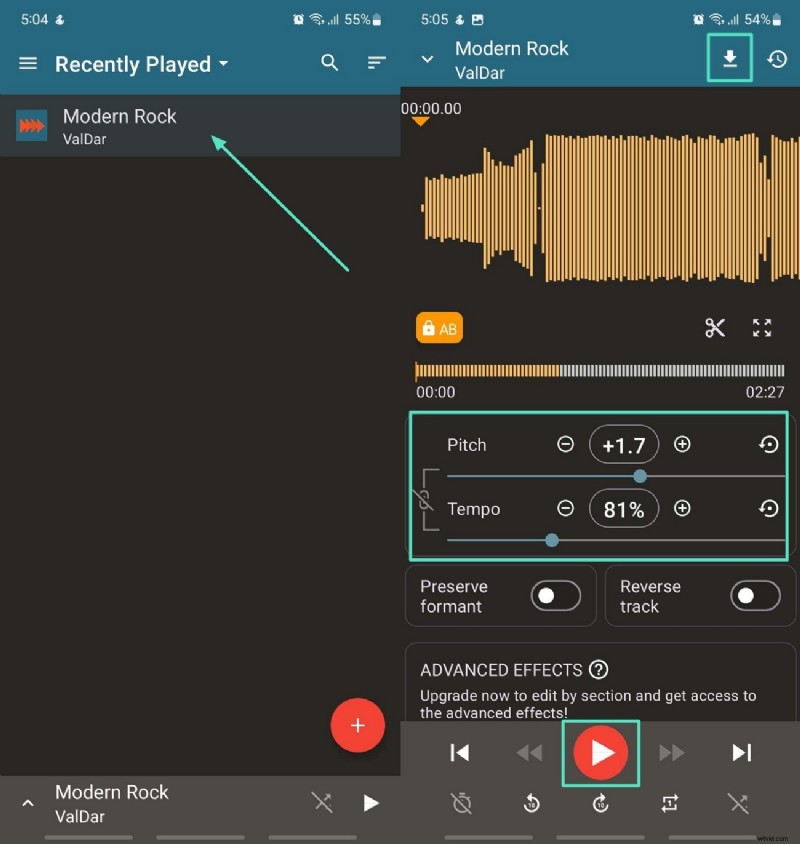
Up Tempo – Pitch & Tempo (iOS/Android)
Adjust both pitch and tempo while previewing changes. Trim unnecessary sections and preserve the original format.
Launch the app, open a track, use the Pitch and Tempo sliders, preview, then download.
Part 5. Filmora Mobile – The All‑In‑One Editor
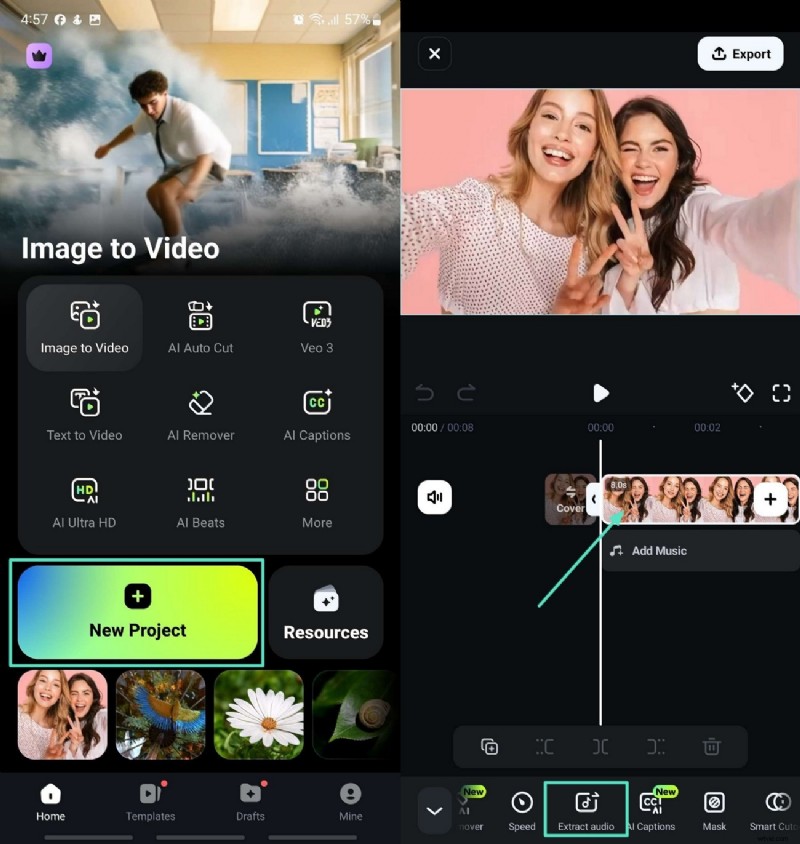
Filmora’s mobile app brings the power of its desktop counterpart to the pocket. With quick audio extraction, AI audio creation, and denoise features, it’s a robust choice for on‑the‑go editing.
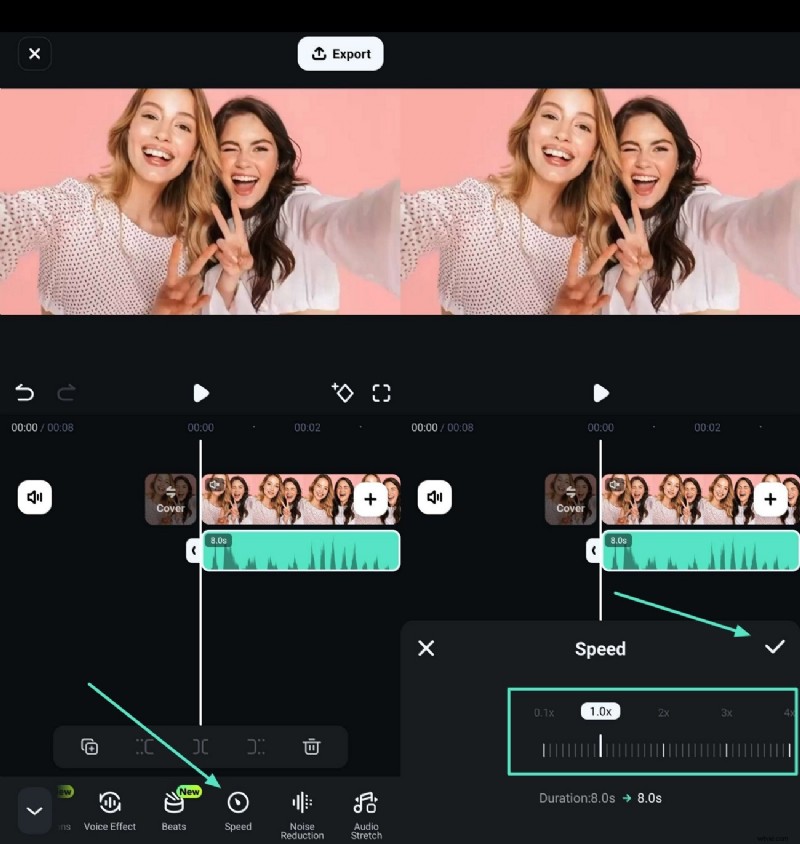
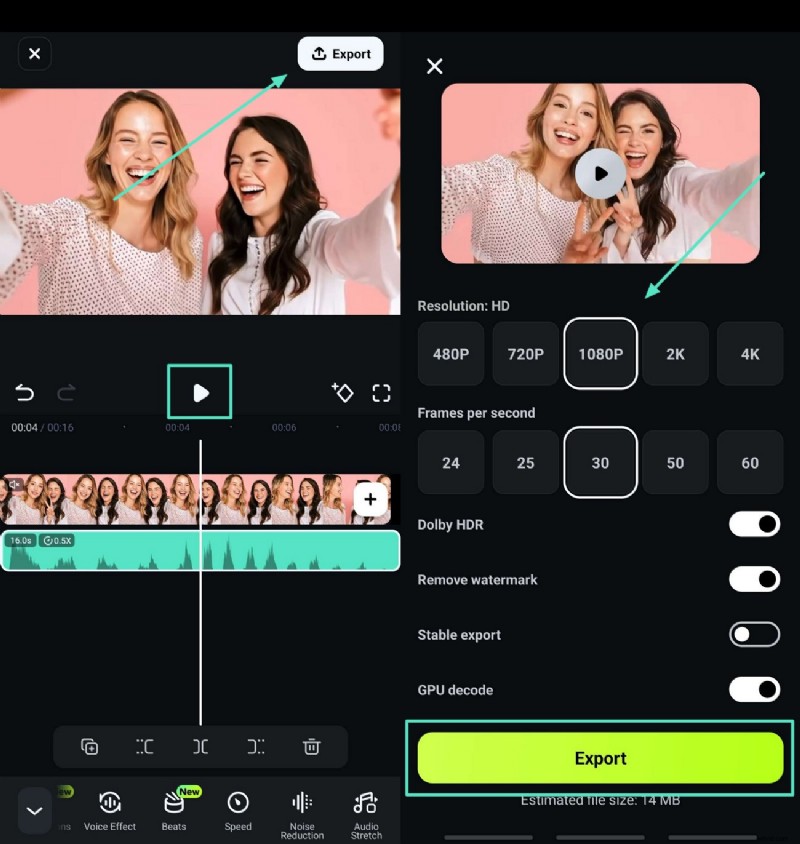
Step‑by‑Step: Adjust Audio Speed with Filmora App
- Step 1: Install Filmora, start a new project, import your video, and tap Extract Audio in the timeline.
- Step 2: Select the extracted audio, slide the Speed control, and tap the checkmark to confirm.
- Step 3: Preview the result, then export the project with your chosen resolution.
Conclusion
Whether you’re editing on a desktop, online, or mobile, the right tool can streamline your workflow and preserve audio integrity. For comprehensive features and professional results, we recommend Wondershare Filmora—available on both desktop and mobile—to meet every editing need.