Adding clear, professional captions or titles to instructional or explainer videos is essential for viewer engagement and comprehension. Whether you’re working with a free online editor, a powerful desktop suite, or a mobile app, the process can be straightforward if you follow the right workflow.
In this article
- Add Text to a Video Online
- Add Text to Video on Computer
- Add Text to Video on iPhone
- Add Text to Video on Android
Add Text to a Video Online
For quick, browser‑based edits, free online editors like VEED offer a simple interface without sacrificing essential features. VEED supports multiple font styles, sizes, colors, and precise timing controls—all within a few clicks.
Here’s how to add text with VEED:
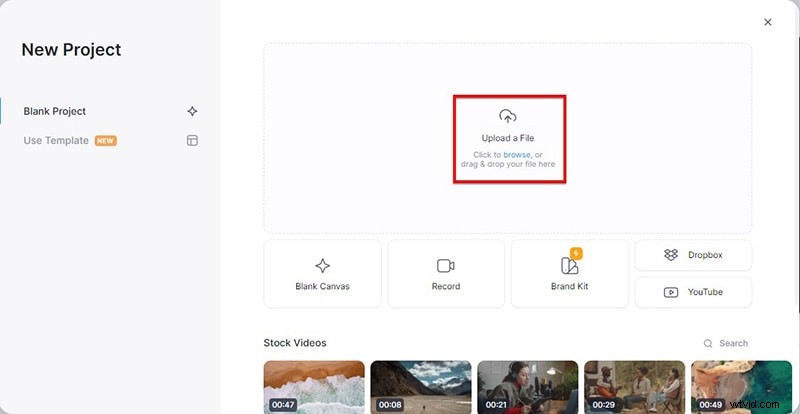
Step 1 – Visit VEED.io and click “Upload Your Video.” Select the file from your computer or drag it into the upload area.
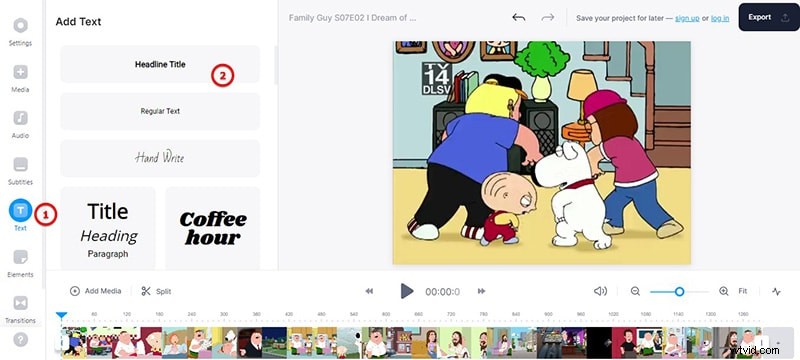
Step 2 – Once the video loads, choose the “Text” tab on the left. Pick the style that best fits your project, such as a title, subtitle, or caption.
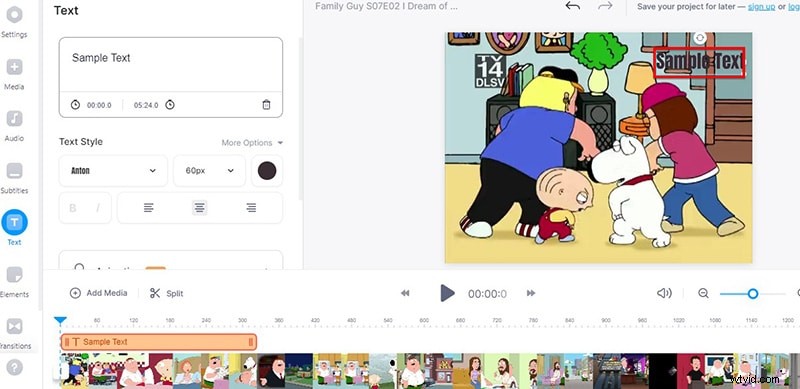
Step 3 – Enter your text and customize its appearance using the options below the input box. Adjust font, size, color, and set the duration so the text appears exactly where you want it.
Step 4 – When satisfied, click the “Export” button at the top right. Download the final video or share it directly from the platform.
Add Text to Video on Computer
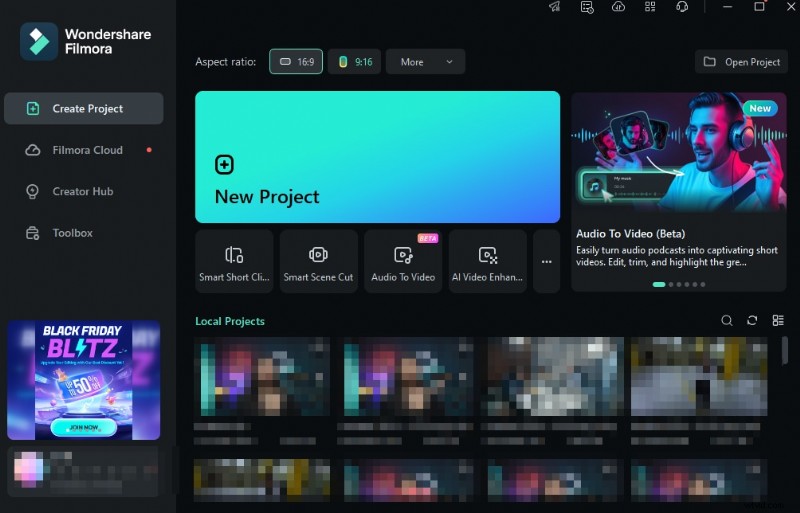
For more advanced editing—such as a wide range of preset titles, animations, or custom branding—desktop software like Wondershare Filmora provides a robust yet user‑friendly experience.
Follow these steps to add text with Filmora:
Step 1 – Install Filmora, launch the program, and click “Import” (or drag and drop your video into the main window).
Step 2 – Drag the video clip to the timeline to begin editing.
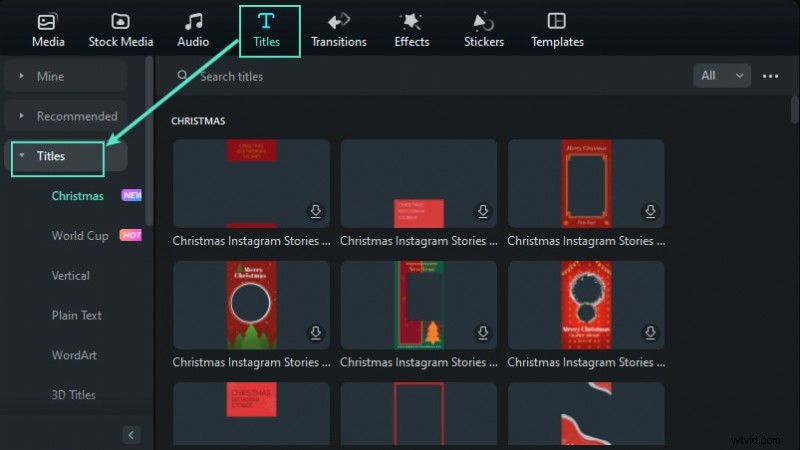
Step 3 – Click the “Titles” tab at the top to access over 200 text effects. Double‑click a preset to preview it live on your clip.

Step 4 – Drag the chosen title track onto the timeline above your video clip. Position it where you’d like the text to appear.
Step 5 – Adjust the duration by dragging the track’s edges. Double‑click the title to modify the text, font, color, and animation style.
Step 6 – Click “Export,” choose your desired format, and save or upload the completed video.
Add Text to Video on iPhone
Apple’s iMovie is an excellent, free option for adding text on the go. It supports animated titles, subtitles, and customizable fonts—all directly from your device.
Here’s a quick workflow:
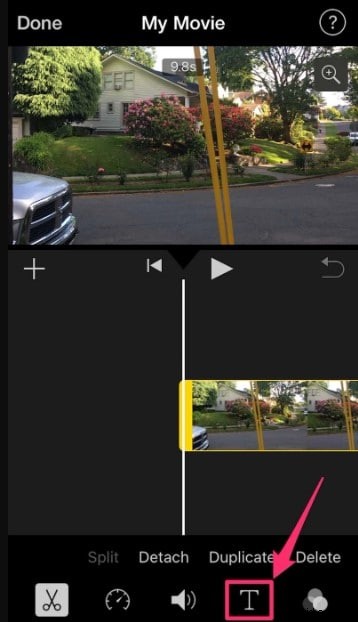
Step 1 – Open your clip in iMovie and tap the “Text” icon at the bottom of the screen.
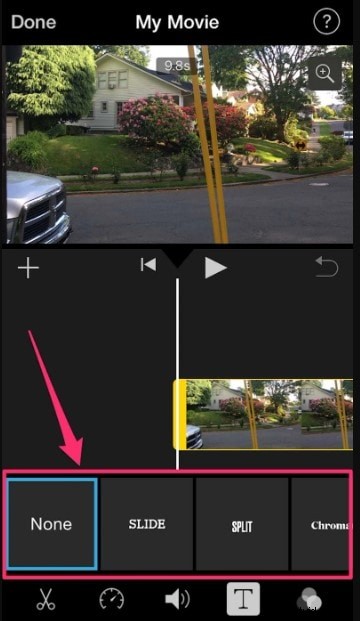
Step 2 – Browse the template styles and select one that matches your video’s tone.
Step 3 – Tap the sample text, choose “Edit,” type your content, and hit “Done.”
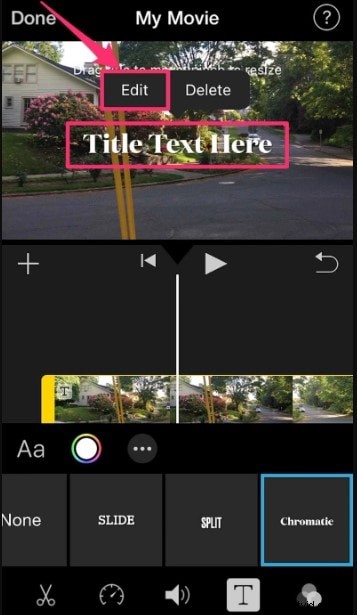
Step 4 – Reposition the text by dragging it, resize with pinch gestures, and modify font or color via the “T” button and the “Aa” option.

Additional effects, such as shadows or outlines, are accessible through the three‑dot menu.
Add Text to Video on Android
Android users can rely on powerful third‑party apps. Two top choices—PowerDirector by Cyberlink and InShot—offer extensive text controls, including animation, color, and styling.
Using PowerDirector
PowerDirector allows you to trim, rotate, and color‑grade clips while adding dynamic text layers.
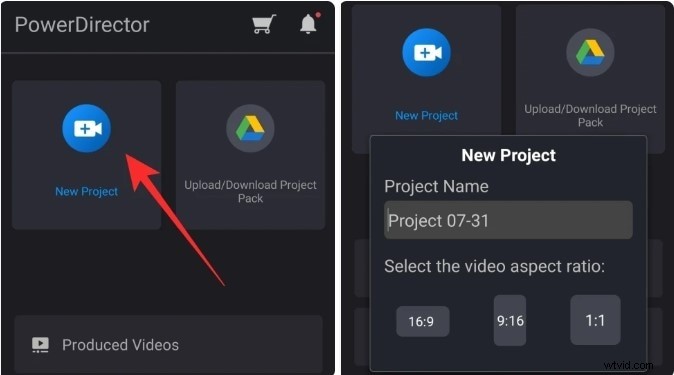
Step 1 – Install PowerDirector from the Play Store, tap “New Project,” set the aspect ratio, and name your project.
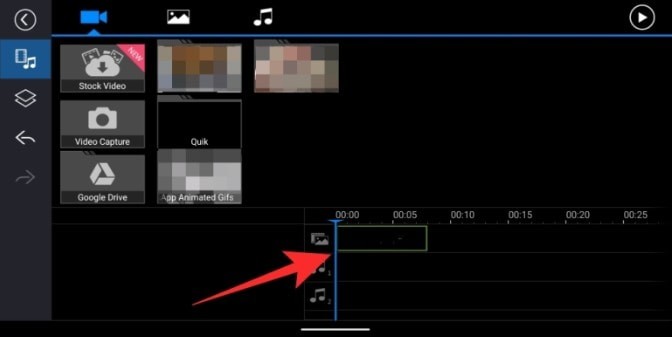
Step 2 – Import the video you want to edit; it will appear on the main timeline.
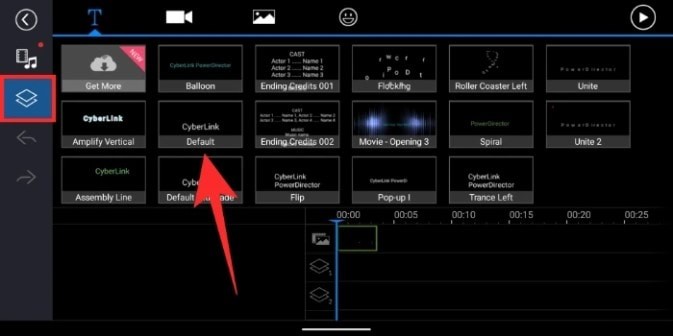
Step 3 – Select the video layer, tap the “Text” tab, choose a style, and add it with the “+” button.
Step 4 – Enter your text, then tap the “T” icon to adjust font, size, color, or add effects like shadows.
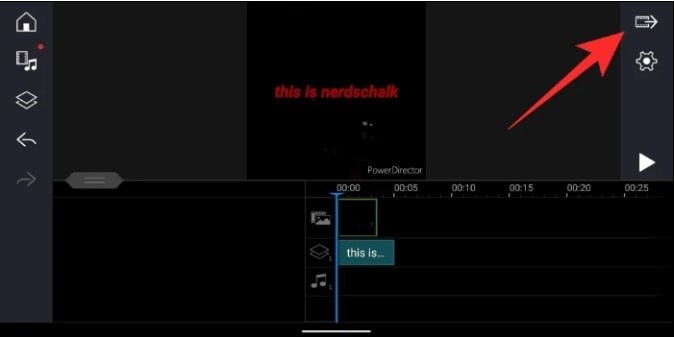
Step 5 – When finished, tap the export icon, choose your desired resolution, and save or share directly from the app.