
Social media is all about conversation, and Instagram Stories just made chatting with your followers a whole lot easier. The Instagram Story Question Sticker is one such feature, allowing you to engage your followers by inviting questions and responses directly in your Stories.
It is a fun, easy way to spark conversations and get real-time feedback from your audience. If you want to learn how to effectively add and use question stickers in your Stories, read this article till the end.
In this article
-
- Steps for Adding Stickers to Your Story with Filmora App
- Guide to Create and Add a Sticker Using Filmora Desktop
- Method 1. Create Stickers with AI Sticker
- Method 2. Access Stickers Library
Part 1. Instagram Story Question Sticker: What Is It and Why Do You Use It?
Introduced as a simple way to boost conversation on stories, the questions sticker invites followers to respond to prompts directly on the story. When you add this sticker to your story, the fans and followers can tap it and submit their replies privately. It transformed passive views into two-way communication and valuable feedback. Mentioned below are a few of the key reasons why people use this question sticker:
- Boost Engagement: It encourages followers to reply, which naturally increases the interaction rate and helps the algorithm show your story to a wider audience.
- Drive Traffic: By understanding the follower preferences through the questions, brands can suggest relevant products or services as solutions.
- Gather Feedback: Creators can use this facility to collect opinions and feedback directly from the audience, which helps them in product development and content creation.
- Promote Giveaways: This feature enables creators to reveal exclusive contests by asking followers to respond with answers or ideas, which encourages them to participate.
Part 2. How to Ask Questions with the Question Sticker on Instagram?
Adding the Instagram question sticker on your story is pretty convenient, as it may sound. Provided below is the step-by-step instruction to add these elements to your stories for follower interactions:
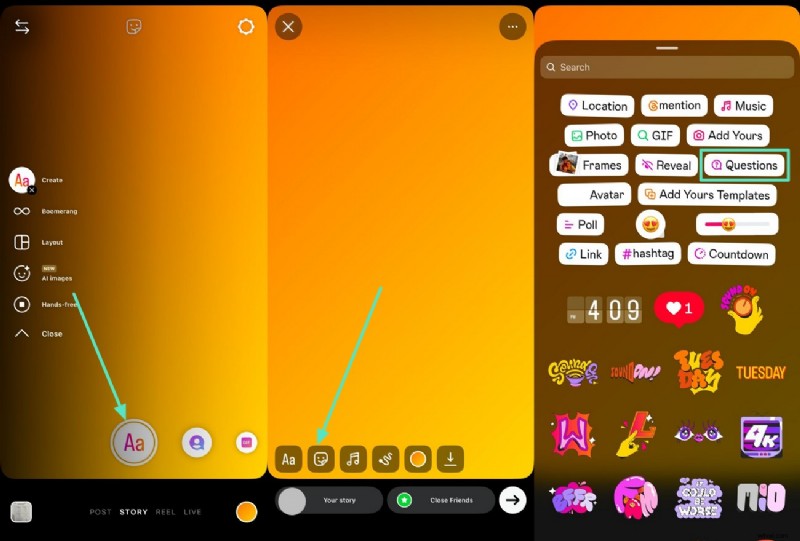
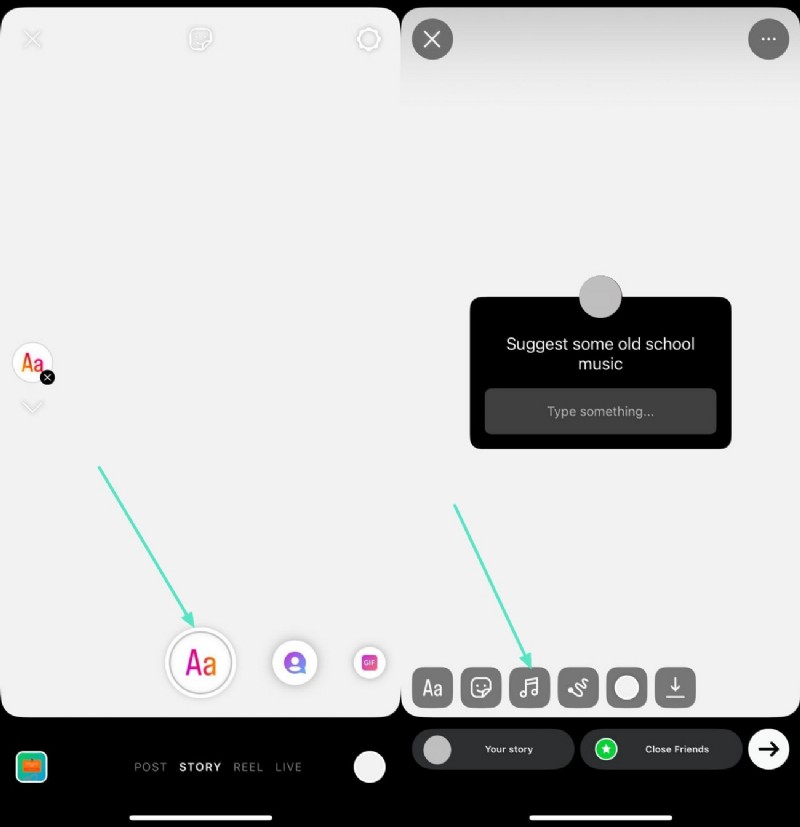
Step 1. After launching the application on your smartphone, head to the story section by swiping left on the interface. Now, tap the "Create" button to enter the "Create Mode." Next, access the features located at the bottom left of the interface and pick the "Stickers" icon. Locate the "Questions" sticker in the following interface and tap on it to select.
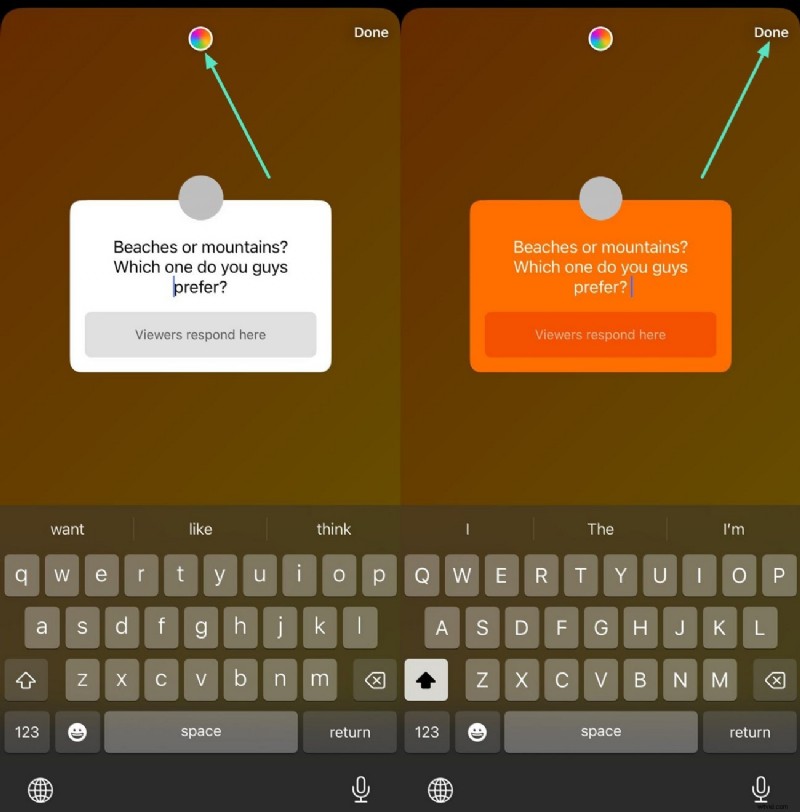
Step 2. The question sticker will appear in the following interface. Type in your question and change the color of the sticker by accessing the "Color" option located at the top. Hit the "Done" button in the top-right corner of the screen to save the changes.
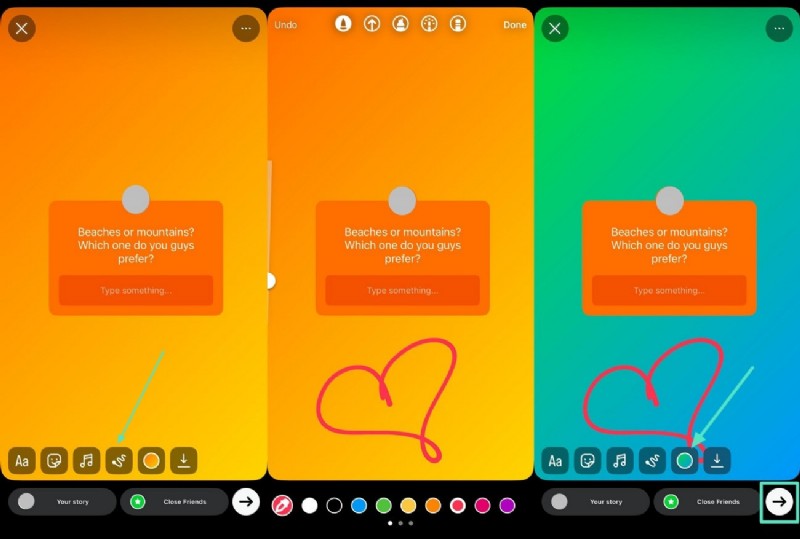
Step 3. To make the story more interesting, tap the "Doodle" option located at the bottom and draw the doodle by swiping it on the screen. You can change the background color of the story by tapping on the "Color" option at the bottom. Once done with the customization, press the "Send" icon to upload your story for your followers to answer.
Part 3. How to Ask for Song Suggestions on Instagram Story?
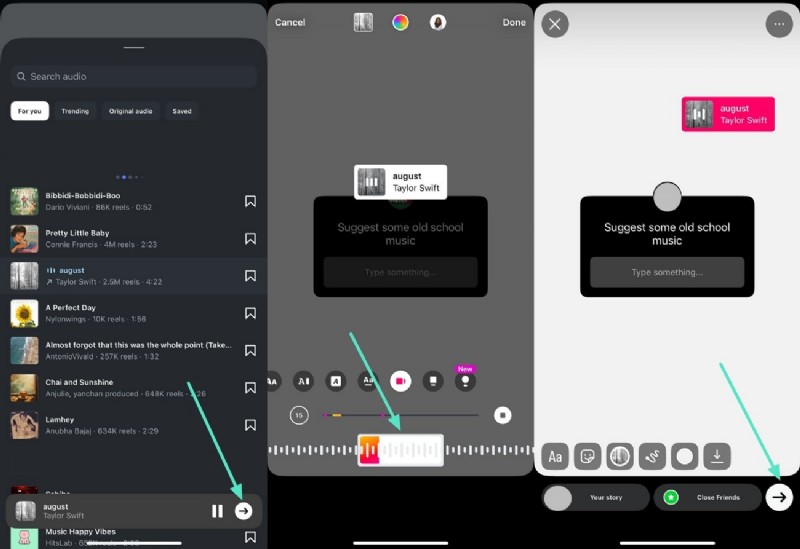
With this sticker feature, you can incorporate background music into your stories, which would be ideal when asking for song suggestions from your followers. This gives a creative and fun flair to your stories and makes them more interesting. The application offers a vast library of trending and old music, which you can add conveniently. To learn how to ask for song suggestions on Instagram story, follow the steps mentioned below:
Step 1. Enter the "Create Mode" of your Instagram story and opt for the question sticker. Once you have added the question, head to the bottom left, tap the "Music" icon and search for a specific song using the search bar.
Step 2. Listen to the selected audio and press the "Next" icon to add the music to the sticker. Select the segment of the music you want to include in the story by dragging its track. Finally, press the "Send" icon to upload your story and wait for the followers to respond.
Part 4. How to Answer Questions in an Instagram Story?
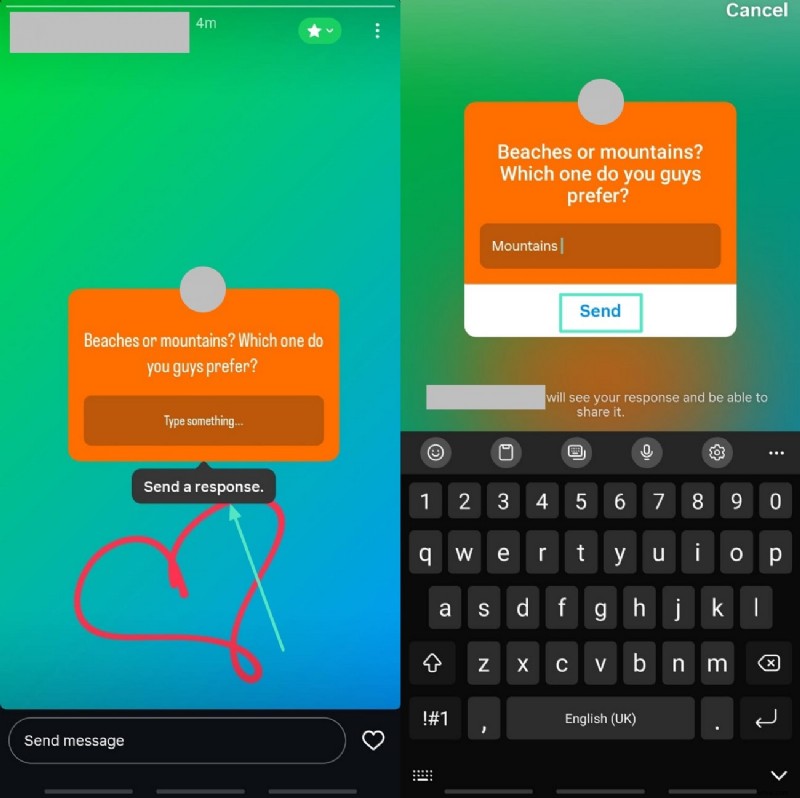
Another way to boost your engagement, other than asking questions, is to answer the questions. You can conveniently answer the questions asked in people's stories. Follow the instructions mentioned below to learn how to answer the question on Insta question stickers:
Instructions. Open the story of the person whose Instagram Q&A sticker you want to answer. Now, tap on the sticker and press the "Send a Response" option. Type in your response and hit the "Send" button to deliver the answer to the original poster.
Part 5. Add More Dynamism to Your Question Stickers With the Right Tool
If you are looking for a more diverse way of adding stickers to your videos before posting them as stories or questions, you can utilize Wondershare Filmora. The tool offers a dedicated visual enhancement application to fine-tune multimedia by offering basic and AI-powered functions. The Filmora App [iOS/Android] offers an extensive library of stickers, sorted category-wise, making it easier for users to choose the relevant ones.
To give your stickers a more detailed touch, you can use the desktop version of Filmora for professional-grade results. You get the ability to access the large sticker library to add to your story. It also allows you to create stickers of your own using the text prompt. Moreover, the generated results can be saved in multiple formats, including PNG and GIF.
Steps for Adding Stickers to Your Story with Filmora App
As discussed, the Filmora App provides a large number of Instagram quiz stickers for users to select from. Read the steps mentioned below and learn to add a sticker to your stories using this comprehensive application:
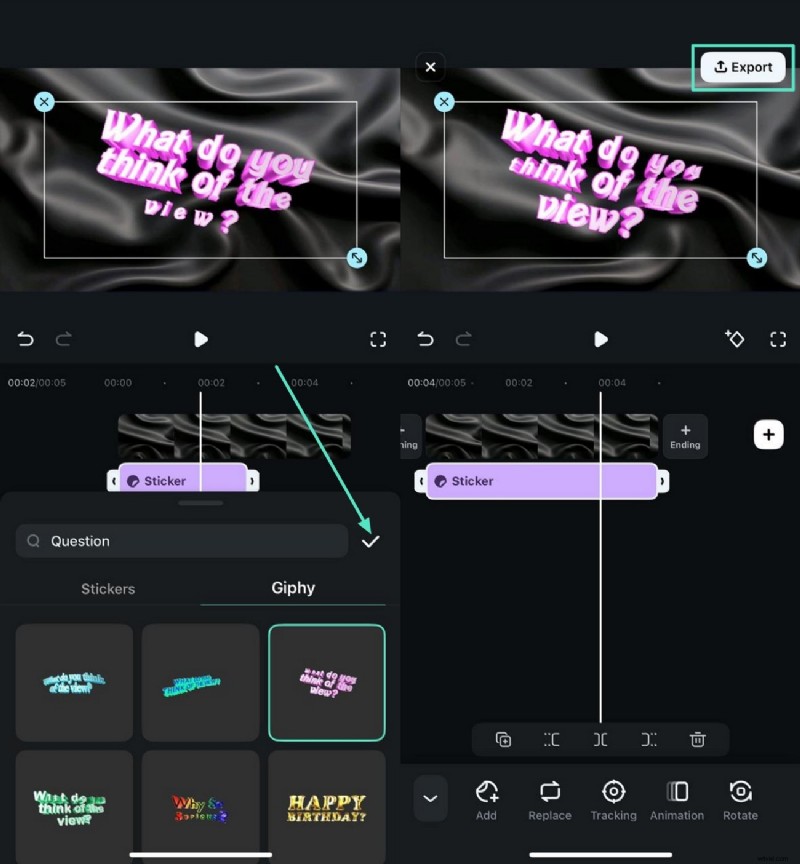
- Step 1. Create a New Project. Begin by launching the application on your smartphone and tapping the "New Project" option located on the homepage. Import the video or image into the app's interface using the designated option. Next, access the toolbar at the bottom and press the "Stickers" icon located below.
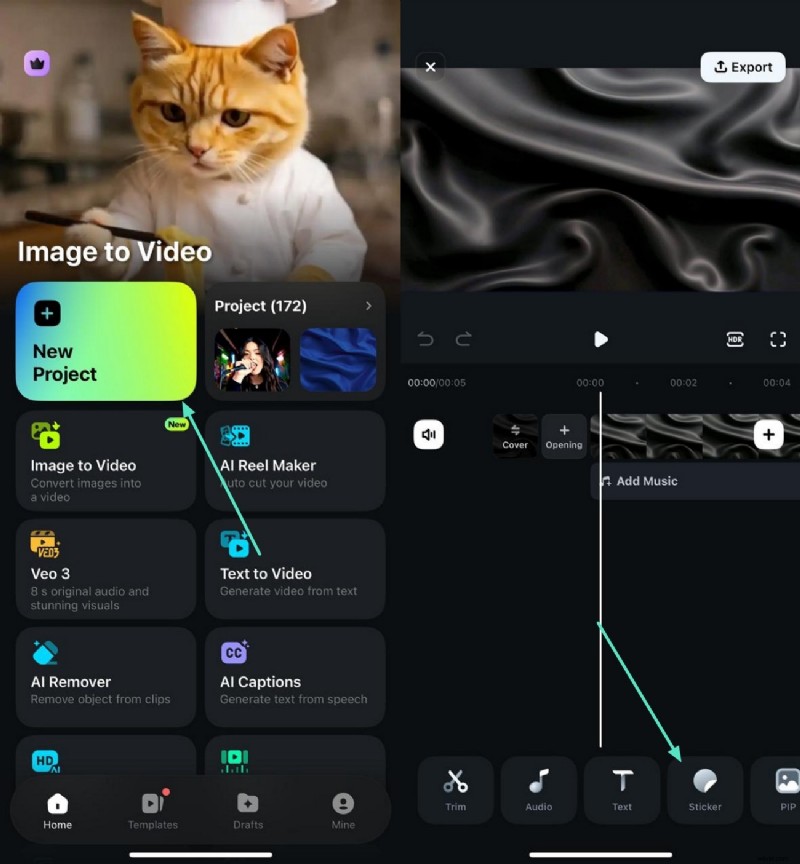
- Step 2. Choose the Relevant Sticker. From the library enabled at the bottom, choose the sticker relevant to the question and apply it to the media by tapping the "Tick" icon. Next, reposition the sticker according to your preference and press the "Export" button to save the results to your device.
Guide to Create and Add a Sticker Using Filmora Desktop
The desktop version of Filmora lets you create stickers using advanced AI by simply adding your text prompt. You can also access the sticker library to apply the predesigned stickers to your visual content.
Method 1. Create Stickers with AI Sticker
If you want to enhance your Ask Me a Question sticker story by adding realistic 3D stickers, you can use the AI sticker functionality offered by Filmora. You get the ability to add the text requirement and select the style from the different options provided. Follow the steps mentioned below to learn how to use this feature for generating high-quality stickers:
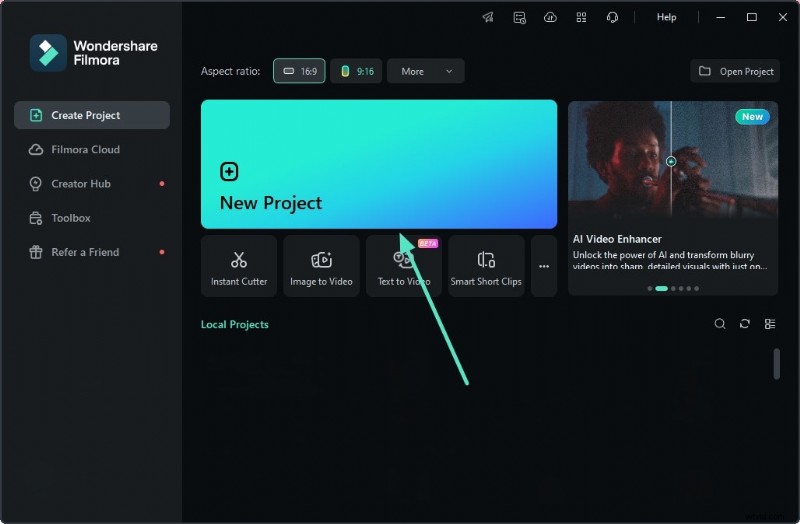
- Step 1. Create a New Project. After you have launched the tool on your device, access the homepage and tap the "New Project" option. Next, import the story to the tool's interface and drag it to the editing timeline to proceed.
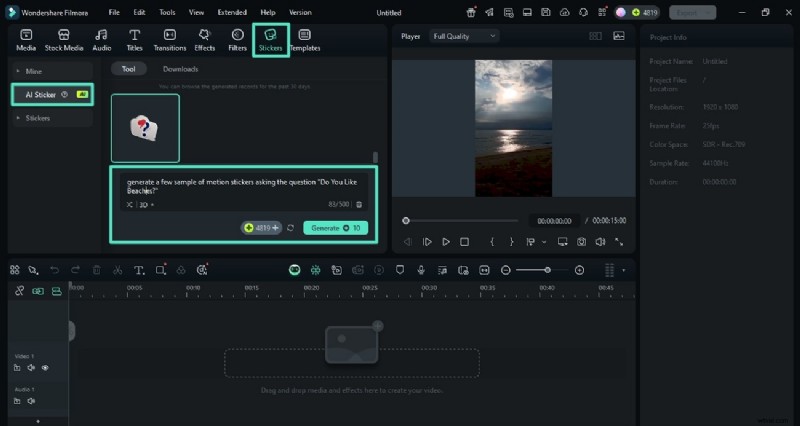
- Step 2. Access the AI Sticker Feature. In the following interface, access the "Stickers" option from the toolbar at the top. Next, access the "AI Sticker" section from the left and input the text requirement within the text field. Choose the style for your sticker and press the "Generate" button to execute the process.
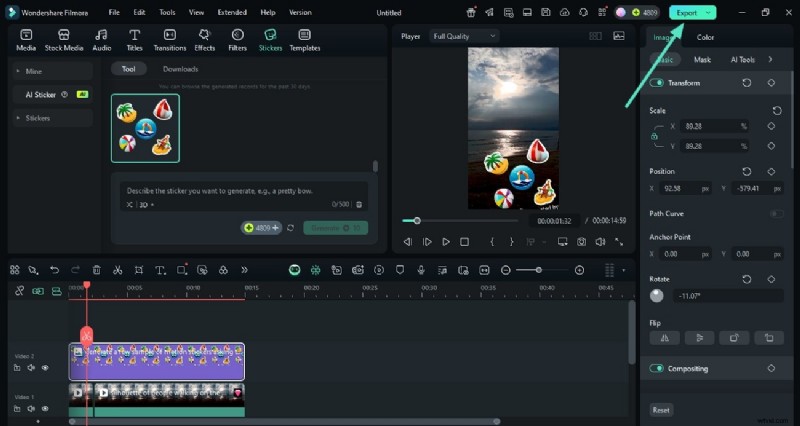
- Step 3. Modify the Sticker and Export. Once the sticker is generated, reposition it within the preview window and press the "Export" button located at the top right corner to save the results.
Method 2. Access Stickers Library
The desktop version of Filmora also offers an extensive sticker library for you to select from. Read the instructions mentioned below to add an Instagram question sticker to your video using this comprehensive tool:
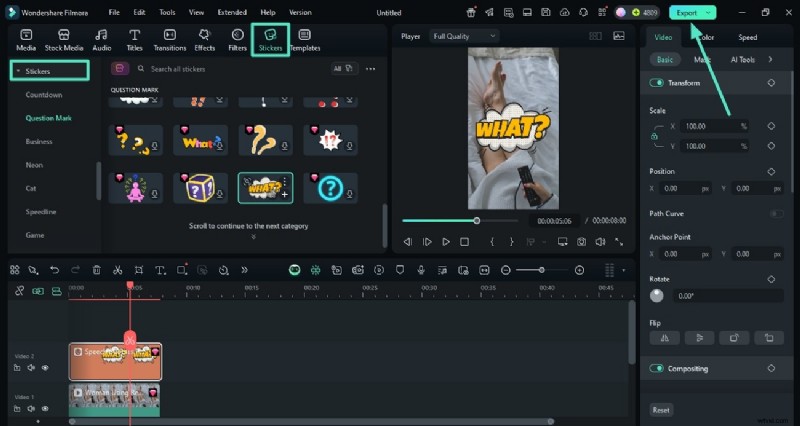
Instructions. After importing your video or image within the tool's interface, access the "Sticker" tab from the top toolbar. Proceed to the "Sticker" section from the left side and choose the category of your choice. Apply your desire sticker by pressing the + icon located on the thumbnail. Review the applied sticker and press the export button to save the results to your device.
Part 6. Tips for Using Instagram Question Stickers
Having discussed various ways to add and create stickers, let us explore some of the useful tips for using the Instagram questions sticker effectively:
- Keep Questions Clear and Simple: Try to avoid complex or long questions since the stickers have limited character space, you can simply ask shorter questions that are more likely to get a response.
- Customize the Sticker: Change the color of the sticker to match the style of your story and place it within the follower's view to tap without accidentally skipping the story.
- Respond to the Answers: Make sure to view and reply to the response you receive from the sticker question. Try to share the replies on your story with your answers to add a more personalized touch and boost the engagement.
- Try Different Question Formats: Use different styles of ask me question stickers, for instance, quizzes, pose, and this or that. This diversification keeps your story more fun and enhances the interaction with the followers.
Conclusion
To wrap it up, this article discussed the top ways on how to use Instagram story question stickers conveniently. The article also explored other ways to create and add stickers to your stories using Wondershare Filmora. This extensive tool allows you to generate personalized stickers along with a large library.