
Creating professional‑looking videos or podcasts often starts with combining an audio track with a video file. VLC Media Player, a free and open‑source tool, offers a reliable way to merge audio and video without the need for dedicated editing software.
VLC runs on Windows, macOS, Linux, Android and iOS, and is trusted by content creators worldwide. Beyond playback, it supports format conversion, screen recording, and, as we’ll see, audio‑video merging.

Step‑by‑Step: Merge Audio & Video in VLC
- Open VLC and select Media > Convert / Save.
- In the File tab, click Add… to load the video you wish to edit.
- Check Show more options at the bottom of the window.
- Check Play another media synchronously and click Browse to choose the audio file.
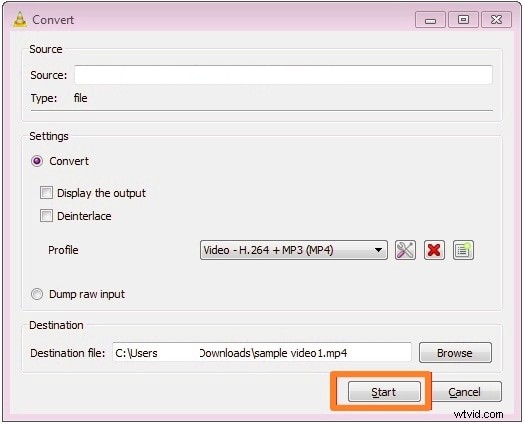
- Select the Convert radio button.
- Click Browse under Destination file and pick a folder and file name.
- Press Start to begin the merge. The combined file will be saved to the location you specified.
Why VLC Is a Great Choice
- Completely free and open source.
- Supports every major video and audio format.
- No watermark or licensing restrictions.
- Cross‑platform availability.
Alternative: Wondershare Filmora
If you’re looking to add more polish—effects, transitions, or audio editing—Filmora offers a richer feature set. It’s especially useful for YouTubers, podcasters, and social‑media creators who need a quick, intuitive editor.

Filmora Highlights
- Curated music library and sound effects.
- Speed control and beat‑sync tools.
- Filters, transitions, and keyframing.
- Direct publishing to YouTube, TikTok, Instagram, and Vimeo.
Merging Audio & Video in Filmora (Desktop)
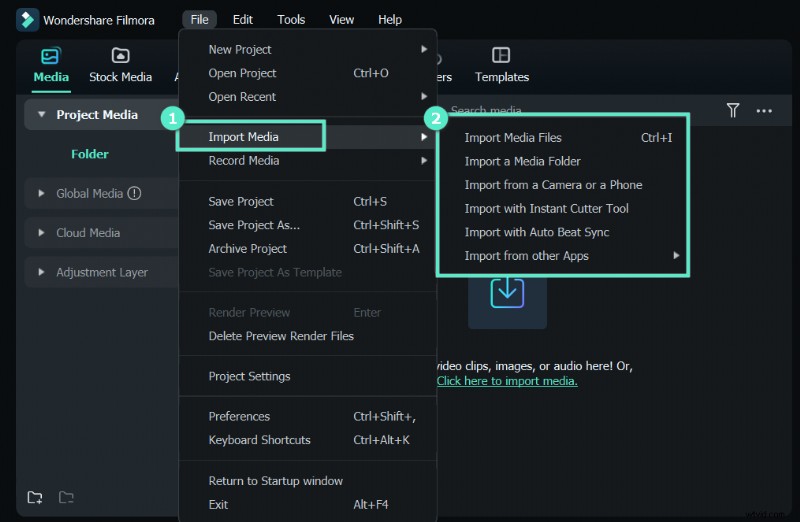
- Import your media by dragging files or clicking “Click here to import media.”
- Drag the video and audio clips onto the timeline; align them as needed.
- To replace the original audio, right‑click the video, choose Detach Audio, delete the extracted track, and add your new audio.
- Click Export, select your format, and hit Export again. You can also publish directly to YouTube.
Merging Audio & Video in Filmora Mobile
- Create a new project and import the video.
- Optionally, use Extract Audio to remove the original soundtrack.
- Navigate to Audio > Music and import or select a track from the library.
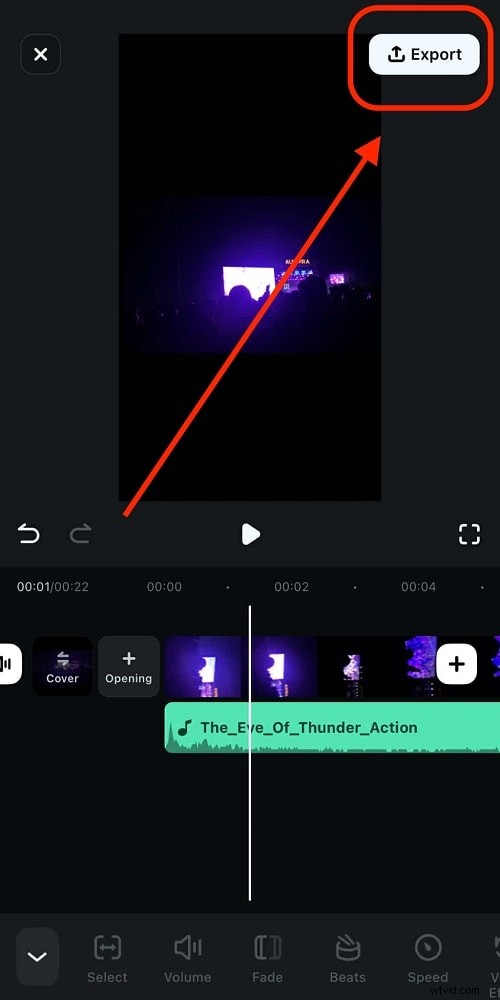
- Export the finished video.
VLC vs. Filmora – Which to Choose?
| VLC | Filmora | |
|---|---|---|
| Reviews (G2) | 5/5 – “Awesome all‑in‑one media player.” | 5/5 – “Excellent audio editing and detaching.” |
| Platforms | Windows, macOS, Linux, Android, iOS | Windows, macOS, Android, iOS |
| Price | Free (open source) | $49.99–$79.99 per year |
| Key Features | Playback, subtitles, filters, screen recording | Split‑screen, speed ramping, keyframing, beat sync, audio ducking, advanced effects |
VLC remains the top choice for straightforward playback and lightweight file conversion. If your goal is to produce polished, shareable videos, Filmora’s extensive editing toolkit offers a clearer path.
Conclusion
Whether you merge audio and video with VLC for simplicity or use Filmora for a full editing suite, both tools deliver high‑quality results. Choose the one that best fits your workflow and creative ambitions.