
In modern video storytelling, split-screen techniques allow creators to present multiple scenes or perspectives simultaneously, enriching narrative depth and engagement.
Part 1. What is Split Screen and Why It’s Useful
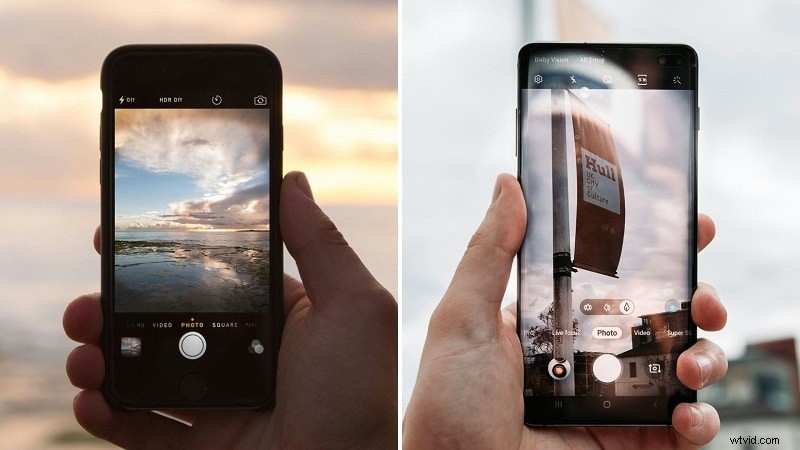
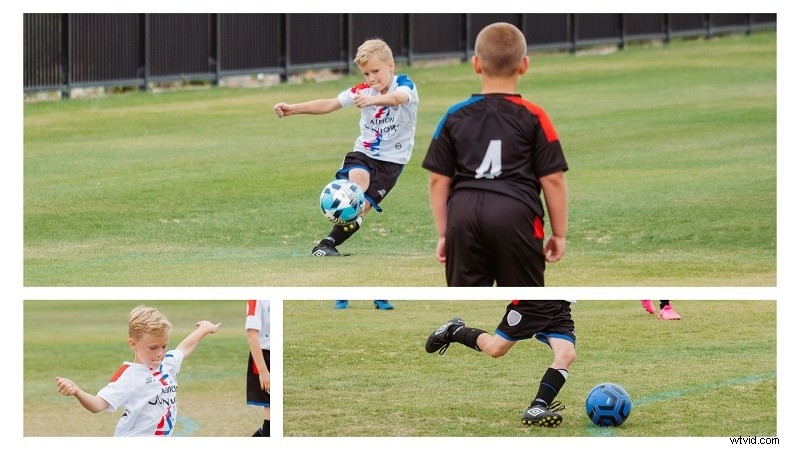
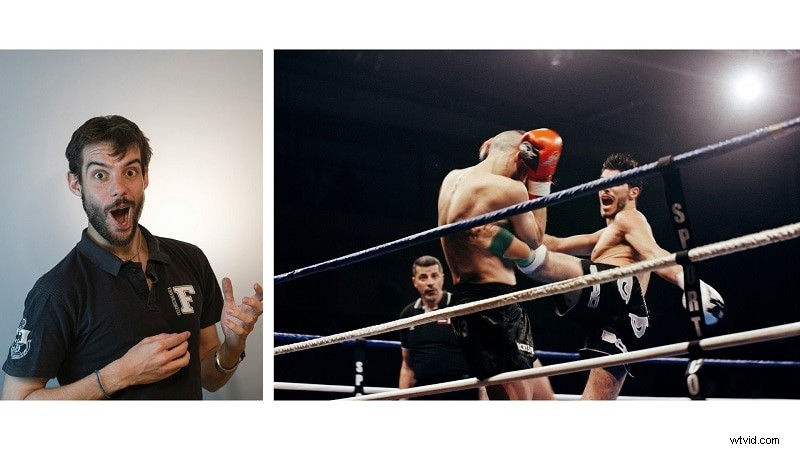
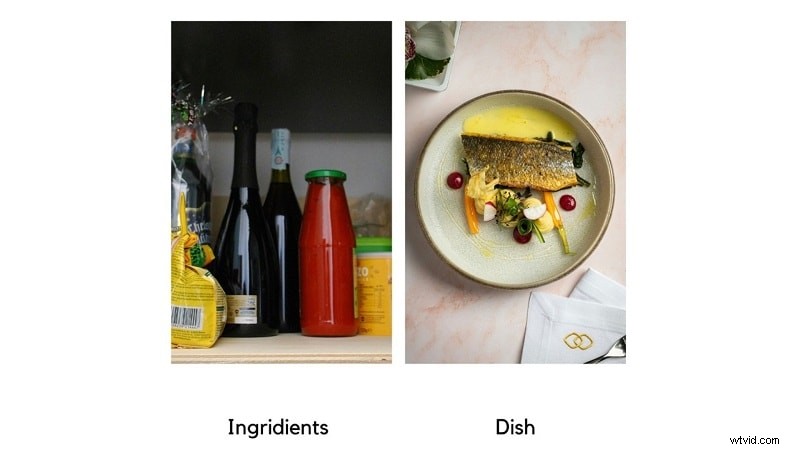
Split-screen divides the frame into distinct sections, enabling different clips to play at once. It adds complexity, clarity, and visual interest to videos.
- Comparing Products or Scenes – Show two or more items side by side for easy comparison.
- Showing Multiple Perspectives – Display varied viewpoints in a single frame.
- Enhancing Storytelling – Run parallel storylines or actions together.
- Tutorials – Demonstrate steps from different angles simultaneously.
- Highlighting Differences – Contrast urban vs. rural settings, etc.

Part 2. How to Implement Split Screen in Filmora
Filmora offers an intuitive split-screen workflow with over 250 templates, auto synchronization, and powerful editing tools.
- Choose from 250+ templates, displaying up to six scenes.
- Special effects templates for social media, gaming, vlogs, sports, and more.
- Compound Clip tools combine multiple clips into a single, manageable unit.
- Auto Synchronization aligns audio and video tracks automatically.
- Filters, effects, stickers, and AI Stickers for creative flair.
- Quick Split Mode speeds up the editing process.
Download Filmora from the official website. It runs on Windows and macOS. A free version is available; subscriptions start at $29.99.
Step 1: Import and Timeline Placement
Open Filmora, create a new project, and import your videos. Drag them onto the editing timeline.
Step 2: Auto-Synchronize Audio
Select video and audio tracks, then go to Tools > Auto Synchronization to align them.

Step 3: Choose a Split-Screen Preset
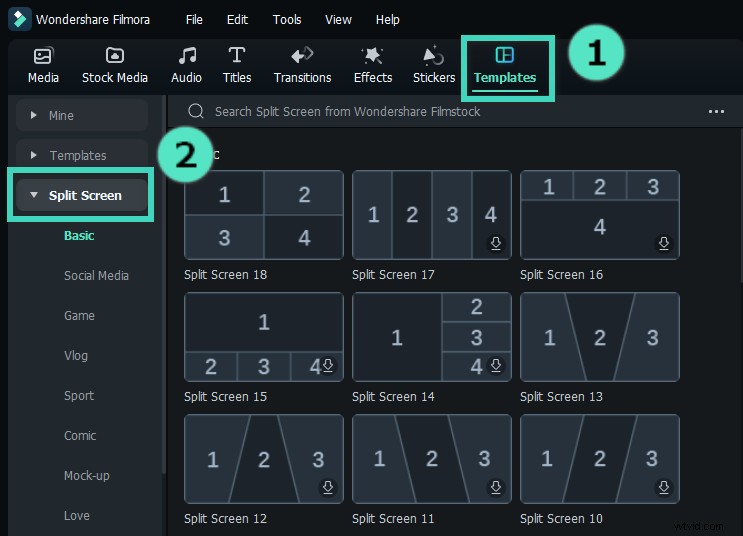
Navigate to Templates > Split Screen, preview layouts, and drag the chosen preset onto the timeline. Adjust duration as needed.
Step 4: Edit Borders and Layout
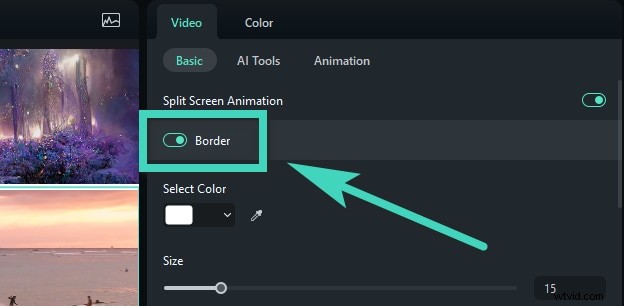
Enable Border in the Video tab, customize color and size, and adjust rotation, scale, or size of clips.
Step 5: Add Filters, Effects, and Stickers
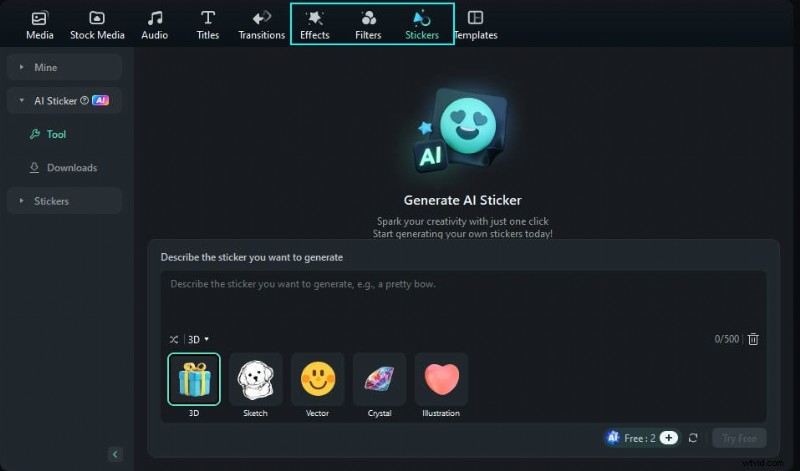
Apply overlays from the library and use AI Stickers to add custom, copyright‑safe graphics.
Part 3. Practical Tips and Tricks for Effective Split Screen Videos
- Plan Your Layout – Decide section count and clip placement for visual balance.
- Maintain Consistency – Use uniform colors, filters, and effects.
- Clear Borders – Define sections with distinct borders.
- Sync Audio – Ensure all tracks are harmonized.
- Test Templates – Explore different layouts to match your content.
Common Mistakes to Avoid
- Overcrowding the screen.
- Inconsistent video quality.
- Unequal audio levels.
- Mixed aspect ratios.
- Unfocused sections.
Conclusion
Split-screen storytelling is a versatile tool for comparison, contrast, and immersive narration. With Filmora’s user-friendly interface, auto synchronization, and creative assets, you can craft professional split-screen videos that captivate audiences.