
Ever shot a long‑form video and wished you could slice it into bite‑size, shareable clips? You don’t need a Hollywood‑grade editor to do that. With the right video trimmer app, anyone can trim, cut, and polish footage quickly and precisely.
This guide walks you through the essential features of a video trimmer, explains how to choose the right one for your workflow, and lists the best free and paid apps for 2026. Whether you’re a social‑media creator, a budding filmmaker, or just looking to shorten a family video, there’s an app here that fits your needs.
What Is a Video Trimmer App?
A video trimmer app is a post‑production tool that lets you shorten clips by setting new start and end points or by deleting unwanted segments. Some apps also allow you to extract portions to create entirely new videos.
These tools range from simple, single‑function utilities to comprehensive editors that offer transitions, overlays, and more. Understanding the difference helps you pick the best fit for your skill level and project goals.
How to Choose the Right Video Trimmer
Before downloading, consider these key factors:
Cost
Free apps often limit features or add watermarks, while paid versions unlock advanced tools and higher resolution export. Decide whether the added functionality justifies the price.
Compatibility
Identify your primary platform—iOS, Android, Windows, or macOS. Cross‑platform apps simplify collaboration, but a native app may offer smoother performance.
Features
Do you need basic trimming, or do you also want transitions, picture‑in‑picture, or AI‑powered editing? Match the app’s capabilities to your creative vision.
Skill Level
Some programs target beginners with intuitive drag‑and‑drop interfaces, while others cater to professionals with layered timelines and extensive effect libraries.
10 Best Video Trimmer Apps for 2026
Below is our curated list of the top free and paid trimmers, organized by platform and price tier.
Best Free Video Trimmer Apps
1. Riverside
Price: Free, Standard ($15/month), Pro ($24/month)
Compatibility: Windows, Mac, iOS, Android
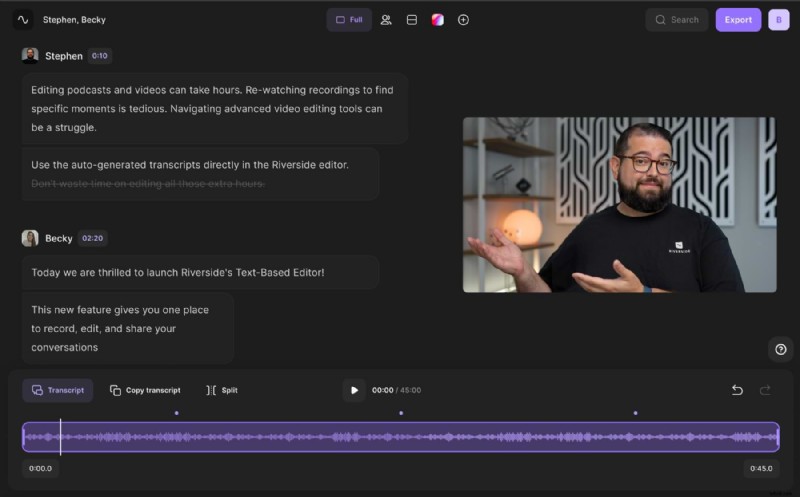
Riverside began as a recording platform but has evolved into a robust editor. Its trimmer removes sections effortlessly, and the AI‑driven “Magic Clips” feature automatically generates short‑form content from your recordings.
Pros
- AI‑generated short clips for social media
- Simple trimming tool that saves time
- One‑stop recording and editing workflow
- Customizable layouts, backgrounds, and 4K export
- Background noise removal and audio normalization
- Auto‑generated transcriptions for captions
Cons
- No built‑in transitions
- Free version adds a watermark
Best for: Social‑media snippets
2. PowerDirector
Price: Free
Compatibility: Mac, Windows
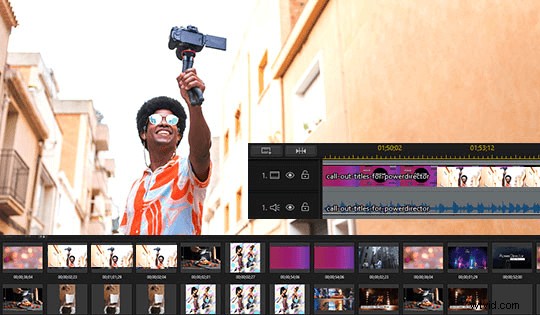
PowerDirector offers both a standard timeline and storyboard view, complete with a library of transitions, stickers, overlays, and film effects. Color correction and audio denoise are included.
Pros
- Extensive transition and effect library
- Audio and visual correction tools
- Full feature set available in the free tier
Cons
- Interface can be overwhelming for novices
Best for: Stylized video projects
3. Gihosoft Free Video Cutter
Price: Free
Compatibility: Mac, Windows
Designed for straightforward trimming, this app lets you set start and end times with a single click. It supports a wide range of file formats without re‑encoding.
Pros
- Supports multiple video formats
- Intuitive, no‑frills interface
- No re‑rendering required
Cons
- No advanced editing tools
- Does not merge clips
Best for: Quick, single‑clip trimming
4. Movavi Video Editor
Price: Free
Compatibility: Mac, Windows
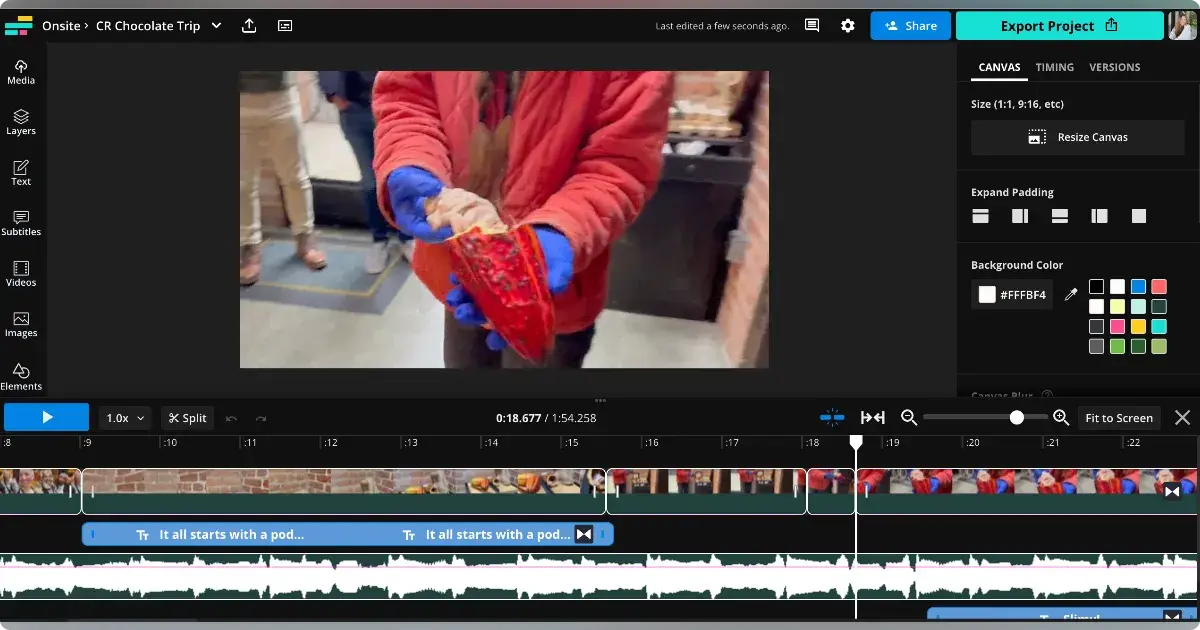
Movavi lets you use timeline markers to delete sections, crop, and add picture‑in‑picture overlays. It also offers free filters and transitions.
Pros
- Easy clipping and cropping tools
- Wide array of additional editing features
- Free filters and transitions available
Cons
- Watermark on free exports
- Limited advanced functions
Best for: Quick clip removal
5. Kapwing
Price: Free, Pro ($16/month)
Compatibility: Mac, Windows
Kapwing’s free tier allows up to 7‑minute clips and 3 hours of monthly editing. The Pro plan removes these limits and adds premium features. It’s ideal for collaborative projects.
Pros
- Team collaboration built‑in
- Auto‑subtitle generation
- Integration with Google Drive and other cloud services
Cons
- Occasional freezing during rendering
- Editing limits in the free version
Best for: Collaborative editing
6. Free Video Cutter

Price: Free
Compatibility: Mac, Windows
This desktop utility offers a straightforward “select start/end” workflow and lets you choose output format. It’s perfect for beginners who need a no‑fuss cutter.
Pros
- Supports a wide range of file types
- Beginner‑friendly interface
- Custom output format selection
Cons
- No additional editing features
- Precision cuts can be less accurate than advanced tools
Best for: Straightforward cutting
7. iTech Video Cutter

Price: Free
Compatibility: Mac, Windows
iTech Video Cutter is a reliable, time‑tested tool that lets you trim both video and audio. It keeps the original format and offers a clean, uncluttered interface.
Pros
- Multi‑format support, including audio
- Simple click‑to‑cut workflow
- Intuitive layout
Cons
- No format conversion feature
Best for: User‑friendly interface
8. Weeny Free Video Cutter
Price: Free
Compatibility: Windows
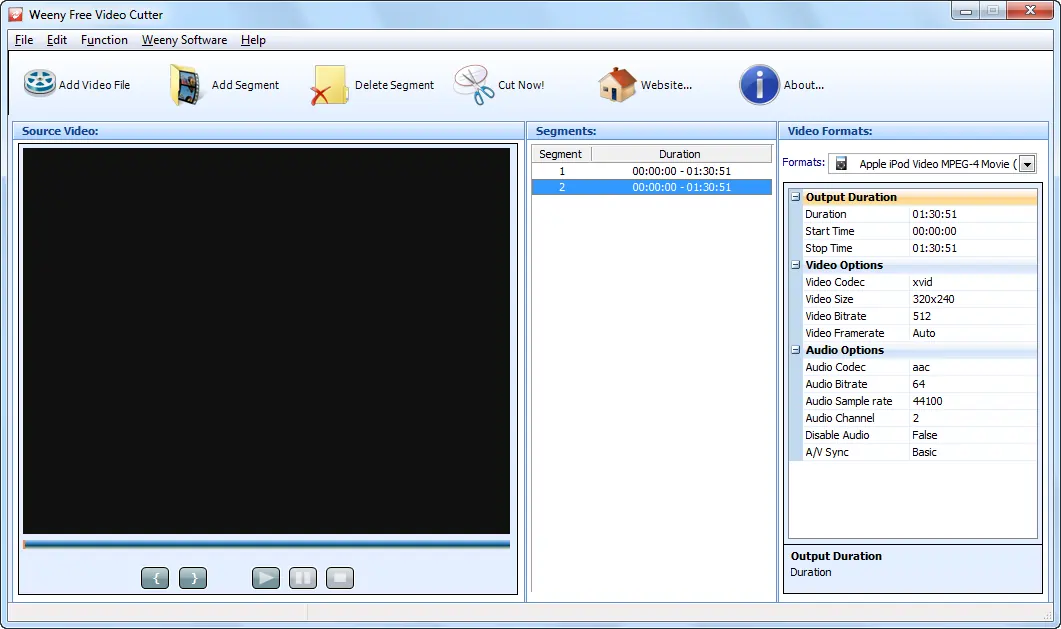
Weeny focuses on clip extraction and reordering, plus basic codec, bitrate, and frame‑rate adjustments. It’s lightweight but limited to Windows.
Pros
- Clip reordering capability
- Adjustable frame rate and bitrate
- Supports several file types
Cons
- Windows 7 or later only
- Scrolling can be unintuitive
Best for: Reordering trimmed clips
Best Paid Video Trimmer Apps
9. LumaFusion
Price: $29.99 (with in‑app purchases)
Compatibility: iOS
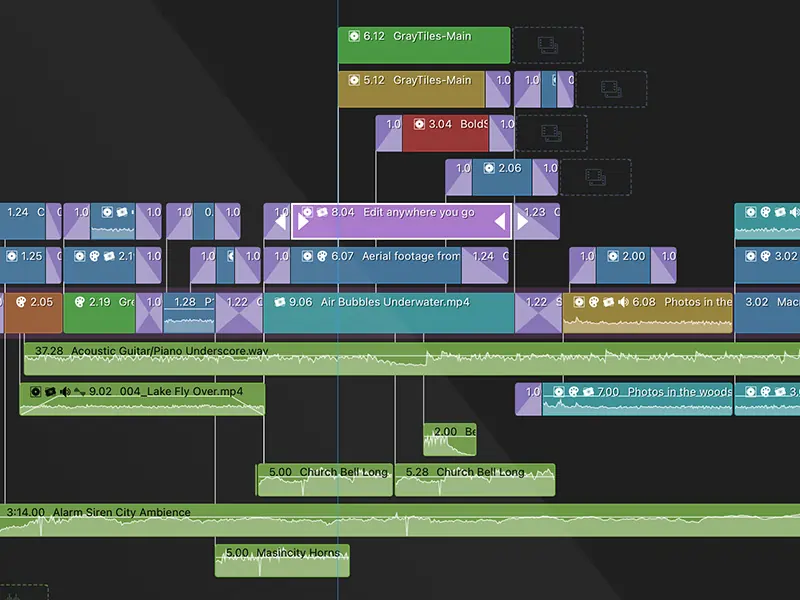
LumaFusion is the go‑to editor for mobile professionals. It supports 4K footage, offers a multitrack timeline, and includes a media browser and preview monitor.
Pros
- 4K resolution support
- Multitrack editing
- Comprehensive media management
Cons
- Only for iOS devices
- Feature overload for simple trimming
Best for: Mobile professional editing
10. Adobe Premiere Rush
Price: $9.99/month
Compatibility: iOS, Android, Windows, macOS
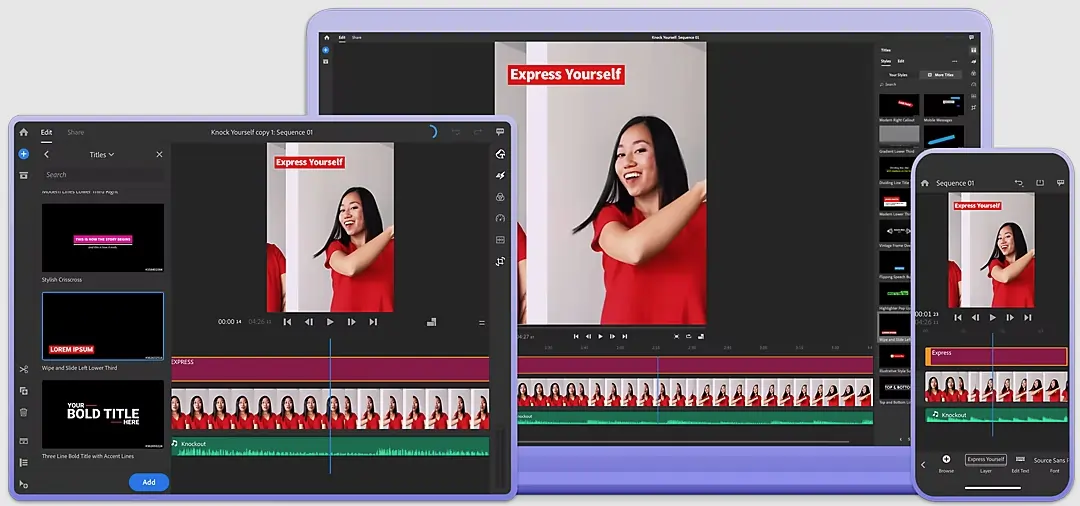
Adobe Premiere Rush delivers the familiar Adobe feel in a lightweight package. It offers precise trimming, custom transitions, color correction, and speed adjustments.
Pros
- Consistent with Adobe Creative Cloud ecosystem
- Professional cutting tools
- Wide range of editing features
Cons
- Higher price than many alternatives
- Steeper learning curve for non‑Adobe users
Best for: Professional editing on multiple platforms
Best Online Video Clip Trimmer: Riverside
For creators who thrive on short‑form content, Riverside’s “Clips” feature turns raw footage into ready‑to‑share snippets. The process is quick, requires no extra software, and leverages AI to identify key moments.
How to Trim a Video with Riverside
Step 1: Record your session in Riverside Studio and invite guests if needed.
Step 2: While recording, mark the moments you want to extract using the “Mark Clip” button.
Step 3: Stop the recording, let the files upload, then select “View Recordings” and choose the file to edit.
Step 4: Click “Edit and Create Clips” on the full recording or edit pre‑marked clips in the “Clip” section.
Step 5: Use the timeline to split, trim, and delete unwanted sections. The editor also offers layout, logo, and background customization.
Step 6: Export the finished video, selecting resolution, audio normalization, and background noise removal as needed. The final file will arrive via email.
Best Practices for Video Trimming
- Remove mistakes: Trim out errors quickly to keep your narrative smooth.
- Maintain pacing: Adjust cuts to preserve the story’s rhythm.
- Keep cuts tight: Set clean start and end points to avoid jitter.
- Take breaks: Return with fresh eyes for more objective edits.
FAQs on Video Trimmer Apps
How do I trim part of a video?
Most apps let you select a start and end point, then export the trimmed segment. The exact steps vary by software.
Which app can I use to trim a video?
Riverside’s Clips, Adobe Premiere Rush, LumaFusion, Gihosoft Free Video Cutter, and many others provide trimming capabilities. Choose based on platform and feature needs.
How do I reduce a video’s length?
Use a trusted video trimmer to cut sections you don’t need. Select the portion, then export the trimmed clip.
How do you trim video on iPhone?
iPhone’s built‑in Photos app offers basic trimming: open the video, tap “Edit,” adjust the sliders, then tap “Done.” For advanced edits, explore dedicated iOS apps.