
How to Create Anime‑Style Fight Scenes
Elevate a standard combat clip by adding anime‑inspired visual effects. Follow these concise steps to turn ordinary gameplay into a cinematic showdown.
Tool
Transcript
00:29 – Record your favorite game footage and import it into Filmora 11. Highlight the most impactful moments and sync them with music and effects.
00:48 – Drag the clip onto the timeline. Scan for epic sections, and skip non‑essential gameplay. Preserve any dialogue that adds narrative depth.
00:56 – Mark the exact timestamps you want to edit. Trim long segments to a few seconds or isolate the middle portion to create a tighter montage.
01:44 – Remove filler segments and split the video into distinct sections as needed.
02:25 – Pair the segments with music. Navigate to Audio > Electronic and place your chosen track beneath the footage.
02:34 – Align the beat drop with the start of the fight. Disable ripple to keep the audio from jumping to the timeline’s beginning.
02:42 – Preview the synchronized audio and video in full‑screen mode to ensure timing is spot‑on.
03:32 – Isolate any excess audio, lower its opacity to zero, and keep only the desired soundtrack.
04:13 – Identify the segment for slow motion. Split at the start and end points, then select Time > Speed > Uniform Speed and reduce speed to 0.60.
05:00 – A higher FPS yields smoother slow motion. Record at 30 FPS or higher for best results.
06:12 – Apply a fast‑forward effect to the next section by setting speed to 1.30 or 1.40 as desired. Match intense music to the action.
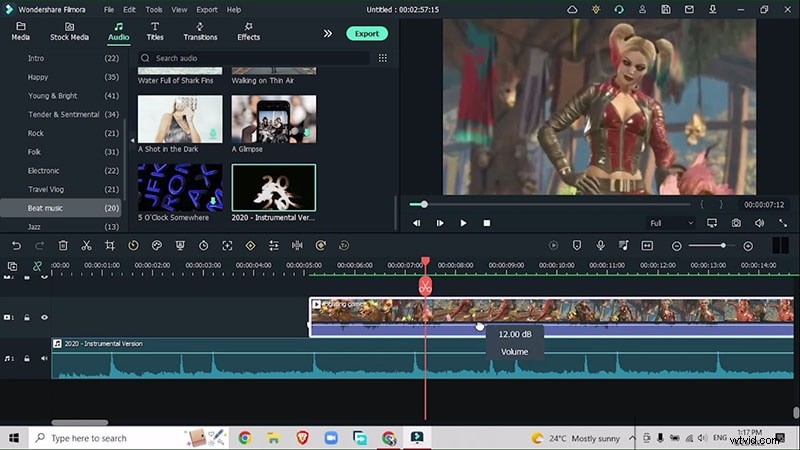
06:33 – Insert the 2020 Instrumental version in the beat‑drop section, extending its duration to match the visual tempo.
06:50 – Mark points for zoom transitions, split the clip accordingly, and adjust X/Y scale to keep visuals cohesive.
07:05 – Use keyframes to smoothly transition between slow and fast segments.
07:48 – Scale adjustments: match percentage on X and Y scales across segments; reset to 100% when zooming out.
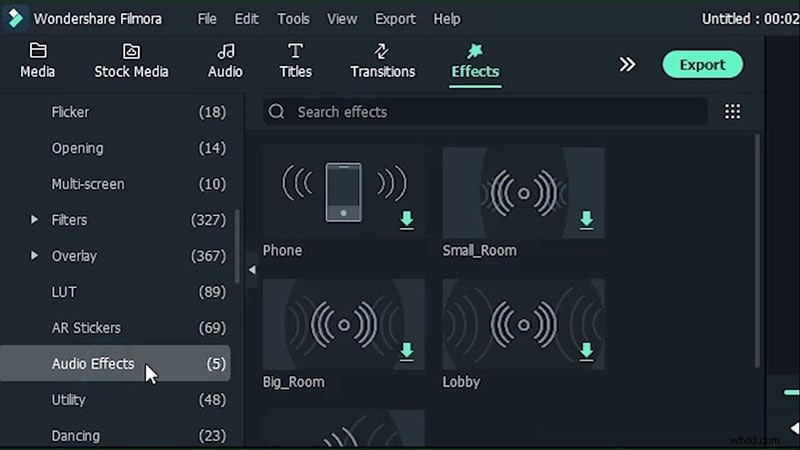
08:13 – Boost dialogue volume and apply audio effects from the Audio Effects menu to enhance clarity.
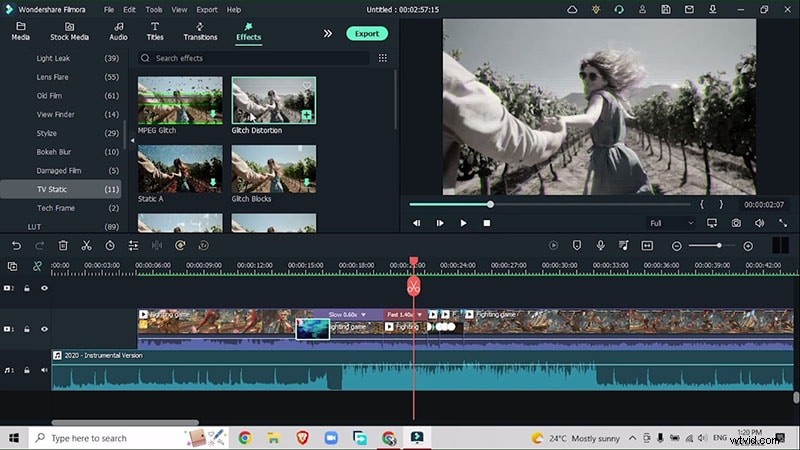
08:28 – Insert a custom transition to link the clipped sections, creating a polished flow.
08:41 – Select a transition that complements the montage’s energy.
08:53 – Add visual effects like zooms or glints from the Effects menu to accentuate key moments.
09:30 – A well‑crafted montage draws viewers in. Carefully choose music and effects that resonate with the game’s atmosphere.
Make Slow Motion Video for Game Montage
Preparation
What you need:
- A Windows or macOS computer
- Your gameplay footage
- Filmora video editor (latest version)
Step 1 – Download and Install Filmora
Install the latest Filmora release on your OS. The editor supports both Windows and macOS.
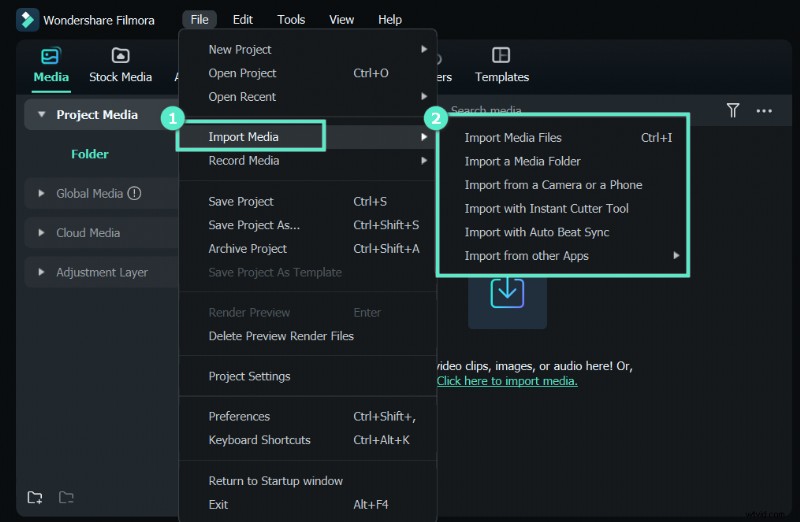
Step 2 – Record and Import Video
Launch Filmora, capture a clip from your chosen game, and import it into the timeline. Highlight key moments—dialogue, combo strikes, or pivotal battles—and split the clip at those markers.
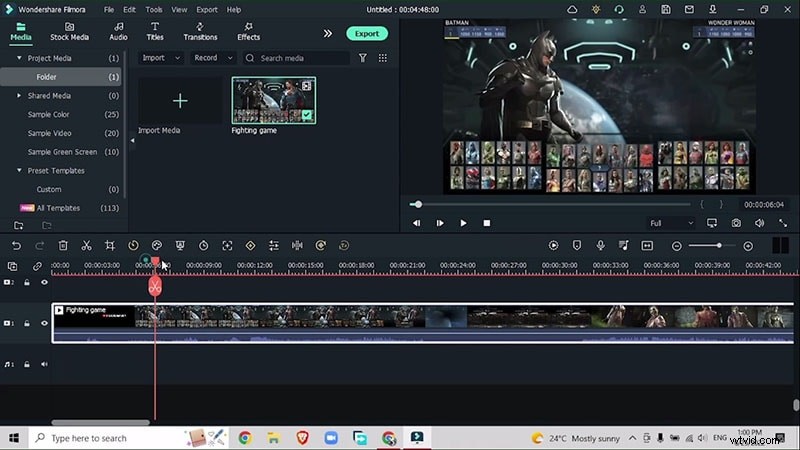
Trim unnecessary footage to produce two concise segments.
Step 3 – Pair Video with Music
Navigate to Audio > Electronic, choose a track like "I Was Born Ready," and drag it beneath the gameplay layer.
Align beat drops with combat starts and disable ripple to maintain sync.

Adjust volume for laughter or commentary sections, lowering opacity to zero if only audio is desired.
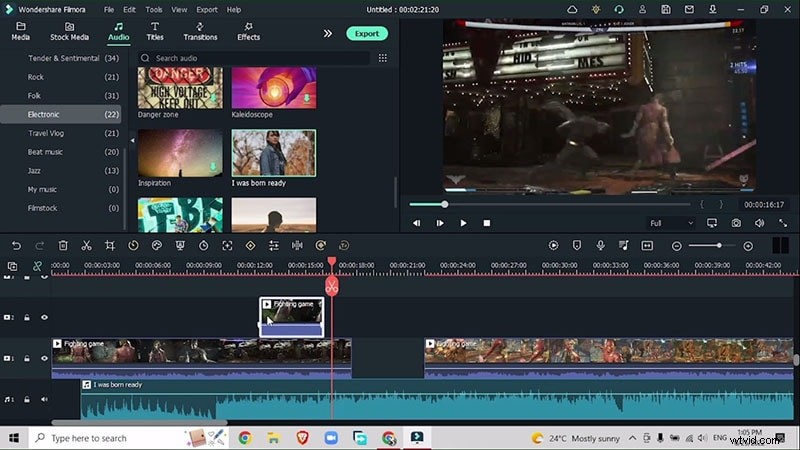
Step 4 – Add Slow Motion Effect
Mark the slow‑motion window, then choose Time > Speed > Uniform Speed and set speed to 0.60.
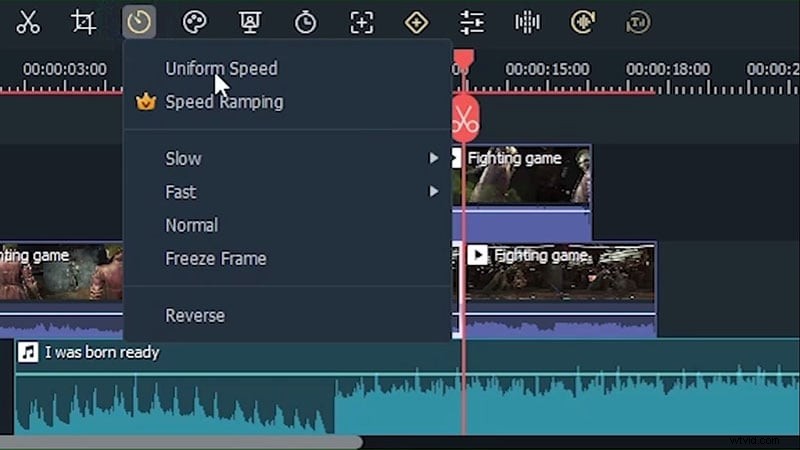
Higher FPS yields smoother slow motion; aim for 30 FPS or more.
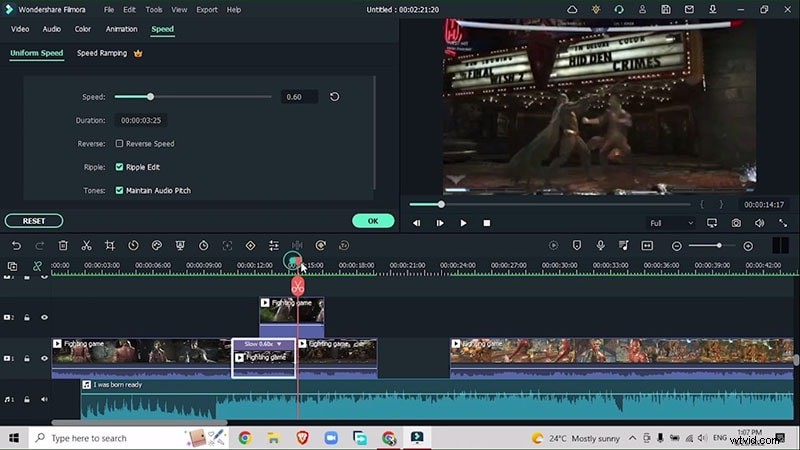
Apply similar speed adjustments to other segments as needed.
Step 5 – Add Audio Enhancements
Select a track from Audio > Beat Music > 2020 Instrumental Version that syncs with gameplay beats. Match audio to beat drops and adjust volume for dialogue highlights.
Step 6 – Add Additional Effects
Use Effects > Audio Effects > Lobby Effect or similar to add echo to dialogue. Remove middle segments if they distract from the flow.
Step 7 – Add Transitions
Insert transitions like Glitch Distortion from Effects > Glitch to link sections and enhance visual drama.
Summary
Slow‑motion accents spotlight crucial moments, adding cinematic flair to your montage. Coupled with fitting audio and effects, it transforms standard gameplay into a captivating visual story.