
Advanced Techniques for News Channel Animations
With Filmora 13’s intuitive interface and AI‑powered features, you can produce high‑quality news videos without a hefty budget or a team of editors. This guide walks you through every step—from selecting a polished intro to layering AI‑generated backgrounds and dynamic graphics—so you can launch a compelling news channel in minutes.
Step 1: Choose a Professional News Broadcast Intro
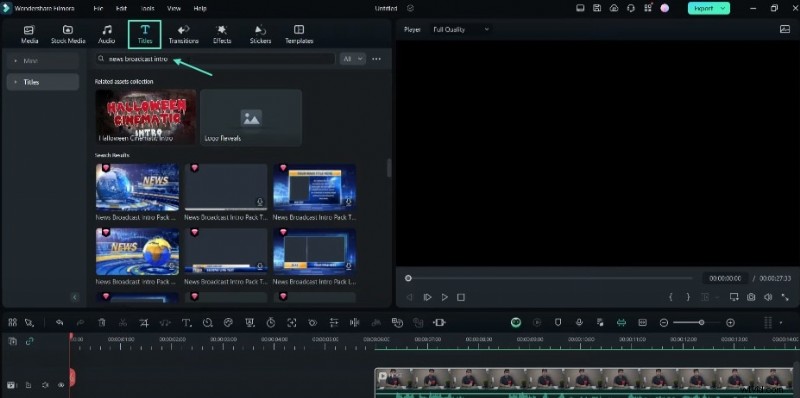
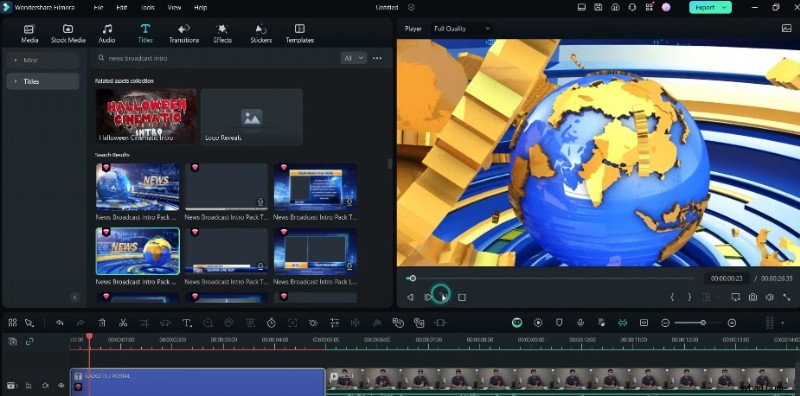
Navigate to the Titles tab and search for “news broadcast intro.” Browse the curated selection of pre‑made intros, then drag your chosen clip onto the timeline. Double‑click to edit the text and align it with your channel’s branding.
Step 2: Record Your Newscast Against a Solid or Green Screen
Position yourself in front of a neutral wall or a green screen. This setup simplifies background removal and lends a polished look to your footage.
Step 3: Remove the Background with AI Tools
Filmora offers several AI utilities:
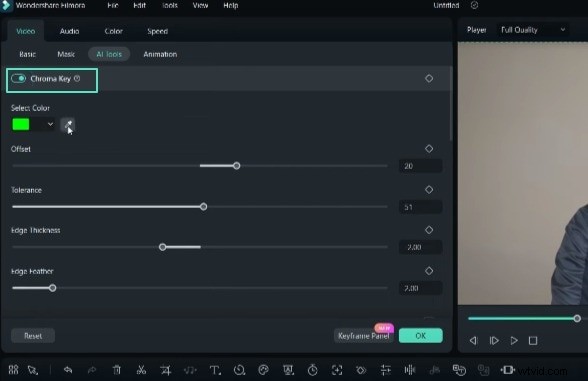
- Chroma Key – ideal for green‑screen footage.
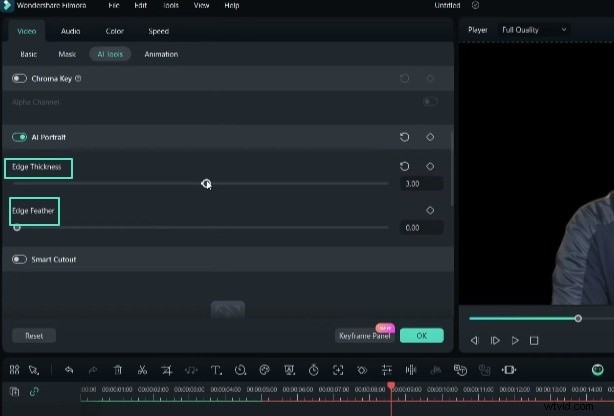
- AI Portrait – instantly isolates the subject with a single click.
- Smart Cutout – manually define the area to preserve when the background is cluttered.
Step 4: Add a News‑Ready Background
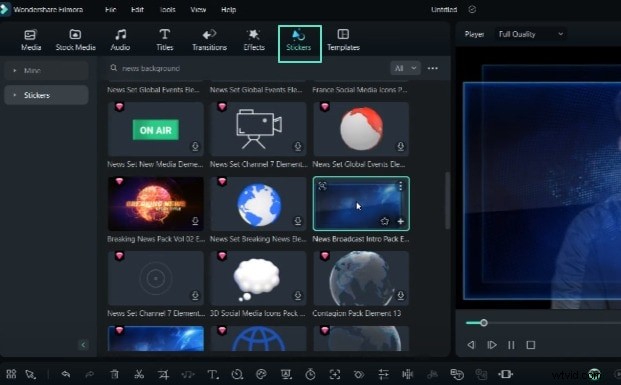
Open the Stickers menu and search for “news backgrounds.” Choose a backdrop that complements your segment’s tone, then drag it onto the timeline beneath your clipped footage.
Step 5: Insert News Titles and Graphics
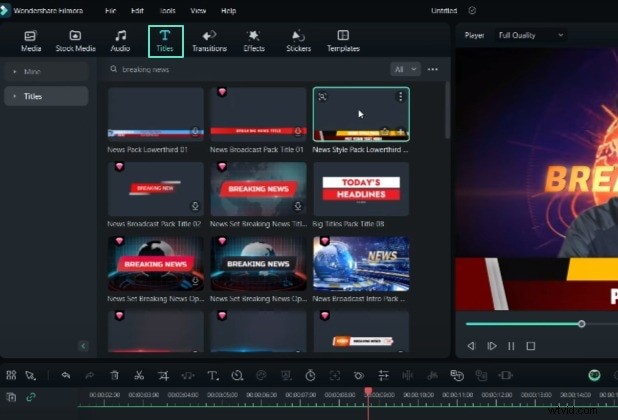
Search for “news titles” to access high‑quality title animations. Drag your preferred graphics onto the timeline and customize the text to match your story.
Step 6: Enhance with Picture‑in‑Picture or Split‑Screen
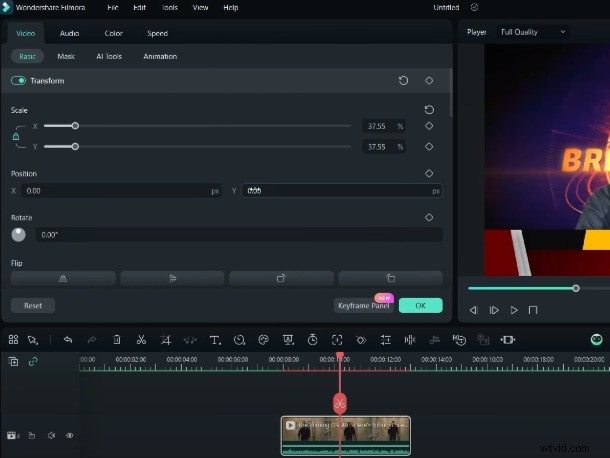
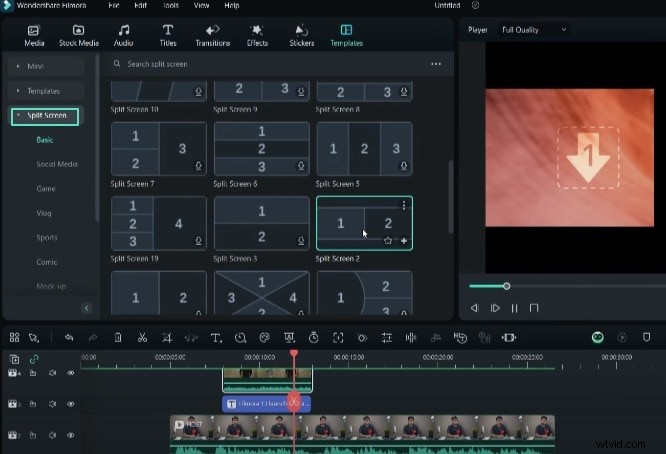
For a dynamic layout, use Picture‑in‑Picture (PIP): drag a clip onto the timeline, crop, resize, and position it in a corner. Alternatively, select a split‑screen template from the Templates menu to showcase debates, interviews, or live field reports.
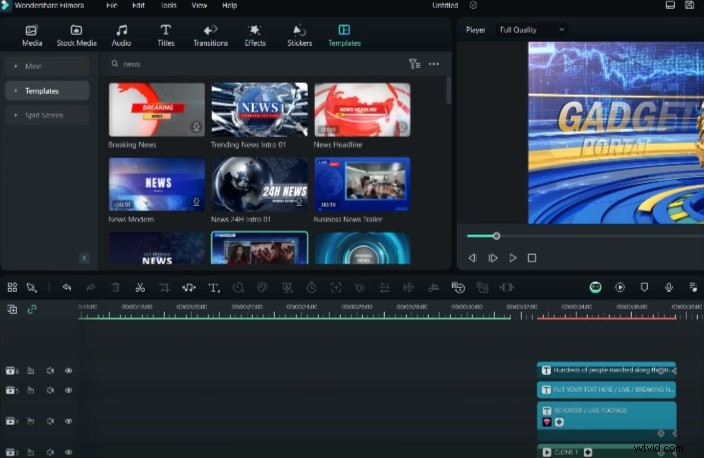
Step 7: Leverage Ready‑to‑Use News Templates
Filmora’s extensive library of news templates saves editing time and sparks creativity. Drop a template onto the timeline, replace placeholder footage and titles, and instantly obtain a professional layout.

Step 8: Polish and Finalize Your Production
Review the assembled elements—footage, backgrounds, titles, and effects. Refine timing, add transitions, and consider background music or sound effects to elevate viewer engagement.
With Filmora 13’s AI‑assisted workflow, creating a polished news channel is faster and more accessible than ever. For additional tutorials, visit the Filmora Creator Hub.