
REC

Recommended: Video Production, Editing & Gear Maintenance Guide

 WTVID >> WTVID >  >> video >> Video Ideas

How to Create a Professional End Screen for Social Media Using Filmora

Before you start, gather your materials and install Filmora.

  • Computer (Windows or macOS)
  • Video clips and branding assets
  • Wondershare Filmora

Step 1 – Start a New Project

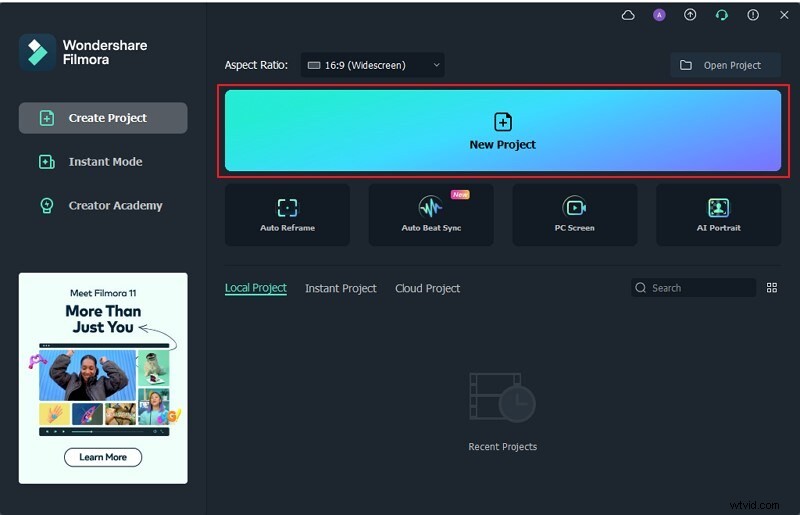
Open Filmora and click New Project to begin. A fresh timeline will appear ready for your edits.
How to Create a Professional End Screen for Social Media Using Filmora

Step 2 – Choose an End‑Screen Template

Navigate to the Titles tab and search for “End Screen.” Drag the template that best matches your branding into the timeline.

How to Create a Professional End Screen for Social Media Using Filmora

Step 3 – Add Your Channel Avatar

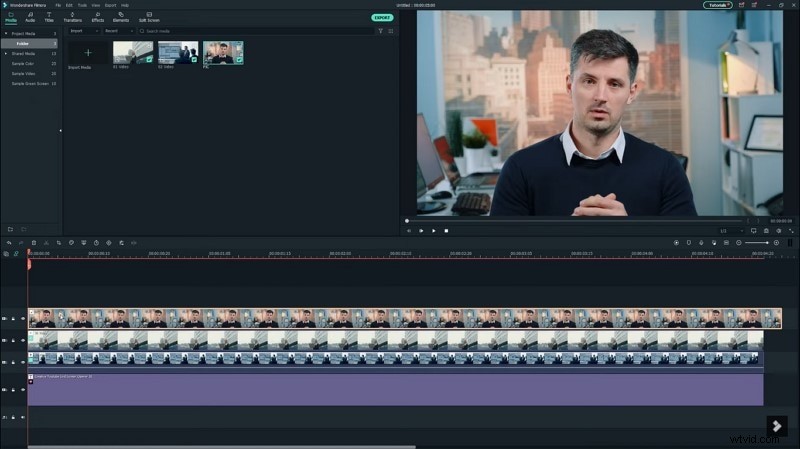
Place your channel avatar on a new track. Adjust its duration to match the length you want it displayed.
How to Create a Professional End Screen for Social Media Using Filmora

Step 4 – Apply a Mask Effect

In the Effects panel, search for “Mask.” Drag the chosen effect onto the timeline and tweak the settings to align with your template.

How to Create a Professional End Screen for Social Media Using Filmora

Step 5 – Insert Social Media Handles

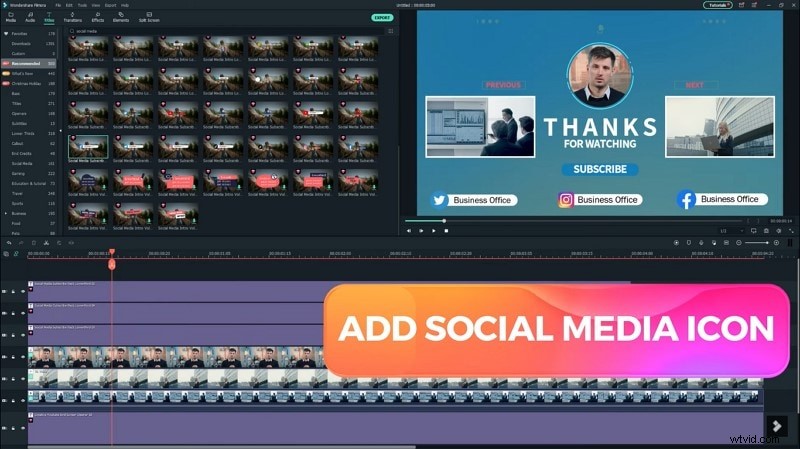
Return to Titles, search for “social media,” and add the relevant icons or text. Replace the placeholder titles with your own handles.
How to Create a Professional End Screen for Social Media Using Filmora

With these steps complete, you’ll have a polished end screen that promotes your channel and social media presence.

  1. Step-by-Step Guide: Create Stunning Animated Shorts in Unreal Engine 5

  2. February Social Media Content Calendar: Ideas & Inspiration

  3. Create Stunning Magic Portal Effects in Filmora: A Step‑by‑Step Guide

  4. Essential Motion Graphics Mastery: What Every Video Editor Must Know

  5. Ridley Scott's Hand-Drawn Storyboards: A Masterclass in Cinematic Storytelling

Video Ideas
  1. 20 Essential Facebook Video Marketing Statistics to Dominate in 2022

  2. Essential Skills Every Aspiring Travel Photographer Needs to Succeed

  3. Master Photographic Minimalism: Tips from David Fokos

  4. How to Add Gridlines to Photos Easily in Windows Paint & Paint 3D

  5. DIY Stop Motion Animation: What It Is & How to Create It at Home

  6. Video Post-Production Explained: Key Steps from Raw Footage to Polished Masterpiece

  7. How Focal Length Transforms Facial Proportions in Portrait Photography

  8. Master Bokeh: Expert Tips for Stunning Blurred Backgrounds in Portrait Photography