
AVID media composer remains one of the most widely used video platforms. But when you want to import an SRT subtitle file into AVID it requires a bit of editing.
1 – Two formats supported, STL (EBU) and TXT
Do you have .srt subtitle files and want to integrate them into AVID?
AVID supports only these two subtitle formats, the STL (EBU) format and the TXT format with a very precise structure.
You might have trouble when converting to the STL format, so you should better use the TXT format instead.
2 – A TXT format with a special structure
This is what an AVID-compatible TXT subtitle file looks like.
00:01:36:24 00:01:38:04 This is professional work.
00:01:38:06 00:01:39:05 It tastes fantastic.
00:01:39:05 00:01:40:19 Thanks very much.
It may look very similar to an SRT or ATV format, but the big difference is in the last 3 digits of the “Time Codes”.
For the SRT or VTT format these last 3 digits are in micro seconds (ms) whereas in the AVID TXT file this represents the number of frames.
So if you are on a 25 frames per second video (frame per second) you should have a number in 0 and 24 in the TXT file.
You understand that it’s quite tedious to make a manual modification to convert ms to frames/sec…
3 – A handy tool to convert your SRT file to AVID compatible TXT format.
The magic tool to convert an SRT subtitle to TXT AVID format is https://www.nikse.dk/SubtitleEdit/Online .
With this tool you can easily convert your SRT file to AVID TXT format.
Here’s how to import an SRT into AVID:
1 – You have to import your SRT file :
Subtiles > Open… > Select your SRT file
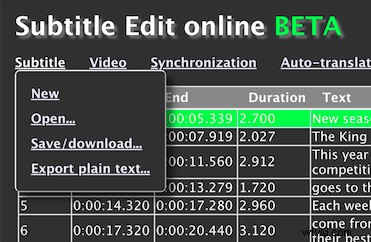
2 – And then you have to save your project in AVID txt format.
Subtile > Save/download…
3 – Select the Avid Caption format (.txt)
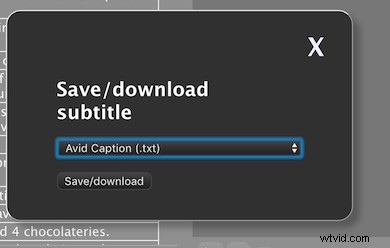
There you go.
4 – You can then import this file in AVID thanks to SubCap.
I hope this article will save you time in your subtitling projects with AVID.