
"How can I record my phone screen?" If you also come up with this query, you've come to the right place. In this post, we'll share the most common and most usable methods for recording the screen on your phone.
In this article
-
- How to Record on Phone Screen Using Android Built-in Recorder?
- How to Record on Phone Screen Using iPhone Built-in Recorder?
-
- Record iPhone Screen With Third-Party App: Go Record
- Record Android Screen With Third Party App: XRecorder
Record the Screen on Your Phone Using Built-in Recorders
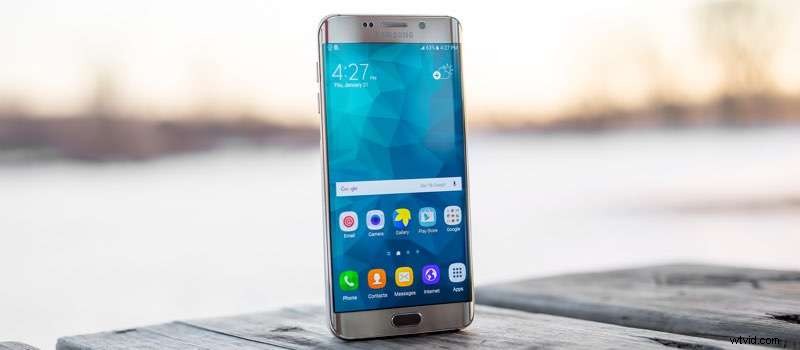
You never know when you might want to record something on your phone's screen. Luckily, both Android and iPhone smartphones have built-in screen recording options you can always use. Even though they don't offer the best quality, features, or versatility, they can still do a pretty good job recording your screen. Let's know how to record phone screens using the built-in recorders.
How to Record on Phone Screen Using Android Built-in Recorder?
Android users had to use third-party apps to record their screens for a long time. However, Android decided to deal with this issue in 2020 when they released Android 11 with a built-in screen recorder. Here's how to use it:
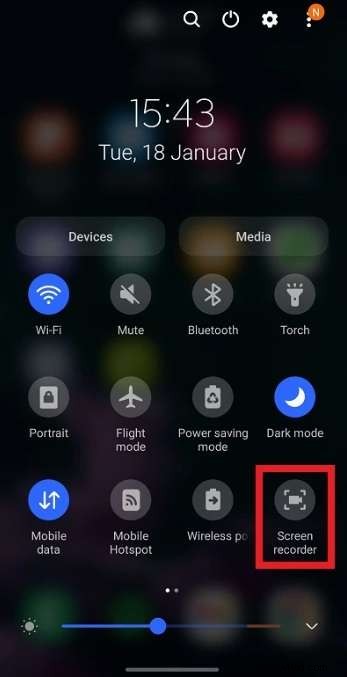
- Swipe down from the top of the screen to access Quick Settings, where the recorder is located.

- Tap on the Screen recorder icon to start recording. If the icon is gray before tapping, the screen recorder isn't working. If it's blue, your screen recording has already been enabled.
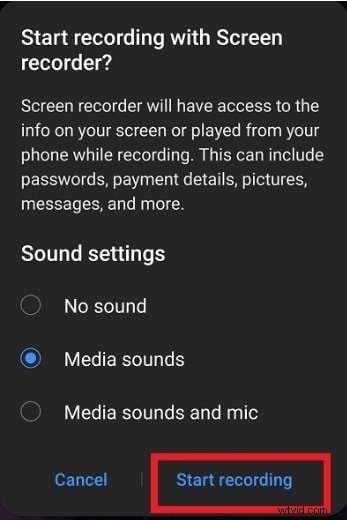
- If you're recording for the first time, you must grant permission to the recorder. You can select No Sound, Media Sounds, or Media Sounds and Mic. When ready, tap Start recording.
- Once the recording has started, a small toolbar will appear. You can use it to draw on the screen, pause recording, or stop recording.

How to Record on Phone Screen Using iPhone Built-in Recorder?
iPhone devices also have a built-in screen recorder. This feature was first introduced in iOS 11 in 2017, but many people still don't know it exists because you must activate it before using it. Here's how you can use the built-in screen recorder on your iPhone:
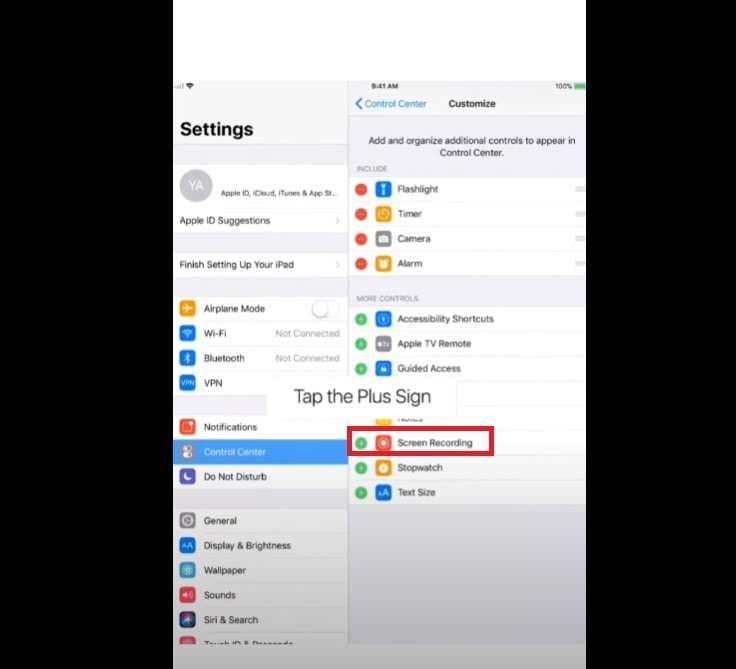
- To enable screen recording, go to Settings and tap Control Center.
- Locate Screen Recording and tap on it to enable it.

- Once you've enabled screen recording, swipe down to open the Control Center and tap the Screen Recording button. It will start with a countdown, and screen recording will start.
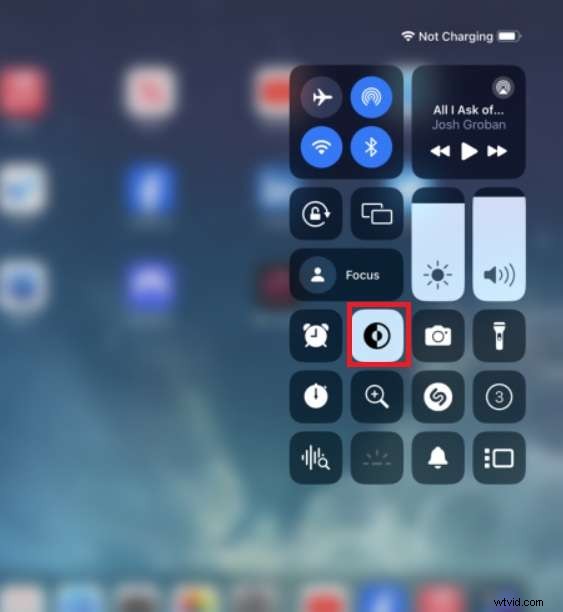
- Alternatively, you can hold the Screen Recording button for additional recording options. Once you're ready, tap Start Recording, and the countdown will start.

Record Phone Screen Using Third-Party Apps
Even though the built-in screen recorders are pretty good, they still lack some features. If you think they aren't good enough, you can use a third-party app to record your Android or iPhone screen. We picked Go Record and X Record as examples of how to record with a third-party app:
Record iPhone Screen With Third-Party App: Go Record
Go Record is just your typical iPhone recording app. However, we picked it because you can use it to record directly from your control center, like with the built-in recorder. All of your recordings will be saved within the app. Here are the steps you should follow:
- The first step is to activate screen recording on your iPhone.
- Go to Settings on your iPhone.
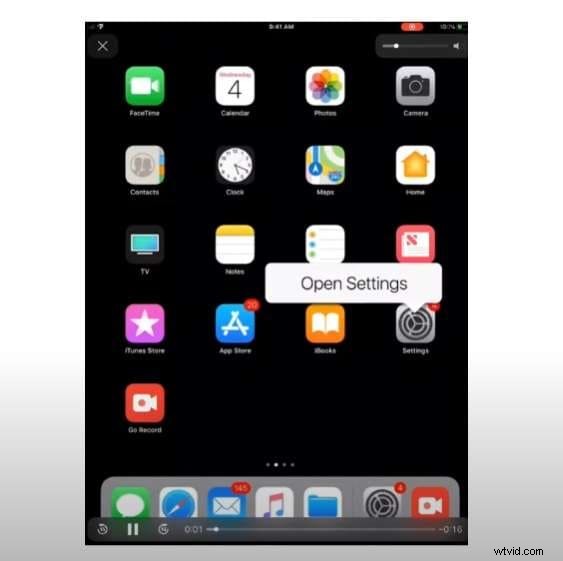
- Tap Control Center, then Customize, and tap Screen Recording.
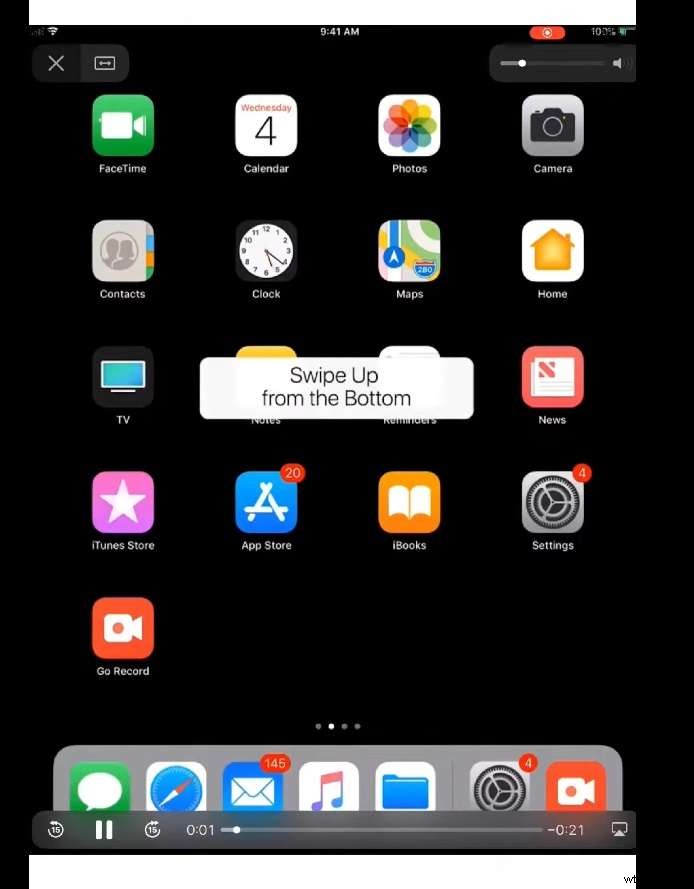
- Swipe up to open the Control Center.
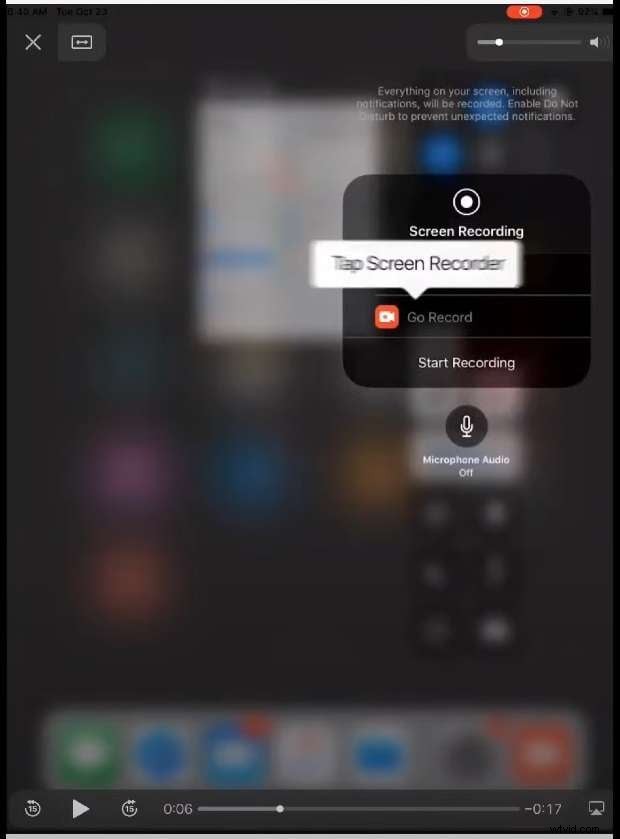
- Tap and hold the Recording button.

- Select Go Record and tap Start Recording.
- Tap the red line on top of the screen to stop recording.
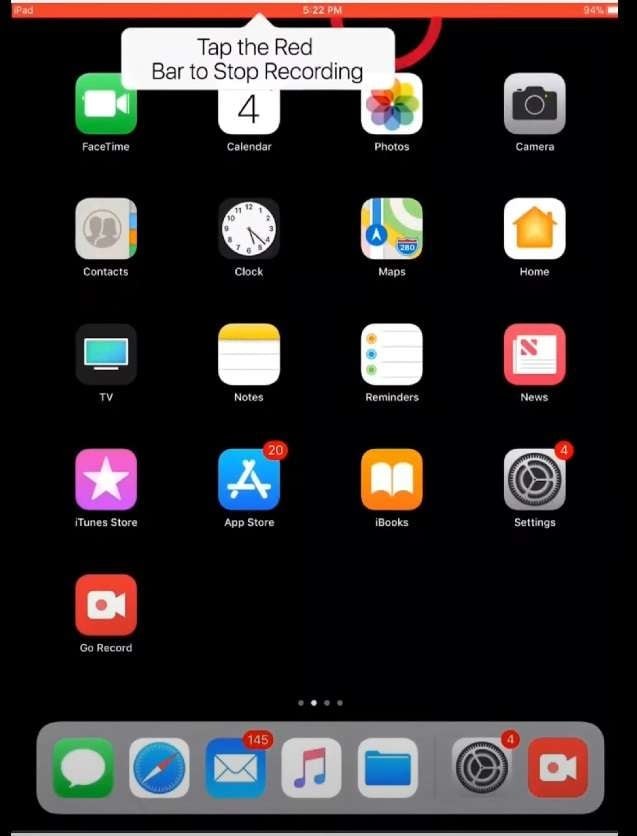
Learn more screen recorders for iPhone.
Record Android Screen With Third Party App: XRecorder
XRecorder is a versatile Android app with various customizations and settings you can use to optimize your screen recording experience. After installing the app on your phone, follow these steps to record your screen:
- Tap on the app to open it.
- Tap on the settings icon in the bottom right corner.
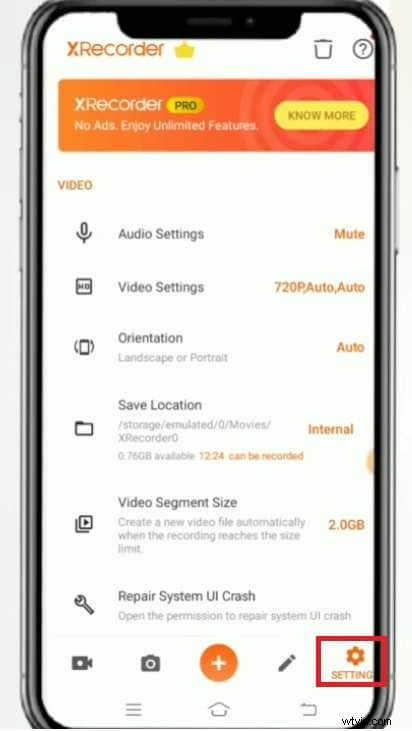
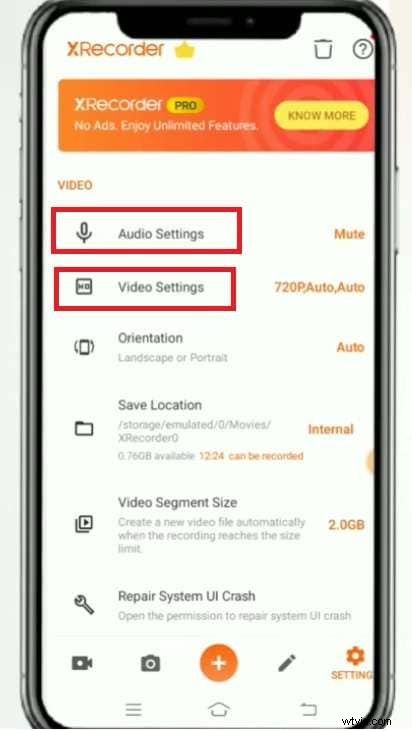
- Tap on Audio Settings to customize audio recording options or tap on Video Settings to adjust video quality and other settings.
- Return to the main screen and tap the camera icon in the bottom left corner.
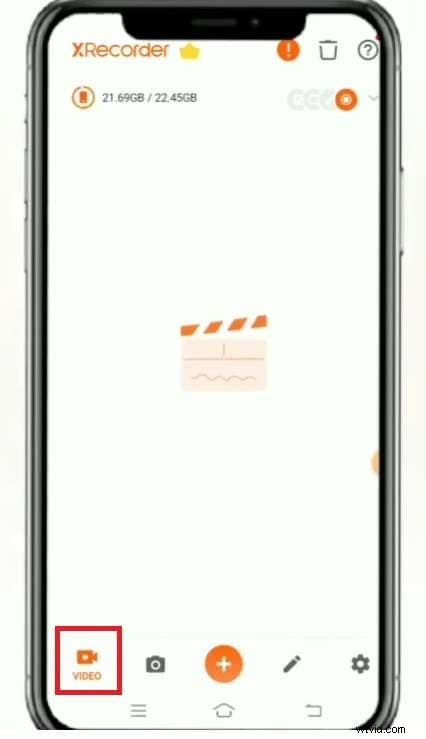
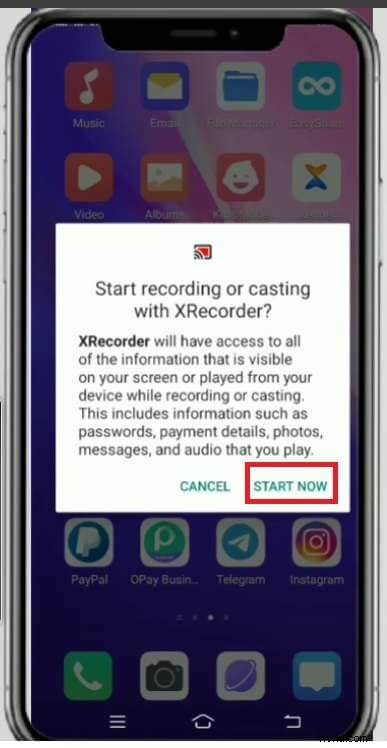
- Click Start Now, and the app will start a countdown and record your screen.
Check the best screen recorder for Android.
How to Record the Screen on Your Phone Using an Online Tool?
Online tools don't require installing any apps on your iPhone or Android to record the screen. You only need a browser to access the tool online. Even though this option is convenient from this perspective, it requires an internet connection to record.
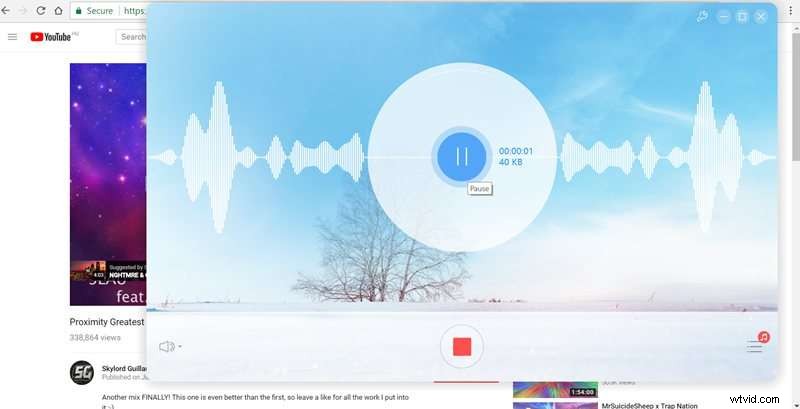
Here's how you can record the screen on your Android/iPhone using the Acethinker online screen recorder:
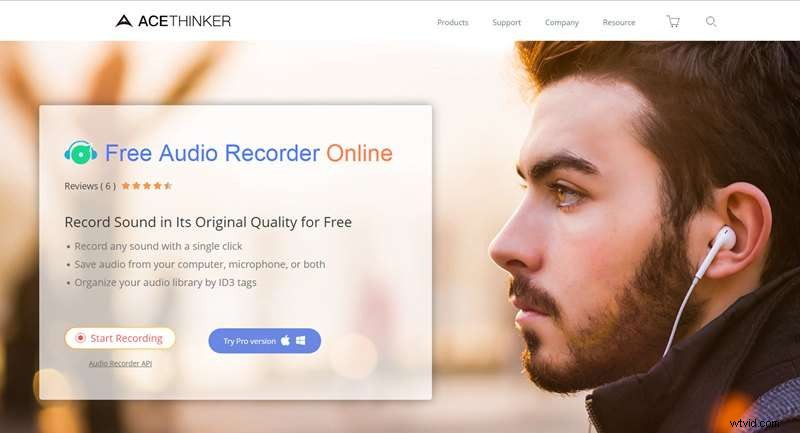
- Go to Acethinker's official web page.
- Tap Start Recording.
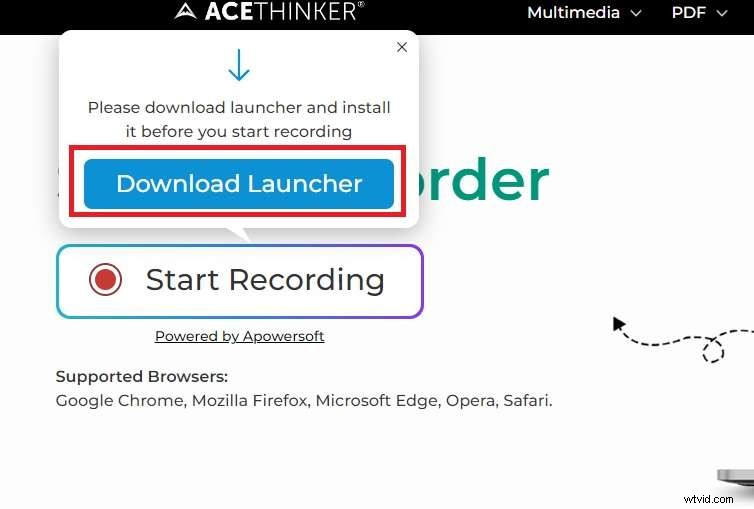
- Tap Download Launcher to start recording. (this is a one-time download)
- Select one of the audio source options you want to record.
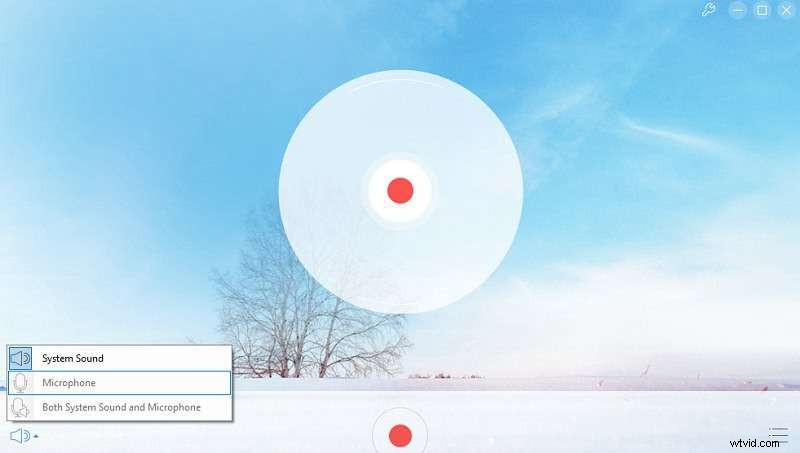
- Tap Start to start recording, and when you're done, tap the Stop button to stop recording.
Bonus: How to Record the Screen on Any Device?
After knowing how to record the screen on mobile, what if you also want to record the screen on your Windows and Mac? Wondershare Filmora might be the right option.
It offers a lot of customized options such as the recording area, recording webcam, and screen at the same time, or recording system audio and voiceovers.
Although its screen recording feature currently only works on Windows and Mac, it can run on Android and iOS for video editing with many powerful features like Filmora for PC. You can sync the recorded videos, edit videos, add effects, and create fantastic content.
Here, we'll demonstrate how to record your PC screen using Filmora.
Download and install Filmora first and follow these steps:


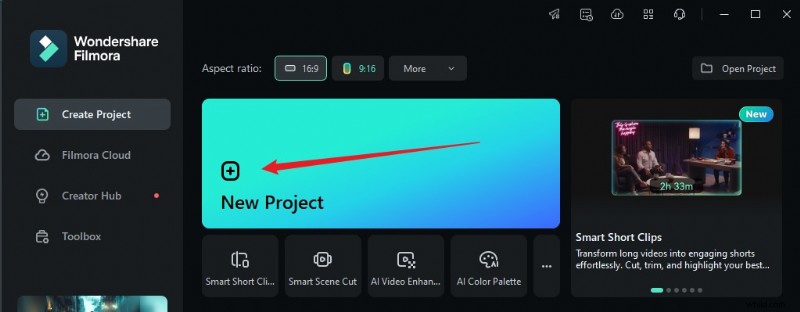
- Launch Filmora and you'll see many options in the startup window. Select New Project.
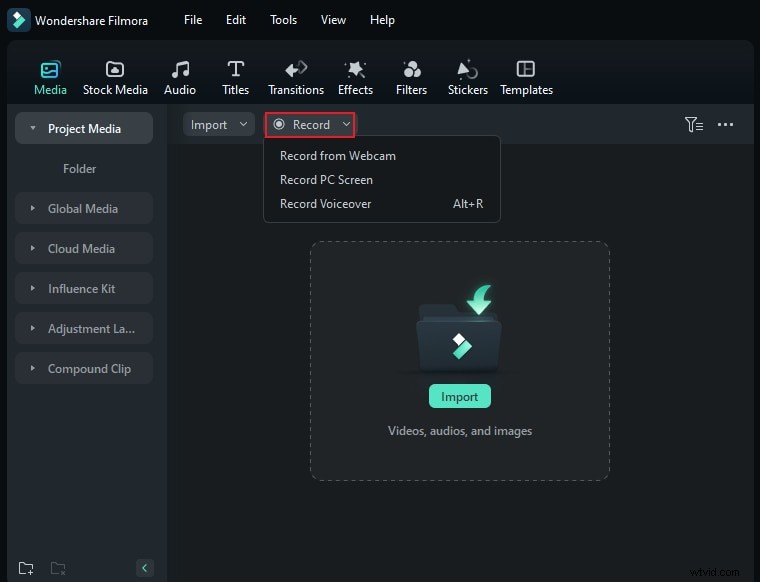
- Navigate to record > Record PC Screen.
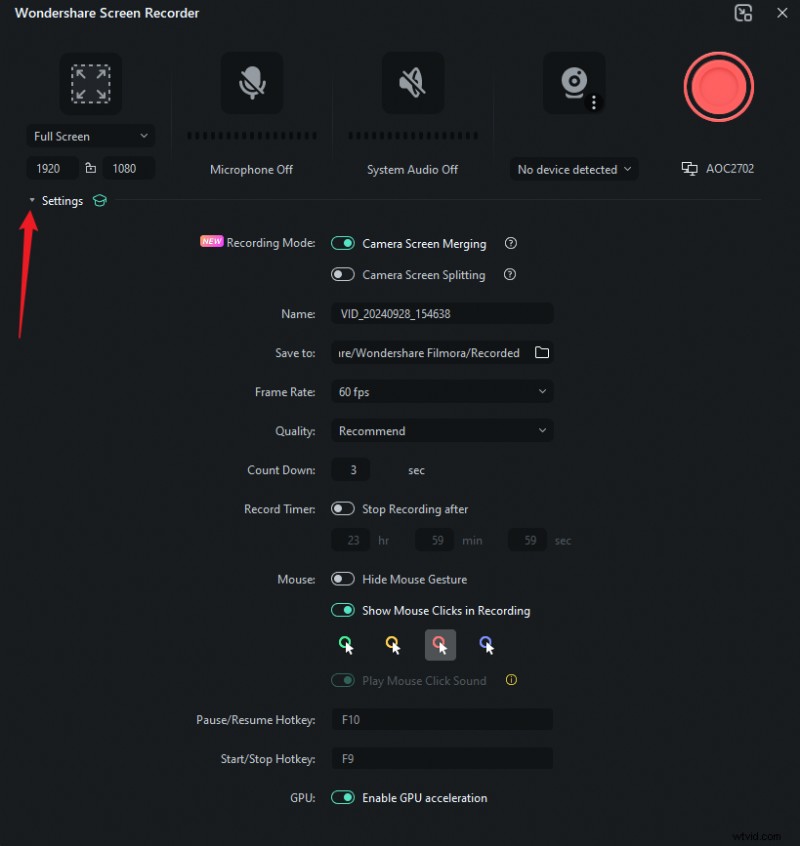
- Both of the options will lead you to this screen. The first option lets you adjust what you want to record. You can choose Full Screen, Custom Recording Area, or Target Window.
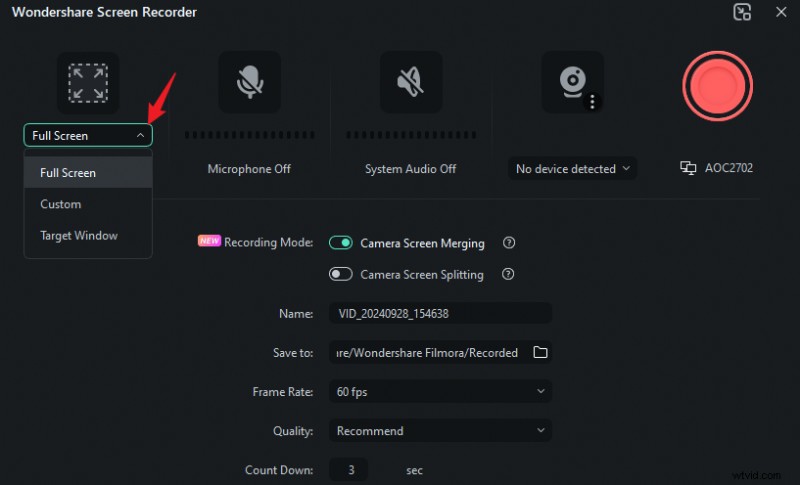
- The next three options let you adjust whether to record your microphone, system sounds, or webcam.
- You can click Settings to adjust additional options, such as the Image name, save location, video quality, record time, and countdown.
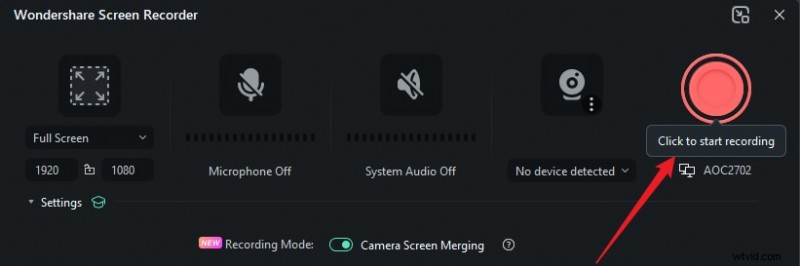
- When ready, click the Red Record button to start recording.
Conclusion
We've provided you with a step-by-step guide on how to record phone screens. If you only need to record the screen for basic needs, you can try to use the built-in methods.
On the other hand, if you want more flexibility, online tools are the right choice. However, if you want all the customization options with additional video and audio editing tools, it's best to use a third-party app like Wondershare Filmora.