

Nov 18, 2025 • Proven solutions
Screen recording—capturing video and audio of your desktop—helps you create tutorials, showcase gameplay, or present content. After recording, uploading directly to YouTube is possible with built‑in features or third‑party tools. Below, we detail the best options for Windows, macOS, and online platforms, covering both free and premium solutions.
- Part 1: Record Screen and Upload Directly on PC
- Part 2: Record Screen and Upload Online
- Part 3: Record Screen and Upload on Mac
Recommended YouTube Screen Recorders for Windows & macOS
These applications run on both Windows and macOS, letting you record the full screen or a selected area, add voiceover or background music, and publish to YouTube with a single click.
Wondershare Filmora
Filmora combines intuitive editing with a robust screen‑capture feature. It records at up to 60 FPS, supports webcam and system audio, and allows you to edit directly in the Media panel before exporting to YouTube.
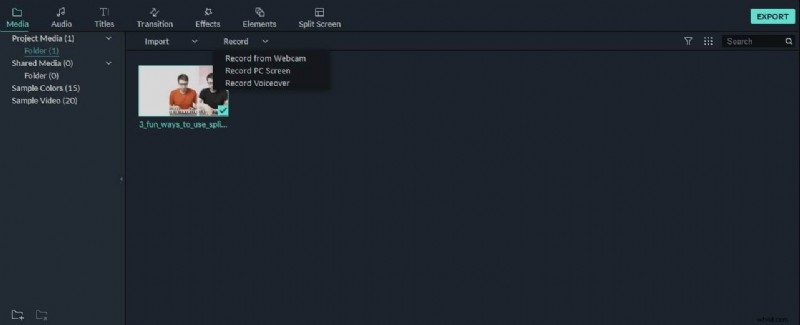
Launch Filmora, select Full Feature mode, go to the Record tab, and choose “Record PC Screen.” Pick your recording type—Target Window, Full Screen, or Custom—and toggle audio sources. When finished, click Export, switch to the YouTube tab, sign in, fill in video details, and publish.
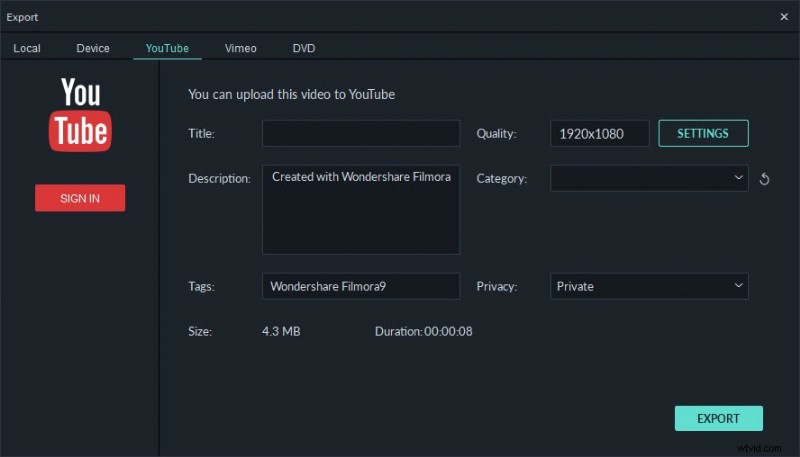
Part 1: How to Record Screen on Windows PC and Upload to YouTube Directly
1. Bandicam
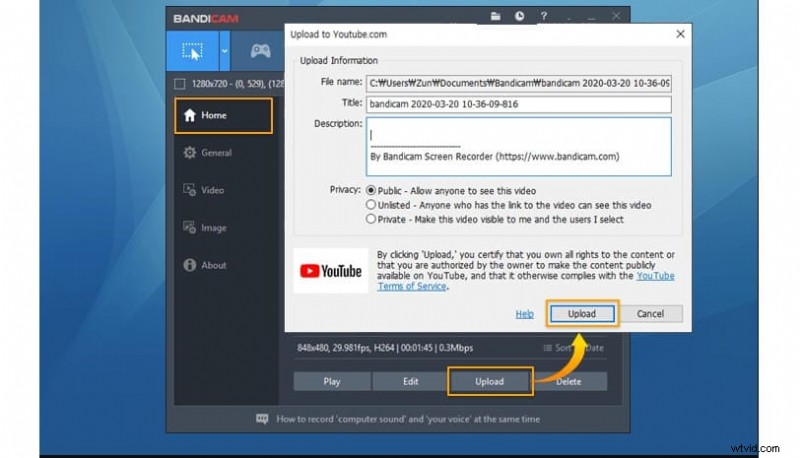
Bandicam’s “Screen Recording” mode highlights a green‑edged rectangle for the capture area. After adjusting the frame, click the REC button; the line turns red. Stop the recording and open the file from the “General” tab. The Output menu contains an “Upload” button that streams directly to YouTube.
2. Microsoft Expression Encoder 4
Download Expression Encoder 4 to capture and encode your screen. Two Start Menu shortcuts—Screen Capture and the main Encoder—handle recording and conversion. Once encoded, the file can be uploaded manually to YouTube.
3. Ezvid
Ezvid records screen and audio simultaneously and offers text‑to‑speech captions, making it ideal for tutorials. It exports in popular formats like MP4 and allows direct upload to YouTube.
4. Smartpixel
Smartpixel supports Windows and Android, offering a simple interface for screen capture. Export options include MP4, AVI, and FLV, and the app includes a direct upload feature to YouTube and other platforms.
Part 2: How to Record Screen Online
1. YouTube’s Built‑In Recorder
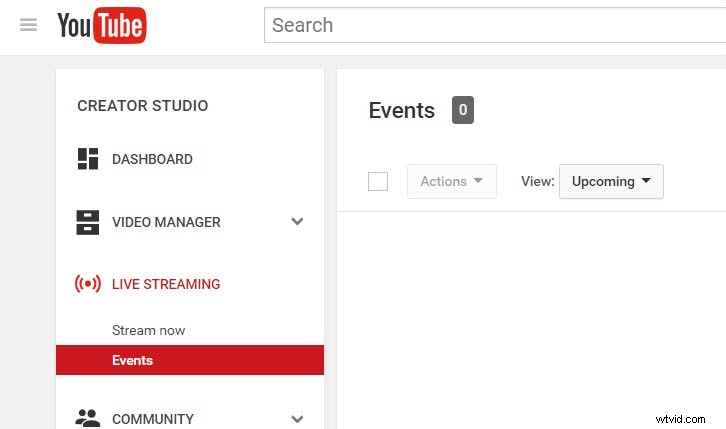
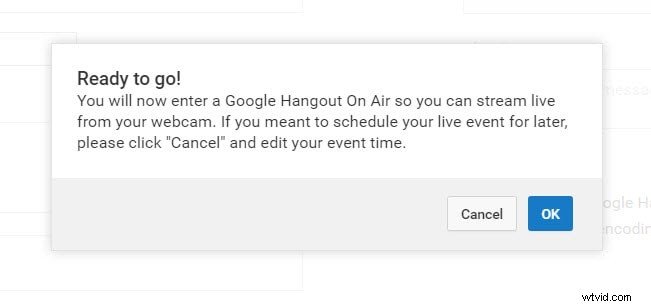
Sign in to YouTube Studio, navigate to Live Streaming > Events, and create a new event. Set the title and privacy, then click “Go Live Now.” In the Hangouts on Air interface, enable the webcam and audio, then choose “Screenshare” to select the window to record. Click “Start Broadcast” to begin recording. When finished, stop the broadcast; the video appears in your YouTube dashboard.
2. FlexClip – Free Online Screen Recorder
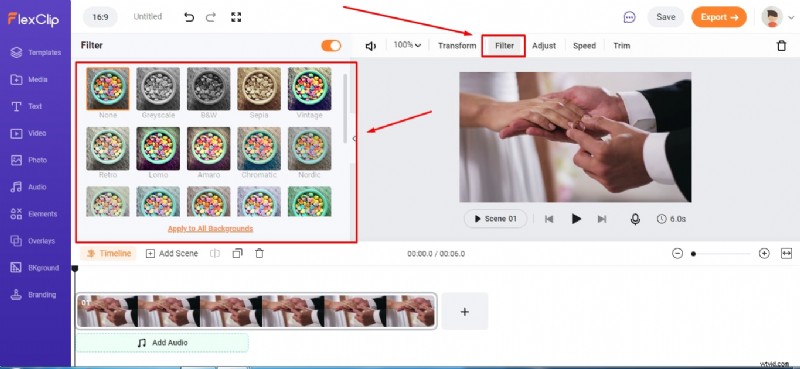
FlexClip offers a browser‑based recorder that captures webcam, screen, and audio with a single click. After recording, the built‑in editor lets you add subtitles, highlights, and overlays. Download the finished video and upload to YouTube.
3. Apowersoft – Free Online Screen Recorder
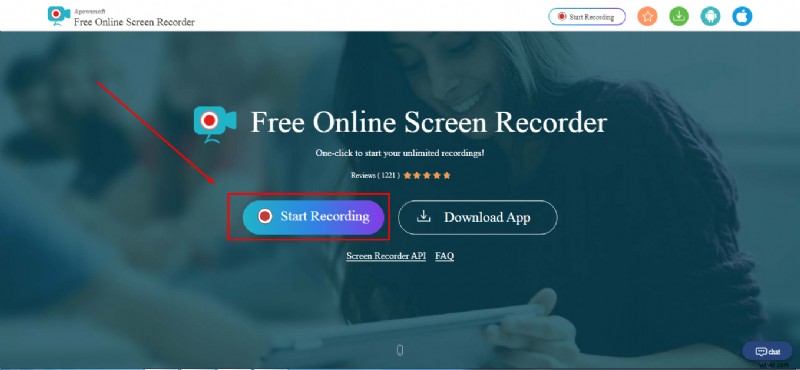
Apowersoft’s online recorder is straightforward: start recording, select the screen area, and save the file locally or to the cloud. The tool is ideal for quick captures that don’t require heavy editing.
Part 3: How to Record Screen for YouTube with Free Tools on Mac
1. QuickTime Player
QuickTime Player, built into macOS, supports screen recording with optional microphone input. Use the “New Screen Recording” option, then choose the area to capture. Export the clip and upload to YouTube manually.
2. ScreenFlow
ScreenFlow is a paid Mac application with a generous trial. It combines screen capture, video editing, and direct YouTube publishing. Features include simultaneous webcam capture, voice narration, and a library of customizable titles and transitions.
3. Vmaker
Vmaker is a free, cross‑platform recorder that supports 4K resolution. After capturing, you can edit with subtitles, music, and effects. The finished video can be saved locally or uploaded to YouTube.
Conclusion
Whether you prefer a desktop application or a web‑based tool, the options above provide reliable ways to capture your screen and publish to YouTube. For advanced editing and a streamlined workflow, Wondershare Filmora remains a top choice. Each solution caters to different skill levels and budgets—choose the one that best fits your content strategy.
FAQs
How do I record my screen on a Mac for YouTube?
Filmora, QuickTime Player, and ScreenFlow are among the most popular tools. Filmora offers the richest feature set, while QuickTime is a free, built‑in alternative. ScreenFlow is ideal for professional‑looking productions.
Can I screen‑record and upload it to YouTube?
Yes—most screen recorders provide a direct upload option, or you can save the video locally and upload via the YouTube web interface.
How do I record my computer screen for 2025?
Tools such as Filmora, Bandicam, and FlexClip support current operating systems and allow you to share directly to YouTube, ensuring your content remains accessible in the future.
Richard Bennett
Richard Bennett is a writer and a lover of all things video.
Follow @Richard Bennett