
Looking for an in‑depth evaluation of Bandicam before you start recording? This review covers everything you need to know—from core features and system requirements to pricing and a comparison with Wondershare Filmora.
In this article
- Overview
- Key Features
- Technical Specifications
- User Experience & UI
- Recording Workflow
- Pricing Structure
- Pros & Cons
- Alternatives
- Key Features of Alternatives
- How to Record Screen with Filmora?
Bandicam Software Overview
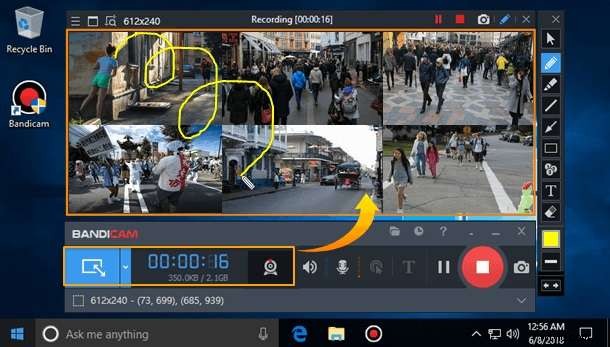
Since its 2009 debut, Bandicam has positioned itself as a lightweight, user‑friendly recorder designed to capture screen activity and gameplay. It’s popular for recording online courses, webinars, gaming sessions, and short personal videos. The software employs the Nvidia H.264 codec for real‑time compression, allowing users to archive more content without bloating file sizes.
Key Features of Bandicam Screen Recorder
Bandicam’s standout capabilities include:
- Flexible Recording Modes: Capture a selected screen area, a single application window, or the entire display.
- Game Recording: Dedicated mode powered by Vulkan, OpenGL, and DirectX, supporting up to 480 FPS and 4K UHD output.
- External Device Support: Record from PlayStation, Xbox, capture cards, webcams, and any HDMI source.
- Real‑Time Annotations: Highlight, draw, or annotate directly on the screen during recording.
- Webcam Overlay: Add picture‑in‑picture webcam feeds, ideal for gamers and streamers.
- Audio Capture: Record microphone input and system sound simultaneously.
- Scheduled Recording: Automate start and stop times for unattended sessions.
- Screenshot Functionality: Capture full‑resolution screenshots in BMP, PNG, or JPG while recording.
- Basic Editing Tools: Trim, cut, join, and adjust audio within the recorder itself.
Bandicam Screen Recorder Tech Specs

Key technical details for Bandicam (subject to change—check the official site for updates):
- Supported OS: Windows 7, 8, 10, 11 (64‑bit)
- Minimum System Requirements: Intel Pentium 4 1.3 GHz, 512 MB RAM, 1 GB storage, 800×600 16‑bit VGA
- Video Resolution: Up to 3840×2160 4K UHD
- Output Formats: H.264 codec (MPEG‑4, AMD VCE, Intel Quick Sync, NVIDIA)
- Screenshot Formats: BMP, JPG, PNG
- Maximum Frame Rate: 480 FPS in game mode
Bandicam UX and UI
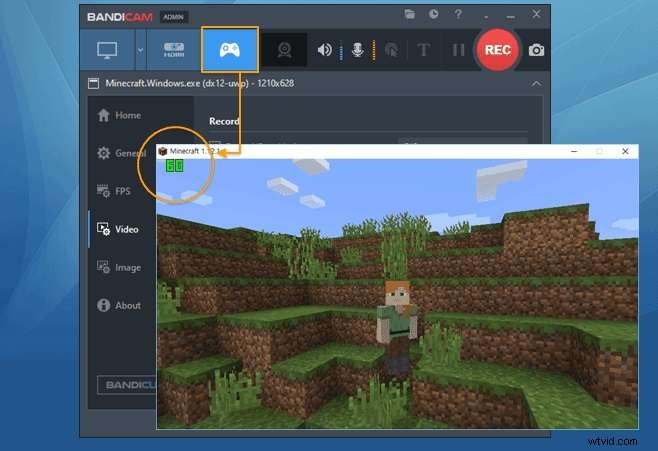
The interface is clean and intuitive, with clearly labeled buttons and tabs for each recording method. Most tasks can be completed with minimal setup using default presets.
Below is a step‑by‑step guide to record a screen area:
- Launch Bandicam. In the Get Started window, select Rectangle Area or click the icon in the upper‑left corner to choose a specific region.
- Adjust the selection box to the desired screen portion.
- Press the red REC button in the upper‑right corner to start recording.
- Use the pen icon to annotate in real time, if needed.
- Click the red button again to stop and automatically save the file.
Bandicam Software Pricing
| Bandicam | Price | Features |
| Free Plan | $0 | 10‑minute limit, watermark, no scheduling, no annotations |
| Annual Plan | $2.78/month | Unlimited recording, scheduling, no watermark, annotations, support, updates |
| Bandicam+Bandicut | $49.97/year | Unlimited recording & editing, scheduling, no watermark, support, updates |
| Lifetime Plan | $44.96 one‑time | Lifetime access, unlimited recording, scheduling, no watermark, support |
Pros and Cons of Bandicam Screen Recorder
Pros
- High‑quality 4K UHD and 480 FPS recordings
- Lightweight footprint—runs on modest hardware
- Multiple recording modes (screen, game, device)
- Hardware acceleration reduces file size and system load
- Preset profiles simplify setup
- Intuitive, straightforward UI
Cons
- Free version adds a watermark and 10‑minute limit
- No live‑streaming support
- Windows‑only
- Limited advanced settings and editing tools
- No built‑in audio mixer or AI features
Best Alternative to Bandicam Screen Recorder: Wondershare Filmora
While Bandicam excels on Windows, it doesn’t support macOS. For users needing cross‑platform recording and more robust editing, Wondershare Filmora offers a compelling alternative.


| Comparison | Bandicam | Filmora |
| Screen Recording | Yes | Yes |
| Webcam Recording | Yes | Yes |
| Voiceover Recording | No | Yes |
| Set Recording Time | Yes | Yes |
| Time Limits | 10‑minute free trial | No limits |
| Editing Features | Basic | Basic + Advanced |
| Output Formats | AVI, MP4, MKV, WEBM | WMV, MP4, MKV, MOV, AVI, F4V, TS, WEBM, MP3, GIF, MPEG‑2, 3GP |
| Price Range | $0–$44.96 | $0–$49.99 |
Key Features of Filmora
- Customizable recording area (full screen, window, or specific region)
- Simultaneous webcam and screen capture
- System audio & voiceover support
- Scheduling for automated recordings
- Mouse‑click highlighting
- Background noise removal and AI‑powered music generation
- AI voice enhancement and speech‑to‑text transcription
Filmora’s advanced editing and AI tools streamline post‑production, making it a powerful option for creators on both Windows and macOS.
How to Record Screen with Filmora?
Recording with Filmora is straightforward—refer to our video guide for detailed instructions.
Conclusion
Bandicam remains a solid, lightweight recorder for Windows users who need high‑quality screen or game capture. However, its Windows‑only focus and limited editing capabilities may prompt users to consider alternatives like Wondershare Filmora, especially if you require macOS support or advanced post‑production features.
Both applications are easy to use and offer comparable pricing tiers. Test them out to determine which aligns best with your workflow.