
"I need to record a video presentation and make a cameo appearance, but I just can't figure out how to make a webcam recording. Is there an easy way to record with a webcam on Windows 10?"
Whether you’re creating a polished corporate briefing, a detailed school project, or a lively social media clip, Windows offers a range of reliable tools to capture your webcam footage.
Built‑in apps are perfect for quick, low‑budget recordings, while third‑party solutions—both downloadable and web‑based—deliver the crisp, professional quality most creators demand.
Explore the top methods to record with a webcam on Windows 10 and choose the one that best fits your workflow.
In this article
- Record with Wondershare Filmora
- Record with the Camera App (built‑in)
- Record with Game Bar (built‑in)
- Record online with Wondershare DemoAir
Preparations for Recording Videos with Webcam on Windows 10
Before you hit record, make sure your setup is optimized for quality:
- High‑resolution webcam: Choose a camera that delivers sharp, clear images.
- Proper lighting: Natural light or a ring light positioned behind the camera reduces shadows.
- Clean background: A tidy backdrop keeps viewers focused; consider green‑screen tools if needed.
- Soundproofing: Minimise ambient noise with a decent microphone or a quiet room.
- Permissions: Grant camera and microphone access to your chosen app.
Once you’ve set up your environment, select a tool and start recording.
Choose between a quick built‑in option or a more robust third‑party solution depending on your quality requirements.
| Method | Record Quality | Ease of Use |
| Wondershare Filmora | ⭐⭐⭐⭐⭐ | ⭐⭐⭐⭐⭐ |
| Camera App | ⭐⭐⭐ | ⭐⭐⭐⭐ |
| Game Bar | ⭐⭐⭐ | ⭐⭐⭐ |
| DemoAir | ⭐⭐⭐⭐⭐ | ⭐⭐⭐⭐⭐ |
Record with Wondershare Filmora
Filmora is a feature‑rich video recorder and editor that caters to both novices and professionals. Its intuitive interface allows you to capture webcam and screen footage simultaneously, tweak audio inputs, and apply advanced editing tools—all without a steep learning curve.
Key strengths:
- Screen and webcam recording in one session
- AI‑powered background replacement and object removal
- Beauty filters, color grading, and custom effects
- Integrated music library for background tracks
Step‑by‑step:
- Download and launch Filmora. Register or sign in.
- From the main menu, click Screen Recorder.
- Enable Webcam, Microphone, and System Audio. Adjust the recording area as needed.
- Open Settings to set frame rate, cursor visibility, countdown timer, and more.
- Press the red Record button to start. Press F9 to stop.
- Use the built‑in editor to refine your footage—crop, add transitions, or export directly.
Record with the Camera App (built‑in)
The native Camera app is the simplest way to capture webcam footage. While it doesn’t match third‑party quality, it’s handy for on‑the‑fly recordings.
- Click the Start menu and open Camera.
- Allow the app to access your camera and microphone.
- Tap the video icon and hit Record. When finished, tap the stop button.
Record with Game Bar (built‑in)
Game Bar is designed for gamers but can also record any active window. It’s ideal for screen capture with minimal setup.
- Open the application or window you wish to record.
- Press Windows + G to launch Game Bar.
- Click Start Recording or press Windows + Alt + R to begin. Click again to stop.
Record online with Wondershare DemoAir
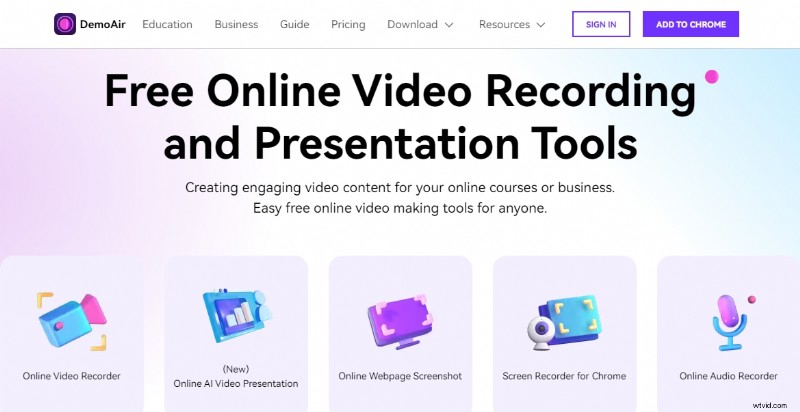
If you prefer not to install software, DemoAir’s free online recorder is a solid choice. With a stable internet connection, you can capture webcam or screen footage and edit directly in the browser.
- Navigate to the Wondershare DemoAir website and select Online Video Recorder.
- Choose Record Webcam Only or Screen & Webcam.
- Grant camera and microphone permissions.
- Log in with your Wondershare account and click Start Recording.
- After recording, export or download the file.
Note: The free tier limits recordings to 10 minutes. Upgrade for unlimited sessions and access to the full DemoCreator suite.
Conclusion
Recording webcam video on Windows 10 is straightforward once you pick the right tool. Built‑in options like the Camera app and Game Bar are great for quick, low‑quality clips, while DemoAir offers a convenient web‑based solution. For the highest fidelity and editing flexibility, download Filmora.
With these four proven methods, you can produce professional‑looking webcam videos that elevate any presentation, project, or social media post.

