
Screen‑recording quality can make or break presentations, tutorials, and gameplay streams. Lag—whether audio slips behind the video, frames drop, or the frame rate drops—undermines the user experience and can frustrate both creators and viewers. In this guide, we identify the best lag‑free screen‑recording solutions and share practical tips to keep your recordings smooth and professional.
Why Lag Happens in Screen Recordings
Lag typically stems from one or more technical constraints. Understanding these factors helps you choose the right tool and optimize your system:
- Limited system resources – Heavy multitasking depletes RAM and CPU, causing the recorder to stutter.
- Background processes – Unnecessary applications compete for bandwidth and memory.
- Software optimization – Some recorders are not tuned for all hardware configurations.
- High resolution and frame rate – Recording 1080p/4K at 60 fps pushes even powerful PCs to the limit.
- Out‑of‑date drivers – Graphics drivers that don’t support the latest encoding APIs can choke the workflow.
- Network issues – Cloud‑based recorders or live‑streaming modes depend on stable connections.
With these factors in mind, we’ve evaluated the leading lag‑free recorders. Below is a quick reference guide to help you decide which tool best matches your workflow.
| Tool | Compatibility | Ideal For |
|---|---|---|
| Filmora | Windows, macOS | Content creators who want a one‑stop recording and editing solution |
| ScreenRec | Windows, Linux | Teams needing instant sharing and cloud backup |
| Aiseesoft Screen Recorder | Windows, macOS | Gamers prioritizing low latency |
| OBS Studio | Windows, macOS, Linux | Live‑streamers and advanced broadcasters |
| Camtasia | Windows, macOS | Professional educators and corporate trainers |
| Bandicam | Windows | Gamers and educators on Windows |
| ScreenFlow | macOS, iOS | Mac users who need integrated editing |
| ShareX | Windows | Developers and power users who prefer open‑source |
Wondershare Filmora
Filmora combines a robust recording engine with a full‑featured editor, making it a favourite for YouTubers and instructional designers. Its adaptive bitrate settings and optional AI enhancements keep footage smooth even at 4K and 60 fps.

Key Features
- Customisable capture region and scheduling
- Real‑time mouse highlights and drawing tools
- AI‑powered video upscaling and audio denoising
- Speech‑to‑text transcription and auto‑beat sync
- Export to 4K with selectable codecs
Pros & Cons
Pros
- Extensive editing toolkit within the same application
- Unlimited recording time in the free version (watermark only)
- Cross‑platform support
Cons
- Watermark on free exports
- Premium features require a subscription
ScreenRec
ScreenRec offers a lightweight, no‑frills recording experience ideal for quick capture and immediate collaboration. It supports offline recording and uploads to the cloud when you’re back online.
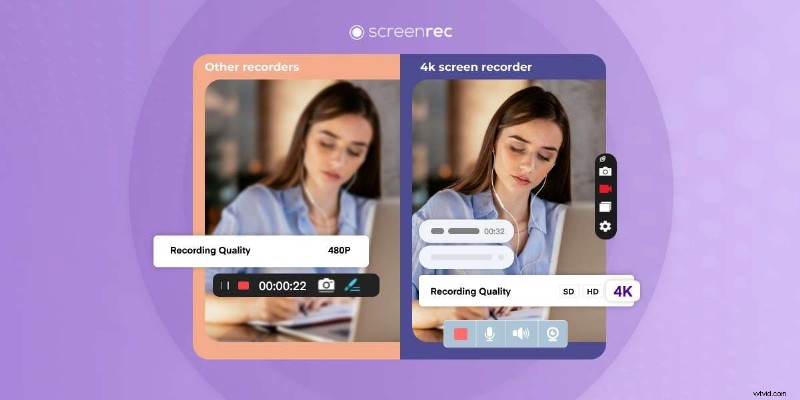
Key Features
- Instant cloud uploads with shareable links
- Screenshot annotation and highlight tools
- Basic analytics on playback metrics
Pros & Cons
Pros
- No watermark in any export
- Consistent, lag‑free performance on modest hardware
- Easy cloud access for team sharing
Cons
- Free tier limits recordings to 5 minutes
- No built‑in editing suite
Aiseesoft Screen Recorder
Tailored for high‑performance gaming, Aiseesoft’s Blue‑Light HD encoder delivers crisp footage with minimal lag. It also offers a range of overlays and capture modes.
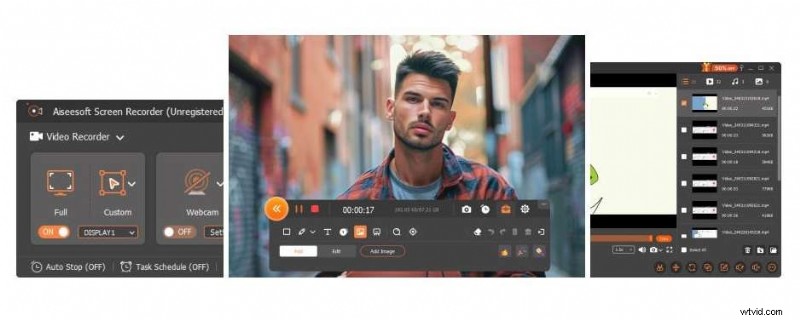
Key Features
- Multi‑audio format support (MP3, FLAC, Opus, etc.)
- Custom capture regions and real‑time drawing
- Basic editing and format conversion
- High‑quality gameplay capture
Pros & Cons
Pros
- Strong compression without quality loss
- Broad format compatibility
Cons
- Trial version has strict limitations
- Requires purchase for full feature set
- Heavier on older machines
OBS Studio
OBS Studio remains the industry standard for live streaming and screen recording. Its modular design lets users assemble complex scenes, adjust audio levels, and apply filters—all without latency.
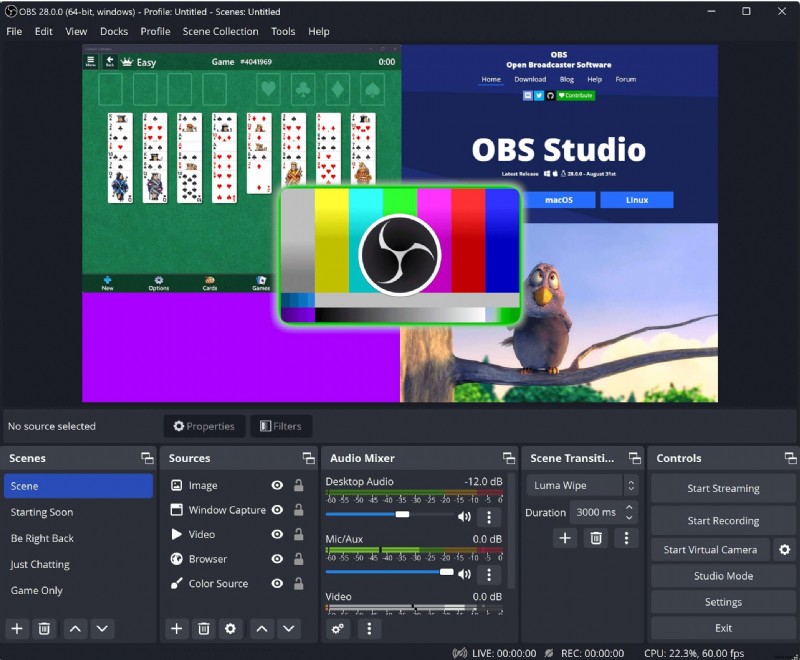
Key Features
- Multi‑source scene composition (window, browser, webcam, capture card)
- Hotkey‑driven source switching
- Built‑in real‑time audio mixing
- Live‑streaming support to major platforms
Pros & Cons
Pros
- Completely free and open source
- Highly customisable with plugins
- Cross‑platform (Windows, macOS, Linux)
Cons
- Steep learning curve for beginners
- No dedicated video editor
Camtasia
Camtasia delivers a polished, all‑in‑one solution for professional‑grade tutorials. Its intuitive editor and asset library enable rapid production of engaging videos.
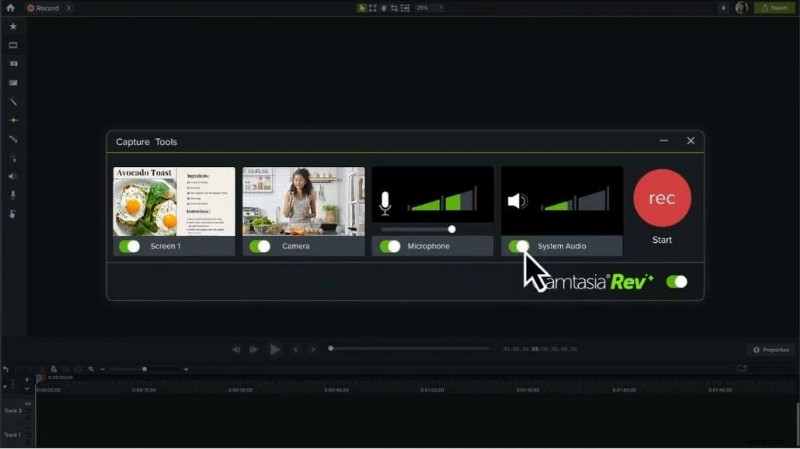
Key Features
- Seamless capture of screen, webcam, and system audio
- Drag‑and‑drop editing with pre‑made templates
- AI‑powered script and voice generation
- Extensive media library for quick inserts
Pros & Cons
Pros
- Feature‑rich editor with smooth workflow
- Strong community support and tutorials
Cons
- Higher price point
- Watermark on free trials
- Limited sharing in basic plans
- Asset library access requires paid license
Bandicam
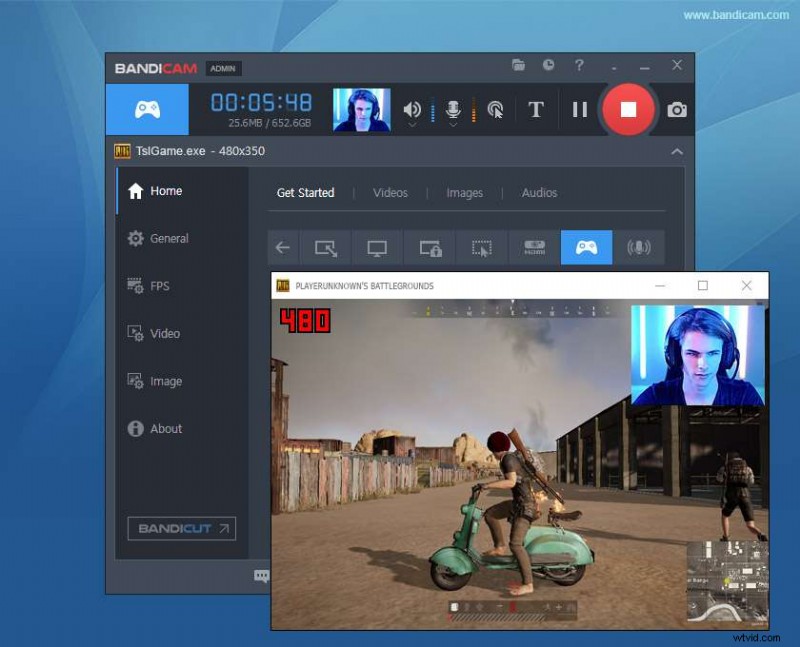
Bandicam excels on Windows with efficient compression and a straightforward interface, making it ideal for game capture and quick demos.
Key Features
- Overlay support for webcam and annotations
- Game‑mode recording for 2D/3D titles
- Custom capture area and scheduling
- Real‑time drawing while recording
Pros & Cons
Pros
- Real‑time drawing and voice mix
- Efficient compression keeping file sizes manageable
Cons
- Exports limited to MP4/AVI
- Free version imposes a time limit and watermark
- Windows‑only
ScreenFlow
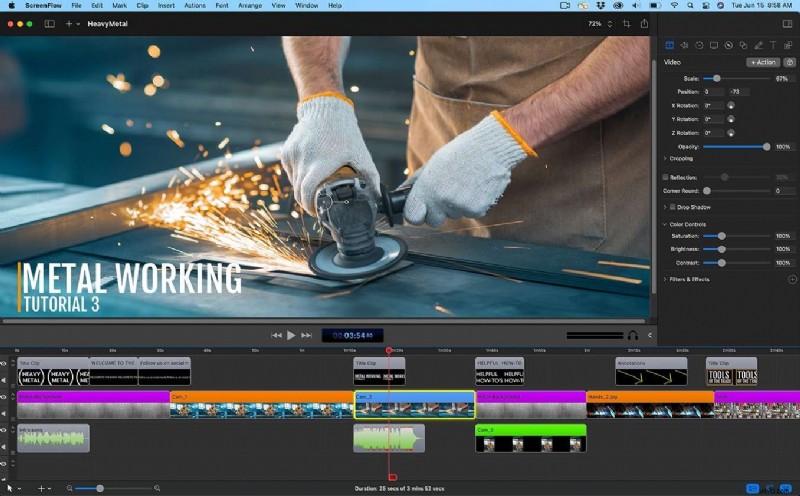
ScreenFlow offers a native macOS experience with high‑quality recordings and a built‑in editor. It’s especially useful for iOS device capture.
Key Features
- iPhone/iPad screen capture via QuickTime
- Motion graphics for text and logos
- Integrated editor for post‑production
- Simultaneous webcam, screen, and mic capture
Pros & Cons
Pros
- Powerful editing tools with minimal learning curve
- Rich stock media library included
Cons
- Only available on macOS/iOS
- Higher cost compared to other options
ShareX
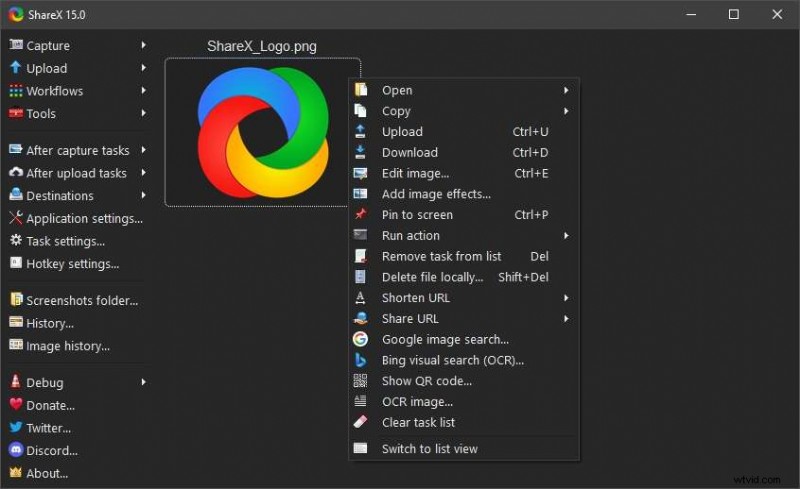
ShareX is an open‑source powerhouse for power users. It offers extensive capture modes and built‑in editing without the clutter of a full video editor.
Key Features
- Customizable capture settings and hotkeys
- Image editing and annotation tools
- GIF creation and scrolling screenshots
- Multiple output formats with minimal lag
Pros & Cons
Pros
- Free, no watermark, open source
- Supports scrolling capture and GIFs
Cons
- Windows‑only
- Interface can overwhelm beginners
- Requires technical know‑how for advanced use
Bonus Tips to Keep Recordings Lag‑Free
- Close unnecessary background applications.
- Use Task Manager (Windows) or Activity Monitor (macOS) to terminate idle processes.
- Lower resolution or frame rate if your system struggles.
- Enable hardware acceleration in your recorder’s settings.
- Save recordings to a separate drive to avoid disk bottlenecks.
- Regularly update graphics and audio drivers.
- Disable desktop notifications during recording.
- Prefer a wired Ethernet connection over Wi‑Fi for cloud uploads.
- Set the PC to High‑Performance mode in power settings.
- Record in short segments to reduce resource load.
Conclusion
Lag‑free screen recording is essential for professionals and hobbyists alike. By selecting a recorder that aligns with your platform and workflow—and by following the performance tips above—you can achieve crisp, uninterrupted video output every time.
FAQs
How do I screen‑record without lag?
Enable hardware acceleration, shut down extraneous applications, adjust resolution and frame rate, keep drivers current, and use a wired network for cloud‑based tools.
What can I do to reduce lag during a recording session?
Opt for a recorder known for low latency, limit background processes, keep the PC in High‑Performance mode, and consider recording shorter clips.
Is there a lag‑free screen recorder for PC?
Yes—solutions such as Filmora, OBS Studio, Bandicam, and Aiseesoft deliver smooth recordings on Windows. Filmora is often recommended for its balance of recording quality and editing capabilities.